
As-You-Type Checking
When TX Spell .NET for Windows Forms is connected to TX Text Control, misspelled words get a red zigzag line while the user types, and a right-click on one of them offers suggestions. The connection is one property in the designer; everything after that happens without code. For a TextBox or RichTextBox, which have no underlining of their own, you check the text when it changes and mark the words yourself.
How As-You-Type Checking Works
The editor, not the spell checker, drives checking as you type. A TXSpellChecker on the form holds the dictionaries. The TextControl of TX Text Control asks it about each word the user completes and underlines the words it reports as misspelled. Two properties of the TextControl switch this on:
- SpellChecker names the spell checker the editor uses. It is
nulluntil you connect one. - IsSpellCheckingEnabled turns checking on and off. When it is
trueand a spell checker is connected, misspelled words are underlined automatically.
Since version 29.0 of TX Text Control, a word is checked once it is complete: when the user types a delimiter such as a space, moves the caret elsewhere, or leaves the document. A word the user is still typing is not underlined. The two recordings below show the difference, before and after that change:
You don't call Create on a spell checker connected to a TextControl: the connection initializes it.
Connect the Spell Checker in the Designer
This needs a form with a TextControl and a TXSpellChecker on it, both from the Visual Studio toolbox. The spell checker is a component, so it appears as txSpellChecker1 in the component tray below the form. Getting Started builds this form step by step.
Select the
TextControlon the form.In the Properties window, open the drop-down of SpellChecker and choose txSpellChecker1.
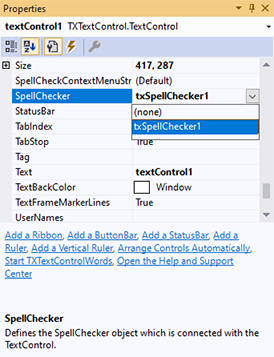
Set IsSpellCheckingEnabled to True.
Run the application and type a sentence with a spelling mistake.
The spell checker's Language is "(Auto)" by default: it loads the dictionary that matches the language of the application environment, and falls back to the English "en_US" dictionary when the dictionary folder has none that matches. The English dictionary is installed with TX Spell .NET, so English text is checked without any further setup. Dictionaries and Languages adds other languages.
Connect It in Code
The same two properties can be set in code, for example in the form's constructor. This form has a TextControl called textControl1 and creates its spell checker itself:
using System.Windows.Forms;
using TXTextControl.Proofing;

public partial class Form1 : Form
{
    private readonly TXSpellChecker txSpellChecker1 = new TXSpellChecker();

    public Form1()
    {
        InitializeComponent();

        // Connect the spell checker and underline misspelled words as the user types
        textControl1.SpellChecker = txSpellChecker1;
        textControl1.IsSpellCheckingEnabled = true;
    }
}
The code works as follows:
new TXSpellChecker()creates the component that a toolbox drag would otherwise create.SpellCheckerconnects it to the editor. Set it tonullto disconnect the spell checker again.IsSpellCheckingEnabledstarts checking. Setting it tofalseremoves the underlines without disconnecting anything, which is how a "Check spelling as you type" option in your application can work.
What the User Sees
Every misspelled word in the main text, in headers and footers and in text frames is underlined with a red zigzag line. A right-click on one opens the spell check context menu that TX Text Control shows when a spell checker is connected, with the suggestions, Ignore, Ignore All, Add To Dictionary and the two dialogs:
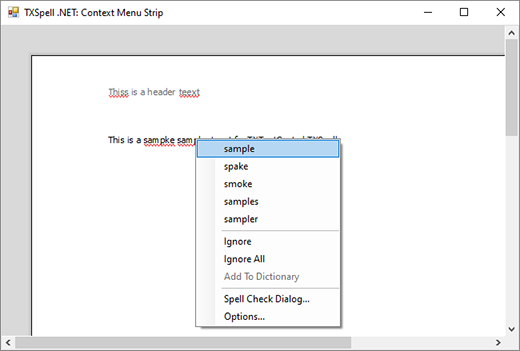
Context Menus describes what each item does and how to build a menu of your own.
Control What Is Checked and Shown
A few properties of TX Text Control decide what is underlined and which menu opens:
| Property | Effect |
|---|---|
| TextControl.SpellCheckContextMenuStrip | The menu of a right-click on a misspelled word; Choose Which Menu Appears lists its values |
| TextField.IsSpellCheckingEnabled | Whether the text of a text field is checked. The default is true; set it to false for fields such as product codes |
| MisspelledWord.IsIgnored | An ignored word stays in the list of misspelled words, but is not underlined |
No property changes the color or the style of the underline.
Check a RichTextBox as the User Types
A RichTextBox has no underline for misspelled words, but it can color them. Call the spell checker's Create method once, because no TextControl initializes it, then pass the text to Check in the TextChanged event and color every word in IncorrectWords red. Unlike TX Text Control, this marks a word while it is still being typed. Check Spelling as You Type builds this application step by step.
Check a TextBox When It Loses the Focus
For a single-line TextBox, checking once the user is done is often enough: check its text in the Validating event and report the result. Check a TextBox When It Loses the Focus shows the handler, and RichTextBox and TextBox keeps the user in the field until the text is correct. Incorrect Words and Suggestions goes further with the words Check finds.
Next Steps
- Checking on Demand: start a check from a button and walk through the words in the spell check dialog.
- Incorrect Words and Suggestions: read the misspelled words and their suggestions in code.
- Ignore Settings: skip words in capitals, with numbers, URLs and e-mail addresses.
- Checking Multiple Controls: share one spell checker between several editors.