
Installing the Product
The setup of TX Spell .NET for Windows Forms installs everything you develop with: the assemblies for .NET Framework projects, the NuGet packages for .NET projects, the US English language data and the samples. It comes as a full version for licensed developers and as a trial version, and the same setup file installs service packs.
Choose the Setup
| Setup | File | For |
|---|---|---|
| Full version | TX Spell .NET for Windows Forms 11.0 with SP1.exe | Licensed developers |
| Trial version | TX Spell .NET for Windows Forms 11.0 Trial.exe | Evaluating the product: fully featured and free for 30 days |
The trial version works like the full version, except for a trial dialog every fifteen minutes; Trial Version describes what it may be used for and how to switch to the full version.
Download the Setup
- Full version. Sign in to your Text Control account and download the latest setup. The setups there are updated with every service pack. A developer without access to the account receives an email with a download link for the full version.
- Trial version. Download it from the download page of TX Spell .NET for Windows Forms. You sign in to a Text Control account, or create one.
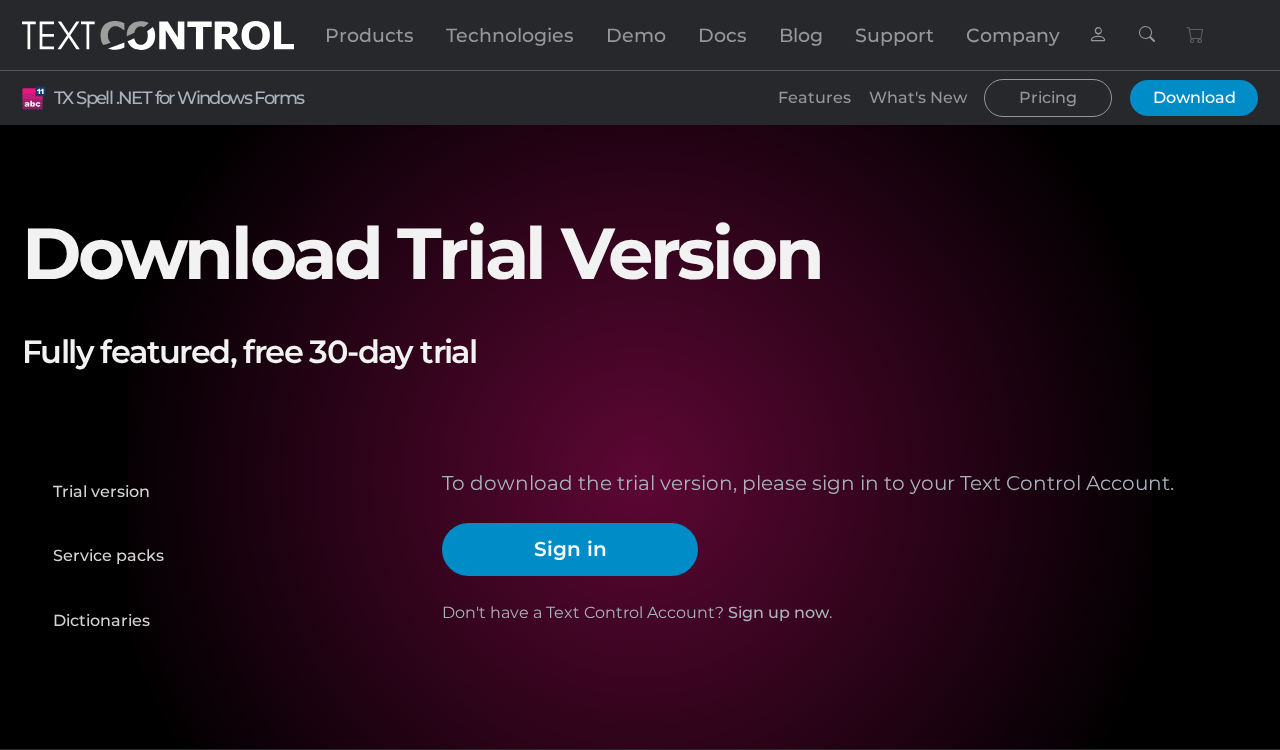
The download page offers the trial version, the service packs and the dictionaries in its menu on the left, and asks you to sign in before the trial version downloads:
Run the Setup
Run the setup and follow its steps. By installing, you agree to the license agreement of TX Spell .NET for Windows Forms.
When you use TX Spell .NET with TX Text Control, install the setup of TX Text Control as well; each product has its own setup. Create Your First Windows Forms Application uses both.
What the Setup Installs
| What | Where | Used for |
|---|---|---|
| .NET Framework assemblies | TXSpell.dll and TXSpell.Windows.Forms.dll in the Assembly folder of the installation folder | .NET Framework projects, which reference them |
| Language data | The folders Dictionaries, HyphenationLists, SynonymLists and LanguageRecognition below the Assembly folder, with the US English data | Spell checking, hyphenation, synonyms and language detection on the development machine |
| NuGet packages | The package source Text Control Offline Packages, with TXTextControl.TXSpell.WinForms.SDK and TXTextControl.TXSpell.Core.SDK | Projects for .NET 8 or higher |
| Visual Studio integration | A toolbox tab with the TXSpellChecker component, for .NET Framework projects | Placing the spell checker on a form |
| Samples | TX Spell 11.0.NET for Windows Forms\Samples\WinForms in your Documents folder, in a CSharp and a VB.NET folder | Samples for TX Text Control, the RichTextBox and TextBox, dictionaries and the dialogs |
| Resource Kit | A ResourceKit folder in the installation folder | Building localized versions of the texts of the dialogs |
- The packages are not on nuget.org. In a .NET project, you select Text Control Offline Packages as the package source; see Installing and Updating Packages.
- The language data is found automatically. While you develop, the spell checker finds the folders below the Assembly folder of the installation; see Installing Dictionaries and Language Data.
Spell Checking Examples lists the samples.
Install a Service Pack
The full setup of the latest service pack updates an existing installation and installs from scratch on a new machine; the setup decides which. Download it from your Text Control account and run it.
- .NET Framework projects reference the assemblies of the installation. The assembly version stays 11.0.1000.500, so the project picks up the service pack when you rebuild.
- .NET projects reference a version of the NuGet package. Update the package to the version of the service pack, 11.0.1 for Service Pack 1, as Installing and Updating Packages describes.
Service Packs lists the service packs and what they changed.
Next Steps
- NuGet Packages: the packages the setup provides.
- Visual Studio Toolbox and Designer: the design-time support.
- License Configuration: how your license reaches your projects.
- Installation and Package Restore: when a package isn't found.