
Visual Studio
TX Spell .NET for Windows Forms 11.0 is made for Visual Studio 2022: the release notes of version 11.0 name it for creating applications for .NET 8 and .NET 9. You write the code in C# or Visual Basic, start from the Windows Forms templates of Visual Studio, and add TX Spell .NET from the package source the setup provides.
Supported Version and Languages
| Supported | |
|---|---|
| Visual Studio | Visual Studio 2022 |
| Languages | C# and Visual Basic |
The setup installs its samples in C# and Visual Basic. The tutorials of this documentation use C#. The blog article Document Editor with TX Spell .NET on Linux using ASP.NET Core uses Visual Studio 2026.
Project Templates
| Project | Template |
|---|---|
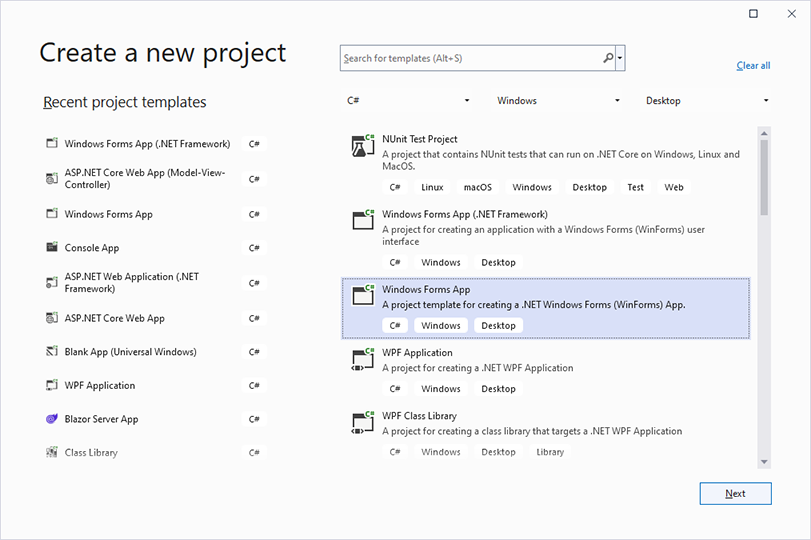
| .NET 8 or higher | Windows Forms App |
| .NET Framework | Windows Forms App (.NET Framework) |
In the Create a new project dialog, select C# or Visual Basic from the Languages list, Windows from the Platform list and Desktop as the Project Type to find them:
How TX Spell .NET Appears in Visual Studio
- The NuGet Package Manager. The setup adds the package source Text Control Offline Packages, which holds the packages of all installed Text Control products. In Project > Manage NuGet Packages..., you select this source and install
TXTextControl.TXSpell.WinForms.SDK. Installing and Updating Packages shows the steps. - The toolbox. In a .NET project, the package adds the tab TXSpell 11.0 with the
TXSpellCheckercomponent to the toolbox; in a .NET Framework project, the setup creates the toolbox tab. You drag the component onto a form, where it appears in the component tray. - The Properties window. The designer connects the spell checker to TX Text Control without code: the
SpellCheckerproperty of theTextControloffers theTXSpellCheckerin its drop-down list.
Visual Studio Toolbox and Designer describes the design-time support in detail.
Next Steps
- Installing the Product: run the setup that provides the package source.
- Create Your First Windows Forms Application: a first project in Visual Studio.
- Toolbox and Designer: what to do when the spell checker doesn't appear.