
Publishing .NET Applications
A Windows Forms application for .NET 8 or higher that uses the NuGet package TXTextControl.TXSpell.WinForms.SDK is published like any other .NET application: Publish in Visual Studio, or dotnet publish on the command line, creates one folder that holds your application, the assemblies of TX Spell .NET and its language data. You deploy that folder, and the application checks spelling on the user's machine as it did on yours.
Before You Begin
- The project references TXTextControl.TXSpell.WinForms.SDK; see Package Overview.
- The project builds with the full version of TX Spell .NET, not the trial; see Application Licensing.
- Every language the application checks is in the language data folders of the project; see Installing Dictionaries and Language Data.
Publish With Visual Studio
In Solution Explorer, select the project, and choose Build > Publish Selection.
Select Folder as the target, and click Next:
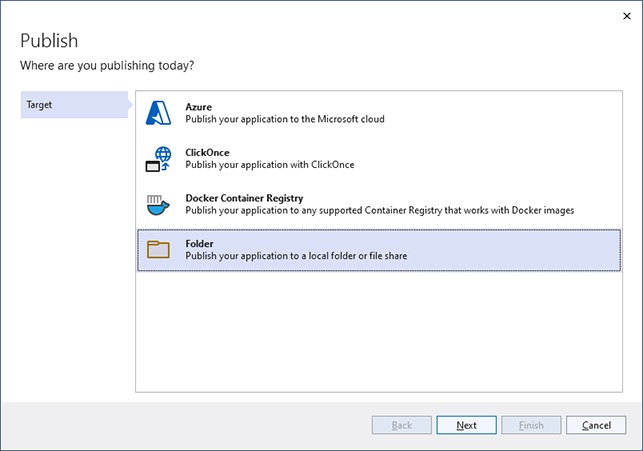
Select Folder again as the specific target, and click Next.
Choose the folder to publish to, and click Finish. Visual Studio creates a publish profile.
On the Publish tab, click Show all settings.
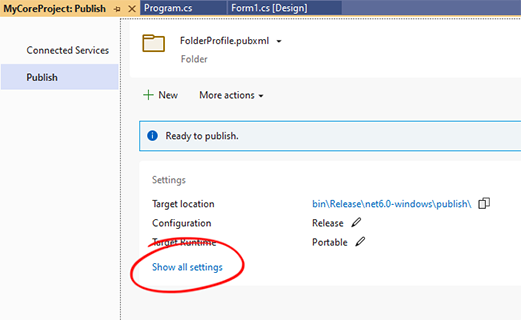
When the application also uses TX Text Control, select
win-x64as the Target runtime. Without TX Text Control, TX Spell .NET is platform-independent, and you can keep Portable: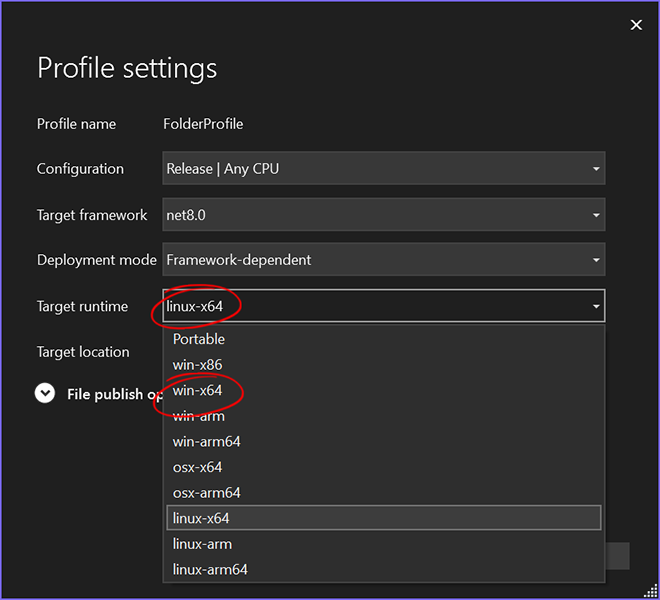
The screenshot shows a project for
net8.0; a Windows Forms project targetsnet8.0-windows. Thelinux-x64runtime in the list applies to server applications, not to Windows Forms.Click Save, then Publish.
Publish on the Command Line
The same publish with the .NET CLI, for an application that uses TX Text Control:
dotnet publish Release win-x64 false
Without TX Text Control, no runtime is needed:
dotnet publish Release
The files of TX Spell .NET in the publish folder are the same either way; Assemblies and Language Data Folders lists them. Only TX Text Control needs the runtime: without one, its native libraries go into runtimes\win-x86\native and runtimes\win-x64\native; with win-x64, they sit next to the executable.
Framework-Dependent or Self-Contained
| Deployment mode | The user's machine needs | The publish folder holds |
|---|---|---|
| Framework-dependent (the default) | The .NET Desktop Runtime of the version your project targets | Your application and the files of TX Spell .NET |
Self-contained (--self-contained true, requires a runtime) | Nothing | The same, plus the complete .NET runtime |
TX Spell .NET works the same in both modes.
Publish an ASP.NET Core Application
An ASP.NET Core application that checks text with the TXSpell class, or hosts the Document Editor of TX Text Control .NET Server, uses the package TXTextControl.TXSpell.Core.SDK instead of the Windows Forms package. It brings TXSpell.dll, the de folder with the German texts and the four language data folders, and copies them into the build and publish output in the same way, so the steps above apply unchanged.
When the application uses TX Text Control as well, select linux-x64 for a Linux server or win-x64 for a Windows server as the Target runtime:
dotnet publish Release linux-x64 false
Without TX Text Control, TX Spell .NET needs no runtime there either. Copy the complete publish folder to the server. TX Text Control .NET Server Document Editor describes spell checking in the editor on Linux and in Docker containers.
Single File and Trimming
Publish to a folder. Single-file publishing isn't described for TX Spell .NET, and even then the four language data folders would stay loose next to the executable. Trimming isn't available: the .NET SDK refuses PublishTrimmed for Windows Forms applications.
Deploy the Folder
Copy the complete content of the publish folder to the user's machine, with your installer or any other tool. Neither the NuGet package nor the setup of TX Spell .NET is needed there, and there is no license file to add, because the license is inside your assembly. When the application misses files on the user's machine, see A Published Application Misses Files.
Next Steps
- Assemblies and Language Data Folders: every file in the publish folder.
- Build Servers: publish on a build machine with a licensed build.
- Deploying .NET Framework Applications: deployment without the NuGet package.