
Open the Spell Check Dialog
The spell check dialog of TX Spell .NET works with any control, not only with TX Text Control. For a RichTextBox, the dialog walks through the misspelled words and the user picks a correction, while a short event handler writes each correction back into the control. You add this to the application of Check Spelling as You Type.
Prerequisites
- The application of Check Spelling as You Type: a form with a
RichTextBoxcalled richTextBox1 and aTXSpellCheckercalled txSpellChecker1, in a project with the packageTXTextControl.TXSpell.WinForms.SDK.
How the Dialog Works With a RichTextBox
A RichTextBox knows nothing about the spell checker, so the work is split in two:
- Your code passes the text to Check. The spell checker finds the incorrect words and keeps them in IncorrectWords.
- Show opens the dialog with these words. Each time the user changes or deletes a word, the spell checker raises IncorrectWordChanging, and your handler makes the same change in the
RichTextBox.
Add the Button
- Open Form1 in the designer. Select richTextBox1 and set its Dock property to None, so that there is room for a button, and make it a little smaller.
- Draw a
Buttonfrom the Common Controls tab onto the form. Set its Text to Spell Check Dialog... and its (Name) to buttonSpelling. - Double-click the button. Visual Studio creates the handler
buttonSpelling_Click. - Select txSpellChecker1 in the component tray, click the Events button of the Properties window and double-click
IncorrectWordChanging. Visual Studio creates the handlertxSpellChecker1_IncorrectWordChanging.
Write the Code
Add the code to the two handlers in Form1.cs:
private void buttonSpelling_Click(object sender, EventArgs e)
{
    // Find the incorrect words, then walk through them in the dialog
    txSpellChecker1.Check(richTextBox1.Text);
    txSpellChecker1.SpellCheckDialog.Show();
}

private void txSpellChecker1_IncorrectWordChanging(object sender, IncorrectWordChangingEventArgs e)
{
    // Keep the TextChanged handler from checking while the dialog is open
    isColoring = true;

    // Select the word the user is changing
    richTextBox1.Select(e.IncorrectWord.Start, e.IncorrectWord.Length);

    if (e.Type == TXSpell.ChangeType.Replace)
    {
        richTextBox1.SelectedText = e.CorrectedWord;
    }
    else if (e.Type == TXSpell.ChangeType.Delete)
    {
        richTextBox1.SelectedText = "";
    }

    isColoring = false;
}
What the Code Does
- SpellCheckDialog returns the dialog of the spell checker.
Show()without arguments opens it with the words of the lastCheck. - Type says what the user did:
Replace,DeleteorIgnore, values of TXSpell.ChangeType. An ignored word needs no change in the text. - IncorrectWord is the word being changed, with its position in the text.
- CorrectedWord is the suggestion the user chose. Read it only when
TypeisReplace: for other types, it throws an exception. isColoringis the flag of theTextChangedhandler from Check Spelling as You Type. Changing the text raisesTextChanged, and the handler would callCheckwhile the dialog is open, which throws an exception. The flag makes the handler skip these changes; the colors are updated again when the user types.
The code uses IncorrectWordChangingEventArgs and TXSpell from the TXTextControl.Proofing namespace, which the using directive of Form1.cs already imports.
Run the Application
Press F5, type a sentence with a few mistakes, and click Spell Check Dialog.... The dialog opens with the first misspelled word in its sentence:
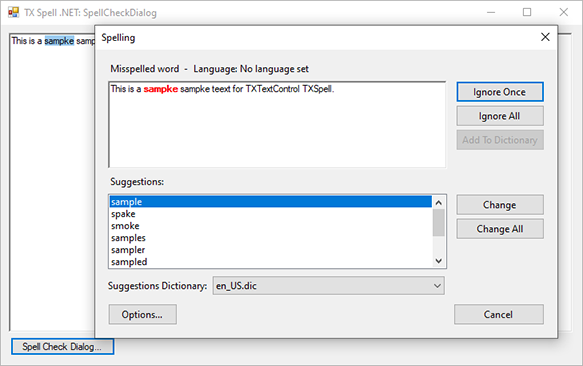
Select a suggestion and click Change: the word is replaced in the RichTextBox, and the dialog moves on to the next one. Ignore Once and Ignore All skip words, and Cancel ends the check. The dialog shows "No language set" because the text of a RichTextBox carries no language information.
Offer Suggestions in the Context Menu
The same words can also be corrected with a right-click. The GetMenuItems method returns ready-made menu items for an incorrect word, with suggestions and the commands of the dialog, to put into a ContextMenuStrip:
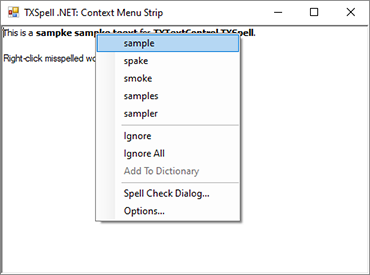
Context Menus builds this menu step by step.
Next Steps
- Checking on Demand: the two dialogs, and how a check ends.
- Checking Multiple Controls: check several
RichTextBoxcontrols in one dialog. - Events: everything the arguments of
IncorrectWordChangingcarry.