
TX Spell .NET for Windows Forms
TX Spell .NET for Windows Forms adds spell checking to a Windows Forms application. You drop the component on a form and connect it to the control whose text should be checked: misspelled words are marked as the user types, suggestions are offered, and a dialog walks through the document word by word. It works with TX Text Control, with the standard text controls, and with text you hand it directly.
Spelling is not all of it. The same component hyphenates text, detects which language a passage is written in, and looks up synonyms, so one set of language data serves the spelling, the line breaks and the thesaurus in your application.
The language data is the freely distributable Hunspell dictionaries from OpenOffice, which cover more than 60 languages, including right-to-left languages such as Arabic, Farsi, Hebrew and Urdu. English is installed with the component; the others are downloaded and shipped with your application.
What It Gives Your Application
| Task | Main classes |
|---|---|
| Check spelling as the user types, or on demand | TXSpellChecker |
| Walk a user through the misspelled words with suggestions | SpellCheckDialog |
| Check against dictionaries in the Hunspell and OpenOffice format | OpenOfficeDictionary |
| Let users add their own words, and keep them between sessions | UserDictionary |
| Hyphenate text with Hunspell hyphenation rules | HyphenationList |
| Offer synonyms from a thesaurus | SynonymList |
| Detect which language a passage is written in | LanguageScope |
| Check text in code, with no control and no user interface | TXSpell |
Any number of dictionaries and user dictionaries can be loaded at the same time, so a document written in more than one language is checked in all of them. One spell checker serves every control on a form — you do not need an instance per editor.
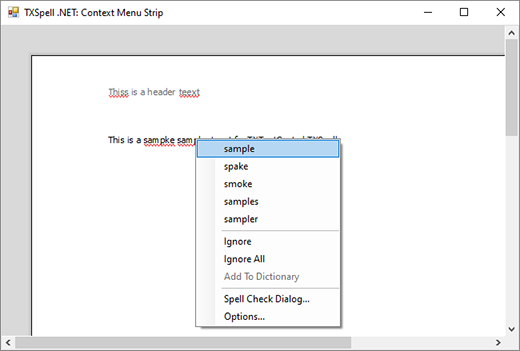
With TX Text Control, connecting the two takes no code at all: set the editor's spell checker and switch on spell checking in the designer, and misspelled words are underlined as they are typed and corrected from the context menu.
Who This Documentation Is for
It is written for .NET developers building Windows desktop applications, and it assumes you know C# or Visual Basic and Windows Forms. It does not assume you know anything about TX Spell .NET, or that you use TX Text Control: the component checks other controls just as well.
How This Documentation Is Organized
- Overview explains what the component does, how its parts fit together, which platforms and languages it supports, and how it is licensed.
- Installation Guide covers the requirements, the packages and the licensing you need before you write any code, and the language data you ship with your application.
- Getting Started connects the component to a control and checks its first document.
- Spell Checking covers checking as the user types and on demand, suggestions, ignore settings, and checking several controls at once.
- Dictionaries and Languages covers Hunspell dictionaries, user dictionaries, documents in more than one language, and language detection.
- Hyphenation hyphenates text with Hunspell hyphenation lists, in TX Text Control and in code.
- Synonyms and Thesaurus offers synonyms in the context menu and looks them up in code.
- User Interface covers the spell check dialog, the options dialog, the context menus and the suggestion controls, and how to customize and localize them.
- Integration Guide connects the component to TX Text Control .NET for Windows Forms, the Windows Forms RichTextBox and TextBox and other controls, and to the Document Editor of TX Text Control .NET Server.
- Deployment Guide covers the assemblies and language data folders you ship, and how to publish and license your Windows Forms application.
- Troubleshooting collects the common problems with installation, licensing, dictionaries and deployment, and how to solve them.
- Examples lists the sample applications and code examples.
- What's New describes what changed in each version, the service packs, the breaking changes and the deprecated APIs.
- API Reference documents every class, property, method and event of the .NET API.
The .NET API
The .NET API is one namespace.
TXTextControl.Proofing holds the spell checking component and its dialogs, the dictionary, hyphenation and synonym classes, and the events that report an incorrect word and what was done about it.
Where to Start
- Overview: what the component does and what the language data is.
- Installation Guide: what has to be in place first.
- Getting Started: checking a first document.
- TXSpellChecker: the class you will spend the most time in.
Getting Help
- Something does not work. Troubleshooting collects the common problems with packages, the toolbox, licenses, dictionaries and deployment, and how to fix them.
- You need working code. Examples lists the samples the setup installs and the sample repositories of Text Control on GitHub.
- You need Text Control's support team. Registered users and developers who evaluate the trial version get free technical support, and the support engineers answer in English and German. The contact page lists the ways to reach them, and the subscription that comes with a license includes technical support, as the Licensing Overview describes.