
RichTextBox and TextBox
The RichTextBox and TextBox of Windows Forms can be spell checked with TX Spell .NET alone: the package TXTextControl.TXSpell.WinForms.SDK is all it takes, and TX Text Control isn't needed. What differs from TX Text Control is who does the work. TX Text Control underlines, corrects and offers its menu by itself; with a standard control, TX Spell .NET finds the mistakes and your code shows and fixes them. The tutorials in RichTextBox and TextBox build each part step by step; here is what the integration consists of, and what to expect from it.
What TX Spell .NET Does and What Your Code Does
| Task | With a RichTextBox or TextBox |
|---|---|
| Initialize the spell checker | Your code calls Create once; no TextControl does it for you |
| Find misspelled words | Check with the text of the control fills IncorrectWords |
| Mark the words | Your code colors or selects them; there is no wavy underline |
| Offer the dialog | SpellCheckDialog.Show() walks the user through the words of the last check |
| Apply a correction | Your code changes the text in the IncorrectWordChanging event |
| Offer a context menu | GetMenuItems creates the items; your code adds them to a ContextMenuStrip |
The positions fit the controls directly: the Start of an IncorrectWord is the zero-based index of its first character in the checked text, the index that RichTextBox.Select and TextBox.Select expect. richTextBox1.Select(incorrectWord.Start, incorrectWord.Length) selects the word.
Mark Misspelled Words as the User Types
The TextChanged event of the RichTextBox checks the text and colors each incorrect word red:
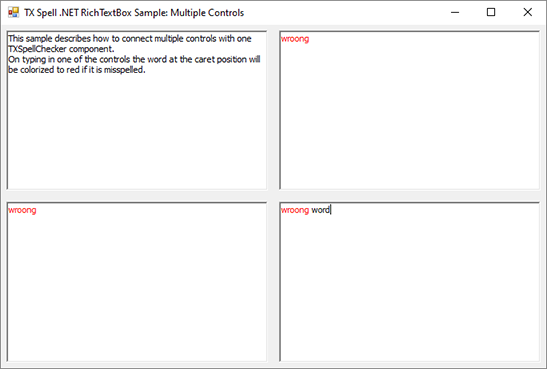
Because the whole text is checked on every change, a word turns red while it is still being typed, and the check takes longer as the text grows. TX Text Control, by comparison, underlines only completed words. Check Spelling as You Type builds this application.
A TextBox can't color single words. Check its text when it loses the focus, in its Validating event, and tell the user that it contains mistakes when IncorrectWords.Count is greater than 0:
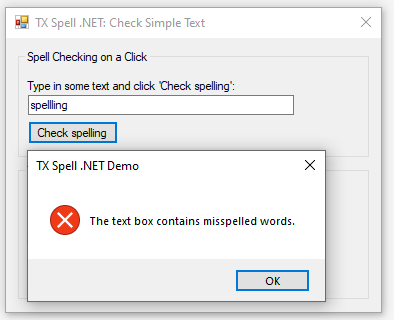
To keep the user in the field until the spelling is correct, set Cancel of the CancelEventArgs to true when Check finds a mistake. The TextBox then keeps the focus, and its Validated event isn't raised:
private void textBox1_Validating(object sender, System.ComponentModel.CancelEventArgs e)
{
    txSpellChecker1.Check(textBox1.Text);

    if (txSpellChecker1.IncorrectWords.Count > 0)
    {
        labelResult.Text = "Misspelled.";
        labelResult.ForeColor = Color.Red;

        // Keep the focus in the text box and skip the Validated event
        e.Cancel = true;
    }
}
The handler of Check a TextBox When It Loses the Focus reports the result only and lets the user move on.
Complete Words in a TextBox
The suggestions of TX Spell .NET can serve as the word list of the AutoComplete feature of a TextBox. While the user types, the incomplete word is misspelled, and its suggestions are the words it could become:
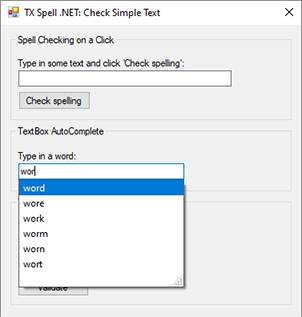
Set AutoCompleteMode of the text box to Suggest and AutoCompleteSource to CustomSource, in the designer or in code, and fill its AutoCompleteCustomSource in the TextChanged event:
private void textBox2_TextChanged(object sender, EventArgs e)
{
    txSpellChecker1.Check(textBox2.Text);

    if (txSpellChecker1.IncorrectWords.Count > 0)
    {
        // At most 10 suggestions for the first misspelled word
        txSpellChecker1.CreateSuggestions(txSpellChecker1.IncorrectWords[0].Text, 10);

        AutoCompleteStringCollection words = new AutoCompleteStringCollection();

        foreach (TXTextControl.Proofing.Suggestion suggestion in txSpellChecker1.Suggestions)
        {
            words.Add(suggestion.Text);
        }

        textBox2.AutoCompleteCustomSource = words;
    }
}
The code works as follows:
Checkfinds the words of the text that aren't in a dictionary; the first one is the word to complete.- CreateSuggestions creates up to 10 suggestions for it and puts them into Suggestions.
- The Text of each Suggestion goes into an
AutoCompleteStringCollection, which becomes the custom source of the drop-down list.
When the text is spelled correctly, the list stays as it is. Incorrect Words and Suggestions explains the suggestion methods.
Correct in the Dialog
The spell check dialog works with any text: call Check first, then SpellCheckDialog.Show(), and apply each correction to the control in the IncorrectWordChanging event:
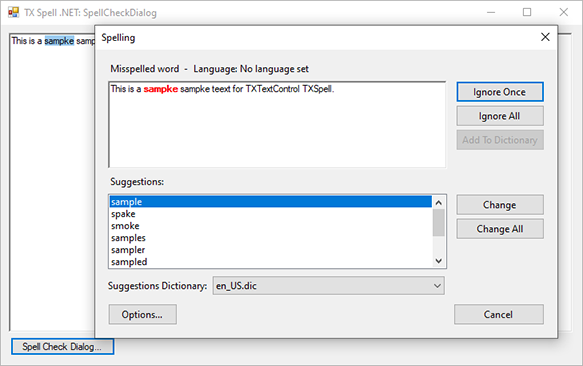
Open the Spell Check Dialog shows the code and explains the handler.
Correct in a Context Menu
A RichTextBox has no spell check menu of its own. The overload GetMenuItems(IncorrectWord, string, int) takes the word under the mouse, the text of the control and the maximum number of suggestions, and returns MenuItem objects with the suggestions and the commands Ignore, Ignore All, Add To Dictionary, Spell Check Dialog and Options:
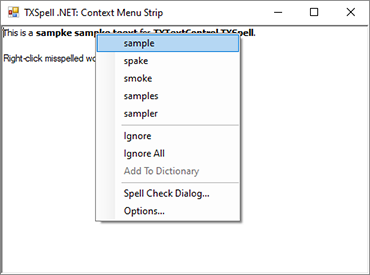
A correction from the menu raises IncorrectWordChanging as well, so the handler of the dialog serves the menu too. A Menu for a RichTextBox builds the menu.
Several Controls
One spell checker serves any number of controls, which saves memory and time compared to one instance per control. IncorrectWords always holds the result of the last Check, so check each control right before you mark its words. To walk through several controls in one dialog, pass the next text to the dialog in its closing event:
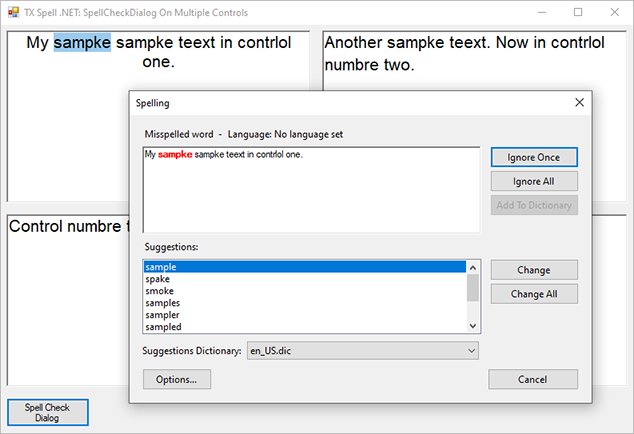
Checking Multiple Controls shows both techniques.
Samples
The setup installs samples for each technique, in C# and Visual Basic, below TX Spell 11.0.NET for Windows Forms\Samples\WinForms in your Documents folder. Spell Checking Examples lists them.
Next Steps
- Other Controls: the same pattern for grids, labels and other controls.
- Events: the events of the spell checker and their arguments.
- TX Text Control .NET for Windows Forms: the integration that needs no code.