
Components
TX Spell .NET for Windows Forms consists of one component you place on a form, the dialogs and menus it brings, and one class for code without a user interface. Knowing which is which tells you what to add to a project and which page to read next.
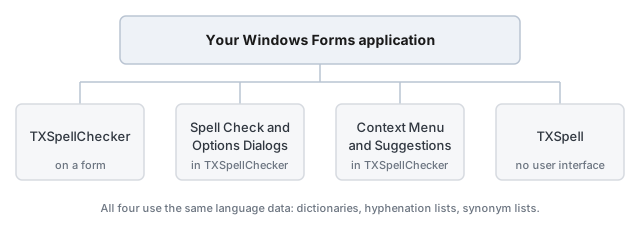
The Components at a Glance
| Component | What it is | Package | Namespace |
|---|---|---|---|
| TXSpellChecker | The spell checking component: connects to TX Text Control, checks other controls, hyphenates, finds synonyms and detects languages | TXTextControl.TXSpell.WinForms.SDK | TXTextControl.Proofing |
| Spell Check Dialog and Options Dialog | The built-in dialogs for correcting words and for the settings | TXTextControl.TXSpell.WinForms.SDK | TXTextControl.Proofing |
| Context Menu and Suggestion Controls | The spell check menu of TX Text Control, menu items for your own menus, and the suggestion lists of the dialog | TXTextControl.TXSpell.WinForms.SDK | TXTextControl.Proofing |
| TXSpell | The same checks without a user interface, for code, services and servers | TXTextControl.TXSpell.Core.SDK, and the Windows Forms package | TXTextControl.Proofing |
All packages have the version 11.0.1 and target .NET 8. The setup of TX Spell .NET provides them through the package source Text Control Offline Packages. The Windows Forms package contains TXSpell.dll, the engine that all packages share, and TXSpell.Windows.Forms.dll with the component and its dialogs. The classes of the language data, such as OpenOfficeDictionary, UserDictionary and HyphenationList, are in the same namespace.
How the Components Work Together
A TextControl with a connected TXSpellChecker asks it about each word the user types, underlines the misspelled ones and opens the spell check menu on a right-click. The menu opens both dialogs, and the spell check dialog opens the options dialog. Your code reaches all of them through the TXSpellChecker: the dialog through its SpellCheckDialog property, the options through OptionsDialog, the menu items through GetMenuItems.
TXSpell has the same methods for checking, suggestions, hyphenation, synonyms and language detection, but no dialogs, menus or events. It is what TX Text Control .NET Server uses, in code and behind its Document Editor. Product Architecture shows the assemblies and the language data behind the components.
Choose a Component
| Your text is in | Use | Start with |
|---|---|---|
| A TX Text Control editor | TXSpellChecker, connected through the SpellChecker property | Create Your First Windows Forms Application |
A RichTextBox, a TextBox or another control | TXSpellChecker and its Check method | RichTextBox and TextBox |
| No control: a string, a file, a service or a server | TXSpell | Checking Text in Code |
Pages in This Section
- TXSpellChecker: the component, how it connects, an example and its key members.
- Spell Check Dialog and Options Dialog: the two built-in dialogs and what can be changed about them.
- Context Menu and Suggestion Controls: the spell check menu, menu items and the lists that show suggestions.
- TXSpell: spell checking without a user interface, on Windows and Linux.