
Events
Every click in the spell check dialog and in the spell check context menu of TX Spell .NET raises an event before anything changes: a word is about to be replaced, ignored or deleted, a button or menu item was clicked, a dialog is opening or closing. Handlers of these events apply corrections to controls other than TX Text Control, log what users change, keep a dialog open for the next control, or replace a built-in dialog with your own. The dictionaries report their changes through events, too.
The Events at a Glance
All events belong to the TXSpellChecker. In the designer, select txSpellChecker1 in the component tray and open the events list of the Properties window, or attach a handler in code with +=.
| Event | Occurs when | Arguments |
|---|---|---|
| IncorrectWordChanging | An IncorrectWord is about to be changed by the dialog or the context menu | IncorrectWordChangingEventArgs |
| MisspelledWordChanging | A MisspelledWord of TX Text Control is about to be changed by the dialog or the context menu | MisspelledWordChangingEventArgs |
| MenuItemClicked | A spell check menu item was clicked | MenuItemClickedEventArgs |
| DialogButtonClicked | A button of the spell check dialog was clicked | DialogButtonEventArgs |
| SpellCheckDialogOpening | The spell check dialog is opened with SpellCheckDialog.Show | SpellCheckDialogOpeningEventArgs |
| SpellCheckDialogClosing | The spell check dialog is closing | SpellCheckDialogClosingEventArgs |
| OptionsDialogOpening | The options dialog is opened with OptionsDialog or the Options... button of the spell check dialog | OptionsDialogOpeningEventArgs |
| DictionaryAdded | A dictionary was added to Dictionaries | DictionaryAddedEventArgs |
| DictionaryRemoved | A dictionary was removed from Dictionaries | DictionaryRemovedEventArgs |
| UserDictionaryWordAdded | A word was added to a user dictionary | UserDictionaryWordAddedEventArgs |
| UserDictionaryWordRemoved | A word was removed from a user dictionary | UserDictionaryWordRemovedEventArgs |
The TXSpell class, for checking in code, has no events.
Apply or Cancel a Change
Both "changing" events say what is about to happen through Type, a value of TXSpell.ChangeType:
| Value | The word is |
|---|---|
Replace | Replaced by CorrectedWord |
Delete | Deleted |
Ignore | Ignored |
The arguments carry the word and, for Replace, the replacement. CorrectedWord and WillBeDuplicate throw an exception when Type is not Replace, so test Type first. Setting Cancel to true stops the change.
This handler keeps users from deleting words in a TextControl with the dialog of TX Spell .NET, and logs every replacement:
private void txSpellChecker1_MisspelledWordChanging(object sender, TXTextControl.Proofing.MisspelledWordChangingEventArgs e)
{
    if (e.Type == TXTextControl.Proofing.TXSpell.ChangeType.Delete)
    {
        // Keep the word in the document
        e.Cancel = true;
        return;
    }

    if (e.Type == TXTextControl.Proofing.TXSpell.ChangeType.Replace)
    {
        TXTextControl.MisspelledWord word = (TXTextControl.MisspelledWord)e.MisspelledWord;
        System.Diagnostics.Debug.WriteLine($"{word.Text} -> {e.CorrectedWord}");
    }
}
The code works as follows:
- MisspelledWord is typed
object; it holds a TXTextControl.MisspelledWord. IFormattedText is the text part that contains it. - Cancel set to
trueleaves the word as it is. - CorrectedWord is read only after
Typewas tested forReplace.
IncorrectWordChangingEventArgs has the same Type, CorrectedWord, WillBeDuplicate and Cancel, plus IncorrectWord with its position, SourceText, the text without the corrections, and CorrectedText, the text with them. Open the Spell Check Dialog shows the handler that applies each change to a RichTextBox.
React to Menu Items and Dialog Buttons
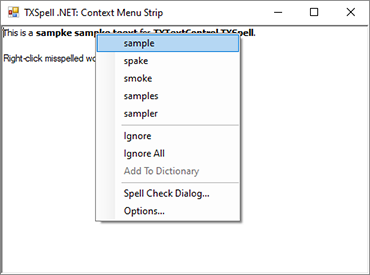
MenuItemClicked and DialogButtonClicked tell which command the user chose, independent of the word:
- MenuItemClickedEventArgs.MenuItem is the clicked MenuItem. Its Type is a TXSpell.MenuItemType:
Suggestion,IgnoreOnce,IgnoreAll,AddToDictionary,DeleteorNoSuggestions, the item shown when there are none. - DialogButtonEventArgs.DialogButton is the clicked DialogButton. Its Type is a TXSpell.ButtonType, such as
Change,ChangeAll,Ignore,IgnoreAll,AddToDictionary,Options,UndoEditorUserfor a button you added.
A User button is how a dialog button of your own does its work: Customizing the Spell Check Dialog adds one, and Context Menus builds menus with GetMenuItems.
Follow the Dialog From Opening to Closing
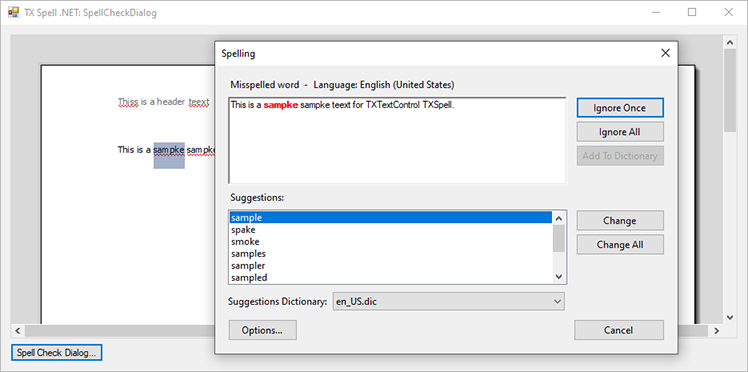
The spell check dialog of TX Spell .NET raises SpellCheckDialogOpening when it opens and SpellCheckDialogClosing when it closes. Both arguments, and those of DialogButtonClicked, have a StateManager: a SpellCheckDialogStateManager that tells which word the dialog handles next and sets another one with SetNext.
- In
SpellCheckDialogOpening, the handler can make the dialog begin at another word or text part, as Checking Text Parts shows. - In
SpellCheckDialogClosing, setting Cancel totruekeeps the dialog open, for example to continue with the next control, as Checking Multiple Controls shows. CloseReason says why the form is closing.
Replace the Options Dialog
OptionsDialogOpening fires when the options dialog of TX Spell .NET is about to open, whether your code calls OptionsDialog or the user clicks Options... in the spell check dialog. Cancel it to show your own settings form instead, as Replace the Dialog With Your Own shows.
Watch the Dictionaries
The dictionary events report changes to the dictionaries, whoever makes them:
DictionaryAddedandDictionaryRemovedcarry the Dictionary that was added to or removed from Dictionaries.UserDictionaryWordAddedcarries the UserDictionary and the AddedWord;UserDictionaryWordRemovedcarries the user dictionary and the RemovedWord.
UserDictionaryWordAdded also fires when the user clicks Add To Dictionary, which makes it the place to store the new word, for example in a database shared by all users. User Dictionaries covers loading and saving user dictionaries.
Next Steps
- Checking on Demand: apply the corrections of the dialog to a
RichTextBox. - Checking Multiple Controls: keep the dialog open with
SpellCheckDialogClosing. - Spelling Correction Modes and UI Provider: build a correction interface with data binding instead of events.
- Customizing the Spell Check Dialog: add buttons of your own and handle their clicks.