
Context Menus
Most users correct a misspelled word without leaving the text: they right-click the underlined word and choose the right spelling from a menu. With TX Text Control, TX Spell .NET provides this menu without any code. When you need other items in it, or a menu for another control, you build one from ready-made menu items. The sections below cover the built-in menu, how to replace it, how to build your own and how to react to its items.
The Built-In Menu
When a TXSpellChecker is connected to a TextControl through its SpellChecker property and IsSpellCheckingEnabled is true, misspelled words get a red zigzag line, and a right-click on one of them opens the spell check menu of TX Text Control instead of the usual context menu:
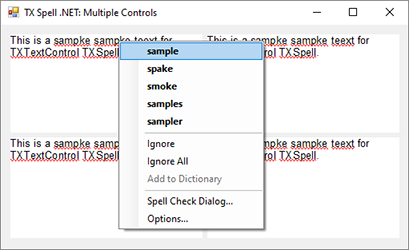
From the menu, the user:
- replaces the word with one of the suggestions at the top;
- ignores the word here or everywhere, with Ignore and Ignore All;
- adds it to a user dictionary with Add to Dictionary;
- opens the spell check dialog of TX Text Control with Spell Check Dialog...;
- opens the options dialog with Options....
Add to Dictionary is enabled only when a user dictionary has been added to the dictionaries of the spell checker, as User Dictionaries shows. Correct Words from the Context Menu connects the spell checker step by step.
Build Your Own Menu
GetMenuItems creates the spelling items for a misspelled word: its suggestions, Ignore, Ignore All and Add To Dictionary. Each item carries out its action when it is clicked, so you only add the items to a menu, together with items of your own. The TextControl\Context menu strip sample of the setup builds its menu this way:
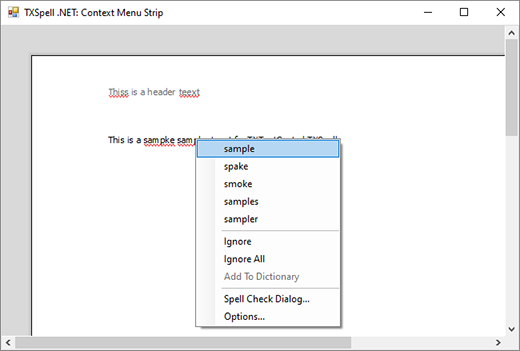
This form builds a similar menu in code. It runs in a new Windows Forms project with the TX Text Control and TX Spell .NET packages; add a Main method or create the form from Program.cs:
using System.ComponentModel;
using System.Drawing;
using System.Windows.Forms;
using TXTextControl;
using TXTextControl.Proofing;

public class MenuForm : Form
{
    private readonly TextControl textControl1 = new TextControl();
    private readonly TXSpellChecker txSpellChecker1 = new TXSpellChecker();
    private readonly ContextMenuStrip spellMenu = new ContextMenuStrip();

    public MenuForm()
    {
        textControl1.Dock = DockStyle.Fill;
        textControl1.SpellChecker = txSpellChecker1;
        textControl1.IsSpellCheckingEnabled = true;

        // Use this menu for misspelled words
        spellMenu.Name = "spellMenu";
        spellMenu.Opening += spellMenu_Opening;
        textControl1.SpellCheckContextMenuStrip = "spellMenu";

        Controls.Add(textControl1);
    }

    private void spellMenu_Opening(object sender, CancelEventArgs e)
    {
        spellMenu.Items.Clear();

        // The mouse position in pixels, relative to the control
        Point location = textControl1.PointToClient(MousePosition);

        MisspelledWord word = textControl1.MisspelledWords.GetItem(location);
        if (word == null)
        {
            e.Cancel = true;
            return;
        }

        // Up to five suggestions, Ignore, Ignore All and Add To Dictionary
        spellMenu.Items.AddRange(txSpellChecker1.GetMenuItems(word, textControl1, 5));

        // Items of your own
        spellMenu.Items.Add(new ToolStripSeparator());
        spellMenu.Items.Add("Spell Check Dialog...", null, (s, args) => txSpellChecker1.SpellCheckDialog.Show(textControl1));
        spellMenu.Items.Add("Options...", null, (s, args) => txSpellChecker1.OptionsDialog());
    }
}
The code works as follows:
SpellCheckContextMenuStripnames the menu by itsName, so the menu needs one.- The
Openingevent of the menu fills it anew for each right-click. GetItem of the MisspelledWords collection returns the misspelled word at a location, ornull. The location is given in pixels, with its origin at the upper-left corner of the control. GetMenuItemstakes the word, theTextControland the maximum number of suggestions. It returns MenuItem objects, which areToolStripMenuItemobjects, soAddRangeadds them to anyContextMenuStrip.GetMenuItemsdoesn't create Spell Check Dialog... and Options.... The last two items call SpellCheckDialog.Show and OptionsDialog, the dialogs of TX Spell .NET.
The items can also go into a menu your application already has, next to its own commands.
What the Items Do
The Type of each MenuItem is a value of TXSpell.MenuItemType, and it decides what a click does:
| Type | What a click does |
|---|---|
Suggestion | Replaces the misspelled word with the text of the item |
IgnoreOnce | Ignores this occurrence of the word |
IgnoreAll | Ignores every occurrence of the word |
AddToDictionary | Adds the word to all editable user dictionaries |
Delete | Removes the word from the text |
NoSuggestions | Nothing; the item says that no suggestions were found |
After each click, the MenuItemClicked event of the TXSpellChecker reports the item, for example to log words that users add:
txSpellChecker1.MenuItemClicked += (sender, e) =>
{
    if (e.MenuItem.Type == TXSpell.MenuItemType.AddToDictionary)
    {
        statusLabel.Text = "Word added to the dictionary.";
    }
};
MenuItem of the MenuItemClickedEventArgs is the clicked item. statusLabel stands for a label of your form. Events lists the other events a correction raises.
A Menu for a RichTextBox
A RichTextBox or a TextBox has no built-in spell check menu, but GetMenuItems works for it, too. Its second overload takes an IncorrectWord, found by Check, and the text that contains it:
TXTextControl.Proofing.MenuItem[] items = txSpellChecker1.GetMenuItems(currentIncorrectWord, richTextBox1.Text, 5);
Without a connected TextControl, the spell checker isn't initialized for you: call its Create method once before the first check, for example in the constructor of the form.
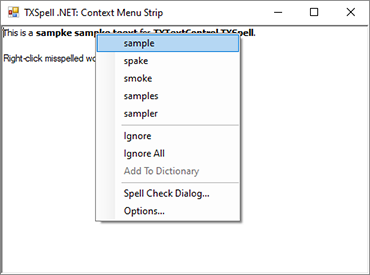
The spell checker can't change the text of a RichTextBox itself. When the user picks a suggestion, the IncorrectWordChanging event fires, and your handler replaces the word in the control, as Open the Spell Check Dialog shows for the dialog. The RichTextBox\Context menu strip sample of the setup shows the whole menu; Spell Checking Examples lists it.
Next Steps
- Synonyms in the Context Menu: offer synonyms of a word from a menu.
- Spell Check Dialog: the dialog of TX Spell .NET that the menu can open.
- Options Dialog: the dialog behind Options....
- Localization and Resource Kit: the texts of TX Spell .NET in other languages.
- Events: react to the corrections made in the menu.