
Publishing .NET Applications
A Windows Forms application for .NET 8 or higher that references TXTextControl.TextControl.WinForms.SDK is published like any other .NET application. Publish in Visual Studio, or dotnet publish on the command line, collects your application, the assemblies of TX Text Control and the native libraries of one platform in a single folder, and that folder is what you deploy.
Before You Begin
- The project references
TXTextControl.TextControl.WinForms.SDK34.0.5; see Package Overview. - You know the platform you publish for, x64 or x86; see x86, x64, and AnyCPU.
- The application builds with your licensed package, not with a trial; see Application Licensing.
Publish With Visual Studio
In Solution Explorer, select the project, and choose Build > Publish Selection from the main menu.
Select Folder as the target, and click Next:
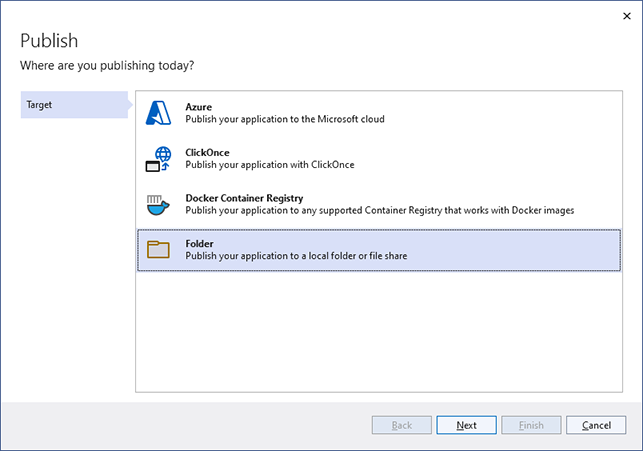
Select Folder again as the specific target, and click Next.
Choose the folder location, and click Finish. Visual Studio creates a publish profile.
Click Show all settings to open the publish settings.
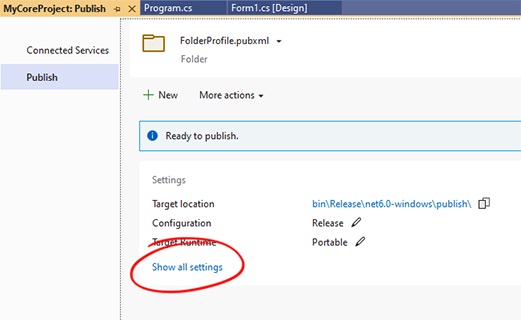
Select
win-x64as the Target runtime, orwin-x86for a 32-bit application, and click Save.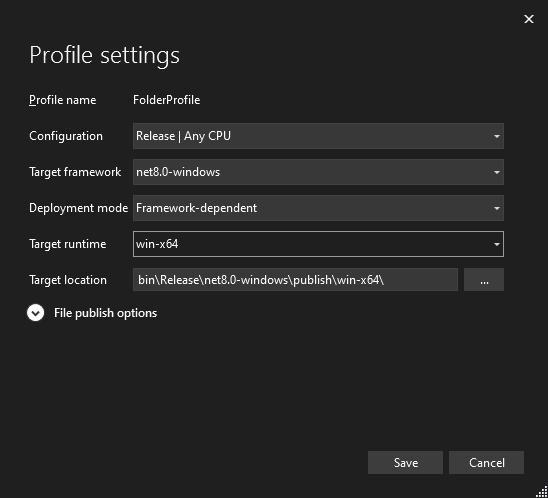
Click Publish.
With the target runtime set, all files of TX Text Control that the application needs, including the native libraries and the filters for the file formats, are copied to the publish folder.
Publish on the Command Line
The same publish with the .NET CLI, from the folder of the project:
dotnet publish Release win-x64 false publish
The command works as follows:
-c Releasepublishes the release build.-r win-x64selects the target runtime, which puts the 64-bit native libraries next to the executable. Usewin-x86for a 32-bit application.--self-contained falsecreates a framework-dependent application, which runs with the .NET Desktop Runtime installed on the user's machine. Withtrue, the publish folder also holds the complete .NET runtime.-o publishwrites the output to the folder publish.
What the Publish Folder Contains
For win-x64, the publish folder holds:
| Files | What they are |
|---|---|
| Your executable and its assemblies, such as MyApp.exe and MyApp.dll | Your application, with the TX Text Control license compiled in |
| TXTextControl.dll, TXTextControl.Windows.Forms.dll, TXTextControl.Server.dll, TXDocumentServer.dll and the other assemblies of the package | The managed assemblies |
| tx34.dll, tx34_rtf.dll, tx34_pdf.dll and the other native libraries | The 64-bit native libraries |
| A de folder | The German resources |
There is no license file among them: the license is part of your assembly. Managed Assemblies and Native Libraries lists every file.
Publish to a folder and deploy the folder as it is. Single-file publishing isn't described for TX Text Control.
Deploy the Folder
Copy the complete content of the publish folder to the user's machine: with your own installer, with a file copy or packaged as MSIX. On the user's machine, you need:
- The .NET Desktop Runtime of the version your project targets, for a framework-dependent application.
- The Visual C++ runtime of the same bitness as the application; see Visual C++ Runtime Dependencies.
Neither the NuGet package nor the setup of TX Text Control is installed there. When the application fails on the user's machine, see A Published .NET Application Lacks the Native Libraries.
Next Steps
- MSIX Packaging and Microsoft Store Deployment: package the application for sideloading or the Microsoft Store.
- CI/CD: publish on a build server.
- Deploying .NET Framework Applications: deployment without the NuGet package.