
Open the Spell Check Dialog
Underlines point out mistakes one at a time; a spelling dialog goes through all of them in order. With TX Spell .NET connected, the user can open a dialog from the context menu, from the ribbon or from a button of yours, and correct the whole document word by word. You add a Check Spelling button to the application of Create Your First Windows Forms Application and try both dialogs that are available.
Prerequisites
- The application of Create Your First Windows Forms Application or Create a .NET Framework Application: a
TextControlwith a ribbon, connected to aTXSpellCheckercalled txSpellChecker1.
Open the Dialog Without Code
The application already offers the dialog in two places:
The context menu. Right-click an underlined word and click Spell Check Dialog..., as Correct Words from the Context Menu shows.
The ribbon. Open the Proofing tab. The group Spelling & Hyphenation contains the button Spelling, next to Enable Spell Checking, which turns the underlines on and off:
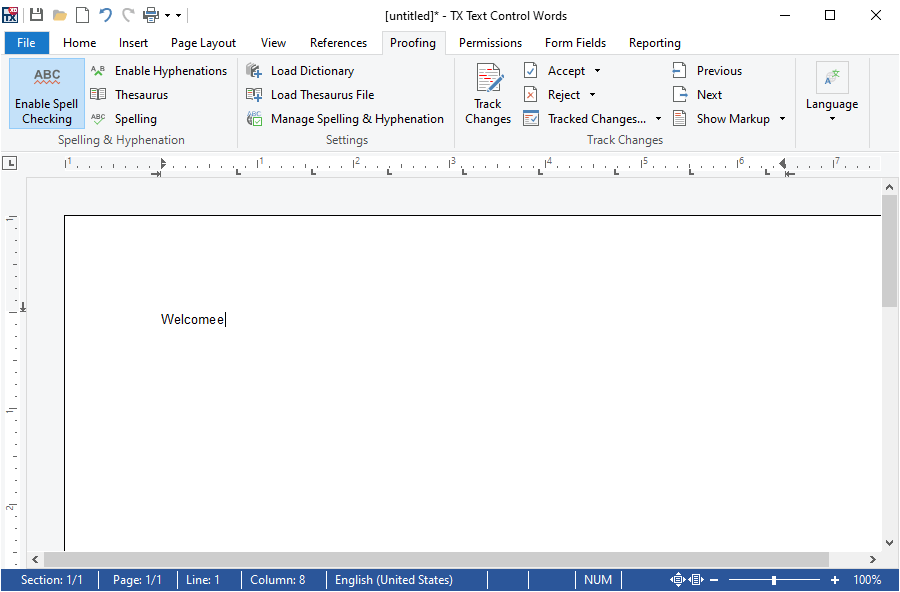
The tab is a RibbonProofingTab. Its spelling, hyphenation, thesaurus, dictionary and language detection buttons work only when the TextControl has a spell checker connected; the button that sets the language needs none.
Add a Check Spelling Button
For an application without a ribbon, or for a check before the document is saved, open the dialog in code:
Open Form1 in the designer and draw a
Buttonfrom the Common Controls tab of the Toolbox onto the form, for example below the editor. Set its Text to Check Spelling and its (Name) to buttonSpelling.Double-click the button. Visual Studio creates its
Clickhandler in Form1.cs.Call the SpellCheckDialog method of the
TextControlin the handler:private void buttonSpelling_Click(object sender, EventArgs e) { // Open the spelling dialog of TX Text Control textControl1.SpellCheckDialog(); }Press F5, type a few misspelled words and click Check Spelling.
The dialog steps through all misspelled words of the document: the main text first, then the headers, footers and text frames. When the last word is handled, a message tells the user that the spell checking is complete. SpellCheckDialog works only when a spell checker is connected through the SpellChecker property.
Use the Customizable Dialog of TX Spell .NET
The dialog that SpellCheckDialog opens belongs to TX Text Control and can't be changed. TX Spell .NET has a dialog of its own, which works the same way but can be customized: buttons can be added, removed or relabeled, and your code is notified of every change. Open it with the SpellCheckDialog property of the spell checker. Replace the body of the buttonSpelling_Click handler from the previous section:
private void buttonSpelling_Click(object sender, EventArgs e)
{
    // Open the customizable dialog of TX Spell .NET for this TextControl
    txSpellChecker1.SpellCheckDialog.Show(textControl1);
}
Show takes the TextControl to check. The dialog applies the corrections to the document itself, so no further code is needed:
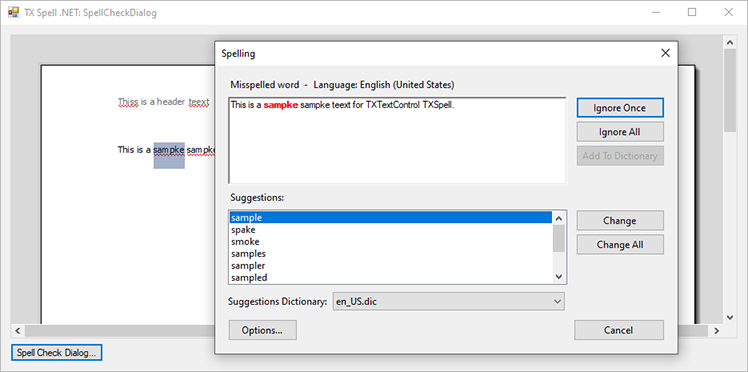
It shows the language of the word above the sentence and, below the suggestions, a Suggestions Dictionary list, which chooses the dictionary the suggestions come from when several are loaded. Options... opens the options dialog.
Correct the Words in the Dialog
The dialog of TX Spell .NET shows the misspelled word in its sentence and the suggestions below. For each word, the user chooses what to do:
- Select a suggestion and click Change to replace this occurrence, or Change All to replace every occurrence of the word.
- Click Ignore Once to skip this occurrence, or Ignore All to skip every occurrence.
- Click Add To Dictionary to accept the word for good. This needs an editable user dictionary; see User Dictionaries.
- Click Cancel to stop before the end.
The dialog then moves on to the next misspelled word.
The TextControl\SpellCheckDialog sample of the setup is built this way; Spell Checking Examples lists where it is installed.
Next Steps
- Checking on Demand: compare the two dialogs and control how a check ends.
- Spell Check Dialog: every part of the dialog of TX Spell .NET.
- Customizing the Spell Check Dialog: add, remove and relabel its buttons.
- Checking Multiple Controls: check several editors in one dialog.