
As-You-Type Checking
When TX Spell .NET for WPF is connected to TX Text Control, misspelled words get a red zigzag line while the user types, and a right-click on one of them offers suggestions. The connection is a resource and an attribute in XAML; everything after that happens without code. For a WPF TextBox, which has no underlining of its own, you check the text when it changes and show the result yourself.
How As-You-Type Checking Works
The editor, not the spell checker, drives checking as you type. A TXSpellChecker holds the dictionaries. The TextControl of TX Text Control asks it about each word the user completes and underlines the words it reports as misspelled. Two properties of the TextControl switch this on:
- SpellChecker is the key of the spell checker in a resource dictionary: the
TextControl's own resources or those of a parent element, such as the window. It is a string, and an empty string disconnects the spell checker. - IsSpellCheckingEnabled turns checking on and off. When it is
trueand a spell checker is connected, misspelled words are underlined automatically.
Since version 29.0 of TX Text Control, a word is checked once it is complete: when the user types a delimiter such as a space, moves the caret elsewhere, or leaves the document. A word the user is still typing is not underlined. The two recordings below show the difference, before and after that change. They were made in TX Text Control Words, the Windows Forms demo application; a TextControl in a WPF window underlines words the same way:
You don't call Create on a spell checker connected to a TextControl: the connection initializes it.
Connect the Spell Checker in XAML
Declare the TXSpellChecker as a resource of the window and name its key in the SpellChecker attribute of the TextControl. Getting Started builds this window step by step.
<Window x:Class="MyWpfApp.MainWindow"
        xmlns="http://schemas.microsoft.com/winfx/2006/xaml/presentation"
        xmlns:x="http://schemas.microsoft.com/winfx/2006/xaml"
        xmlns:tx="clr-namespace:TXTextControl.WPF;assembly=TXTextControl.WPF"
        xmlns:spell="clr-namespace:TXTextControl.WPF.Proofing;assembly=TXSpell.WPF"
        Title="MainWindow" Height="450" Width="800">
    <Window.Resources>
        <spell:TXSpellChecker x:Key="txSpellChecker1" />
    </Window.Resources>
    <DockPanel>
        <tx:TextControl x:Name="textControl1"
                        SpellChecker="txSpellChecker1"
                        IsSpellCheckingEnabled="True" />
    </DockPanel>
</Window>
The markup works as follows:
- The
spellprefix maps theTXTextControl.WPF.Proofingnamespace of the TXSpell.WPF assembly, andtxmaps theTextControl. <spell:TXSpellChecker x:Key="txSpellChecker1" />creates the spell checker as a resource of the window.SpellChecker="txSpellChecker1"is the key as plain text, not a{StaticResource}markup extension: theTextControllooks the key up in the resources itself.IsSpellCheckingEnabled="True"starts checking.
The spell checker's Language is "(Auto)" by default: it loads the dictionary of the default dictionary folder that matches the language of the application environment, and the US English dictionary when there is none. The English dictionary is installed with TX Spell .NET, so English text is checked without any further setup. Dictionaries and Languages adds other languages.
Use the Spell Checker in Code
A resource key creates no field in the code-behind. To call the spell checker in code, get it from the resources with FindResource after InitializeComponent:
using System.Windows;
using TXTextControl.WPF.Proofing;

namespace MyWpfApp
{
    public partial class MainWindow : Window
    {
        private readonly TXSpellChecker txSpellChecker1;

        public MainWindow()
        {
            InitializeComponent();

            // The spell checker declared in Window.Resources
            txSpellChecker1 = (TXSpellChecker)FindResource("txSpellChecker1");
        }

        private void checkBoxSpelling_Click(object sender, RoutedEventArgs e)
        {
            // Turn checking as you type on and off
            textControl1.IsSpellCheckingEnabled = checkBoxSpelling.IsChecked == true;
        }
    }
}
The code works as follows:
FindResourcereturns the instance XAML created; the other pages of this section usetxSpellChecker1the same way.- Setting
IsSpellCheckingEnabledtofalseremoves the underlines without disconnecting anything, which is how a "Check spelling as you type" option can work. The handler belongs to aCheckBoxcalledcheckBoxSpelling. - To connect or disconnect in code, set
SpellCheckerto the key,textControl1.SpellChecker = "txSpellChecker1", or to an empty string.
What the User Sees
Every misspelled word in the main text, in headers and footers and in text frames is underlined with a red zigzag line. A right-click on one opens the spell check context menu that TX Text Control shows when a spell checker is connected:
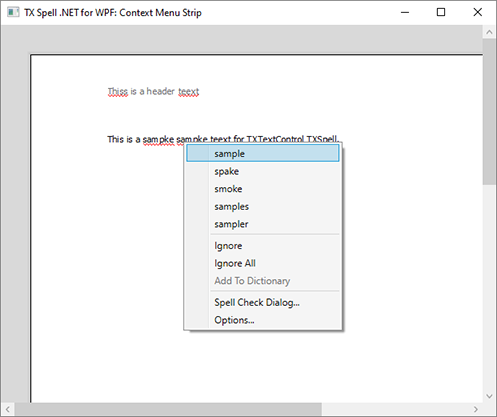
The menu offers the suggestions, best match first, the commands to ignore the word or add it to a user dictionary, and the spell check and options dialogs. Context Menus describes each item and how to replace the menu, and Ignore Settings what else the spell checker skips.
Control What Is Checked and Shown
A few properties of TX Text Control decide what is underlined and which menu opens:
| Property | Effect |
|---|---|
| TextControl.SpellCheckContextMenu | The menu of a right-click on a misspelled word: the built-in one, none or your own, as Context Menus shows |
| TextField.IsSpellCheckingEnabled | Whether the text of a text field is checked. The default is true; set it to false for fields such as product codes |
| MisspelledWord.IsIgnored | An ignored word stays in the list of misspelled words, but is not underlined |
No property changes the color or the style of the underline.
Validate a TextBox as the User Types
A WPF TextBox can be checked with a validation rule. The rule passes the text to Check of a TXSpell, the class of TX Spell .NET that checks text without a user interface, and reports an error when IncorrectWords is not empty:
using System.Globalization;
using System.Windows.Controls;
using TXTextControl.Proofing;

public class SpellingRule : ValidationRule
{
    private static readonly TXSpell spell = CreateSpell();

    private static TXSpell CreateSpell()
    {
        TXSpell txSpell = new TXSpell();

        // Initialize the new instance before using it
        txSpell.Create();
        return txSpell;
    }

    public override ValidationResult Validate(object value, CultureInfo cultureInfo)
    {
        spell.Check((string)value ?? "");

        return spell.IncorrectWords.Count > 0
            ? new ValidationResult(false, "Misspelled.")
            : ValidationResult.ValidResult;
    }
}
Attach the rule to the binding of the text box. With UpdateSourceTrigger="PropertyChanged", the text is validated on every change. The binding path, Comment here, is a property of the window's data context, and local maps the namespace of SpellingRule:
<TextBox Margin="10">
    <TextBox.Text>
        <Binding Path="Comment" UpdateSourceTrigger="PropertyChanged">
            <Binding.ValidationRules>
                <local:SpellingRule />
            </Binding.ValidationRules>
        </Binding>
    </TextBox.Text>
</TextBox>
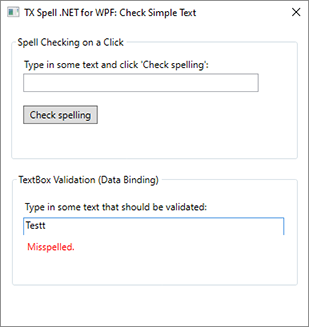
The Check simple text sample of the setup works this way and shows the error message below the text box:
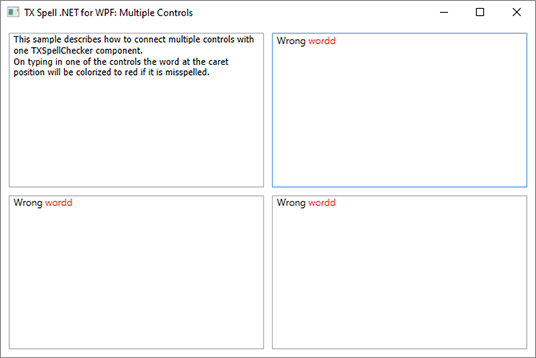
A RichTextBox can show misspelled words in red instead. A sample of the setup with four RichTextBox controls and one spell checker checks the text of the document with Check whenever it changes, and colors the misspelled word at the caret:
Incorrect Words and Suggestions goes further with the words Check finds, and Spell Checking Examples lists the samples.
Next Steps
- Checking on Demand: start a check from a button and walk through the words in the spell check dialog.
- Incorrect Words and Suggestions: read the misspelled words and their suggestions in code.
- Ignore Settings: skip words in capitals, with numbers, URLs and e-mail addresses.
- Checking Multiple Controls: share one spell checker between several editors.