
Checking Multiple Controls
A form with several editors -- a letter and its cover note, the fields of a record, the panes of a comparison -- needs only one spell checker. A single TXSpellChecker serves any number of controls: the dictionaries are loaded once, a word added to the user dictionary in one editor is accepted in all others at once, and memory use stays that of one instance. It covers checking as the user types, in several TextControl instances or RichTextBox controls, and one spell check dialog that works through all of them in turn.
Share One Spell Checker Between TextControls
The connection is made on the editor's side. Each TextControl has a SpellChecker property, and you set it to the same TXSpellChecker for every editor. There is nothing to switch when the user moves from one editor to the next.
Place the
TextControlinstances and oneTXSpellCheckeron the form.Select each
TextControlin turn and choose txSpellChecker1 for its SpellChecker property in the Properties window: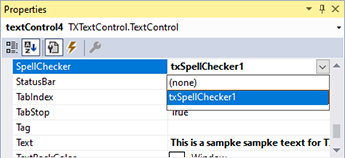
Set IsSpellCheckingEnabled to True for each of them.
In code, the same connection is two lines per editor. This loop connects four editors:
foreach (TXTextControl.TextControl textControl in new[] { textControl1, textControl2, textControl3, textControl4 })
{
    textControl.SpellChecker = txSpellChecker1;
    textControl.IsSpellCheckingEnabled = true;
}
Each editor now underlines its misspelled words and shows the same context menu, backed by the same dictionaries and user dictionaries:
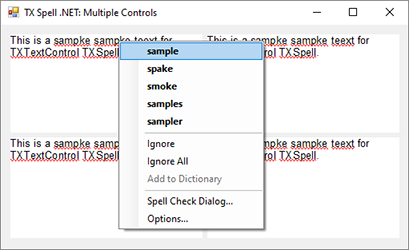
The editors can also be on different forms. Pass the spell checker of the main form to the constructor of the second form and connect it in its Load event, as the blog article Share a Single TXSpellChecker Instance Across Multiple TextControls shows.
Share One Spell Checker Between RichTextBoxes
Without a connected TextControl, the spell checker isn't initialized for you: call its Create method once before the first check, for example in the constructor of the form.
For controls other than TX Text Control, sharing is simpler still: Check takes the text to check, so one spell checker checks whichever control changed. Attach one handler to the TextChanged event of all RichTextBox controls and use sender to find the control:
private bool isColoring;

private void richTextBox_TextChanged(object sender, EventArgs e)
{
    if (isColoring) return;
    isColoring = true;

    RichTextBox richTextBox = (RichTextBox)sender;
    int caret = richTextBox.SelectionStart;

    richTextBox.SelectAll();
    richTextBox.SelectionColor = Color.Black;

    txSpellChecker1.Check(richTextBox.Text);

    foreach (TXTextControl.Proofing.IncorrectWord incorrectWord in txSpellChecker1.IncorrectWords)
    {
        richTextBox.Select(incorrectWord.Start, incorrectWord.Length);
        richTextBox.SelectionColor = Color.Red;
    }

    richTextBox.Select(caret, 0);
    isColoring = false;
}
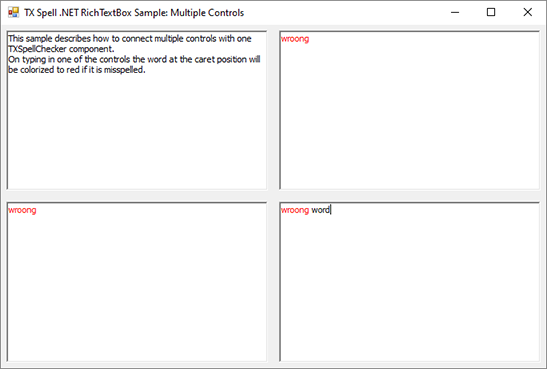
IncorrectWords always holds the result of the last Check, so each call replaces the words of the previous control. Check Spelling as You Type explains the handler line by line. The RichTextBox\Multiple controls sample of the setup colors the misspelled word at the caret in each of four controls:
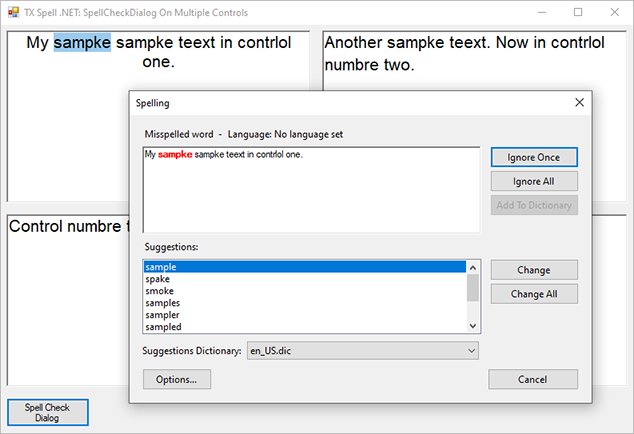
Check Several TextControls in One Dialog
The SpellCheckDialog of TX Spell .NET checks one control at a time. To have it continue with the next editor instead of closing, handle SpellCheckDialogClosing. It fires when the dialog is about to close, either because the user closed it or because the current control has no more misspelled words:
Open the dialog for the first editor and remember which editor it checks:
private TXTextControl.TextControl[] textControls;
private TXTextControl.TextControl curTextControl;

private void buttonSpelling_Click(object sender, EventArgs e)
{
    textControls = new[] { textControl1, textControl2, textControl3, textControl4 };
    curTextControl = textControls[0];
    txSpellChecker1.SpellCheckDialog.Show(curTextControl);
}
Handle
SpellCheckDialogClosing. If the current editor is done and another follows, hand it to the dialog and cancel the closing:private void txSpellChecker1_SpellCheckDialogClosing(object sender, TXTextControl.Proofing.SpellCheckDialogClosingEventArgs e) { // A word is still waiting: the user closed the dialog early if (e.StateManager.NextMisspelledWord != null) return; e.Cancel = SetNextTextControl(e.StateManager); } private bool SetNextTextControl(TXTextControl.Proofing.SpellCheckDialogStateManager stateManager) { int index = Array.IndexOf(textControls, curTextControl); // The last editor is done: let the dialog close if (index == textControls.Length - 1) return false; curTextControl = textControls[index + 1]; stateManager.SetNext(curTextControl); return true; }Run the application and click the button. The dialog works through the first editor, then continues with the second, and closes after the last.
The code works as follows:
- StateManager, a SpellCheckDialogStateManager, tells the handler where the dialog stands and lets it decide what comes next.
- NextMisspelledWord is the word the dialog would show next. If it is not
null, the check was not finished, so the user closed the dialog and the handler lets it close. - SetNext with a
TextControlmakes that editor the next one the dialog checks. - Setting Cancel to
truekeeps the dialog open. The user sees one dialog for all editors.
The dialog checks every text part of each editor, headers, footers and text frames included:
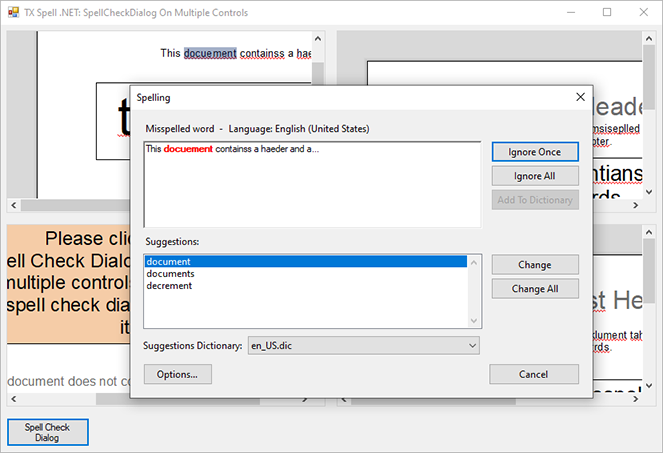
The TextControl\SpellCheckDialog on multiple controls sample of the setup is built this way.
Check Several RichTextBoxes in One Dialog
The same event works for other controls, with two differences. The dialog starts with the words of a Check call, and the handler hands it the text of the next control by passing that text to SetNext as a string. And because there is no TextControl, the handler tests NextIncorrectWord instead of NextMisspelledWord:
private RichTextBox[] richTextBoxes;
private RichTextBox curRichTextBox;

private void buttonSpelling_Click(object sender, EventArgs e)
{
    richTextBoxes = new[] { richTextBox1, richTextBox2, richTextBox3, richTextBox4 };
    curRichTextBox = richTextBoxes[0];

    txSpellChecker1.Check(curRichTextBox.Text);
    txSpellChecker1.SpellCheckDialog.Show();
}

private void txSpellChecker1_SpellCheckDialogClosing(object sender, TXTextControl.Proofing.SpellCheckDialogClosingEventArgs e)
{
    // Clear the selection in the control that was just checked
    curRichTextBox.Select(0, 0);

    if (e.StateManager.NextIncorrectWord != null) return;

    int index = Array.IndexOf(richTextBoxes, curRichTextBox);
    if (index == richTextBoxes.Length - 1) return;

    curRichTextBox = richTextBoxes[index + 1];
    e.StateManager.SetNext(curRichTextBox.Text);
    e.Cancel = true;
}
The corrections still reach each control through the IncorrectWordChanging event, as Open the Spell Check Dialog shows; there, richTextBox1 becomes curRichTextBox.
Next Steps
- Checking Text Parts: decide which headers, footers and text frames the dialog checks.
- User Dictionaries: the words users add, shared by every connected control.
- Events: the other events of the dialog, such as
SpellCheckDialogOpening. - Spell Checking Examples: the samples of the setup for several controls.