
Default Admin Password
Every new DS Server installation protects its admin portal with the same credentials: the user name admin and the password admin. Anyone who can reach the server can sign in with them, so change the password before you create security profiles or register the license. The steps below sign in, change the password in the portal or from code, and restore access when the password is lost.
Sign In to the Admin Portal
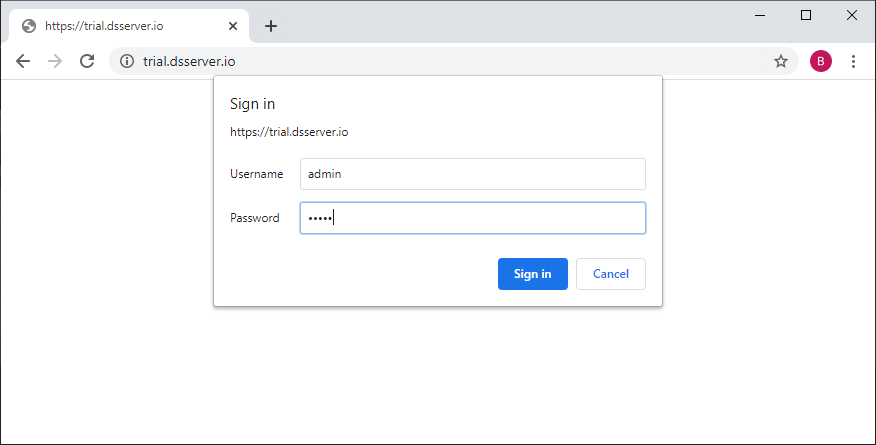
The admin portal is at the root of the service URL of DS Server, for example http://localhost:5000/ with the default port of hostsettings.json. It has no sign-in page of its own: DS Server answers with status 401 and a Basic authentication challenge for the realm "Access to the Admin page", and your browser shows its own sign-in dialog.
Open the service URL of DS Server in a browser.
Enter the user name admin and the password, admin on a new installation, and confirm with the button of the browser's dialog, such as Sign in.
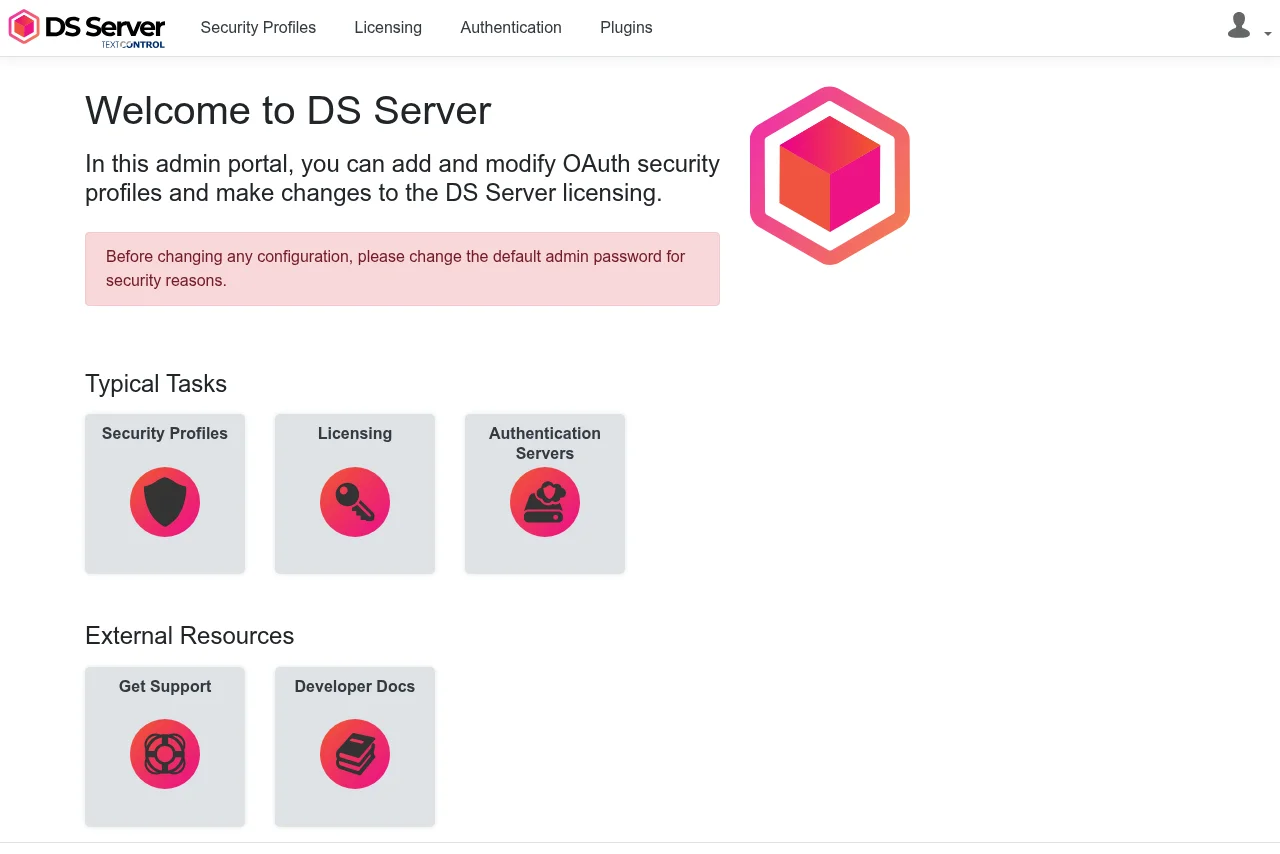
The Welcome to DS Server page opens. While the default password is in use, it shows the red note "Before changing any configuration, please change the default admin password for security reasons."
The same credentials protect the administration and licensing endpoints of the Web API, which expect them in a Basic Authorization header. A wrong password gets the status 401 in the browser and from the API.
Change the Password in the Portal
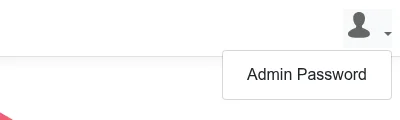
Click the user icon in the upper-right corner of the navigation bar and choose Admin Password.
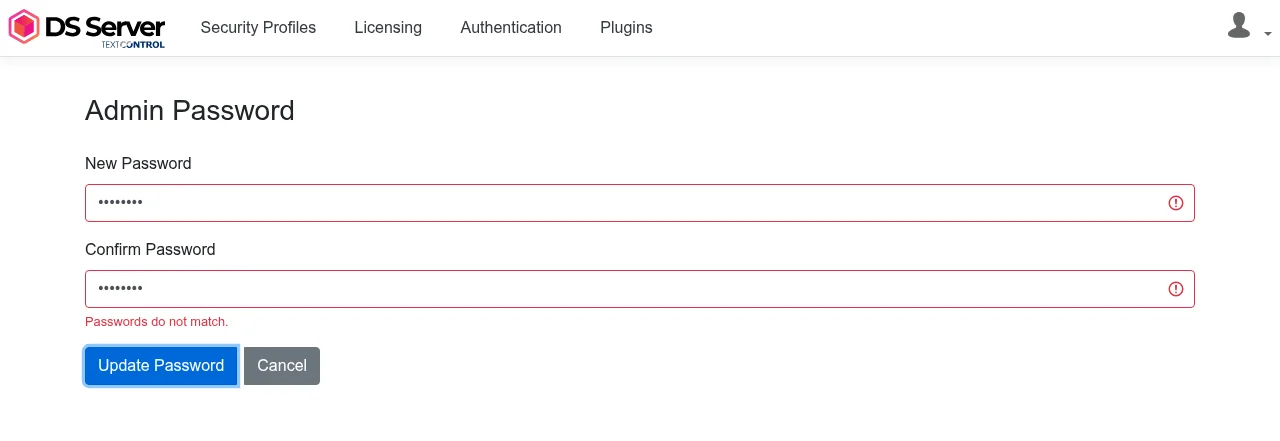
On the Admin Password page, enter the new password in New Password and again in Confirm Password.
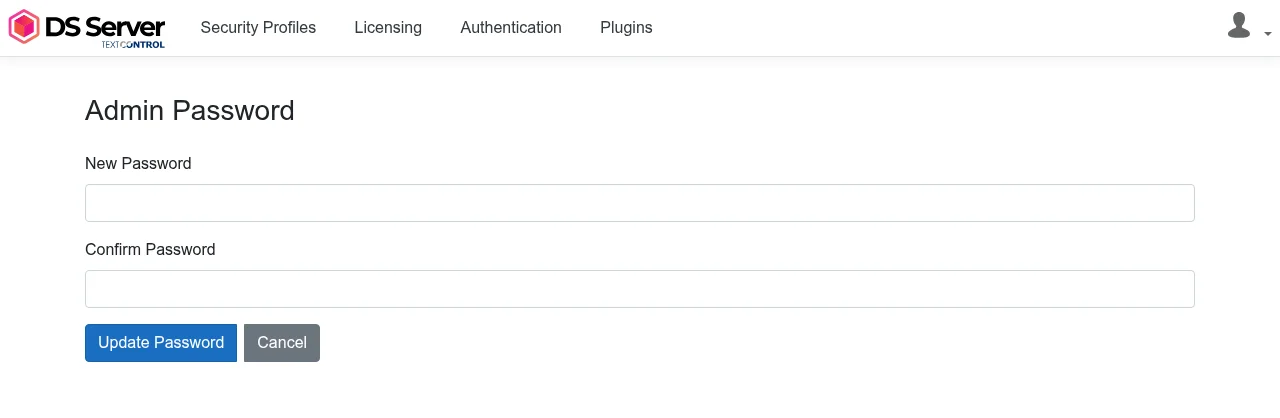
Click Update Password. The page confirms with "Password updated.", and from now on the browser and the Web API need the new password. Cancel leaves the page without a change.
The password needs at least eight characters. A shorter one is refused with "New password must be at least 8 characters long.", and when the two fields differ, the page shows "Passwords do not match." and changes nothing.
Change the Password With the Web API
POST /admin/users/{username}/password changes the password of the user admin. It needs the current credentials in a Basic Authorization header, which curl --user creates:
curl POST 'http://localhost:5000/admin/users/admin/password' \
'admin:admin' \
'Content-Type: application/json' \
'{"newPassword": "<new password>"}'
DS Server answers with status 200 and an empty body. A password with fewer than eight characters gets status 400 and the text "New password must be at least 8 characters long.", and a user name other than admin gets status 404.
In a .NET application, the ChangeUserPassword method of the TXTextControl.DocumentServices.Admin package sends the same request. The Admin class takes the service URL and the current admin password:
using TXTextControl.DocumentServices.Admin;

// Connect with the service URL and the current admin password
Admin admin = new Admin("http://localhost:5000", "admin");

// Set a new password of at least eight characters
await admin.ChangeUserPassword("admin", "<new password>");
The methods of Admin return tasks, so you call them with await. A failed request throws a ServiceRequestException whose StatusCode holds the HTTP status code.
If You Lose the Password
There is no reset function in the portal or the Web API. The admin password is stored in Admin.db, the database file that DS Server creates in its folder at the first start (the file name is set by LiteDbOptions:DatabaseFileName in appsettings.json).
When you stop DS Server, remove Admin.db and start it again, DS Server creates a new database, and admin/admin works again. The same file holds the security profiles and the OAuth setting, so this also deletes every security profile and switches OAuth off. Keep a copy of Admin.db and create the profiles again afterward. The portal generates new client IDs and secrets, which your applications then need. To keep the old values, create the profiles with the Web API and pass the old client ID and secret, as Creating Security Profiles describes.
Next Steps
- Licensing: register the server with your serial number.
- Creating Security Profiles: create the client credentials for your applications.
- Configuration: the settings files of DS Server, including appsettings.json.