
JavaScript
Without a framework or an npm package, a plain HTML page shows the Document Editor with one script that DS Server serves itself. The page calls TXTextControl.init() with the address of DS Server and the credentials of a security profile, and then works with the JavaScript API. At the end, a small ASP.NET Core endpoint requests the access token on the server, so the client secret no longer appears in the page.
Prerequisites
- A text editor, a web browser and a local web server to serve the page, such as the one your IDE provides.
- A DS Server that is installed, licensed and reachable from the browser, as the Installation Guide and Licensing describe. The samples use
http://localhost:5000. - For Keep the Client Secret on Your Server: Visual Studio 2026 or the .NET 10 SDK.
With a trial token instead of your own server, skip the next section, use https://trial.dsserver.io as the service URL and the client ID and secret of the token. Trial Token explains how to get one.
How the Page Works
Everything the page needs comes from DS Server:
- The script ds-server-document-editor.js is part of every DS Server installation, in its wwwroot/documenteditor/JS folder, and DS Server serves it at
<service URL>/documenteditor/JS/ds-server-document-editor.jswithout authentication. It defines the globalTXTextControlobject. TXTextControl.init()creates the editor in adivelement. With a client ID and secret, the script requests an access token from<service URL>/oauth/tokenwith the client credentials grant type. With an access token, it uses that token.- The editor then opens a WebSocket connection to
<service URL>/documenteditor/WS, withwss:for anhttpsservice URL andws:forhttp. Every change in the browser is synchronized over this connection.
Prepare a Security Profile
In the admin portal of DS Server, choose Security Profiles, click + Create new profile, enter a name and click Create.
Copy the Client ID and the Client Secret of the new profile.
Switch on Allow "Client Credentials" grant type and click Done. The grant type is off by default. The page needs it to request a token with the client ID and secret.
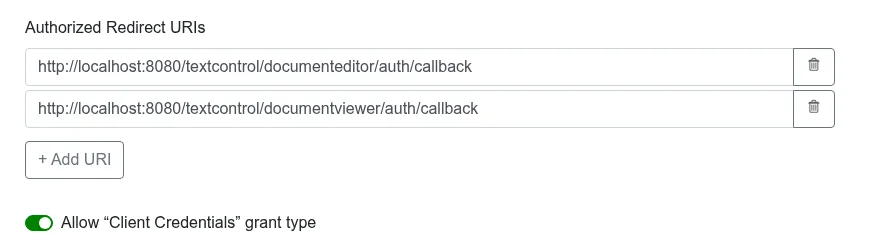
A page that contains the client secret shows it to every visitor. Use it for a first test only; the last section removes it. OAuth Grant Types describes the setting.
Create the HTML Page
Create a file named index.html with the following content. Replace http://localhost:5000 in both places with the address of your DS Server, and the client ID and secret with the values of your security profile.
<html>
<head>
<meta charset="utf-8" />
<title>DS Server Document Editor</title>
<script src="http://localhost:5000/documenteditor/JS/ds-server-document-editor.js"></script>
<style>
#txDocumentEditorContainer {
width: 1000px;
height: 600px;
display: inline-block;
position: relative;
}
</style>
</head>
<body>
<div id="txDocumentEditorContainer"></div>
<script>
window.addEventListener("load", function () {
TXTextControl.init({
containerID: "txDocumentEditorContainer",
serviceURL: "http://localhost:5000",
authSettings: {
clientId: "<client ID>",
clientSecret: "<client secret>"
}
});
TXTextControl.addEventListener("textControlLoaded", function () {
TXTextControl.selection.setText("Welcome to DS Server");
});
});
</script>
</body>
</html>
What the Page Does
- The
scriptelement in theheadloads the editor script from DS Server. - The
divwith the IDtxDocumentEditorContaineris the container of the editor. The CSS gives it an explicit width and height. TXTextControl.init()creates the editor.containerIDis the ID of the container andserviceURLthe address of DS Server; both are required.authSettingsholds eitherclientIdandclientSecretor anaccessToken. If it holds both, the script warns in the browser console and uses only the token.TXTextControl.addEventListener()registers a handler for thetextControlLoadedevent, which fires when the editor is ready.selection.setText()inserts the text at the input position.
Open the Page
Serve index.html from your local web server and open it in the browser. The page shows the Document Editor with its ribbon bar and the text "Welcome to DS Server".
The ribbon of the DS Server editor has no File tab, because the script always hides it. Documents are loaded and saved with the JavaScript API.
Load and Save Documents
Add two buttons below the container div:
<input type="button" onclick="loadHtml()" value="Load Document" />
<input type="button" onclick="saveAsHtml()" value="Save as HTML" />
Then add the two functions to the existing script element, outside the load handler:
function loadHtml() {
  TXTextControl.loadDocument(TXTextControl.StreamType.HTMLFormat,
    btoa("<p>Loaded with <strong>JavaScript</strong></p>"));
}

function saveAsHtml() {
  TXTextControl.saveDocument(TXTextControl.StreamType.HTMLFormat, function (e) {
    console.log(e.data);
  });
}
loadDocument()replaces the content of the editor. The first parameter is a value of theStreamTypeenumeration, the second the document as a Base64-encoded string. For text with characters outside the Latin-1 range, encode it withTXTextControl.btoaUTF8()instead ofbtoa.saveDocument()passes the document in the requested format to the callback. Here, the HTML is written to the browser console.
Editor Settings
TXTextControl.init() also takes an editorSettings object, the DocumentEditorSettings of the JavaScript API:
| Setting | Description |
|---|---|
editMode | Whether the text can be edited, a number: 1 Edit, 2 ReadAndSelect, 3 ReadOnly, 2048 UsePassword |
userNames | An array of the names of users who may edit the editable regions assigned to them |
culture | The culture that formats values such as dates, for example "de-DE" |
uiCulture | The culture of the user interface strings, for example "en-US" |
contextMenusEnabled | Whether a right-click opens a context menu |
formattingPrinter | The name of a printer whose text dimensions are used to format the document |
reconnectTimeout | The time in seconds after which the editor stops trying to reconnect after a connection loss |
customQueryParams | An object of query parameters that the script adds to the address of the WebSocket connection |
connectionID | The unique ID of the connection, generated by the script when it is not set |
webSocketProtocols | An array of additional WebSocket subprotocols passed to the WebSocket connection, for example to pass authentication tokens |
For example, the following call opens the document read-only for all users except the editable regions of user1:
TXTextControl.init({
  containerID: "txDocumentEditorContainer",
  serviceURL: "http://localhost:5000",
  authSettings: {
    clientId: "<client ID>",
    clientSecret: "<client secret>"
  },
  editorSettings: {
    editMode: 3,
    userNames: ["user1"]
  }
});
Keep the Client Secret on Your Server
In production, the page gets an access token from your own server and passes it to TXTextControl.init() in authSettings.accessToken. The following ASP.NET Core application requests the token from DS Server and serves the HTML page itself, so no cross-origin setup is needed.
Create an empty ASP.NET Core project and change to its folder:
dotnet new web MyTokenApp net10.0 cd MyTokenAppAdd the address of DS Server and the credentials of the security profile to appsettings.json:
{
  "Logging": {
    "LogLevel": {
      "Default": "Information",
      "Microsoft.AspNetCore": "Warning"
    }
  },
  "AllowedHosts": "*",
  "DSServer": {
    "ServiceUrl": "http://localhost:5000",
    "ClientId": "<client ID>",
    "ClientSecret": "<client secret>"
  }
}
Replace the content of Program.cs with the following code:
using System.Net.Http.Headers; using System.Text; var builder = WebApplication.CreateBuilder(args); builder.Services.AddHttpClient(); var app = builder.Build(); app.UseDefaultFiles(); app.UseStaticFiles(); // Returns an access token of the security profile to the page app.MapGet("/api/token", async (IHttpClientFactory httpClientFactory, IConfiguration config) => { string serviceUrl = config["DSServer:ServiceUrl"]!; string credentials = $"{config["DSServer:ClientId"]}:{config["DSServer:ClientSecret"]}"; var request = new HttpRequestMessage(HttpMethod.Post, $"{serviceUrl}/oauth/token") { Content = new FormUrlEncodedContent(new Dictionary<string, string> { [] = "client_credentials" }) }; // DS Server expects the client ID and secret in a Basic authorization header request.Headers.Authorization = new AuthenticationHeaderValue( "Basic", Convert.ToBase64String(Encoding.UTF8.GetBytes(credentials))); var response = await httpClientFactory.CreateClient().SendAsync(request); string json = await response.Content.ReadAsStringAsync(); return Results.Content(json, "application/json", statusCode: (int)response.StatusCode); }); app.Run();Create a folder named wwwroot in the project folder and save index.html in it with this
scriptelement at the end of thebody, instead of the one above:<script> fetch("/api/token") .then(response => response.json()) .then(token => { TXTextControl.init({ containerID: "txDocumentEditorContainer", serviceURL: "http://localhost:5000", authSettings: { accessToken: token.access_token } }); TXTextControl.addEventListener("textControlLoaded", function () { TXTextControl.selection.setText("Welcome to DS Server"); }); }); </script>Run the application with
dotnet runand open the address it prints.
The code works as follows:
/api/tokensendsgrant_type=client_credentialsto the/oauth/tokenendpoint of DS Server. DS Server expects the client ID and the client secret in an HTTP Basic authorization header, not as form fields.- DS Server answers with a JSON object that contains
access_token,token_type(Bearer) andexpires_in("3600", the lifetime in seconds as a string). The endpoint passes it to the page unchanged. UseDefaultFiles()andUseStaticFiles()serve wwwroot/index.html at the root address of the application, so the page and the endpoint share one origin.- The page passes only the token to
TXTextControl.init(). The client secret stays in appsettings.json on the server.
The endpoint gives a token to anyone who calls it, so protect it the way you protect the rest of your application, for example with its sign-in. The security profile still needs Allow "Client Credentials" grant type, because the server uses this grant type. POST /oauth/token in the Web API reference lists the parameters and answers of the token endpoint.
Troubleshooting
"DS Server is not registered." The editor area stays gray and shows this message when the DS Server has no license. The browser console shows
License error: DS Server is not registered.Register the server in the admin portal, as Licensing describes.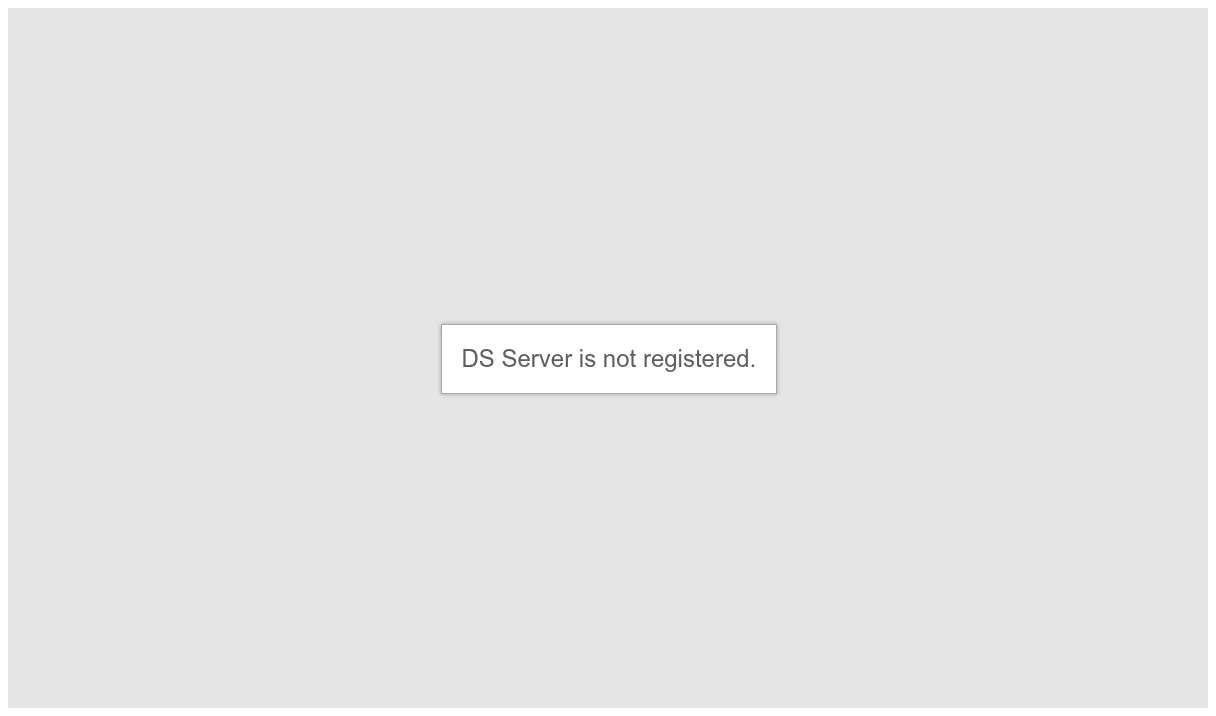
"Can't connect to the server. Please refresh the website to re-connect." The WebSocket connection to
<service URL>/documenteditor/WSfailed. When OAuth is enabled andinit()has noauthSettings, DS Server refuses the connection, and the browser console showsHTTP Authentication failed; no valid credentials available.TXTextControl is not definedin the browser console: the page couldn't load the editor script. Check the address in thescriptelement.Could not retrieve OAuth token. Error: unsupported_grant_typein the browser console: the security profile doesn't allow the client credentials grant type.
Document Editor and Viewer in Troubleshooting covers more problems.
Next Steps
- Document Editor JavaScript API: the
TXTextControlobject and its methods and events. - JavaScript: add the Document Viewer to a plain HTML page.
- Overview: compare the plain page with the client libraries.
- Enable OAuth: require access tokens for every request.