
Licensing
A new DS Server installation starts unregistered: the admin portal works, but DS Server processes no documents until you register it with the serial number of your license. You register each server once, online in the admin portal when the server can reach the Internet, manually with a license request string when it can't, or with the licensing endpoints of the Web API from a script.
What an Unregistered Server Does
Until it is registered, DS Server starts and serves the admin portal, and the administration and OAuth endpoints work, so you can prepare security profiles. Everything that processes a document is refused:
| Part | What it does while unregistered |
|---|---|
| DocumentProcessing Web API | Every endpoint answers with status 400 and the message DS Server is not registered. |
| Document Editor | Shows a message box "DS Server is not registered." in place of the editor |
| Document Viewer | Writes "DS Server is not registered." into the page instead of loading the viewer |
| Admin portal, Licensing | Shows UNREGISTERED in a red License Details box and under Product Details |
There is no trial mode that processes documents without a registration. To evaluate DS Server, register it with the trial serial number of your Text Control account or use a trial token, as the Licensing Overview explains.
What a License Covers
A DS Server license is counted per server instance and is valid for one year. Every physical server, virtual machine and container that runs DS Server counts as an instance, including those behind a load balancer, and the license has to be renewed every year for DS Server to keep working. The client-side libraries are royalty-free for use with licensed servers. The Licensing Overview summarizes the license agreement in full.
You need the serial number of your license. It is listed in your Text Control account, in your order confirmation email and on your invoice. A serial number consists of two uppercase letters, a hyphen and ten digits; DS Server checks this format before it contacts Text Control.
Open the Licensing Page
- Sign in to the admin portal, as Default Admin Password describes.
- Click Licensing in the navigation bar.
The page has three sections:
- License Details shows the License User Name, the Company Name, the License Expiry Date and the Unique machine ID of this server, with a button that copies the ID. The box is red while the server is unregistered.
- Product Details names the licensed product, or
UNREGISTERED. - Registration has the two tabs Online (Recommended) and Manually.
Register Online
Online registration needs an Internet connection from the server to the Text Control store.
On the Online (Recommended) tab, enter your serial number in Serial.
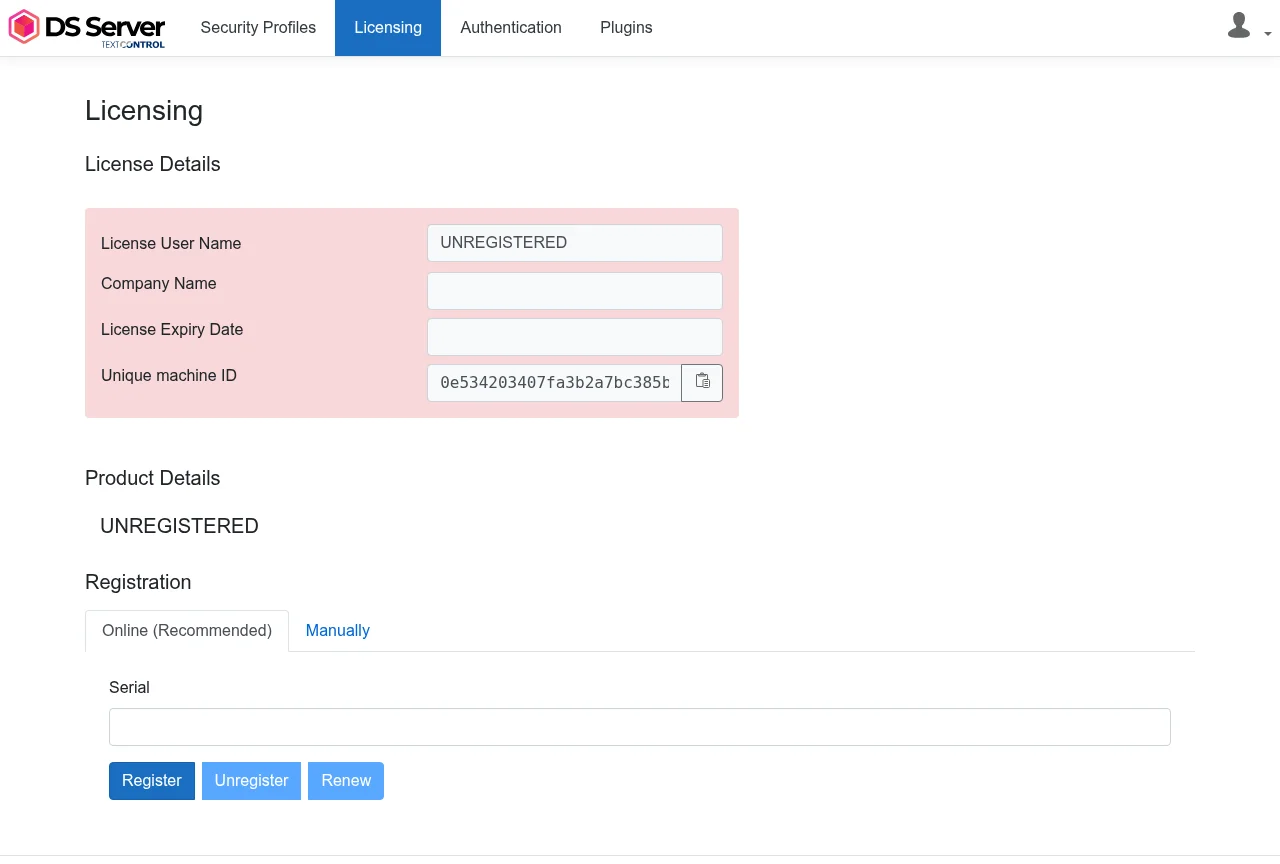
Click Register. DS Server sends the serial number to the Text Control store and stores the license it receives.
The License Details box turns green and shows the license user name, the company name and the expiry date.
Unregister and Renew are available once the server is registered. Both send the serial number in Serial to the Text Control store and ask for a confirmation first. Renew renews the registration online after the license period has been extended ("Renew the license of this installation?"). Unregister removes the registration from this server ("Do you really want to unregister this installation?").
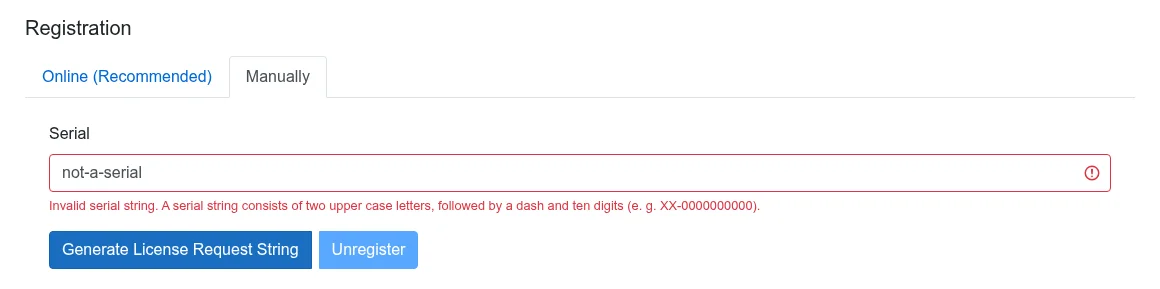
A serial number in the wrong format is refused before anything is sent to Text Control, with the message "Invalid serial string. A serial string consists of two upper case letters, followed by a dash and ten digits (e. g. XX-0000000000)."
Register Manually
Manual registration works without an Internet connection on the server. You move a license request string from DS Server to your Text Control account, and a license string back, on any computer with a browser.
Open the Manually tab, enter your serial number in Serial and click Generate License Request String.
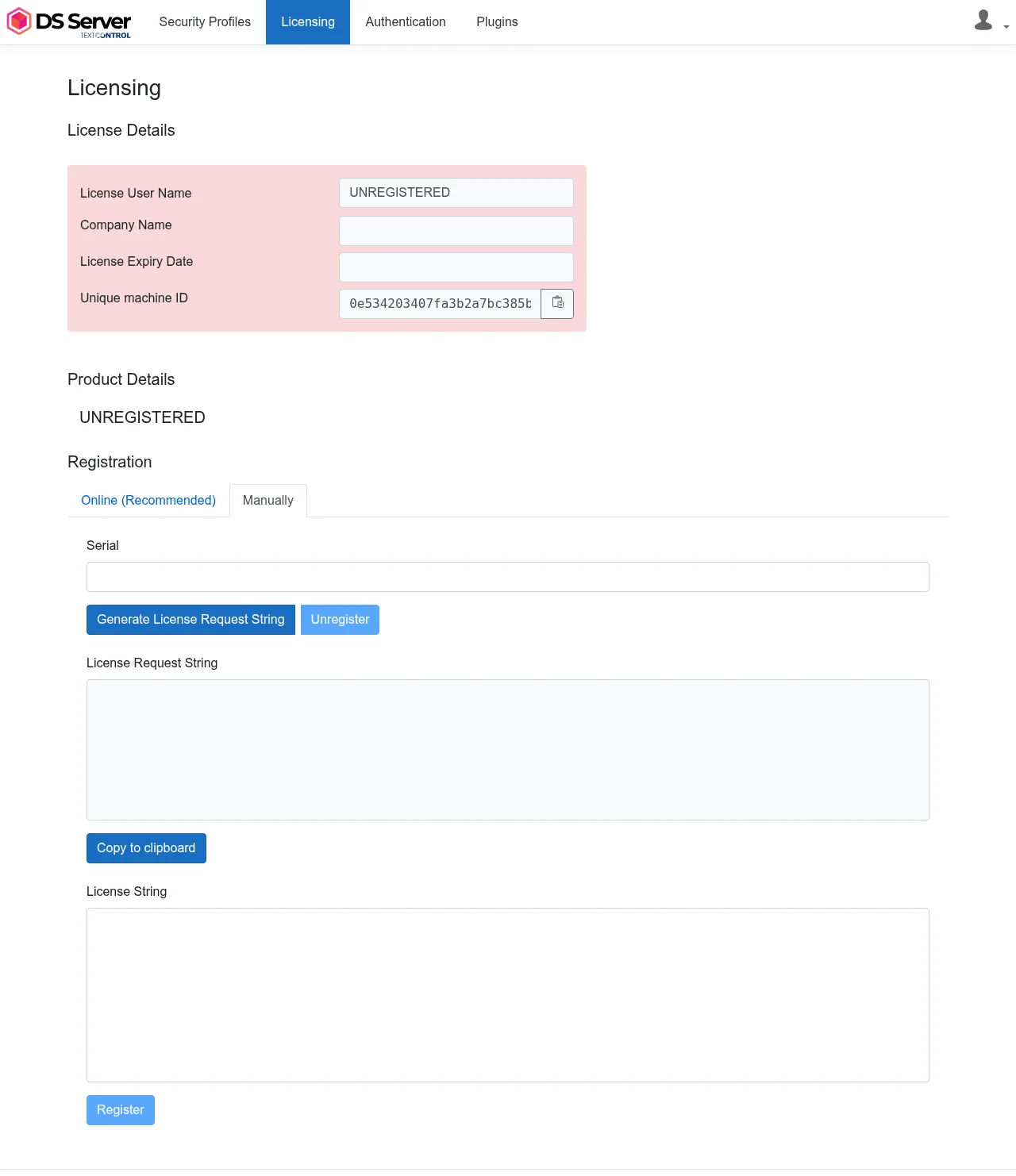
The request string appears in License Request String. Click Copy to clipboard.
Open your Text Control account, find DS Server in the Manage Products section and click Manual Registration. Paste the license request string and click Register.
Copy the license string that your account generates, paste it into the License String box of the admin portal and click Register. The button is available as soon as the box contains text.
The License Details box turns green and shows the license user name, the company name and the expiry date.
Unregister on the Manually tab removes the registration from this server without contacting Text Control. Its confirmation reminds you to unregister the machine in your Text Control account afterward with a license request string.
Register With the Web API
The licensing endpoints do the same from a script, for example when a new container starts. Like the admin portal, they take the admin user name and password in a Basic Authorization header, not an OAuth access token. This request registers the server online:
curl GET 'http://localhost:5000/license/registeronline?serial=<serial number>' \
'admin:<admin password>'
For a manual registration, GET /license/requeststring returns the license request string for a serial number, and POST /license/register registers the server with the license string from your account:
curl GET 'http://localhost:5000/license/requeststring?serial=<serial number>' \
'admin:<admin password>'
The license string goes into the licenseString property of a JSON body, as the admin portal sends it. DS Server 5.0.2 answers "Empty license string." when the property is missing:
curl POST 'http://localhost:5000/license/register' \
'admin:<admin password>' \
'Content-Type: application/json' \
'{"licenseString": "<license string>"}'
| Endpoint | Portal equivalent |
|---|---|
| GET /license/registeronline | Register on the Online (Recommended) tab |
| GET /license/renewonline | Renew |
| GET /license/unregisteronline | Unregister on the Online (Recommended) tab |
| GET /license/requeststring | Generate License Request String |
| POST /license/register | Register on the Manually tab |
| GET /license/unregister | Unregister on the Manually tab |
| GET /license/validateserialstring | The format check of the Serial field |
A serial number in the wrong format gets status 400 with the "Invalid serial string" message as plain text, and wrong admin credentials get status 401. No endpoint returns the current license state; the Licensing page shows it. The TXTextControl.DocumentServices.Admin package has no licensing methods.
Next Steps
- Creating Security Profiles: create the client credentials your applications use.
- Licensing Overview: the licensing model, the license period and the trial options.
- Multiple Servers with Load Balancing: run several registered servers behind a load balancer.