
Angular
Angular applications display documents with the tx-ds-document-viewer component of the npm package @txtextcontrol/tx-ng-ds-document-viewer. The component requests an access token from DS Server, loads the viewer from there and shows the document you pass to it. You prepare a security profile, create the application, add the component and load another document from TypeScript when the viewer is ready.
Prerequisites
Node.js and npm.
The Angular CLI 19. To install it globally, open a command prompt and run:
npm install @angular/cli@19The steps were written with Angular CLI 19 and Visual Studio Code. The package supports Angular 19 to 21. A newer Angular CLI creates applications with different file names, so install version 19 to follow the steps.
A DS Server that is installed, licensed and reachable from the browser, as the Installation Guide and Licensing describe. The samples use
http://localhost:5000. With a trial token instead, skip the next section, usehttps://trial.dsserver.ioas the service URL and the client ID and secret of the token; see Trial Token.
Prepare a Security Profile
With oauthClientID and oauthClientSecret, the component requests its token from the browser with the client credentials grant type, which the security profile must allow. If you created a profile for the Document Editor in Angular, use it. Otherwise:
In the admin portal of DS Server, choose Security Profiles, click + Create new profile, enter a name and click Create.
Copy the Client ID and the Client Secret of the new profile.
Switch on Allow "Client Credentials" grant type, which is off by default, and click Done.
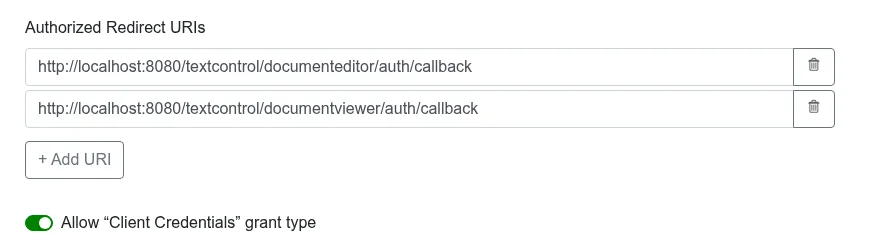
The client credentials are visible to anyone who opens the page. Use them for development, and in production pass a token your server requested to the accessToken attribute, as Use an Access Token shows for the editor.
Create the Angular Application
Open a command prompt and create a new project with a root module:
ng new my-ds-viewer-appSelect CSS as the stylesheet format and answer N to disable server-side rendering and static site generation.
Change to the project folder:
cd my-ds-viewer-appAdd the Document Viewer package with the Angular CLI:
ng add @txtextcontrol/tx-ng-ds-document-viewerConfirm the installation with Y.
ng addinstalls the package and imports two modules into src/app/app.module.ts:DocumentViewerModule, which declares the component, andHttpClientModule, which the component uses to request its access token. Because the component is declared in a module, the project is created with--no-standalone.Open the folder in Visual Studio Code:
code .
After ng add, src/app/app.module.ts looks like this:
import { NgModule } from '@angular/core';
import { BrowserModule } from '@angular/platform-browser';
import { AppRoutingModule } from './app-routing.module';
import { AppComponent } from './app.component';
import { DocumentViewerModule } from '@txtextcontrol/tx-ng-ds-document-viewer';
import { HttpClientModule } from '@angular/common/http';
({
declarations: [
AppComponent
],
imports: [
BrowserModule,
AppRoutingModule,
DocumentViewerModule,
HttpClientModule
],
providers: [],
bootstrap: [AppComponent]
})
export class AppModule { }
Add the Viewer Component
Open src/app/app.component.html, replace its complete content with the following code and save the file. Replace the service URL, the client ID and the client secret with your values.
<tx-ds-document-viewer
  width="1000px"
  height="600px"
  serviceURL="http://localhost:5000"
  oauthClientID="<client ID>"
  oauthClientSecret="<client secret>"
  documentData="SGVsbG8gdGhlcmU="
  documentPath="hello.txt">
</tx-ds-document-viewer>
width, height and serviceURL are required. documentData is the document as a Base64-encoded string, here the text "Hello there", and documentPath the name the viewer displays. Angular in Client-Side Libraries lists every attribute, including dock, showThumbnailPane and the signatureSettings for a signing process.
Run the Application
In the command prompt, start the application:
ng serve
The browser opens the application, and the Document Viewer shows the text "Hello there" with its toolbar and thumbnail pane.
Load a Document With TypeScript
The component loads the viewer script at run time. When it has initialized the viewer, it fires the dsDocumentViewerLoaded event on the document object, and the global TXDocumentViewer object exists from then on. Open src/app/app.component.ts and replace its complete content with the following code:
import { Component, HostListener } from '@angular/core';
declare const TXDocumentViewer: any;
({
selector: 'app-root',
templateUrl: './app.component.html',
standalone: false,
styleUrl: './app.component.css'
})
export class AppComponent {
('document:dsDocumentViewerLoaded')
onDsDocumentViewerLoaded() {
// the TXDocumentViewer object exists from now on
TXDocumentViewer.loadDocument(btoa('<strong>Welcome to DS Server</strong>'), 'welcome.html');
}
}
After the application reloads, the viewer shows "Welcome to DS Server" instead of "Hello there".
declare const TXDocumentViewer: any;makes the global object known to TypeScript.@HostListener('document:dsDocumentViewerLoaded')runs the method when the viewer is initialized.loadDocumentdisplays a Base64-encoded document. The second parameter is the document name for the status bar.
Troubleshooting
- "DS Server is not registered." On a DS Server without a license, this message appears in red instead of the viewer. Register the server in the admin portal, as Licensing describes.
- An error in the browser console that names
unsupported_grant_type: the security profile doesn't allow the client credentials grant type. Switch it on, or pass an access token. - A
NullInjectorErrorin the browser console and no viewer:HttpClientModuleis missing from the module that importsDocumentViewerModule. Add it as shown above.
Document Editor and Viewer in Troubleshooting covers more problems.
Next Steps
- Angular: every attribute of the viewer component, the load settings and the signature settings.
- Document Viewer JavaScript API: annotations, forms, signatures and events.
- Document Editor in Angular: edit documents in the same application.
- Supported File Formats: the formats the viewer displays.