
Enable OAuth
One switch in the admin portal decides whether DS Server checks OAuth access tokens. A new installation has it off: any client that can reach the server can use the DocumentProcessing Web API, the Document Editor and the Document Viewer without a token. Turn it on before a server is reachable by anyone but you, after you have created the security profiles your applications need.
What the Switch Does
| Request | OAuth disabled | OAuth enabled |
|---|---|---|
| Without an access token | Accepted | Refused with status 401 and the header WWW-Authenticate: Bearer |
| With an invalid or expired token | Accepted: the token is not checked | Refused with status 401 and an empty body |
| With a valid token | Accepted | Accepted |
The switch covers the DocumentProcessing Web API and the connections of the Document Editor and the Document Viewer. A Document Editor that connects without a valid token while OAuth is enabled shows "Can't connect to the server. Please refresh the website to re-connect." It doesn't cover:
- the admin portal and the administration and licensing endpoints, which always need the admin password;
- the OAuth endpoints that issue tokens, such as POST /oauth/token;
- the routes that plugins add to DS Server.
A client passes the token in an Authorization: Bearer <access token> header, in the query parameter access_token or in a cookie named access_token. The client-side libraries do this for you.
When to Leave OAuth Disabled
With OAuth off, DS Server trusts every request it receives. That fits only a server that nobody else can reach, or one whose access is controlled elsewhere:
- a development or test machine;
- a server behind a firewall that admits only your own applications;
- a server that receives requests only through another application, such as a gateway, that authorizes them before it forwards them.
On every other server, enable OAuth.
Enable OAuth in the Portal
Sign in to the admin portal and click Security Profiles in the navigation bar.
The switch below the heading shows the current state. On a new installation, it is red and labeled OAuth disabled.

Click the switch. It turns green and reads OAuth enabled. There is no save button: the portal stores the setting at once, and DS Server applies it to the next request.
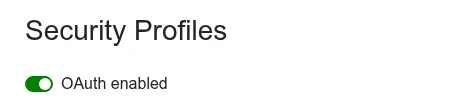
Click the switch again to disable OAuth. The setting is stored in Admin.db; if that file is removed, as Default Admin Password describes, OAuth is disabled again.
Check That OAuth Is Enabled
GET /oauth/test tells whether a request would be admitted. Call it without a token:
curl 'http://localhost:5000/oauth/test'
With OAuth enabled, DS Server answers HTTP/1.1 401 Unauthorized; with OAuth disabled, HTTP/1.1 200 OK. With --header 'Authorization: Bearer <access token>', the answer is 200 when the token is valid.
Switch OAuth From Code
The TXTextControl.DocumentServices.Admin package reads and changes the setting with GetOAuthEnabled and SetOAuthEnabled:
using TXTextControl.DocumentServices.Admin;

// Connect with the service URL and the admin password
Admin admin = new Admin("http://localhost:5000", "<admin password>");

// Read the current state and enable OAuth if it is off
bool enabled = await admin.GetOAuthEnabled();

if (!enabled)
{
    await admin.SetOAuthEnabled(true);
}
The package calls GET /admin/oauth, which returns {"active": false} or {"active": true}, and POST /admin/oauth with the body {"active": true} or {"active": false}. Both take the admin credentials in a Basic Authorization header.
Warning
Restart After a Change From Code. In DS Server 5.0.2, a change made this way is stored at once, and the portal shows the new state, but DS Server keeps checking tokens as before until it is restarted. After
SetOAuthEnabledorPOST /admin/oauth, restart DS Server, or use the switch in the portal, which applies at once.
Next Steps
- OAuth Grant Types: how your applications get their access tokens.
- Authentication Servers: let several DS Server instances accept each other's tokens.
- Authentication in Troubleshooting: what to check when requests get status 401.