
Document Editor and Viewer
The Document Editor and the Document Viewer run in the browser, but their scripts, their access token and their document processing come from DS Server. When one of them stays empty, shows a message instead of a document or throws an error on the page, the cause is usually on the way between the browser and DS Server. Start with the browser console, then find the message you see among the problems below.
Find Out Where It Fails
Two places show most of what goes wrong:
The browser console, opened with F12. The Document Editor logs the address of its WebSocket connection, for example:
Connecting to ws://localhost:5000/documenteditor/WSErrors of the token request, of the WebSocket connection and of the license check appear below it. The change log of version 5.0 also announces a console message for a TCP server of the Document Editor that isn't running, but the editor script of DS Server 5.0.2 doesn't contain such a message, so don't rely on it.
The log file of DS Server in its logs folder, as Find Out Whether the Server Runs describes. It records refused tokens and license warnings.
The Angular, React and ASP.NET Core packages load the same scripts from DS Server, so the messages below apply to them as well.
The Editor or Viewer Says DS Server Is Not Registered
The Document Editor shows a gray area with a box that reads:
DS Server is not registered.
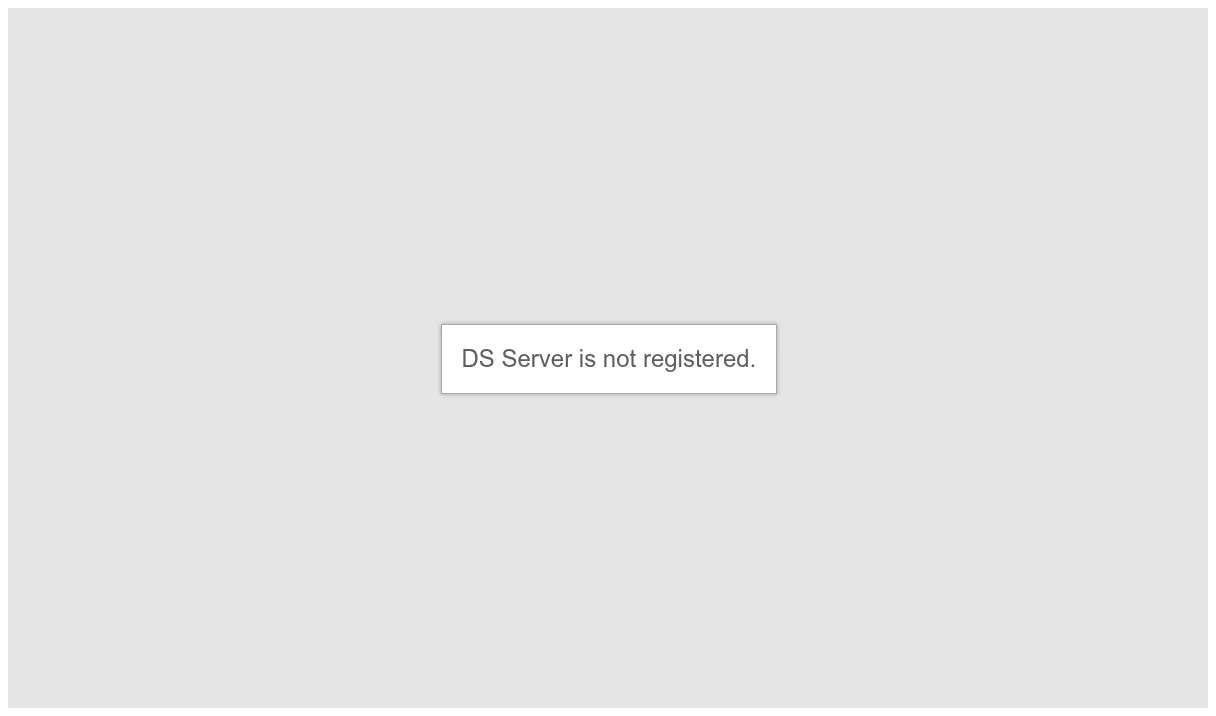
The browser console of the editor reports License error: DS Server is not registered. The Document Viewer writes the same message in red at the top of the page and logs it to the console, and a page that then calls TXDocumentViewer.init reports TXDocumentViewer is not defined: instead of the viewer, DS Server delivers a short script that only writes this message.

DS Server isn't registered. An unregistered server blocks the editor, the viewer and the DocumentProcessing endpoints of the Web API; it has no mode that works with a watermark instead. The admin portal, the OAuth endpoints and the administration endpoints keep working.
- Register DS Server in the admin portal under Licensing, as Licensing describes.
- Reload the page with the editor or viewer.
To evaluate the components without a license of your own, use a Trial Token with the trial server that Text Control runs at https://trial.dsserver.io.
The Editor Can't Connect to the Server
The editor area shows:
Can't connect to the server.
Please refresh the website to re-connect.
The editor couldn't open its WebSocket connection to <service URL>/documenteditor/WS, or the connection closed before the editor had loaded. The console shows why:
The WebSocket had no valid token. With OAuth enabled, a connection without a token fails with:
WebSocket connection to 'ws://localhost:5000/documenteditor/WS' failed: HTTP Authentication failed; no valid credentials availableIIS doesn't pass WebSockets. When DS Server runs under IIS, the Windows feature WebSocket Protocol (
IIS-WebSockets) must be installed, as the Requirements list.A proxy or load balancer doesn't pass WebSockets to DS Server. The .NET Server's page WebSockets describes the headers nginx needs to forward a WebSocket.
To fix it:
- Pass a valid access token, or a client ID and secret, in the
authSettingsof TXTextControl.init, or in the OAuth settings of your client package. Authentication covers failing token requests. - On IIS, install the WebSocket Protocol feature and restart the site. The .NET Server's page IIS shows where the feature is in Server Manager.
- Configure every proxy between the browser and DS Server to forward the WebSocket requests to /documenteditor/WS.
The Editor Loses Its Connection
The editor blocks input and shows:
Connection lost. Reconnecting…
The WebSocket closed while the user was editing, and the console logs WebSocket connection lost. The editor tries to reconnect to its session until the time in reconnectTimeout has passed, 30 seconds unless you set it. If the connection doesn't return in time, the console logs Could not reconnect. and the editor shows the connection message of the previous section.
- To give the connection more time, set
reconnectTimeoutin theeditorSettingsofTXTextControl.init, or the setting of the same name in your client package. - Update DS Server if it's older than 5.0.1: several releases fixed lost and failed reconnections, as Problems Fixed by an Update lists.
TXTextControl.init Throws an Error
In an HTML page that loads ds-server-document-editor.js from DS Server, the editor doesn't appear and the console shows one of these errors:
Missing container ID.
Container element with id '<id>' not found.
Missing service URL.
Invalid service URL '<url>'.
OAuth error: Missing client secret.
TXTextControl.init checks its settings before it connects:
| Message | Cause | Fix |
|---|---|---|
Missing container ID. | containerID is missing or isn't a string | Pass the id of the div element that holds the editor |
Container element with id '<id>' not found. | The page has no element with this id when init runs | Call TXTextControl.init after the element exists, for example at the end of the body |
Missing service URL. | serviceURL is missing | Pass the address of DS Server |
Invalid service URL '<url>'. | serviceURL doesn't start with http:// or https:// | Pass the full address, for example https://dsserver.example.com |
OAuth error: Missing client secret. | A clientId without clientSecret | Pass both, or an access token instead |
Without authSettings, TXTextControl.init doesn't report an error: the editor connects without a token. That works only while OAuth is disabled; with OAuth enabled, the connection fails as The Editor Can't Connect to the Server describes.
When authSettings holds both an access token and a client ID, the editor uses the token and warns:
OAuth access token and client ID must not be present simultaneously. Resetting client ID and client secret.
When the editor requests the token itself with a client ID and secret and DS Server refuses it, for example because the security profile doesn't allow the client credentials grant type, the console shows Could not retrieve OAuth token. followed by the error and error_description of DS Server. See The Token Request Says the Grant Type Isn't Allowed.
The Getting Started page JavaScript shows a complete page.
The Viewer Script Doesn't Load
In an HTML page, the Document Viewer doesn't appear, the console reports TXDocumentViewer is not defined, and the network tab shows status 401 for the request of GetResource.
A page without a client package loads the viewer script from <service URL>/documentviewer/TextControl/GetResource?Resource=minimized.tx-viewer.min.js. With OAuth enabled, DS Server delivers the script only with a valid token in the query parameter access_token.
- Request an access token on your server, as Authentication describes.
- Append it to the script address:
...&access_token=<access token>. - Pass the same token in
oauthSettings: { accessToken }of the viewer settings, and setbasePathto<service URL>/documentviewer.
The Getting Started page JavaScript shows a complete page, and the TXDocumentViewer reference lists the settings.
The React Component Isn't Rendered
In a React application created with Vite 8, the editor or viewer doesn't render, and React reports an invalid element type.
The React packages are CommonJS modules. Vite 8 returns the whole module for their default import instead of the component.
Take the component from the
defaultexport when there is one, as React shows:import DocumentEditorPackage from '@txtextcontrol/tx-react-ds-document-editor'; const DocumentEditor = DocumentEditorPackage.default ?? DocumentEditorPackage;Do the same for
@txtextcontrol/tx-react-ds-document-viewer.
Problems Fixed by an Update
The change log of DS Server lists these fixes of the Document Editor and the Document Viewer. If you see one of the problems with an older version, update DS Server and the client packages, as Upgrading describes.
| Problem | Fixed in |
|---|---|
| The WebSocket connection failed during local development when the application and DS Server used different protocols, HTTP and HTTPS | 3.3.0 |
| Reconnecting after a lost connection failed in some cases, and the reconnect timeout couldn't be set | 3.3.0 |
| The editor loaded its JavaScript twice in React or Blazor strict mode, which caused an error | 3.4.0 |
| Fast scrolling dropped the connection | 3.5.0 |
| The editor didn't find the right 64-bit dotnet.exe on Windows | 5.0.0 |
| Signatures were missing from the exported document of the Document Viewer, and signing didn't work | 5.0.0 |
| DS Server crashed when a Document Editor session reconnected | 5.0.1 |
| TXSpell.dll was missing from the core folder | 5.0.1 |
| DS Server crashed in rare cases while it cleaned up a Document Editor worker process | 5.0.2 |
What's New describes each version.