
ASP.NET Core
An ASP.NET Core MVC application shows the Document Editor of DS Server with one HTML helper call in a Razor view. The NuGet package TXTextControl.DocumentServices.DocumentEditor requests the access token on your server, so the client secret never reaches the browser. You create a security profile in the admin portal, build the application, register its redirect URI and insert text with the JavaScript API when the editor is ready.
Prerequisites
- Visual Studio 2026 with the .NET 10 SDK. The package targets .NET 8 and .NET 10.
- A DS Server that is installed, licensed and reachable from your development machine. The Installation Guide and Licensing describe both steps. The samples use
http://localhost:5000, the address a DS Server started on its own listens on. - Access to the admin portal of that DS Server.
If you evaluate DS Server with a trial token instead of your own server, skip the next section. Trial Token explains what changes in the code.
Create a Security Profile
DS Server issues access tokens for security profiles: a client ID and a client secret that the admin creates for each application. Create one for this application:
Open the admin portal of DS Server in the browser and sign in as the admin.
Choose Security Profiles from the main menu and click + Create new profile.
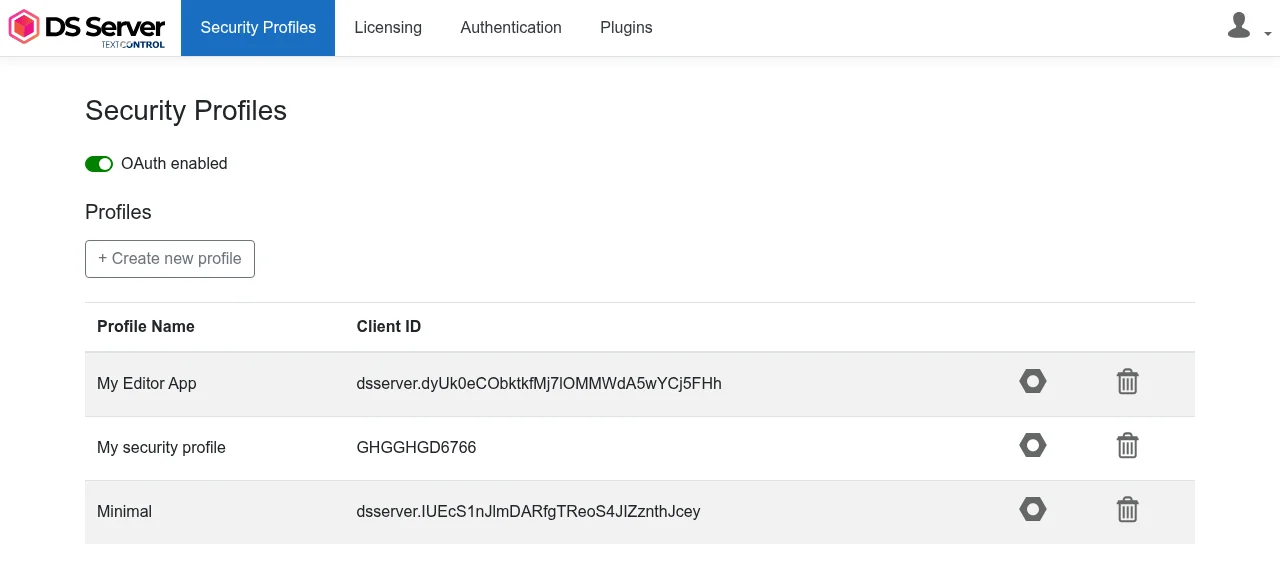
Enter a name for the profile, such as MyEditorProject, and click Create.
The Edit Security Profile page shows the generated Client ID and Client Secret. Copy both values, then click Done.
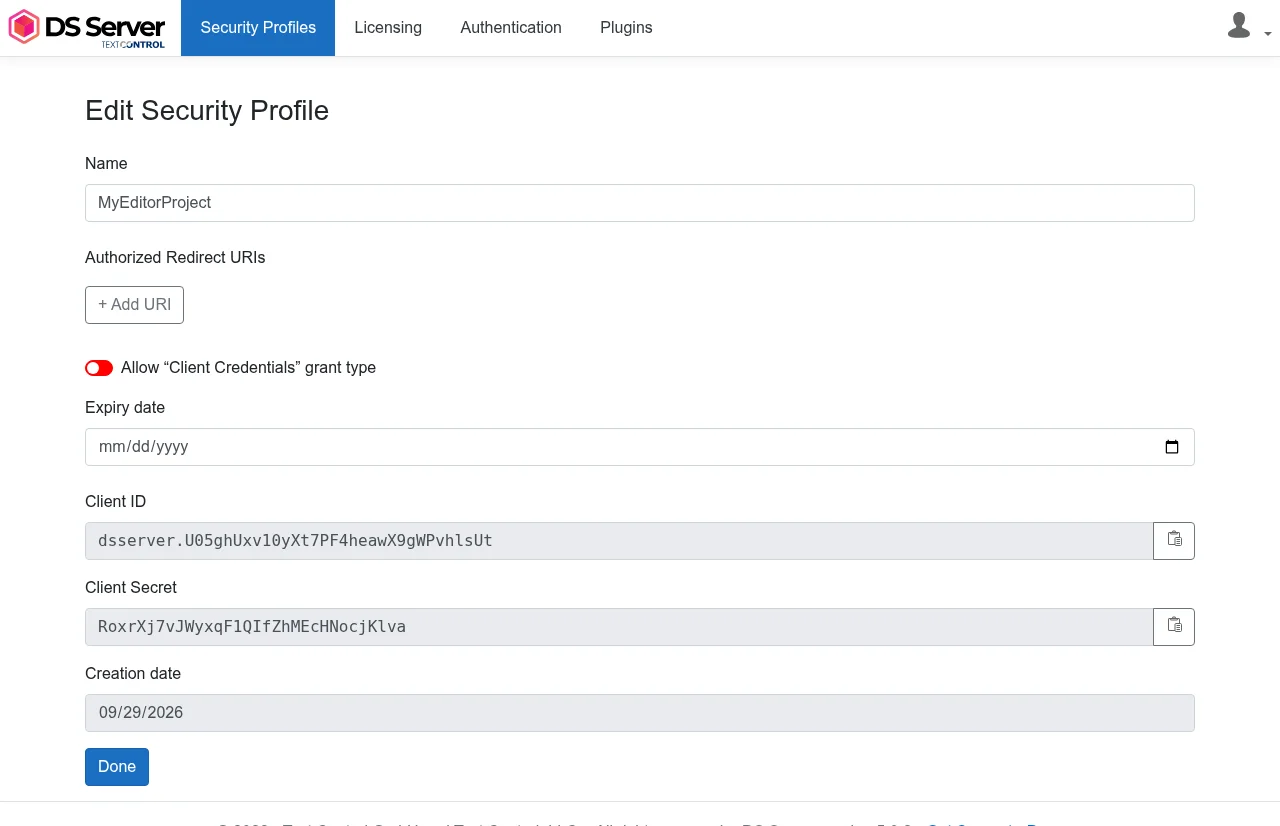
The profile still needs the redirect URI of your application. You add it once the application exists and you know its address. Creating Security Profiles describes the profile settings in detail.
Create the Project
- In Visual Studio 2026, choose Create a new project.
- Select ASP.NET Core Web App (Model-View-Controller) as the project template and confirm with Next.
- Enter a project name, choose a location and confirm with Next.
- Choose .NET 10.0 (Long Term Support) as the Framework and create the project.
Without Visual Studio, create the same project with the .NET CLI and change to its folder:
dotnet new mvc MyEditorApp net10.0
cd MyEditorApp
Install the NuGet Package
The package is published on nuget.org, so no private feed is needed.
- In Solution Explorer, select your project and choose Manage NuGet Packages... from the Project menu.
- Select nuget.org as the package source.
- Search for
TXTextControl.DocumentServices.DocumentEditorand install version 5.0.0, the version for DS Server 5.0.
With the .NET CLI, run this command in the project folder:
dotnet add package TXTextControl.DocumentServices.DocumentEditor
Program.cs stays as the template created it.
Add the Editor to the View
Open Index.cshtml in the Views/Home folder and replace its complete content with the following code. Replace the service URL with the address of your DS Server, the client ID and secret with the values of your security profile, and https://localhost:7143 with the HTTPS address of your project, which you find in Properties/launchSettings.json.
@using TXTextControl.DocumentServices.DocumentEditor

@Html.TXTextControl().DocumentEditor(settings => {
    settings.Width = "1000px";
    settings.Height = "600px";
    settings.ServiceUrl = "http://localhost:5000";
    settings.OAuthSettings.ClientId = "<client ID>";
    settings.OAuthSettings.ClientSecret = "<client secret>";
    settings.OAuthSettings.RedirectUri = "https://localhost:7143/textcontrol/documenteditor/auth/callback";
}).Render()

<script>
    TXTextControl.addEventListener("textControlLoaded", function () {
        TXTextControl.selection.setText("Welcome to DS Server");
    });
</script>
What the View Does
@using TXTextControl.DocumentServices.DocumentEditorimports the namespace of the HTML helper.Html.TXTextControl().DocumentEditor()creates the editor with the settings of the lambda expression.WidthandHeightset its size.ServiceUrlis the address of DS Server. The browser loads the editor script from this address and opens a WebSocket connection to it, so it must be reachable from the browser, not only from your server.OAuthSettingsholds the credentials of the security profile. WithRedirectUri, the package requests the access token with the authorization code flow. It does so on your server and writes only the access token into the page. The client ID and secret stay in the view, which runs on the server.Render()writes the editor into the page.- The script uses the JavaScript API of the editor, the global
TXTextControlobject.addEventListenerwaits for thetextControlLoadedevent, which fires when the editor is ready, andselection.setTextinserts the text at the input position.
ASP.NET Core in Client-Side Libraries lists every property of the editor settings, such as EditMode, UserNames and DocumentData.
Register the Redirect URI
DS Server only issues a token for a redirect URI that the security profile lists. Start the application with F5 or dotnet run now, and the page shows this message in place of the editor:
Authorization Error
Exception: OAuth access token request failed. Missing, invalid or mismatching redirection URI.
Register the redirect URI of the view:
In the admin portal, choose Security Profiles and click the edit icon (Edit profile) of your profile.
Click + Add URI and enter the HTTPS address of your project followed by
/textcontrol/documenteditor/auth/callback, the same value asRedirectUriin the view:https://localhost:7143/textcontrol/documenteditor/auth/callback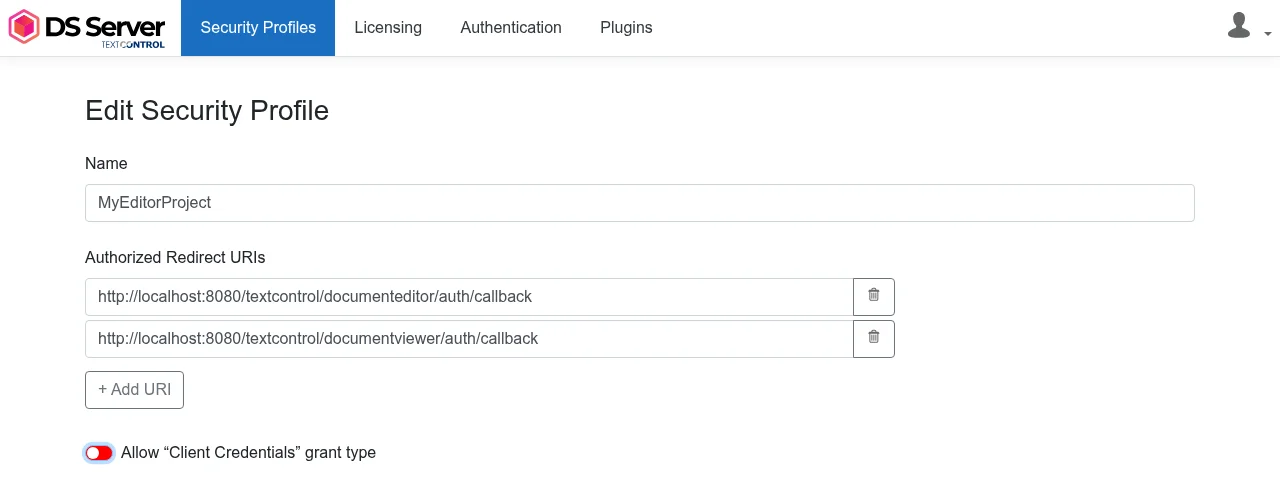
Click Save.
The URI must match RedirectUri, including the protocol, the port and the path. DS Server 5.0.2 ignores upper and lower case, but a trailing slash or a query string is a mismatch. Every address your application runs under, such as the development address and the production address, needs its own entry.
Run the Application
Refresh the page in the browser, or start the application again. The Home view shows the Document Editor with its ribbon bar, and the text "Welcome to DS Server" appears at the input position as soon as the editor is ready.
The ribbon of the DS Server editor has no File tab. Documents are loaded and saved with the JavaScript API, for example with loadDocument and saveDocument, or passed to the view with the DocumentData setting.
Use a Trial Token
A trial token is a security profile on the trial server https://trial.dsserver.io, and it allows the client credentials grant type. With a trial token, leave out RedirectUri and set ServiceUrl to the trial server:
@using TXTextControl.DocumentServices.DocumentEditor

@Html.TXTextControl().DocumentEditor(settings => {
    settings.Width = "1000px";
    settings.Height = "600px";
    settings.ServiceUrl = "https://trial.dsserver.io";
    settings.OAuthSettings.ClientId = "<client ID>";
    settings.OAuthSettings.ClientSecret = "<client secret>";
}).Render()
Without RedirectUri, the package requests the token with the client credentials grant type, again on your server. You can use this variant with your own DS Server as well, if the security profile has Allow "Client Credentials" grant type switched on, as OAuth Grant Types describes. Otherwise the page shows this message:
Authorization Error
Exception: OAuth access token request failed. error: "unsupported_grant_type", error_description: "This security profile does not allow the specified grant type. (client_credentials)"
Troubleshooting
"DS Server is not registered." The editor area stays gray and shows this message when the DS Server has no license. The WebSocket connection works, but DS Server refuses to open the editor. Register the server in the admin portal, as Licensing describes.
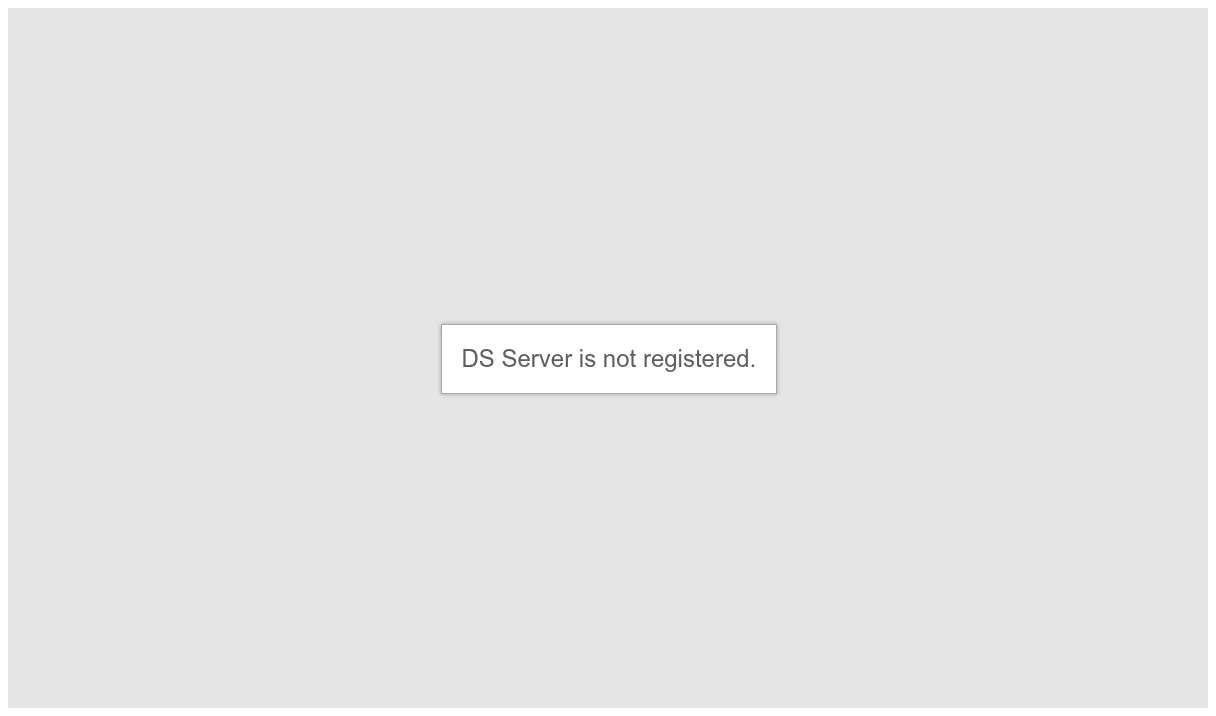
"Can't connect to the server. Please refresh the website to re-connect." The editor could not open its WebSocket connection to
<service URL>/documenteditor/WS. DS Server refuses the connection without a valid access token when OAuth is enabled. Check thatServiceUrlis the address of DS Server as the browser reaches it, and that IIS or a proxy in front of DS Server passes WebSocket connections through.
Document Editor and Viewer in Troubleshooting covers more problems.
Next Steps
- ASP.NET Core: every setting of the Document Editor and Document Viewer packages.
- Document Editor JavaScript API: the
TXTextControlobject and its methods and events. - Document Viewer in ASP.NET Core: display documents with the same security profile.
- OAuth Grant Types: the authorization code and client credentials grant types.