
Language Detection
Which language is this sentence written in? TX Spell .NET answers that question for text that doesn't say: a document converted from plain text, pasted from a web page, or saved by an application that stores no language. Language detection splits such a text into language scopes, sections that each have one language, so that every part is checked, hyphenated and given suggestions in the right language. It works in TX Text Control without code and on any string in code.
How Language Detection Works
The spell checker recognizes more than 30 languages and marks where one language ends and the next begins. A few properties of the method matter in practice:
- A sentence is enough. One sentence of four or more words is usually enough to detect its language. Shorter pieces may stay without a language.
- No dictionaries are needed. Detection uses its own data, the file languageRecognition.resources, not the dictionaries of the detected languages.
- Scopes can be nested. A German phrase in brackets inside an English sentence becomes a scope of its own, and bidirectional text that mixes, for example, Arabic and English is split as well.
- Only the languages you allow are detected. The spell checker looks for the languages in its list of detectable languages; others are counted as one of those or left without a language.
Documents from TX Text Control and from Microsoft Word usually carry the language of their text already. Detection is for the rest.
Detect Languages in TX Text Control
A TextControl with a connected spell checker can detect languages by itself. Set its IsLanguageDetectionEnabled property to true, in the Properties window or in code:
// Detect a language for all text without one
textControl1.IsLanguageDetectionEnabled = true;
Every piece of text with a neutral language then gets the language that was detected for it. The detection needs a spell checker connected through the SpellChecker property, as in Create Your First WPF Application.
The status bar of TX Text Control shows the language of the text at the input position, so the user sees which language a word was given. Its ShowLanguage property turns this field on and off. The Language group of the Proofing tab holds the commands to set and detect languages.
Detect Language Scopes in Code
DetectLanguageScopes detects the language scopes of a string and fills LanguageScopes with them. The TXSpellChecker of a window and the TXSpell class for code without a user interface have the same members. This console application uses TXSpell from the package TXTextControl.TXSpell.Core.SDK, as in Checking Text in Code:
using System;
using TXTextControl.Proofing;

TXSpell spell = new TXSpell();

// Initialize the new instance before using it
spell.Create();

string text = "This is a test. Dieses ist ein Test. Esto es una prueba.";

spell.DetectLanguageScopes(text);

foreach (LanguageScope scope in spell.LanguageScopes)
{
    Console.WriteLine($"{scope.Language?.Name} Start {scope.Start} Length {scope.Length}: \"{text.Substring(scope.Start, scope.Length)}\"");
}
The console shows three scopes:
en Start 0 Length 16: "This is a test. "
de Start 16 Length 21: "Dieses ist ein Test. "
es Start 37 Length 19: "Esto es una prueba."
The code works as follows:
- Each LanguageScope has a Language, a neutral
CultureInfosuch asenorde, and a Start and Length in the text, counting from 0. Languageisnullfor a scope whose language couldn't be detected, for example a text that is too short, so the code reads it with?..- The space after a sentence belongs to the scope of that sentence.
With the TXSpellChecker resource of a window, which the code-behind gets with FindResource, write txSpellChecker1.DetectLanguageScopes(text) and read txSpellChecker1.LanguageScopes instead.
The LanguageScopes property holds a LanguageScopeCollection. Its GetItem method returns the scope at a text position, or, with a language as the second argument, the scope of that language at or after the position, and the first scope of that language when none follows.
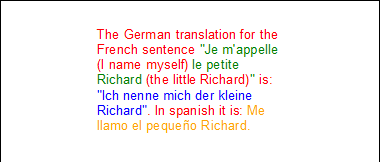
The sample that came with language detection colors each scope of a text in a different color, here English, French, German and Spanish:
Choose the Detectable Languages
DetectableLanguageScopes is the list of languages the spell checker looks for. By default, it holds seven of the most widely spoken languages: Arabic (ar), German (de), English (en), Spanish (es), French (fr), Portuguese (pt) and Russian (ru).
A language that isn't in the list isn't detected. Italian text, for example, is detected as Spanish or not at all with the default list. Set the list to the languages your documents contain:
using System.Globalization;

txSpellChecker1.DetectableLanguageScopes = new CultureInfo[]
{
    new CultureInfo("en"),
    new CultureInfo("de"),
    new CultureInfo("it"),
    new CultureInfo("nl")
};
The list takes neutral cultures only: new CultureInfo("de") works, while a specific culture such as new CultureInfo("de-DE") throws an ArgumentException. These languages can be detected:
Afrikaans (af) | Arabic (ar) | Armenian (hy) | Belarusian (be) | Bulgarian (bg) |
Catalan (ca) | Croatian (hr) | Czech (cs) | Danish (da) | Dutch (nl) |
English (en) | Estonian (et) | French (fr) | Galician (gl) | German (de) |
Greek (el) | Hebrew (he) | Italian (it) | Lithuanian (lt) | Norwegian (no) |
Occitan (oc-FR) | Persian (fa) | Polish (pl) | Portuguese (pt) | Romanian (ro) |
Russian (ru) | Serbian (sr) | Slovak (sk) | Slovenian (sl) | Spanish (es) |
Swedish (sv) | Ukrainian (uk) | Urdu (ur) | Vietnamese (vi) |
Occitan is the one language written with its region, oc-FR.
Use the Detected Languages
Detection tells you which languages a text contains, so it is a way to decide which dictionaries to load: add the dictionary of each detected language, and the text is checked in all of them. Loading and Managing Dictionaries shows how to add a dictionary, and Multilingual Documents and Language Scopes how the spell checker picks the dictionary for each piece of text.
Where the Language Recognition Data Is
Detection reads languageRecognition.resources from the folder in LanguageRecognitionDirectoryPath. Its default, "(Auto)", is the folder LanguageRecognition next to the application, or, on the development machine, below the Assembly folder of the TX Spell .NET installation.
- In .NET projects, the TX Spell .NET packages copy the folder LanguageRecognition into the output folder when you build.
- In .NET Framework projects, ship the folder with the application; see Deploying .NET Framework Applications.
- To keep the file elsewhere, set
LanguageRecognitionDirectoryPathto its folder. The folder must exist; otherwise the property throws anArgumentException.
Without the file, DetectLanguageScopes fails with an exception. Dictionaries Not Found lists the messages when a language data folder is missing.
Next Steps
- Multilingual Documents and Language Scopes: check texts that mix languages.
- Loading and Managing Dictionaries: add the dictionaries of the detected languages.
- Checking Text in Code: the console application this sample builds on.