
Customizing the Spell Check Dialog
Your application may need a spelling dialog that differs from the default one: without Add To Dictionary because users must not change the dictionaries, with a button that ends the check, in the font of the application, or with an options dialog of your own. The spell check dialog of TX Spell .NET can be changed in all these ways, in code, before it opens. What follows shows each change, and a window that combines them.
How the Dialog Is Built
You don't create the dialog. The SpellCheckDialog property of the TXSpellChecker returns it, a SpellCheckDialog object that keeps its settings for every time the dialog is shown. By default, it looks like this:
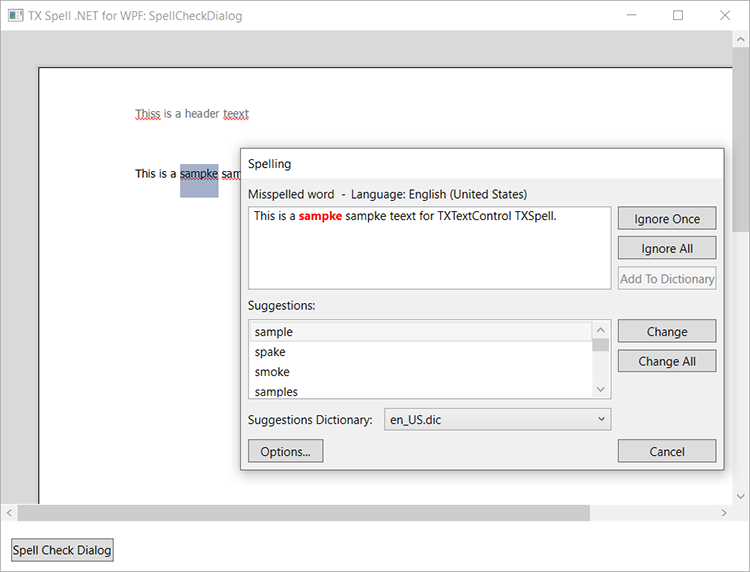
Its buttons are in three collections, one for each group of the dialog:
| Collection | Place in the dialog | Default buttons |
|---|---|---|
| IgnoreButtons | Right of the sentence | Ignore Once, Ignore All, Add To Dictionary |
| ChangeButtons | Right of the suggestions | Change, Change All |
| OptionButtons | Below the suggestions dictionary | Options... |
Each collection is a DialogButtonCollection of DialogButton objects. A button has a Text, an Enabled state, font properties and a Type, a value of TXSpell.ButtonType that decides what a click does. Spell Check Dialog lists the types of the default buttons.
Change the collections while the dialog is closed. Add, AddRange and Remove throw an exception when they are called while it is open. The constructor of the window is a good place.
The dialog classes are in the TXTextControl.WPF.Proofing namespace, and TXSpell.ButtonType is in TXTextControl.Proofing. The code on this page uses both namespaces.
Rename a Button
Set the Text of a button:
txSpellChecker1.SpellCheckDialog.OptionButtons[0].Text = "My Options...";
The indexer of a collection counts from 0, in the order of the table above. The new text is used the next time the dialog opens.
Remove or Disable a Button
To take Add To Dictionary away from the user, find it by its type and remove it from its collection:
SpellCheckDialog dialog = txSpellChecker1.SpellCheckDialog;

foreach (DialogButton button in dialog.IgnoreButtons)
{
    if (button.Type == TXSpell.ButtonType.AddToDictionary)
    {
        dialog.IgnoreButtons.Remove(button);
        break;
    }
}
To keep the button visible but grayed out, set its Enabled property to false instead. Removing the Options... button from OptionButtons the same way leaves the user no way to open the options dialog from the spell check dialog.
Add a Button of Your Own
A button of the type User has no built-in behavior. You create it, add it to a collection and handle its click in the DialogButtonClicked event of the TXSpellChecker. This Stop button, added to the group of Change and Change All, ends the check:
private DialogButton stopButton;

private void AddStopButton()
{
    stopButton = new DialogButton(TXSpell.ButtonType.User);
    stopButton.Text = "Stop";
    txSpellChecker1.SpellCheckDialog.ChangeButtons.Add(stopButton);

    txSpellChecker1.DialogButtonClicked += txSpellChecker1_DialogButtonClicked;
}

private void txSpellChecker1_DialogButtonClicked(object sender, DialogButtonEventArgs e)
{
    if (e.DialogButton == stopButton)
    {
        // Close the dialog before all words are checked
        e.StateManager.Close();
    }
}
The code works as follows:
- The DialogButton constructor takes the type of the button.
ChangeButtons.Addplaces it in the group of Change and Change All. - DialogButtonEventArgs tells which button was clicked, in DialogButton. The event fires for every button of the dialog, so compare the button before you act.
- StateManager is a SpellCheckDialogStateManager. Its Close method closes the dialog; its SetNext method moves the dialog to another word, text or control.
Change the Font and the Preview
Four properties of the SpellCheckDialog set the font of its labels, the preview, the two lists and the Cancel button: FontFamily, FontSize, FontStyle and FontWeight. The other buttons have font properties of their own with the same names. The Preview property describes the sentence at the top of the dialog:
| Property | Default | Effect |
|---|---|---|
| Preview.IncorrectWordColor | Colors.Red | The color of the misspelled word in the sentence |
| Preview.Editable | true | Whether the user can edit the sentence |
One more property concerns the editor behind the dialog. HideSelection decides whether the text selected in the TextControl stays highlighted while the dialog is open. Its default is false, and it has an effect only when the dialog checks a TextControl.
The two lists of the dialog, the suggestions and the suggestions dictionary, are described in Suggestion Controls.
Use Your Own Options Dialog
The Options... button raises the OptionsDialogOpening event before the options dialog of TX Spell .NET opens. Set Cancel of its arguments to true and show your own window instead. Options Dialog shows the code.
Put It Together
This window connects a spell checker to a TextControl and changes the dialog in its constructor: Add To Dictionary is removed, a Stop button is added, Change answers the Enter key, and the font, the color and the number of suggestions are changed. In a new WPF project with the TX Text Control and TX Spell .NET packages, replace the contents of MainWindow.xaml, and change SpellingApp to the namespace of your project:
<Window x:Class="SpellingApp.MainWindow"
        xmlns="http://schemas.microsoft.com/winfx/2006/xaml/presentation"
        xmlns:x="http://schemas.microsoft.com/winfx/2006/xaml"
        xmlns:tx="clr-namespace:TXTextControl.WPF;assembly=TXTextControl.WPF"
        xmlns:spell="clr-namespace:TXTextControl.WPF.Proofing;assembly=TXSpell.WPF"
        Title="Spelling" Height="450" Width="800">
    <Window.Resources>
        <spell:TXSpellChecker x:Key="txSpellChecker1" />
    </Window.Resources>
    <DockPanel>
        <Button DockPanel.Dock="Bottom" Content="Spelling..." Click="ButtonSpelling_Click" />
        <tx:TextControl Name="textControl1"
                        IsSpellCheckingEnabled="True"
                        SpellChecker="txSpellChecker1" />
    </DockPanel>
</Window>
Then replace the contents of MainWindow.xaml.cs:
using System.Windows;
using System.Windows.Media;
using TXTextControl.Proofing;
using TXTextControl.WPF.Proofing;

namespace SpellingApp
{
    public partial class MainWindow : Window
    {
        private readonly TXSpellChecker txSpellChecker1;
        private readonly DialogButton stopButton;

        public MainWindow()
        {
            InitializeComponent();
            txSpellChecker1 = (TXSpellChecker)FindResource("txSpellChecker1");

            SpellCheckDialog dialog = txSpellChecker1.SpellCheckDialog;

            // Users may not change the dictionaries
            foreach (DialogButton button in dialog.IgnoreButtons)
            {
                if (button.Type == TXSpell.ButtonType.AddToDictionary)
                {
                    dialog.IgnoreButtons.Remove(button);
                    break;
                }
            }

            // A button that ends the check
            stopButton = new DialogButton(TXSpell.ButtonType.User);
            stopButton.Text = "Stop";
            dialog.ChangeButtons.Add(stopButton);
            txSpellChecker1.DialogButtonClicked += txSpellChecker1_DialogButtonClicked;

            // Enter clicks Change instead of Ignore Once
            dialog.AcceptButton = dialog.ChangeButtons[0];

            dialog.FontFamily = new FontFamily("Segoe UI");
            dialog.FontSize = 13;
            dialog.Preview.IncorrectWordColor = Colors.Blue;
            dialog.SuggestionList.MaxSuggestions = 5;
        }

        private void ButtonSpelling_Click(object sender, RoutedEventArgs e)
        {
            txSpellChecker1.SpellCheckDialog.Show(textControl1);
        }

        private void txSpellChecker1_DialogButtonClicked(object sender, DialogButtonEventArgs e)
        {
            if (e.DialogButton == stopButton)
            {
                e.StateManager.Close();
            }
        }
    }
}
Run the application, type a few misspelled words and click Spelling.... The dialog opens without Add To Dictionary, with a Stop button in the group of Change and Change All, and the misspelled word appears in blue.
The code works as follows:
- The window needs two namespaces:
TXTextControl.WPF.Proofingfor the spell checker and its dialog, andTXTextControl.ProofingforTXSpell.ButtonType. - AcceptButton is the button that Enter clicks. It is Ignore Once by default;
ChangeButtons[0]is Change. - MaxSuggestions limits the suggestion list to five words instead of ten.
Next Steps
- Spell Check Dialog: the parts of the dialog and what each button does.
- Options Dialog: the dialog behind Options..., and how to replace it.
- Suggestion Controls: the suggestion list and the dictionary list of the dialog.
- Localization and Resource Kit: the texts of the dialog in other languages.
- Spelling Correction Modes and UI Provider: a spelling dialog built entirely from your own controls.