
Spelling Correction Modes and UI Provider
The spell check dialog is one way to correct words; a panel docked beside the editor, a correction bar or a dialog in your own design are others. For those, TX Spell .NET provides the SpellingCorrectionUIProvider. It keeps track of the word being corrected, its suggestions and which commands make sense for it, and your controls bind to these values with WPF data binding. You write the layout; the provider decides when Change is enabled and what the list of suggestions holds.
What the Provider Does
You get the provider from the SpellingCorrectionUIProvider property of the TXSpellChecker. It works through the misspelled words of a TextControl or a text, one at a time, and it always knows the state of the correction: whether there is a word to correct, whether suggestions were found, whether the user is editing the word. This state is its mode.
Five properties of the provider split the work. Each returns an object of a nested class with a different name:
| Property | Returns | Holds |
|---|---|---|
| StateManaging | StateManager | The connected control, the current word and the mode |
| CorrectionHandling | CorrectionHandler | The commands, such as Change and Ignore, and whether each is enabled |
| SuggestionsHandling | SuggestionsHandler | The suggestions for the current word |
| SuggestionDictionariesHandling | SuggestionDictionariesHandler | The dictionaries the suggestions come from |
| PreviewHandling | PreviewHandler | The position of the sentence that contains the current word |
Code uses the property names: txSpellChecker1.SpellingCorrectionUIProvider.CorrectionHandling.Change(...). The five objects raise PropertyChanged when one of their values changes, which is what data binding needs. Every change of the current word updates the mode, the suggestions and the enabled states, and bound controls follow without an event handler of yours.
The Correction Modes
Mode returns a value of TXSpell.SpellingCorrectionMode:
| Mode | Meaning |
|---|---|
InitialState | No TextControl and no text is connected. This is the state before the first SetCurrent, and after Cancel or SetCurrent with null |
NoWordsToCorrectFound | The connected control or text has no words to correct |
NoWordToCorrectSelected | SetCurrent with a text position found no word to correct at that position; CurrentWordToCorrect is null |
SuggestionsCreated | There is a word to correct, and suggestions were created for it |
NoSuggestionsCreated | There is a word to correct, but no suggestions were found |
WordToCorrectIsDuplicate | The word to correct repeats the word in front of it |
WordToCorrectEditing | The user is editing the word by hand, for example in a preview |
OptionsSettings | The options are being changed, for example in the options dialog |
CorrectionCompleted | Every word was handled; nothing is left to correct |
The mode decides which commands of the CorrectionHandler are enabled:
| Command | Enabled in |
|---|---|
| Change, ChangeAll | SuggestionsCreated, WordToCorrectEditing |
| Delete, Ignore | SuggestionsCreated, NoSuggestionsCreated, WordToCorrectIsDuplicate |
| IgnoreAll | SuggestionsCreated, NoSuggestionsCreated |
| AddToDictionary | SuggestionsCreated, NoSuggestionsCreated, when an editable user dictionary of the word's language exists |
A duplicated word can be deleted or ignored but not changed: there is nothing to replace it with. Each command has a matching property, such as IsChangeEnabled, IsIgnoreEnabled and IsDeleteEnabled, to bind the IsEnabled property of a button to.
Build a Correction Panel
This window has a TextControl, and to its right a list of suggestions with three buttons: Change, Ignore and Delete. The bindings are written in XAML, against the spell checker resource of the window:
<Window x:Class="SpellingCorrectionSample.MainWindow"
        xmlns="http://schemas.microsoft.com/winfx/2006/xaml/presentation"
        xmlns:x="http://schemas.microsoft.com/winfx/2006/xaml"
        xmlns:tx="clr-namespace:TXTextControl.WPF;assembly=TXTextControl.WPF"
        xmlns:spell="clr-namespace:TXTextControl.WPF.Proofing;assembly=TXSpell.WPF"
        Title="Spelling Correction" Height="450" Width="800">
    <Window.Resources>
        <spell:TXSpellChecker x:Key="txSpellChecker1" />
    </Window.Resources>
    <DockPanel>
        <StackPanel DockPanel.Dock="Right" Width="200" Margin="7">
            <ListBox Name="listBoxSuggestions" Height="200"
                ItemsSource="{Binding Source={StaticResource txSpellChecker1}, Path=SpellingCorrectionUIProvider.SuggestionsHandling.Suggestions}"
                IsEnabled="{Binding Source={StaticResource txSpellChecker1}, Path=SpellingCorrectionUIProvider.SuggestionsHandling.IsSuggestionListEnabled}" />
            <Button Name="buttonChange" Content="Change" Margin="0,7,0,0" Click="buttonChange_Click"
                IsEnabled="{Binding Source={StaticResource txSpellChecker1}, Path=SpellingCorrectionUIProvider.CorrectionHandling.IsChangeEnabled}" />
            <Button Name="buttonIgnore" Content="Ignore" Margin="0,7,0,0" Click="buttonIgnore_Click"
                IsEnabled="{Binding Source={StaticResource txSpellChecker1}, Path=SpellingCorrectionUIProvider.CorrectionHandling.IsIgnoreEnabled}" />
            <Button Name="buttonDelete" Content="Delete" Margin="0,7,0,0" Click="buttonDelete_Click"
                IsEnabled="{Binding Source={StaticResource txSpellChecker1}, Path=SpellingCorrectionUIProvider.CorrectionHandling.IsDeleteEnabled}" />
        </StackPanel>
        <tx:TextControl Name="textControl1" SpellChecker="txSpellChecker1" IsSpellCheckingEnabled="True"
            Loaded="textControl1_Loaded" />
    </DockPanel>
</Window>
The code-behind connects the editor once it is loaded and handles the three buttons:
using System.ComponentModel;
using System.Windows;
using TXTextControl.Proofing;
using TXTextControl.WPF.Proofing;

namespace SpellingCorrectionSample
{
    public partial class MainWindow : Window
    {
        private readonly TXSpellChecker txSpellChecker1;

        public MainWindow()
        {
            InitializeComponent();
            txSpellChecker1 = (TXSpellChecker)FindResource("txSpellChecker1");
        }

        private void textControl1_Loaded(object sender, RoutedEventArgs e)
        {
            textControl1.Text = "This is a sampke text with a mistkae.";

            SpellingCorrectionUIProvider provider = txSpellChecker1.SpellingCorrectionUIProvider;

            // Select each new word to correct in the editor
            provider.StateManaging.PropertyChanged += StateManaging_PropertyChanged;

            // Connect the editor: its first misspelled word becomes the word to correct
            provider.StateManaging.SetCurrent(textControl1);
        }

        private void StateManaging_PropertyChanged(object sender, PropertyChangedEventArgs e)
        {
            if (e.PropertyName != "CurrentWordToCorrect") return;

            if (txSpellChecker1.SpellingCorrectionUIProvider.StateManaging.CurrentWordToCorrect is TXTextControl.MisspelledWord word)
            {
                word.Select();
            }
            else
            {
                textControl1.Select(0, 0);
            }
        }

        private void buttonChange_Click(object sender, RoutedEventArgs e)
        {
            if (listBoxSuggestions.SelectedItem != null)
            {
                txSpellChecker1.SpellingCorrectionUIProvider.CorrectionHandling.Change(listBoxSuggestions.SelectedItem.ToString());
            }
        }

        private void buttonIgnore_Click(object sender, RoutedEventArgs e) =>
            txSpellChecker1.SpellingCorrectionUIProvider.CorrectionHandling.Ignore();

        private void buttonDelete_Click(object sender, RoutedEventArgs e) =>
            txSpellChecker1.SpellingCorrectionUIProvider.CorrectionHandling.Delete();
    }
}
The code works as follows:
- The bindings take the spell checker resource as their
Sourceand walk the path to the provider:ItemsSourcefills the list with Suggestions, and eachIsEnabledfollows the provider, so a button is grayed out whenever its command is not available in the current mode. - SetCurrent connects the
TextControlin itsLoadedevent. Its first misspelled word becomes CurrentWordToCorrect, aMisspelledWord. If the text has none, the mode becomesNoWordsToCorrectFound. Another overload takes a string, for text that is not in aTextControl. PropertyChangedof theStateManagerreports each new word; the handler selects it, so the user sees which word the panel is about.Change,IgnoreandDeletehandle the current word, and the provider moves on to the next one. After the last word, the mode isCorrectionCompletedand all buttons are disabled.
Add More Commands and Settings
The SpellingCorrectionUIProvider Advanced sample of the setup extends this panel. Each addition binds to another member:
- Change All, Ignore All and Add To Dictionary. Bind buttons to IsChangeAllEnabled, IsIgnoreAllEnabled and IsAddToDictionaryEnabled, and call
ChangeAll,IgnoreAllandAddToDictionaryfrom them. - A dictionary choice. Bind the
ItemsSourceof aComboBoxtoSuggestionDictionariesHandling.SuggestionDictionaries, the dictionaries in the language of the current word, and itsIsEnabledtoSuggestionDictionariesHandling.IsSuggestionDictionariesEnabled, which tells whether suggestion dictionaries are available. In itsSelectionChangedevent, assign an array with the chosen dictionary toSuggestionDictionariesHandling.SelectedSuggestionDictionaries. The suggestions update on their own. - The sentence of the word. A preview shows the sentence that contains the current word; Show the Sentence of the Word builds it.
- Correcting by hand. When no suggestion fits, the user types the word into a text box; Edit the Word by Hand shows how.
- The number of suggestions. MaxSuggestions limits the list; the default is 10.
The dictionary choice takes these lines in the StackPanel of the window:
<ComboBox Name="comboBoxSuggestionDictionaries" Margin="0,7,0,0"
    SelectionChanged="comboBoxSuggestionDictionaries_SelectionChanged"
    ItemsSource="{Binding Source={StaticResource txSpellChecker1}, Path=SpellingCorrectionUIProvider.SuggestionDictionariesHandling.SuggestionDictionaries}"
    IsEnabled="{Binding Source={StaticResource txSpellChecker1}, Path=SpellingCorrectionUIProvider.SuggestionDictionariesHandling.IsSuggestionDictionariesEnabled}" />
Its handler goes into MainWindow.xaml.cs, which needs using System.Windows.Controls; for the event arguments:
private void comboBoxSuggestionDictionaries_SelectionChanged(object sender, SelectionChangedEventArgs e)
{
    if (comboBoxSuggestionDictionaries.SelectedItem is Dictionary dictionary)
    {
        // Create the suggestions from the chosen dictionary only
        txSpellChecker1.SpellingCorrectionUIProvider.SuggestionDictionariesHandling.SelectedSuggestionDictionaries =
            new Dictionary[] { dictionary };
    }
}
Show the Sentence of the Word
A word is easier to correct in its context. PreviewSentenceBounds of the PreviewHandler is an array of two integers: the start position and the length of the sentence that contains the current word. The provider sets it again for each new word. It holds positions, not text, so a value converter of the binding turns it into the sentence.
Add the converter class to the project, in the namespace of the window:
using System;
using System.Globalization;
using System.Windows.Data;
using TXTextControl.WPF.Proofing;

namespace SpellingCorrectionSample
{
    public class PreviewBoundsConverter : IValueConverter
    {
        public object Convert(object value, Type targetType, object parameter, CultureInfo culture)
        {
            if (value is int[] bounds && parameter is TXSpellChecker spellChecker &&
                spellChecker.SpellingCorrectionUIProvider.StateManaging.CurrentWordToCorrect is TXTextControl.MisspelledWord word)
            {
                // The text part of the TextControl that holds the current word
                var textPart = (TXTextControl.IFormattedText)spellChecker.SpellingCorrectionUIProvider.StateManaging.CurrentIFormattedText;
                TXTextControl.Paragraph paragraph = textPart.Paragraphs.GetItem(word.Start);

                // Paragraph.Start is one-based: subtract Start - 1 to get the offset in the paragraph
                return paragraph.Text.Substring(bounds[0] - (paragraph.Start - 1), bounds[1]);
            }

            return "";
        }

        public object ConvertBack(object value, Type targetType, object parameter, CultureInfo culture) =>
            throw new NotSupportedException();
    }
}
Declare the converter as a resource beside the spell checker, and bind a TextBlock above the list of suggestions to the bounds. The prefix local maps the namespace of the project; add xmlns:local="clr-namespace:SpellingCorrectionSample" to the Window element:
<Window.Resources>
    <spell:TXSpellChecker x:Key="txSpellChecker1" />
    <local:PreviewBoundsConverter x:Key="previewBoundsConverter" />
</Window.Resources>
<TextBlock Name="textBlockSentence" Height="50" TextWrapping="Wrap"
    IsEnabled="{Binding Source={StaticResource txSpellChecker1}, Path=SpellingCorrectionUIProvider.PreviewHandling.IsPreviewSentenceBoundsEnabled}"
    Text="{Binding Source={StaticResource txSpellChecker1}, Path=SpellingCorrectionUIProvider.PreviewHandling.PreviewSentenceBounds,
           Converter={StaticResource previewBoundsConverter}, ConverterParameter={StaticResource txSpellChecker1}}" />
The code works as follows:
- IsPreviewSentenceBoundsEnabled tells whether
PreviewSentenceBoundsprovides bounds for the current word; theTextBlockis disabled when it doesn't. - The binding passes the spell checker to the converter as
ConverterParameter, so that the converter reaches the provider. - CurrentIFormattedText is the text part of the
TextControlthat holds the current word: the main text, a header, a footer or a text frame. Its type isobject, and the converter casts it toIFormattedText. - Paragraphs and GetItem find the paragraph at the word.
GetItemtakes a zero-based text position; the one-based Start of the word points into the word, so the paragraph is the same. - The offset arithmetic is the part to get right. Paragraph.Start is the one-based number of the paragraph's first character, so
paragraph.Start - 1is its zero-based position. Subtracting it from the start of the sentence gives the index of the sentence in Paragraph.Text, and the second value of the array is the length to cut out.
Edit the Word by Hand
When no suggestion fits, the user types the correct word into a TextBox below the list. An Undo Edit button next to it returns to the suggestions. The text box shows the current word through a second converter, which turns a MisspelledWord into its text:
using System;
using System.Globalization;
using System.Windows.Data;

namespace SpellingCorrectionSample
{
    public class MisspelledWordConverter : IValueConverter
    {
        public object Convert(object value, Type targetType, object parameter, CultureInfo culture) =>
            value is TXTextControl.MisspelledWord word ? word.Text : "";

        public object ConvertBack(object value, Type targetType, object parameter, CultureInfo culture) =>
            throw new NotSupportedException();
    }
}
Declare it in the resources with <local:MisspelledWordConverter x:Key="wordToCorrectConverter" />, and add the text box, the button and a TextBlock for messages to the StackPanel:
<TextBox Name="textBoxEdit" Margin="0,7,0,0"
    Text="{Binding Source={StaticResource txSpellChecker1}, Mode=OneWay, Path=SpellingCorrectionUIProvider.StateManaging.CurrentWordToCorrect,
           Converter={StaticResource wordToCorrectConverter}}"
    PreviewKeyDown="textBoxEdit_PreviewKeyDown" TextChanged="textBoxEdit_TextChanged" />
<Button Name="buttonUndoEdit" Content="Undo Edit" Margin="0,7,0,0" Click="buttonUndoEdit_Click"
    IsEnabled="{Binding Source={StaticResource txSpellChecker1}, Path=SpellingCorrectionUIProvider.CorrectionHandling.IsUndoEditEnabled}" />
<TextBlock Name="textBlockMessage" Margin="0,7,0,0" TextWrapping="Wrap" />
The handlers go into MainWindow.xaml.cs, which needs using System.Windows.Controls; and using System.Windows.Input;. The new buttonChange_Click replaces the one of the panel above:
private void textBoxEdit_PreviewKeyDown(object sender, KeyEventArgs e)
{
    // The first key the user presses starts editing the word
    txSpellChecker1.SpellingCorrectionUIProvider.StateManaging.IsWordToCorrectEditing = true;
}

private void textBoxEdit_TextChanged(object sender, TextChangedEventArgs e)
{
    TXSpell.SpellingCorrectionMode mode = txSpellChecker1.SpellingCorrectionUIProvider.StateManaging.Mode;

    // A duplicate has nothing to check, and after the last word there is no word left
    if (mode == TXSpell.SpellingCorrectionMode.WordToCorrectIsDuplicate ||
        mode == TXSpell.SpellingCorrectionMode.CorrectionCompleted) return;

    txSpellChecker1.SpellingCorrectionUIProvider.CorrectionHandling.CheckCorrectedWord(textBoxEdit.Text, out string message);
    textBlockMessage.Text = message;
}

private void buttonChange_Click(object sender, RoutedEventArgs e)
{
    SpellingCorrectionUIProvider provider = txSpellChecker1.SpellingCorrectionUIProvider;

    if (provider.StateManaging.IsWordToCorrectEditing)
    {
        // Replace the word with the text the user typed
        provider.CorrectionHandling.Change(textBoxEdit.Text);
    }
    else if (listBoxSuggestions.SelectedItem != null)
    {
        provider.CorrectionHandling.Change(listBoxSuggestions.SelectedItem.ToString());
    }
}

private void buttonUndoEdit_Click(object sender, RoutedEventArgs e)
{
    SpellingCorrectionUIProvider provider = txSpellChecker1.SpellingCorrectionUIProvider;

    // Leave the editing mode and show the misspelled word again
    provider.StateManaging.IsWordToCorrectEditing = false;
    textBoxEdit.Text = ((TXTextControl.MisspelledWord)provider.StateManaging.CurrentWordToCorrect).Text;
}
The code works as follows:
- The binding of the text box is
OneWay: it shows each new CurrentWordToCorrect, and what the user types doesn't flow back to the provider. PreviewKeyDownsets IsWordToCorrectEditing totruebefore the first character arrives. The mode becomesWordToCorrectEditing, which enables Change, Change All and Undo Edit through their bindings. Setting the property has an effect only while there is a current word.- CheckCorrectedWord returns
truewhen the typed word is in one of the selected suggestion dictionaries. Otherwise, itsoutparameter holds a message for the user, which theTextBlockshows; for a correct word, the message is empty. The method works only in the modesSuggestionsCreatedandWordToCorrectEditing, andTextChangedalso fires when the binding fills the box, so the handler skips a duplicate and the end of the correction. - Change takes the typed text while the user is editing, and the selected suggestion otherwise. A Change All button does the same with
ChangeAll. - Undo Edit is enabled by IsUndoEditEnabled in the mode
WordToCorrectEditing. Its handler setsIsWordToCorrectEditingback tofalseand puts the misspelled word back into the box.
Build a Complete Spell Check Dialog
The third sample of the setup, Custom SpellCheckDialog, builds a full spell check dialog on the provider, with the same parts as the ready-made dialog of TX Spell .NET shown here:
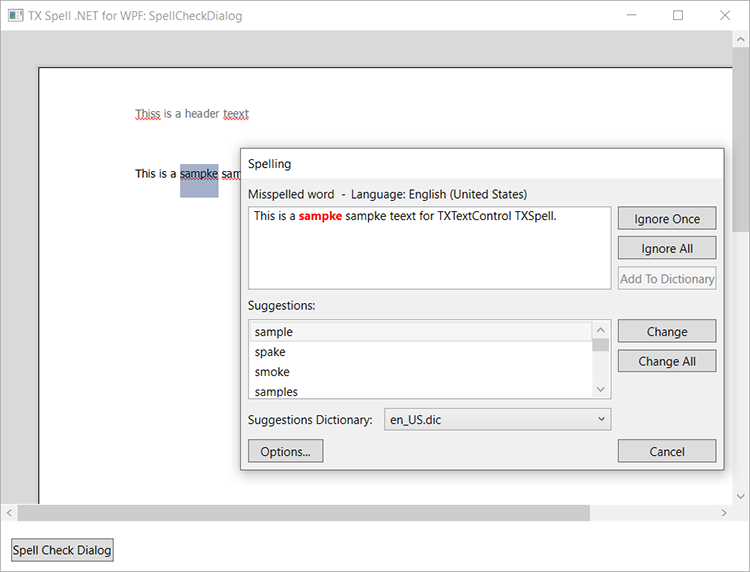
Such a dialog adds three rules to the panel above:
- Open it only when there is something to correct. Call
SetCurrentfirst and readMode. If it isNoWordsToCorrectFound, show a message instead of the dialog. Either way, reset the provider with Cancel afterward, which returns it toInitialState. - Switch buttons by mode. In
WordToCorrectEditing, the Ignore button becomes Undo Edit. ForWordToCorrectIsDuplicate, Change becomes Delete and callsDelete. - Protect ignored words during the options dialog. Set IsOptionsSettings to
truebefore you open the options dialog with OptionsDialog: this keeps the words ignored so far. Set it back tofalsewhen the dialog closes; theTextControlis then checked again with the new settings, and the stored ignored words are reset.
Spell Check Dialog describes the ready-made dialog, which is often enough, and Spell Checking Examples lists the three samples.
Next Steps
- Events: the event-based alternative, for the dialog and the context menus of TX Spell .NET.
- Incorrect Words and Suggestions: the lists behind the provider.
- Suggestion Controls: the suggestion lists of the dialog and the context menu, and a
ListBoxof your own. - Options Dialog: the settings the user can change during a correction.