
Checking on Demand
Many applications check spelling when the user asks for it: a Spelling button, a menu item, or a check before a document is saved or sent. The user then walks through the misspelled words one by one in a dialog, choosing a suggestion or ignoring the word each time. With TX Spell .NET for WPF, that dialog opens with one line of code, for TX Text Control as well as for a TextBox or any other control.
Two Dialogs to Choose From
When a spell checker is connected to a TextControl, two spelling dialogs are available. Both walk through the same misspelled words; they differ in who opens them and whether you can change them:
| Dialog of TX Text Control | Dialog of TX Spell .NET | |
|---|---|---|
| Opened by | TextControl.SpellCheckDialog, or Spell Check Dialog... in the context menu | SpellCheckDialog.Show |
| Works with | TX Text Control only | TX Text Control and any other control |
| Can be customized | No, it is preconfigured | Yes: buttons, texts, font and behavior |
| Raises MisspelledWordChanging for each change | No | Yes |
Choose the dialog of TX Text Control when the preconfigured one is all you need. Choose the dialog of TX Spell .NET to change it, to check several controls in one pass, or to check a control other than TX Text Control.
Open the Dialog of TX Text Control
The SpellCheckDialog method of the TextControl steps through all misspelled words of the document: the main text first, then the headers, footers and text frames. It is available only when a spell checker is connected through the SpellChecker property, as As-You-Type Checking shows. Call it from a button or menu item:
private void buttonSpelling_Click(object sender, RoutedEventArgs e)
{
    textControl1.SpellCheckDialog();
}
An overload takes the dictionary the dialog creates suggestions from. It is useful only when more than one dictionary has been added to the spell checker.
With the ribbon of TX Text Control, you don't need this code for the user to start a check. The Proofing tab, a RibbonProofingTab connected through the RibbonProofingTab property of the TextControl, holds the spelling and hyphenation buttons. They need a connected spell checker.
Open the Dialog of TX Spell .NET
The SpellCheckDialog property of the TXSpellChecker returns the dialog of TX Spell .NET, a SpellCheckDialog. To check a TextControl, pass it to Show. The spell checker is the resource declared in XAML, which the code-behind gets with FindResource, as As-You-Type Checking shows:
private void buttonSpelling_Click(object sender, RoutedEventArgs e)
{
    txSpellChecker1.SpellCheckDialog.Show(textControl1);
}
No further code is needed for TX Text Control: the dialog finds the misspelled words and applies the user's corrections to the document itself.
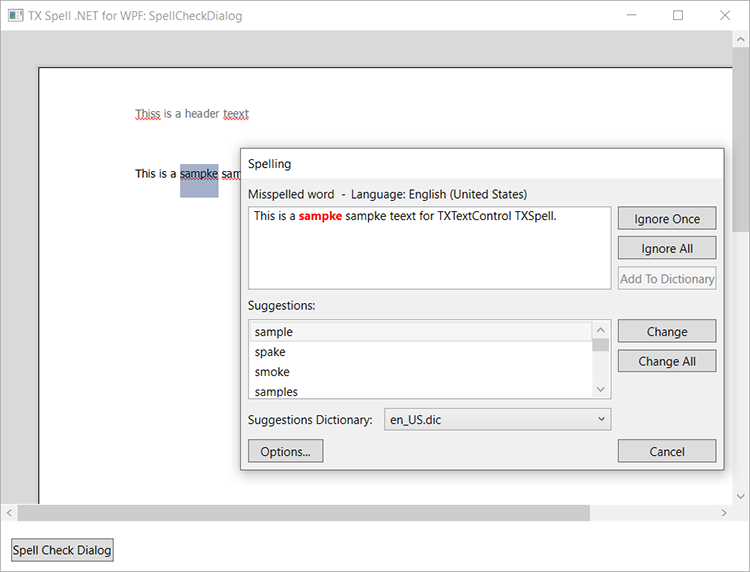
The dialog shows the misspelled word in its sentence, with the language of the word above it. The user picks a suggestion and clicks Change or Change All, or skips the word with Ignore Once or Ignore All. Add To Dictionary puts the word into a user dictionary, and the Suggestions Dictionary list chooses which dictionary the suggestions come from. Spell Check Dialog describes every part of it, and Customizing the Spell Check Dialog shows how to change it.
Show has four overloads:
| Overload | Checks |
|---|---|
Show(object textControl) | The TextControl you pass |
Show(object textControl, Dictionary suggestionDictionary) | The same, with suggestions from the Dictionary you pass |
Show(Window owner) | The words in IncorrectWords, found by a call to Check before; owner is the window that owns the dialog |
Show(Window owner, Dictionary suggestionDictionary) | The same, with suggestions from the dictionary you pass |
Check a TextBox in the Dialog
Without a connected TextControl, the spell checker isn't initialized for you: call its Create method once before the first check, for example in the constructor of the window.
The dialog can walk through the words of any text, but only TX Text Control applies the corrections itself. For another control, you find the words first and apply each correction yourself. A TextBox makes this simple, because its character positions are those of its Text:
Call Check with the text of the control, then
Show(this). Don't callCheckwhile the dialog is open: it throws an exception.private void buttonSpelling_Click(object sender, RoutedEventArgs e) { txSpellChecker1.Check(textBox1.Text); txSpellChecker1.SpellCheckDialog.Show(this); }Handle the IncorrectWordChanging event. It fires each time the user changes or deletes a word in the dialog, and your handler makes the same change in the control. Attach it once, after
FindResourcein the constructor, withtxSpellChecker1.IncorrectWordChanging += txSpellChecker1_IncorrectWordChanging;:private void txSpellChecker1_IncorrectWordChanging(object sender, TXTextControl.Proofing.IncorrectWordChangingEventArgs e) { // Select the word in the control textBox1.Select(e.IncorrectWord.Start, e.IncorrectWord.Length); if (e.Type == TXTextControl.Proofing.TXSpell.ChangeType.Replace) { textBox1.SelectedText = e.CorrectedWord; } else if (e.Type == TXTextControl.Proofing.TXSpell.ChangeType.Delete) { textBox1.SelectedText = ""; } }Run the application and click the button. The dialog opens with the first misspelled word, and each correction appears in the
TextBox.
The handler works as follows:
- Type says what the user did, as a value of TXSpell.ChangeType:
Replace,DeleteorIgnore. An ignored word needs no change in the text. - IncorrectWord is the word being changed. Its
StartandLengthlocate it in the text passed toCheck;Startcounts from 0, asTextBox.Selectdoes. - CorrectedWord is the replacement the user chose. Read it only when
TypeisReplace: otherwise it throws an exception.
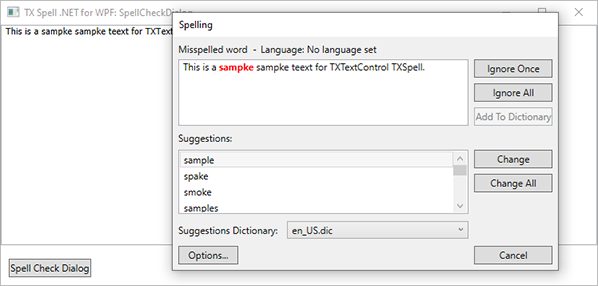
For a RichTextBox, pass the text of its document, new TextRange(richTextBox1.Document.ContentStart, richTextBox1.Document.ContentEnd).Text, to Check. The handler then has to find the TextRange of each word from its position in that text. The RichTextBox\SpellCheckDialog sample of the setup does this. Because the text has no language set, the dialog shows "Language: No language set":
Events lists what else the handler's arguments carry, such as a Cancel property that stops the change.
Control When the Dialog Closes
By default, the dialog closes when the last misspelled word is handled and tells the user in a message box that the check is complete. Decide How a Check Ends shows the two properties that change this. To check several controls in one dialog, keep it open in the SpellCheckDialogClosing event, as Checking Multiple Controls shows.
Next Steps
- Checking Multiple Controls: walk through several editors with one dialog.
- Checking Text Parts: check only the headers, footers or text frames you choose.
- Customizing the Spell Check Dialog: add, remove and rename buttons.
- Events: react to every change the dialog makes.