
Installing Dictionaries and Language Data
TX Spell .NET reads its language data from files: dictionaries for spell checking, hyphenation lists, thesaurus files and the data for language detection. US English comes with the packages and the setup, and every other language is a download. Where the files are decides whether the spell checker finds them, on your development machine and on the machines of your users.
The Four Folders
| Folder | Holds | Used for | Property |
|---|---|---|---|
| Dictionaries | Hunspell dictionaries (.dic and .aff) and user dictionaries (.txd) | Spell checking and suggestions | DictionariesDirectoryPath |
| HyphenationLists | Hunspell hyphenation lists | Hyphenation | HyphenationListsDirectoryPath |
| SynonymLists | Thesaurus files (.dat and .idx) | Synonyms | SynonymListsDirectoryPath |
| LanguageRecognition | languageRecognition.resources | Language detection | LanguageRecognitionDirectoryPath |
The spell checker uses the files in these folders automatically.
What You Get Out of the Box
- .NET projects. The TX Spell .NET packages contain the US English files of all four folders and copy them into the output folder when you build: en_US.dic and en_US.aff, hyph_en_US.dic, th_en_US_v2.dat and th_en_US_v2.idx, and languageRecognition.resources.
- .NET Framework projects. The setup installs the same files in the four folders below the Assembly folder of the installation.
With either, English text is checked, hyphenated and given synonyms without any setup.
Where the Spell Checker Looks
The four folder properties of the table above are "(Auto)" by default. "(Auto)" means:
- The folder of that name next to the application, such as Dictionaries in the output folder.
- On the development machine, the folder of that name below the Assembly folder of the TX Spell .NET installation.
The machines of your users have no installation, so there the folders must be next to the application. To keep the files elsewhere, for example in a folder shared by several applications, set the properties to that folder before the first check:
txSpellChecker1.DictionariesDirectoryPath = @"C:\Data\Dictionaries";
txSpellChecker1.SynonymListsDirectoryPath = @"C:\Data\SynonymLists";
The TXSpell class, which checks text without a user interface, has the same four properties. When a folder can't be found, the spell checker throws an exception; Dictionaries Not Found lists the messages. Loading and Managing Dictionaries shows how the spell checker chooses among the dictionaries it finds.
Add Other Languages
Text Control offers tested dictionaries, hyphenation lists and thesaurus files for about 40 languages on the dictionary download page of TX Spell .NET for WPF. No sign-in is needed:
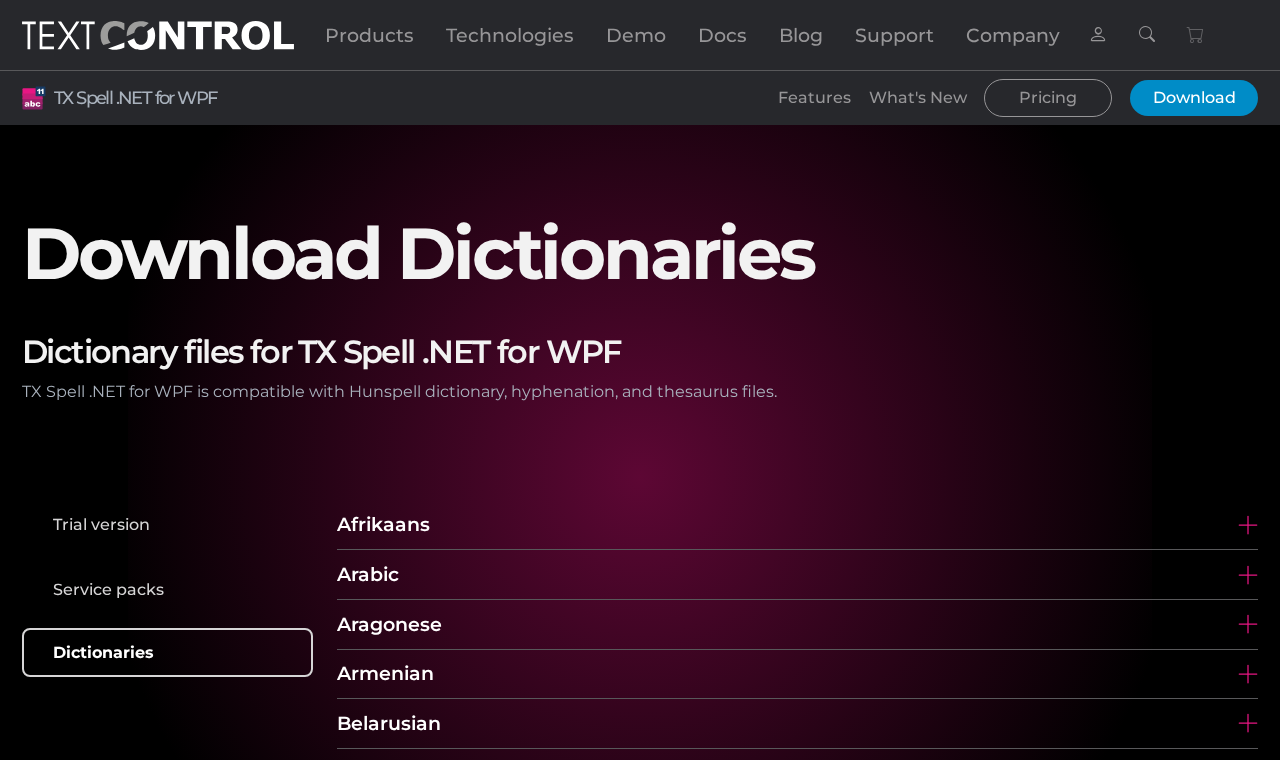
Each language opens a list of files per region:
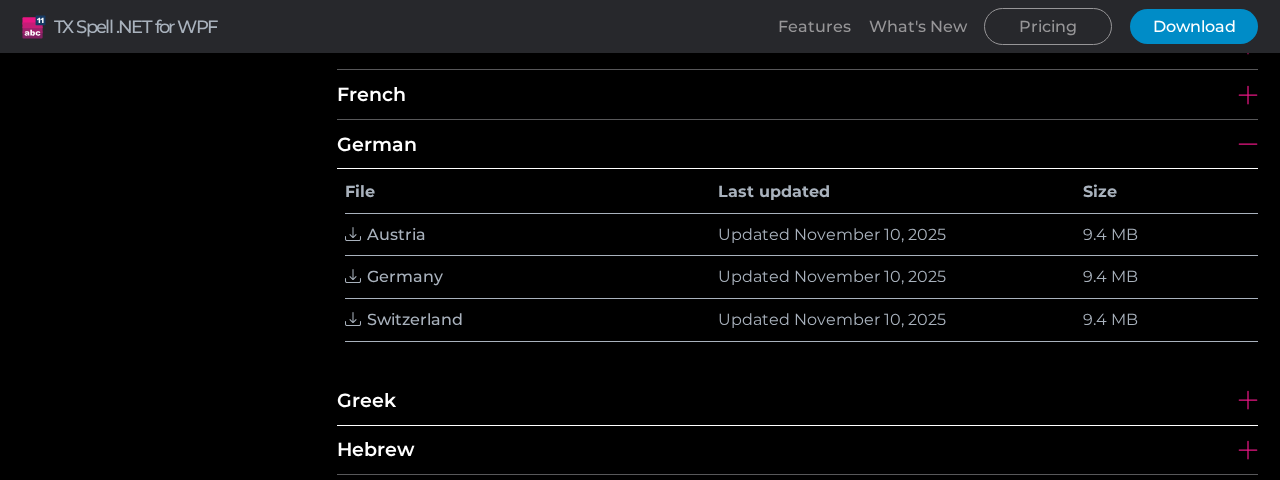
Download the archive, and copy the contents of its folders into the folders of the same names, as Install a Dictionary describes:
- In a .NET project, add the files to folders of the same names in the project and set their Copy to Output Directory property, so that every build copies them next to the packaged English files.
- In a .NET Framework project, copy the files into the folders below the Assembly folder of the installation while you develop, and ship them with the application.
Hunspell and OpenOffice Dictionaries describes the archives, the file names and the licenses of the dictionaries.
Ship the Language Data
The application needs its language data folders on the user's machine, next to its executable: with the NuGet packages, Publish copies them; without, you copy them yourself. Assemblies and Language Data Folders shows a published folder, and Dictionaries and Their Licenses the dictionaries you may ship.
Next Steps
- Loading and Managing Dictionaries: load the dictionaries you added.
- Hunspell and OpenOffice Dictionaries: the languages and what the archives contain.
- License Configuration: how your license reaches the application.