
Ignore Settings
Should "NASA" be flagged because the dictionary only knows "nasa"? Should "www.textcontrol.com" or "R2D2" be checked at all? Two properties of the spell checker answer such questions for every check it makes, whether TX Text Control underlines words as the user types or your code calls Check. Beside these rules, the user can ignore single words from the context menu and the spell check dialog, and an ignore list keeps names and product terms out of the check for good.
What the Spell Checker Skips by Default
A TXSpellChecker has two ignore settings. Both are flags: you combine several values with |.
- IgnoreCase, of type IgnoreCaseSettings, decides when the capitalization of a word does not count. The default is
AllUpper | WordBeginUpper. - IgnoreWord, of type IgnoreWordSettings, decides which words are not checked at all. The default is
InUpperCase | IsEmail | IsURL | WithNumbers.
With the defaults, a word in capitals such as "NASA", a word with digits such as "R2D2", an e-mail address and a URL are not checked. A word that starts with a capital letter, such as "House" at the beginning of a sentence, is found in the dictionary under "house". A word that repeats the word in front of it, as in "the the", is reported, because Duplicated is not part of the default.
Choose How Case Is Handled
IgnoreCase takes these values of TXSpell.IgnoreCaseSettings:
| Value | The case of a word is ignored |
|---|---|
Always | Always |
Never | Never: "house", "House" and "HOUSE" must each match the dictionary |
WordBegin | For the first character |
WordBeginUpper | For the first character, if it is uppercase |
AllUpper | If all characters are uppercase |
AllLower | If all characters are lowercase |
Always, Never, WordBegin and WordBeginUpper exclude one another: use at most one of them. Each of the four can be combined with AllUpper, AllLower or both. Any other combination throws an exception.
This line makes the spell checker check capitalization strictly, so that a proper noun written in lowercase is reported:
txSpellChecker1.IgnoreCase = TXTextControl.Proofing.TXSpell.IgnoreCaseSettings.Never;
Choose Which Words Are Not Checked
IgnoreWord takes these values of TXSpell.IgnoreWordSettings:
| Value | Words that are not checked |
|---|---|
InUpperCase | Words in which all characters are uppercase |
WithNumbers | Words that contain numbers |
IsEmail | E-mail addresses |
IsURL | URLs |
Duplicated | Duplicated words: a word that repeats the one in front of it is not reported |
Never | None: every word is checked |
All values except Never can be combined; combining Never with another value throws an exception. This code keeps the defaults and adds Duplicated, so that repeated words are no longer reported:
using TXTextControl.Proofing;

txSpellChecker1.IgnoreWord =
    TXSpell.IgnoreWordSettings.InUpperCase |
    TXSpell.IgnoreWordSettings.WithNumbers |
    TXSpell.IgnoreWordSettings.IsEmail |
    TXSpell.IgnoreWordSettings.IsURL |
    TXSpell.IgnoreWordSettings.Duplicated;
The code works as follows:
- The enumerations are nested in the TXSpell class of the
TXTextControl.Proofingnamespace, so their full names start withTXSpell.. The spell checker itself is inTXTextControl.WPF.Proofing;txSpellChecker1is the resource declared in XAML, which the code-behind gets withFindResource, as As-You-Type Checking shows. - The new value replaces the old one. To add a flag to the current settings, write
txSpellChecker1.IgnoreWord |= TXSpell.IgnoreWordSettings.Duplicated;.
A reported duplicate is an IncorrectWord whose IsDuplicate property is true; in TX Text Control, a MisspelledWord with IsDuplicate set. A duplicate has nothing to be replaced with, so a correction interface offers to delete it instead.
The TXSpell class, which checks text in code without a user interface, has the same IgnoreCase and IgnoreWord properties with the same defaults.
Let the User Change the Settings
The Spell Checking Options tab of the options dialog shows these settings to the user: each of its check boxes and lists stands for a value of IgnoreWord or IgnoreCase. The Spell Checking Options Tab lists them, and Show Only Some Tabs opens the dialog with this tab only.
Ignore Single Words
Ignoring a word from the user interface does not change the settings above. It applies to the word the user chose:
- Ignore in the context menu, and Ignore Once in the spell check dialog, ignore this occurrence of the word.
- Ignore All ignores every occurrence of the word.
In TX Text Control, an ignored word stays in the collection of misspelled words with IsIgnored set to true, and loses its red underline. With any other control, the word is removed from IncorrectWords.
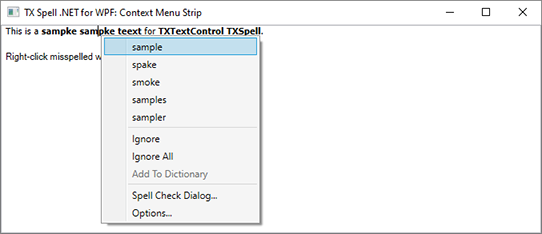
In the spell check dialog, Ignore Once is the accept button by default (AcceptButton), so pressing Enter ignores the current word and moves to the next. When the dialog checks a TextControl, Ignore All reaches the headers, footers and text frames, too, as Checking Text Parts shows.
Keep an Ignore List
Product names, abbreviations and customer names are correct but in no dictionary. To have them accepted in every document, put them in a UserDictionary that the user cannot change. Such a dictionary is checked like any other, so its words are never reported, but the Add To Dictionary commands do not write to it:
using System.Globalization;
using TXTextControl.Proofing;

// The user dictionary that Add To Dictionary writes to
UserDictionary userDictionary = new UserDictionary();
txSpellChecker1.Dictionaries.Add(userDictionary);
userDictionary.Language = new CultureInfo("en-US");

// The ignore list, filled in code
UserDictionary ignoreList = new UserDictionary();
txSpellChecker1.Dictionaries.Add(ignoreList);
ignoreList.Language = new CultureInfo("en-US");
ignoreList.AddWord("TXTextControl");
ignoreList.AddWord("TXSpell");

// Lock the list after it is filled
ignoreList.IsEditable = false;
The code works as follows:
- Dictionaries takes any number of dictionaries, so the ignore list is checked beside the language dictionary and the editable user dictionary.
- AddWord has no effect before the dictionary is added to
Dictionaries, or once IsEditable isfalse. That is why the list is added first, filled next and locked last. IsEditableistrueby default. Set tofalse, it keeps the context menu and the dialog from adding words to this dictionary.
The approach comes from the blog article TX Spell .NET: Ignore Word List Using User Dictionaries. User Dictionaries covers loading user dictionaries from files and saving them.
Next Steps
- User Dictionaries: store the words users add, and load them in the next session.
- Options Dialog: the dialog in which users change these settings.
- Incorrect Words and Suggestions: read what the check found, duplicates included.
- Events: react when the user ignores or replaces a word.