
Hyphenation With TX Text Control
In a TX Text Control editor, TX Spell .NET divides the last word of a full line and moves the rest to the next line, as the user types and in every language that has a hyphenation list. Turning this on takes two properties. The sections below show what the user sees, how the language of the text chooses the rules, and how your code can change where a word is divided.
What the User Sees
Once hyphenation is on, a word that doesn't fit at the end of a line is no longer moved to the next line as a whole. It is divided at a hyphenation point, and a hyphen marks the division:
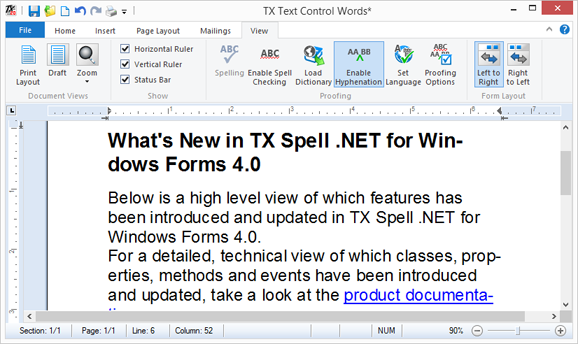
The division follows the text as it changes. While the user types, the word at the end of the line is divided as soon as it reaches the margin:
Both pictures show TX Text Control Words, the Windows Forms demo application of TX Text Control, in an earlier version of its ribbon. A TextControl in a WPF window hyphenates the same way.
How It Works
Two properties of the TextControl are needed:
- SpellChecker connects a TXSpellChecker. Its value is the key of the spell checker in the resources of the window. The same connection serves spell checking, as As-You-Type Checking shows.
- IsHyphenationEnabled turns hyphenation on.
When a word doesn't fit into a line, the spell checker calculates where to divide it, from the hyphenation list of the word's language. The TextControl then raises its HyphenateWord event with that position, divides the word there and puts a hyphen at the end of the line.
Turn On Hyphenation
Declare the spell checker as a resource of the window, and set both properties on the TextControl in MainWindow.xaml:
<Window x:Class="SpellingApp.MainWindow"
        xmlns="http://schemas.microsoft.com/winfx/2006/xaml/presentation"
        xmlns:x="http://schemas.microsoft.com/winfx/2006/xaml"
        xmlns:tx="clr-namespace:TXTextControl.WPF;assembly=TXTextControl.WPF"
        xmlns:spell="clr-namespace:TXTextControl.WPF.Proofing;assembly=TXSpell.WPF"
        Title="Hyphenation" Height="450" Width="800">
    <Window.Resources>
        <spell:TXSpellChecker x:Key="txSpellChecker1" />
    </Window.Resources>
    <tx:TextControl Name="textControl1"
                    SpellChecker="txSpellChecker1"
                    IsSpellCheckingEnabled="True"
                    IsHyphenationEnabled="True" />
</Window>
SpellingApp stands for the namespace of your project. In code, set IsHyphenationEnabled to true the same way, for example to let the user switch hyphenation with a check box.
Run the application and type a long text: the last word of each line is divided when it doesn't fit. Create Your First WPF Application sets up such an application from the start.
Switch Hyphenation On and Off in the Ribbon
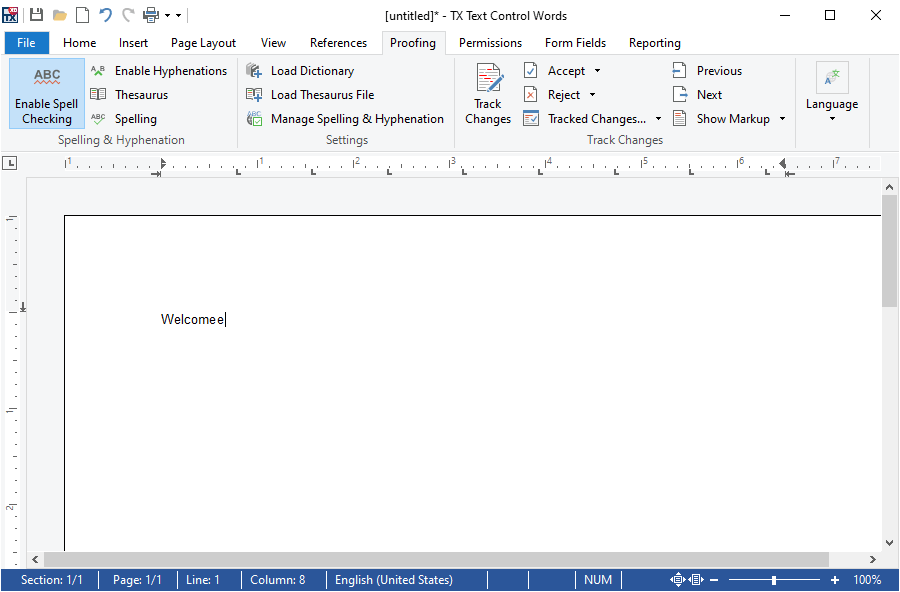
With the ribbon of TX Text Control, users switch hyphenation on and off themselves, with a button on the Proofing tab. The tab is a RibbonProofingTab, connected to the TextControl through its RibbonProofingTab property. In TX Text Control Words, the Windows Forms demo, the button is Enable Hyphenations in the Spelling & Hyphenation group:
Which List Hyphenates Which Text
Every part of a document can have a language of its own, and each word is hyphenated with the hyphenation list of its language. A document with English and German paragraphs therefore needs hyph_en_US.dic and hyph_de_DE.dic in the HyphenationLists folder; Hyphenation Lists shows where to get them.
The user sets the language of text in the Language dialog or with the keyboard, and your code with Selection.Culture; Multilingual Documents and Language Scopes describes these ways. With IsLanguageDetectionEnabled set to true, text without a language gets the language detected from the text, as Language Detection shows.
The HyphenationLanguage property of the spell checker selects its default list. With its default value "(Auto)", it follows the language of the spell check dictionary. The settings of each list, such as the fewest characters on each line, are changed by the user on the Hyphenation tab of the Options Dialog, and in code as Hyphenation Lists shows.
Change Where a Word Is Divided
The HyphenateWord event lets your code look at each division and change it. Its HyphenateWordEventArgs hold:
| Property | Contents |
|---|---|
| Word | The word that doesn't fit into the line |
| Culture | The language of the word |
| MaxDividePos | The largest position at which the word can be divided: with 3, at most the first three characters fit into the line |
| DividePos | The position the spell checker calculated. Set it to divide the word elsewhere |
The TextControl divides the word at DividePos if it is not greater than MaxDividePos. This handler logs each division, which shows how the rules of a list work on your documents:
private void textControl1_HyphenateWord(object sender, TXTextControl.HyphenateWordEventArgs e)
{
    System.Diagnostics.Debug.WriteLine(
        $"{e.Word} ({e.Culture}): divided after {e.DividePos} of at most {e.MaxDividePos} characters");
}
Attach it in XAML with HyphenateWord="textControl1_HyphenateWord" on the TextControl, or in code with textControl1.HyphenateWord += textControl1_HyphenateWord;. To divide a word by other rules, assign another position to DividePos. GetHyphenationPoint of the spell checker returns the last hyphenation point before a position, with the list of any language. This handler divides every word by the British English rules of hyph_en_GB.dic, which must be in the HyphenationLists folder:
private void textControl1_HyphenateWord(object sender, TXTextControl.HyphenateWordEventArgs e)
{
    // Divide with the British English list, before the margin
    e.DividePos = txSpellChecker1.GetHyphenationPoint(e.Word, e.MaxDividePos, new System.Globalization.CultureInfo("en-GB"));
}
Hyphenating Text in Code explains GetHyphenationPoint and what it returns.
Next Steps
- Hyphenation Lists: the files behind hyphenation, and their settings.
- Hyphenating Text in Code: hyphenation points without a
TextControl. - Multilingual Documents and Language Scopes: documents in more than one language.
- Options Dialog: the hyphenation settings users change.