
Context Menu and Suggestion Controls
A right-click on an underlined word lets the user correct it without leaving the text. TX Spell .NET for WPF provides this context menu for TX Text Control, the menu items to build one of your own, and the lists that show suggestions in the spell check dialog. Here is what each of them is and where it is described in detail.
The Built-In Context Menu
When a TXSpellChecker is connected to a TextControl, a right-click on a misspelled word opens a spell check menu instead of the usual context menu, without any code:
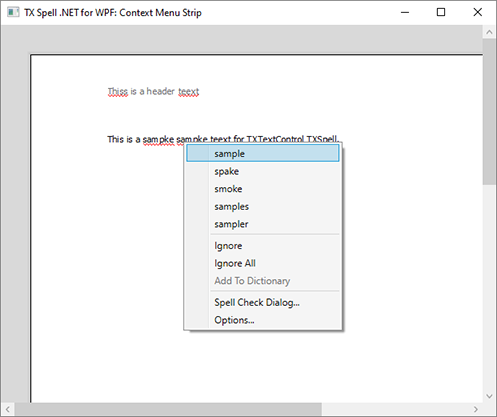
The menu offers the suggestions for the word, the commands to ignore it or add it to a user dictionary, and the two dialogs. The SpellCheckContextMenu property of the TextControl switches it off or replaces it with a menu of your own.
Suggestion Lists
TX Spell .NET has no separate suggestion control to place in a window. Suggestions appear in the Suggestions list of the spell check dialog, at the top of the context menu, and in a control of your own that your code fills with CreateSuggestions or binds to the SpellingCorrectionUIProvider.
Where to Read More
| Topic | Page |
|---|---|
The built-in menu, a menu built with GetMenuItems, the item types, menus for a RichTextBox | Context Menus |
The suggestion lists of the dialog and the menu, and suggestions in a ListBox | Suggestion Controls |
A correction panel bound to the SpellingCorrectionUIProvider | Spelling Correction Modes and UI Provider |
| Suggestions in code | Incorrect Words and Suggestions |
| A first application with the menu | Correct Words from the Context Menu |
Next Steps
- Spell Check Dialog and Options Dialog: the dialogs the menu opens.
- TXSpellChecker: the component behind the menu.
- Context Menus: the menu in detail.