
Spell Checking
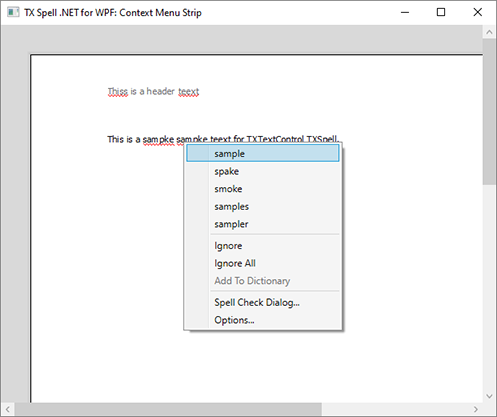
Spell checking in TX Spell .NET for WPF reaches the user in two ways: misspelled words are underlined while they type, and a dialog walks through them when they ask for a check. Behind both is one TXSpellChecker component, which also hands your code the incorrect words and their suggestions. Read on for what users see and how you control it, from connecting the first editor to building a correction interface of your own.
How Spell Checking Works
A TXSpellChecker, declared as a resource of the window, holds the dictionaries and does the checking. How it reaches the text depends on the control:
- TX Text Control checks the words itself once its
SpellCheckerproperty holds the key of the spell checker resource. It underlines misspelled words, offers suggestions in its context menu and opens a spelling dialog, all without code. - Any other control, such as a
TextBoxor aRichTextBox, passes its text to the spell checker'sCheckmethod. The result is a list of incorrect words that your code marks, or that the spell check dialog of TX Spell .NET walks through.
One spell checker serves every control in a window, and its dictionaries decide the languages. Dictionaries and Languages covers them.
Find the Right Page
| If you want to | Read |
|---|---|
| Underline misspelled words while the user types | As-You-Type Checking |
| Start a check from a button and correct words in a dialog | Checking on Demand |
| Read the misspelled words and their suggestions in code | Incorrect Words and Suggestions |
| Skip words in capitals, with numbers, URLs or e-mail addresses | Ignore Settings |
| Use one spell checker for several editors | Checking Multiple Controls |
| Check only chosen headers, footers or text frames | Checking Text Parts |
| Build a correction panel or dialog of your own | Spelling Correction Modes and UI Provider |
| React to corrections, dialogs and dictionary changes | Events |
Where to Start
- As-You-Type Checking connects the spell checker to an editor, the step every other page builds on.
- Checking on Demand adds the spelling dialog.
- Ignore Settings adjusts what is reported, before users meet false alarms.
If the component is not in your window yet, Getting Started sets it up. The dialogs and menus themselves, and how to change them, are the subject of User Interface.
Pages in This Section
- As-You-Type Checking: red underlines in TX Text Control, and a validation rule for a
TextBox. - Checking on Demand: the spelling dialogs of TX Text Control and TX Spell .NET, for any control.
- Incorrect Words and Suggestions:
Check,CreateSuggestionsand the misspelled words of TX Text Control. - Ignore Settings: case, uppercase words, numbers, addresses, duplicates and ignore lists.
- Checking Multiple Controls: one spell checker and one dialog for several editors.
- Checking Text Parts: the main text, headers, footers and text frames in the dialog.
- Spelling Correction Modes and UI Provider: the correction modes and a data-bound correction panel.
- Events: every event of the spell checker, with its arguments.