
TX Text Control .NET for WPF
TX Spell .NET was designed as the spell checker of TX Text Control, and the two work together through a handful of properties of the TextControl. Once the spell checker is connected, TX Text Control underlines misspelled words, offers its context menu and dialog, hyphenates, detects languages and opens its thesaurus, all without code. Here is the map of that integration: which member of TX Text Control does what with TX Spell .NET, and which page describes it.
The Connection
One property connects the two products: SpellChecker of the TextControl names the spell checker. The property holds the key of the spell checker resource, a string, not the object: SpellChecker="txSpellChecker1" in XAML. The connection also initializes the spell checker, so you don't call its Create method. Create Your First WPF Application shows the steps, and Checking Multiple Controls how several editors share one spell checker.
From then on, the editor underlines misspelled words and opens the spell check menu with a right-click, here in four editors that share one spell checker:
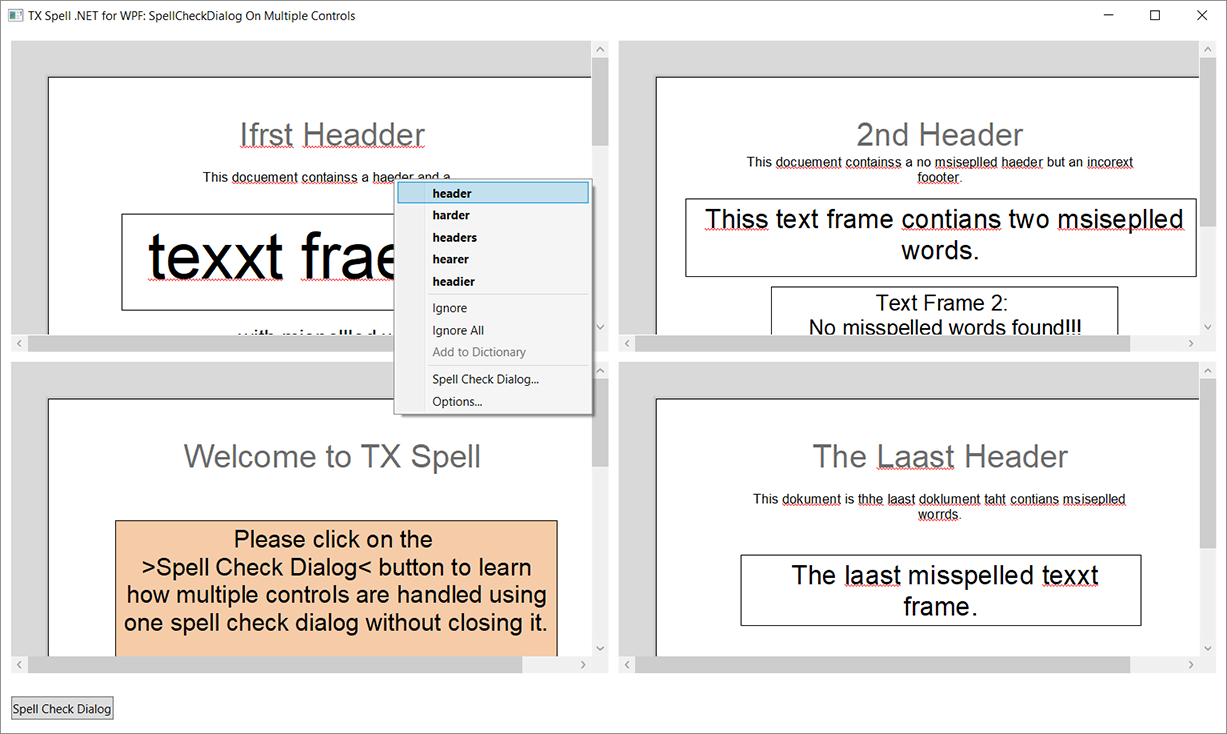
The two products are installed and licensed separately. TX Spell .NET 11.0 was released together with TX Text Control 33.0, and this documentation uses it with TX Text Control .NET for WPF 34.0. Plan upgrades of both together, as Update Together With TX Text Control describes.
What Each Member Does
| Member of TX Text Control | With TX Spell .NET | Read |
|---|---|---|
| IsSpellCheckingEnabled | Underlines misspelled words as the user types | As-You-Type Checking |
| SpellCheckContextMenu | The menu of a right-click on a misspelled word: the built-in one, none or your own | Context Menus |
| SpellCheckDialog | Opens the preconfigured spelling dialog of TX Text Control | Checking on Demand |
| MisspelledWords | The misspelled words of the text part with the input focus | Incorrect Words and Suggestions |
| TextParts | The main text, headers, footers and text frames, each with its misspelled words | Checking Text Parts |
| IsHyphenationEnabled and HyphenateWord | Hyphenates the last word of a line, and lets your code change where | Hyphenation with TX Text Control |
| IsLanguageDetectionEnabled | Detects a language for all text with a neutral language | Language Detection |
| LanguageDialog | Sets the language of the selected text, which decides the dictionaries | Multilingual Documents and Language Scopes |
| ThesaurusDialog | The Thesaurus Dialog, with synonyms for the selected word | Synonyms in the Context Menu |
| TextContextMenuOpening | Lets your code extend a context menu, for example with synonyms | Synonyms in the Context Menu |
| RibbonProofingTab | The Proofing tab of the ribbon, connected through the RibbonProofingTab property of the TextControl | Hyphenation with TX Text Control, Synonym Lists |
The misspelled words of TX Text Control are MisspelledWord objects. Besides the members the pages above describe, the MisspelledWordCollection has an Ignore method, which changes the text of a misspelled word to the text you pass and marks it as ignored so that it loses its underline, and the enumeration MisspelledWordKind filters the collection by normal, duplicate and ignored words.
Members of TX Spell .NET for TX Text Control
Some members of TX Spell .NET take a TextControl or its misspelled words:
- SpellCheckDialog of the spell checker opens the customizable dialog of TX Spell .NET with
Show(textControl1); Checking on Demand compares it with the dialog of TX Text Control. - GetMenuItems creates the items of a spell check menu for a misspelled word of the
TextControl; see Context Menus. - MisspelledWordChanging fires when the dialog or a menu of TX Spell .NET changes a misspelled word; see Events.
- SpellingCorrectionUIProvider connects a correction interface of your own to the
TextControl; see Spelling Correction Modes and UI Provider.
Minimum Versions
TX Text Control 17.0 introduced the connection: the SpellChecker property, the spell check dialog and the context menu of misspelled words. The other features followed with the TX Spell .NET version that brought them. Current versions support all of them:
| Feature | TX Text Control | TX Spell .NET |
|---|---|---|
| Hyphenation | 20.0 | 4.0 |
| Language detection | 21.0 | 5.0 |
| Thesaurus | 25.0 | 7.0 |
Another Spell Checker
The event SpellCheckText of the TextControl passes each piece of text to check to your code, which returns the misspelled words; it is the hook for a spell checker other than TX Spell .NET. With TX Spell .NET connected, use the spell checker instead.
Next Steps
- Create Your First WPF Application: connect the two products in a new project.
- RichTextBox: TX Spell .NET without TX Text Control.
- TX Text Control .NET Server Document Editor: spell checking in the browser.