
Synonyms in the Context Menu
With TX Spell .NET connected, TX Text Control offers synonyms through its thesaurus: the user selects a word, clicks Thesaurus on the ribbon and picks a replacement in the Thesaurus Dialog. The built-in context menu of a word has no synonyms, but it can have them: TX Text Control lets your code extend the menu before it opens, and the spell checker creates the synonyms to put into it. The screenshots show TX Text Control Words, the Windows Forms sample application; the WPF dialog works the same way.
What the User Sees
The Thesaurus button is in the Spelling & Hyphenation group of the ribbon's Proofing tab. With a word selected, it opens the Thesaurus Dialog, and Replace puts the chosen synonym in place of the word:
The dialog shows:
- Find Synonyms for, the word, which the user can change to look up another one.
- Language, the language of the synonyms, with one entry for each language that has a thesaurus loaded.
- Synonyms, a tree with one group per meaning. A double-click on a synonym, or the space bar, looks up the synonyms of that synonym, and the back arrow returns to the previous word.
- Replace and Cancel. Replace, or Enter, puts the selected synonym in place of the selected text.
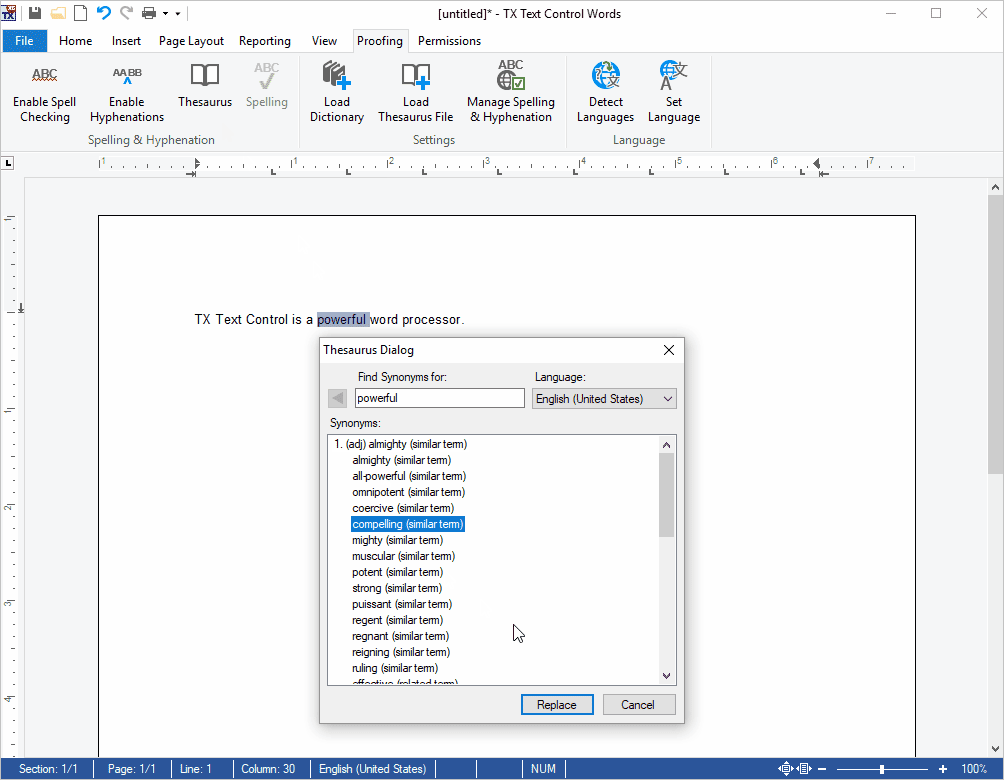
When no word is selected, the dialog takes the word at the input position.
How It Works
The dialog and the ribbon button belong to TX Text Control; the synonyms come from TX Spell .NET. The spell checker connected to the TextControl through its SpellChecker property creates them from its synonym lists, the thesaurus files described in Synonym Lists. Without a connected spell checker, the dialog throws an exception.
Open the Thesaurus Dialog in Code
For an application without a ribbon, open the ThesaurusDialog from a button or a menu item of your own. It takes the TextControl in its constructor:
new TXTextControl.WPF.ThesaurusDialog(textControl1).ShowDialog();
The dialog works on the selected text of the TextControl, or on the word at the input position, which it selects. The RibbonProofingTab opens the same dialog from its Thesaurus button.
Next Steps
- Synonym Lists: the thesaurus files and how a list is chosen.
- Looking Up Synonyms in Code: create synonyms for any word.
- Context Menus: the spell check menu and menus of your own.