
User Interface
The user of your application meets TX Spell .NET for WPF in four places: the spell check dialog, the options dialog, the context menu of a misspelled word and the lists of suggestions. Find out what the user sees and does in each, and what you can change, from a single button text to a dialog or menu of your own.
What the User Sees
Three parts of the user interface come with the component, ready to use:
- The spell check dialog walks through the misspelled words one by one, with suggestions for each.
- The context menu corrects a single word with a right-click on its red underline.
- The options dialog lets the user choose which words to ignore and which dictionaries to use.
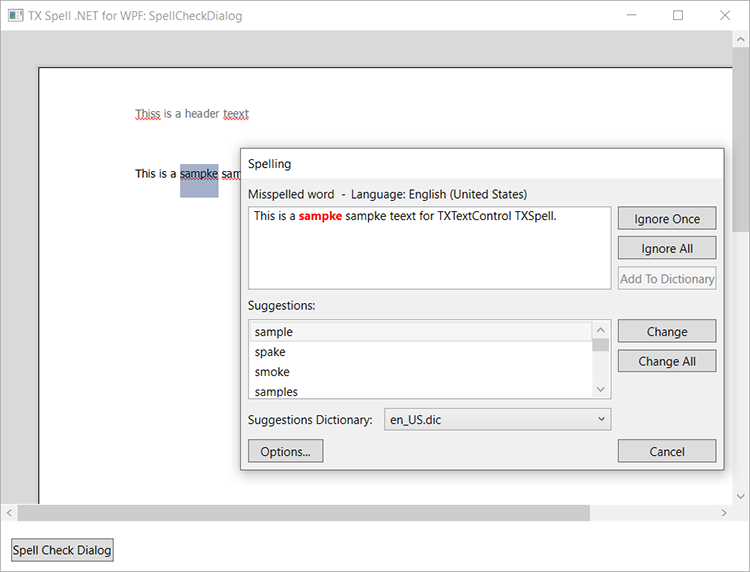
The three are connected: the menu opens the spell check dialog and the options dialog, and the spell check dialog opens the options dialog. With TX Text Control, the menu works as soon as the spell checker is connected; the two dialogs open with one line of code. The component shows them in English or German, and in other languages with the Resource Kit.
Find the Right Page
| If you want to | Read |
|---|---|
| Know what each part and button of the spell check dialog does | Spell Check Dialog |
| Rename, remove or add buttons of the dialog, or change its font | Customizing the Spell Check Dialog |
| Know which settings the user can change, or replace the options dialog | Options Dialog |
| Replace the built-in menu of a misspelled word with your own | Context Menus |
| Change how many suggestions are shown, or show them beside the editor | Suggestion Controls |
| Show the dialogs in the language of the user | Localization and Resource Kit |
How to open the spell check dialog from a button, and how to check a TextBox in it, is covered in Checking on Demand. A correction panel built from your own controls is covered in Spelling Correction Modes and UI Provider.
Where to Start
- Spell Check Dialog: every part of the dialog and what it does.
- Context Menus: corrections without a dialog.
- Options Dialog: the settings behind both.
- Customizing the Spell Check Dialog, when the defaults don't fit your application.
Pages in This Section
- Spell Check Dialog: the parts of the dialog, what each button does, where it opens and how a check ends.
- Customizing the Spell Check Dialog: buttons of your own, removed and renamed buttons, the font and the preview.
- Options Dialog: the four tabs and the properties behind them, selected tabs, hidden dictionaries and a dialog of your own.
- Context Menus: the built-in menu, a menu built with
GetMenuItems, and menus for aRichTextBox. - Suggestion Controls: the suggestion lists of the dialog and the menu, and suggestions shown beside the editor.
- Localization and Resource Kit: German texts, satellite assemblies for other languages and texts changed in code.