
Localization and Resource Kit
An application used in France should show its spell check dialog in French. TX Spell .NET shows its dialogs, message boxes and error messages in English or German, and the Resource Kit translates them into any other language. Read on for how the language is chosen, what to deploy for German, and how to build and deploy a translation of your own.
This concerns the texts of the user interface only. Which languages the spell checker checks depends on the dictionaries you load, as Dictionaries and Languages describes: a French dictionary checks French words in a dialog with English labels.
What Is Translated
Every text that TX Spell .NET shows is a string resource: the labels and buttons of the spell check dialog and the options dialog, the message boxes and the error messages. The English texts are built into the assembly, and the German texts ship with the NuGet packages:
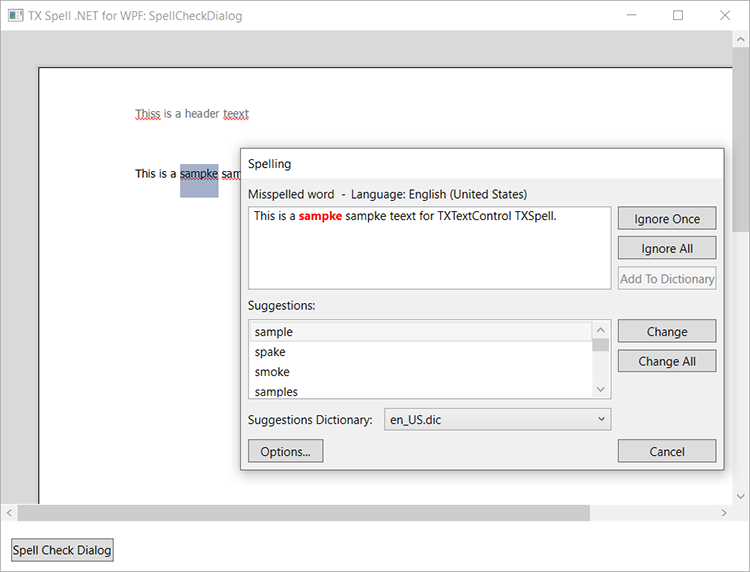
The German texts are in a satellite assembly, a separate assembly that holds only the resources of one language. Its name is TXSpell.resources.dll, after TXSpell.dll, the assembly TX Spell .NET for Windows Forms and TX Spell .NET for WPF share. The package TXTextControl.TXSpell.WPF.SDK contains it in the subfolder de.
How the Language Is Chosen
.NET picks the resources that match the language of the system, the same way it does for its own texts. When the system language is German and the folder de with the satellite assembly is next to the application, the dialogs appear in German. For any other system language without a satellite assembly, they appear in English.
A satellite assembly for French is loaded only when the system language is French, and so on for every language.
Deploy the German Texts
When you build a project with the NuGet package, the folder de is copied into the output directory. Deploy it with the application, in the same place:
<application folder>\YourApplication.exe
<application folder>\TXSpell.dll
<application folder>\TXSpell.WPF.dll
<application folder>\de\TXSpell.resources.dll
Without the folder, the dialogs are in English on every system. Assemblies and Language Data Folders lists the other files an application ships, and Deployment helps when the dialogs appear in the wrong language.
Translate Into Another Language
The Resource Kit builds a satellite assembly for another language. It is in the ResourceKit subdirectory of the TX Spell .NET installation directory and consists of three files:
| File | Contents |
|---|---|
| TXSpell.resx | All texts of TX Spell .NET, as XML. The texts are the contents of the value elements |
| buildres.bat | A batch file that calls the tools of the .NET Framework SDK to build the satellite assembly |
| txtextcontrol.public.snk | The public key of Text Control, needed for the build |
The Resource Kit was written for the .NET Framework. The build takes these steps:
Install the .NET Framework SDK, which contains the tools buildres.bat calls.
Translate the texts in TXSpell.resx: change the contents of each
valueelement, and leave the names of the resources as they are.Run buildres.bat in the ResourceKit folder with the two-letter ISO 639 code of the language, for example
frfor French:.\buildres.bat frIt builds TXSpell.resources.dll with the French texts.
Copy the assembly into a subfolder of the application folder named after the language code, such as fr, next to the files of TX Spell .NET:
<application folder>\fr\TXSpell.resources.dllCreate this registry key on each machine, so that the .NET Framework uses your own build of the satellite assembly with the application:
HKEY_LOCAL_MACHINE\SOFTWARE\Microsoft\StrongName\Verification\TXSpell.resources,6B83FE9A75CFB638
The built-in English and German resources can't be changed with the Resource Kit; a satellite assembly adds a language.
Change Single Texts in Code
For a few texts, code is simpler than a satellite assembly:
Buttons of the spell check dialog. Every button has a Text property. This line renames the options button:
txSpellChecker1.SpellCheckDialog.OptionButtons[0].Text = "Spelling Options...";Customizing the Spell Check Dialog reaches the other buttons through their collections.
Message boxes of the spell check dialog. Set ShowMessageBoxes to
false, and show your own message when the check is complete.Items of a context menu. In a menu you build yourself, the items you add have the texts you give them. Context Menus builds such a menu.
The labels of the options dialog have no property of their own. To show them in another language, use a satellite assembly, or replace the dialog with your own as Options Dialog shows.
Next Steps
- Spell Check Dialog: the dialog whose texts are translated.
- Supported Languages: the languages TX Spell .NET checks.
- Assemblies and Language Data Folders: the files your application ships.
- Deployment: problems with missing files after deployment.