
Spell Check Dialog
The Spelling dialog of TX Spell .NET walks the user through the misspelled words of a document, one word at a time: it shows the word in its sentence, lists suggestions and offers to change, ignore or learn the word. Each part of the dialog is described below, together with what each button does and how to decide where the dialog opens and how a check ends.
Which Dialog This Is
A TextControl with a connected spell checker offers two spelling dialogs. TX Text Control opens its own preconfigured dialog from the Spell Check Dialog... item of its context menu. The dialog described here is the one of TX Spell .NET, a SpellCheckDialog that you get from the SpellCheckDialog property of the TXSpellChecker. It checks a TextControl as well as a TextBox, a RichTextBox or any other control, and you can change its buttons, texts and behavior.
Both dialogs look alike to the user. Checking on Demand compares them and shows when to choose which.
The Parts of the Dialog
The dialog has the title Spelling. Its parts are numbered in the picture below and described in the table after it:
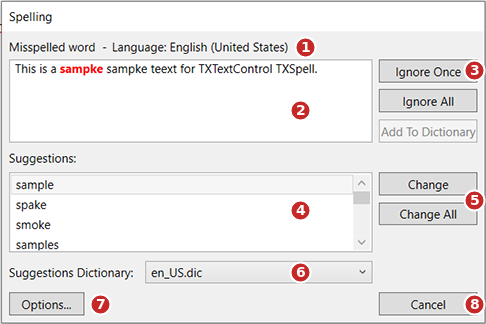
| Part | What it shows or does | |
|---|---|---|
| 1 | Misspelled word - Language | The language of the word. For text without language information, such as the text of a RichTextBox, it reads "No language set" |
| 2 | Preview | The sentence that contains the misspelled word, with the word in red. The user can edit the sentence here |
| 3 | Ignore Once, Ignore All, Add To Dictionary | Skip the word, skip it everywhere, or add it to a user dictionary |
| 4 | Suggestions | The words that could be meant, at most 10 by default |
| 5 | Change, Change All | Replace the word with the selected suggestion, here or everywhere |
| 6 | Suggestions Dictionary | The dictionary the suggestions come from |
| 7 | Options... | Opens the Options Dialog |
| 8 | Cancel | Closes the dialog before the check is complete |
The three groups of buttons at 3, 5 and 7 are collections of the SpellCheckDialog: IgnoreButtons, ChangeButtons and OptionButtons. The preview at 2 is described by Preview, the list at 4 by SuggestionList and the list at 6 by SuggestionDictionaryComboBox. Customizing the Spell Check Dialog changes the buttons and the preview, and Suggestion Controls the two lists.
What Each Button Does
Each button of the dialog has a type, a value of TXSpell.ButtonType, that decides what a click does:
| Button | Type | What happens |
|---|---|---|
| Ignore Once | Ignore | The word is skipped at this place only |
| Ignore All | IgnoreAll | Every occurrence of the word is skipped |
| Add To Dictionary | AddToDictionary | The word is added to the user dictionaries and is no longer marked |
| Change | Change | The word is replaced with the selected suggestion |
| Change All | ChangeAll | Every occurrence of the word is replaced with the selected suggestion |
| Options... | Options | The options dialog opens |
Add To Dictionary is enabled only when a user dictionary has been added to the dictionaries of the spell checker; in the picture, none has. User Dictionaries shows how to add one.
Two more types change a button while the dialog is open:
- Delete replaces a button when the current word repeats the word before it, as in "the the". It removes the repeated word. A button becomes a Delete button when its IsDeleteButton property is
true. - Undo Edit replaces a button as soon as the user edits the sentence in the preview. It discards the edit. A button becomes an Undo Edit button when its IsUndoEditButton property is
true; when no button has it set, the preview can't be edited.
When the user presses Enter, the dialog clicks its AcceptButton, which is Ignore Once by default.
Open the Dialog
Show opens the dialog. For a TextControl, pass the control; the dialog finds the misspelled words and applies each correction to the document:
private void ButtonSpelling_Click(object sender, RoutedEventArgs e)
{
    txSpellChecker1.SpellCheckDialog.Show(textControl1);
}
For any other control, call Check with its text first and then Show(this), which passes the window that owns the dialog. The dialog then walks through the words Check found, and your code applies each correction in the IncorrectWordChanging event. Checking on Demand shows both ways step by step.
What the Dialog Checks
One dialog can check more than one editor, and more than the main text of a document. For a TextControl, the dialog checks the main text and then the headers, footers and text frames, and Change All and Ignore All reach into all of them; Checking Text Parts shows how to choose the parts. The dialog can also continue from one control to the next, so that the user checks a whole window in one pass, as Checking Multiple Controls shows.
Choose Where the Dialog Opens
By default, the dialog opens in the center of the screen. ShowDialogSettings sets its owner and its start position. Set them once, for example in the constructor of the window, after the spell checker is taken from the resources:
using TXTextControl.Proofing;
using TXTextControl.WPF.Proofing;

public MainWindow()
{
    InitializeComponent();
    txSpellChecker1 = (TXSpellChecker)FindResource("txSpellChecker1");

    // Center the dialog on this window instead of the screen
    txSpellChecker1.SpellCheckDialog.ShowDialogSettings.Owner = this;
    txSpellChecker1.SpellCheckDialog.ShowDialogSettings.StartPosition = TXSpell.DialogStartPosition.CenterOwner;
}
The code works as follows:
txSpellChecker1is a field of the window. The spell checker is declared as a resource in XAML, as As-You-Type Checking shows, andFindResourcereturns it.- Owner is the
Windowthat owns the dialog. - StartPosition takes a value of TXSpell.DialogStartPosition:
CenterScreen, the default,CenterOwner, orManual, which opens the dialog at the screen coordinates in Location. - Both namespaces are needed: the dialog classes are in
TXTextControl.WPF.Proofing, theTXSpellenumerations inTXTextControl.Proofing.
To open the dialog where the user left it, read the Location of the SpellCheckDialog after it closes. It holds the last position of the dialog's upper-left corner, and null before the dialog was shown for the first time.
Decide How a Check Ends
Two properties of the SpellCheckDialog decide what the user sees when the last word is handled:
| Property | Default | Effect |
|---|---|---|
| CloseOnFinished | true | The dialog closes when the check is complete |
| ShowMessageBoxes | true | Message boxes tell the user that the check is complete, or that a word the user typed is not in the suggestion dictionary |
Set ShowMessageBoxes to false to report the result in your own way, for example in a status bar.
The SpellCheckDialogOpening and SpellCheckDialogClosing events of the TXSpellChecker fire when the dialog opens and closes. Events shows what their arguments carry.
Next Steps
- Customizing the Spell Check Dialog: add, remove and rename buttons, and change the font and the preview.
- Options Dialog: the settings the Options... button opens.
- Suggestion Controls: the suggestion list and the dictionary list of the dialog.
- Localization and Resource Kit: show the dialog in the language of the user.
- Checking on Demand: open the dialog from a button, for TX Text Control and a
TextBox.