
Create Your First WPF Application
A word processor with spell checking takes two packages and a window of XAML. You create a WPF application for .NET, add the editor of TX Text Control with a button bar, rulers and a status bar, declare the spell checker of TX Spell .NET as a resource and connect the two. Without code, misspelled words are then underlined as you type, corrected from the context menu, and words are hyphenated at the end of a line.
Prerequisites
- Visual Studio on Windows with .NET 8 or higher.
- The setups of TX Spell .NET for WPF 11.0 and TX Text Control .NET for WPF 34.0, the full or the trial versions, installed on your machine. They provide the package source Text Control Offline Packages. See Installing the Product.
Create the Project
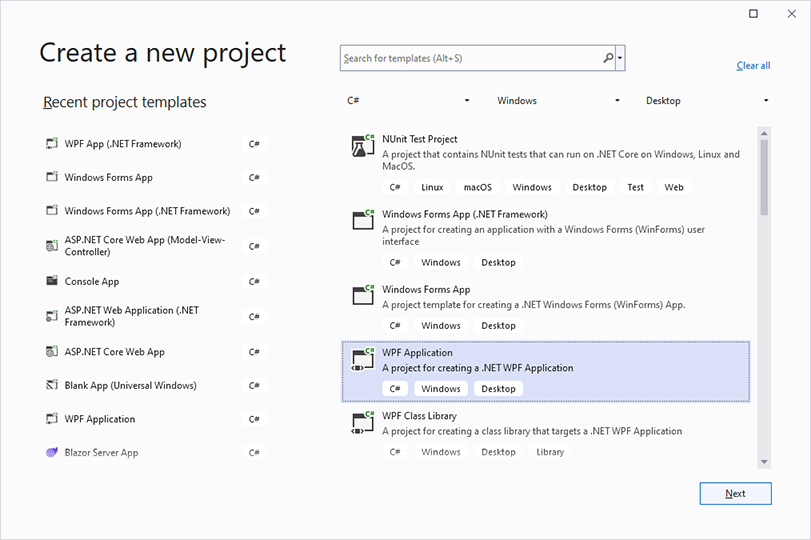
Open Visual Studio and create a new project.
Select C# from the Languages list, Windows from the Platform list and Desktop as the Project Type.
Select the project template WPF Application and click Next.
Enter the project name MyWPFApp and click Next.
Select .NET 8 or higher as the Framework, for example .NET 8 (Long Term Support), and click Create.
The template WPF App (.NET Framework) creates a .NET Framework project instead, which Create a .NET Framework Application covers.
Install the NuGet Packages
Select the project in Solution Explorer and choose Project > Manage NuGet Packages....
Select Text Control Offline Packages in the Package source list and click Browse.
Select
TXTextControl.TextControl.WPF.SDKand click Install.Select
TXTextControl.TXSpell.WPF.SDKand click Install.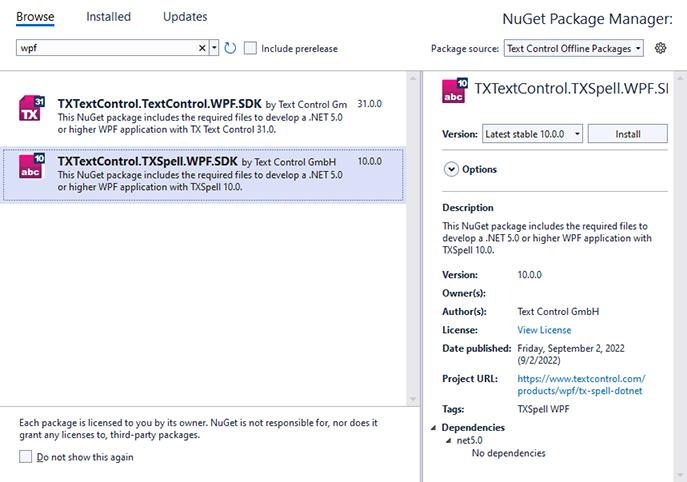
| Package | Adds |
|---|---|
TXTextControl.TextControl.WPF.SDK | The TextControl editor, its button bar, rulers and status bar, and the license of TX Text Control |
TXTextControl.TXSpell.WPF.SDK | The TXSpellChecker, its dialogs, the license of TX Spell .NET, and the US English dictionary, hyphenation list and thesaurus, which it copies into the output folder when you build |
Add the Editor to the Window
The controls of TX Text Control go into a DockPanel, which docks each control to one side in the order the controls appear.
Open MainWindow.xaml. In the XAML view, replace the
Gridwith aDockPanel: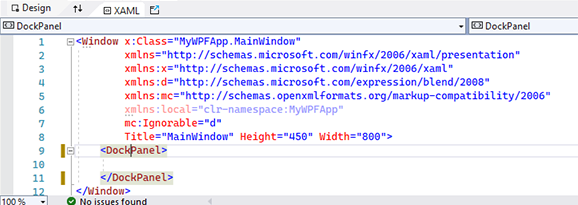
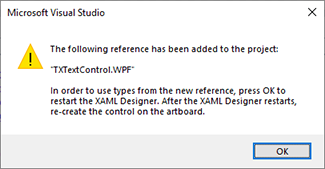
In the Toolbox, open the tab TX Text Control 34.0 and double-click ButtonBar to add it to the window. For the first control of TX Text Control, Visual Studio adds a reference and asks to restart the XAML Designer. Click OK, then choose Build > Build Solution.
Select the window, not the new button bar, and add the other controls in this order: RulerBar, StatusBar, a second RulerBar and TextControl.
In the XAML, remove the
HeightandWidthattributes of the added controls, and name them buttonBar1, rulerBar1, statusBar1, rulerBar2 and textControl1: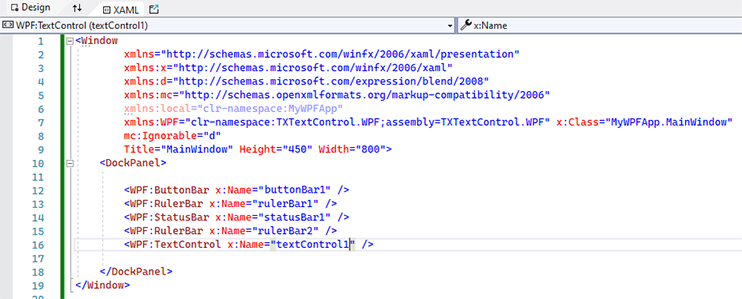
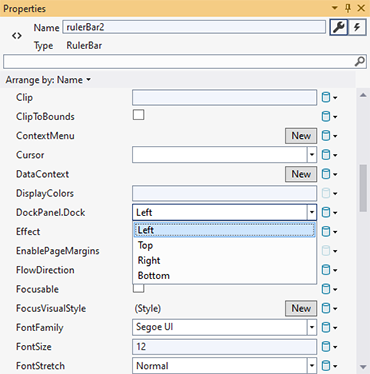
Select rulerBar2 in the Design view. In the Properties window, set DockPanel.Dock to Left, HorizontalAlignment to Left and VerticalAlignment to Stretch. It becomes the vertical ruler.
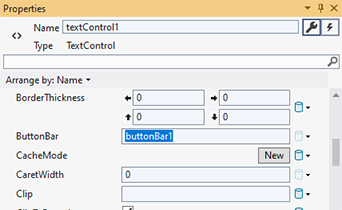
Select textControl1 and connect the bars in the Properties window: type buttonBar1 for ButtonBar, rulerBar1 for RulerBar, statusBar1 for StatusBar and rulerBar2 for VerticalRulerBar.
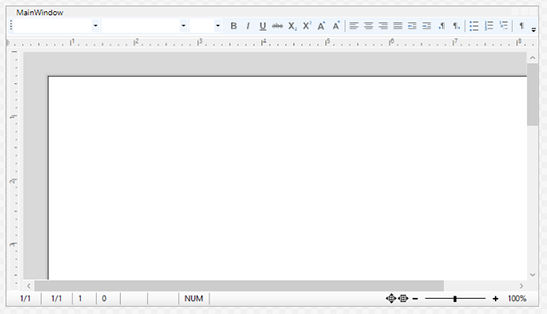
The Design view now shows the editor with its bars:
Add the Spell Checker
The spell checker of TX Spell .NET for WPF is not a control in the toolbox. You declare it as a resource of the window and name its key in the SpellChecker property of the TextControl:
- Map the namespace of TX Spell .NET to the prefix
spellin theWindowelement. - Declare a
TXSpellCheckerwith the key txSpellChecker1 inWindow.Resources. - Set
SpellChecker="txSpellChecker1",IsSpellCheckingEnabled="True"and, for hyphenation,IsHyphenationEnabled="True"on theTextControl.
The complete MainWindow.xaml looks like this. The DockPanel.Dock values place the bars at the top, the bottom and the left; the designer may write some of them differently, with the same result:
<Window x:Class="MyWPFApp.MainWindow"
        xmlns="http://schemas.microsoft.com/winfx/2006/xaml/presentation"
        xmlns:x="http://schemas.microsoft.com/winfx/2006/xaml"
        xmlns:WPF="clr-namespace:TXTextControl.WPF;assembly=TXTextControl.WPF"
        xmlns:spell="clr-namespace:TXTextControl.WPF.Proofing;assembly=TXSpell.WPF"
        Title="MainWindow" Height="450" Width="800">
    <Window.Resources>
        <spell:TXSpellChecker x:Key="txSpellChecker1" />
    </Window.Resources>
    <DockPanel>
        <WPF:ButtonBar x:Name="buttonBar1" DockPanel.Dock="Top" />
        <WPF:RulerBar x:Name="rulerBar1" DockPanel.Dock="Top" />
        <WPF:StatusBar x:Name="statusBar1" DockPanel.Dock="Bottom" />
        <WPF:RulerBar x:Name="rulerBar2" DockPanel.Dock="Left"
                      HorizontalAlignment="Left" VerticalAlignment="Stretch" />
        <WPF:TextControl x:Name="textControl1"
                         ButtonBar="buttonBar1"
                         RulerBar="rulerBar1"
                         StatusBar="statusBar1"
                         VerticalRulerBar="rulerBar2"
                         SpellChecker="txSpellChecker1"
                         IsSpellCheckingEnabled="True"
                         IsHyphenationEnabled="True" />
    </DockPanel>
</Window>
The markup works as follows:
- The prefix
WPFmaps theTXTextControl.WPFnamespace of TX Text Control, andspelltheTXTextControl.WPF.Proofingnamespace of the TXSpell.WPF assembly. <spell:TXSpellChecker x:Key="txSpellChecker1" />creates the spell checker as a resource of the window.- SpellChecker holds the key of the resource as plain text, not a
{StaticResource}markup extension: theTextControllooks the key up in the resources of the window itself. - IsSpellCheckingEnabled underlines misspelled words, and IsHyphenationEnabled hyphenates the last word of a full line with the hyphenation list of the spell checker.
ButtonBar,RulerBar,StatusBarandVerticalRulerBarconnect the bars by their names.
Run the Application
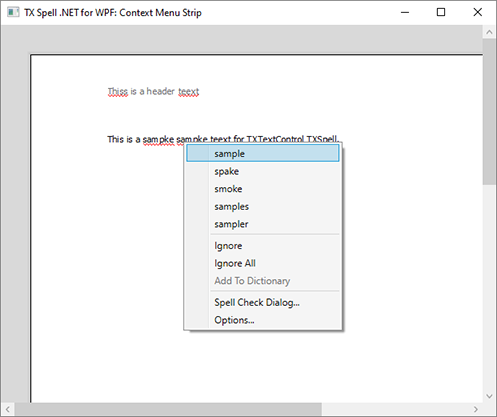
Press F5 and type a sentence with a spelling mistake:
- Each misspelled word gets a red zigzag line once it is complete. English is checked out of the box, with the dictionary the package copied into the output folder.
- A right-click on a misspelled word opens the spell check context menu with suggestions, which also opens the spell check dialog.
- When a line is full, its last word is hyphenated with the English hyphenation list.
Troubleshooting
- The spell checker isn't in the toolbox. It is declared in XAML, not taken from the toolbox. See Toolbox and Designer.
- No words are underlined. Check the
SpellCheckerkey andIsSpellCheckingEnabled. See Spell Checking Doesn't Start. - Text Control Offline Packages is not in the Package source list. See Configuring Package Sources.
Next Steps
- Correct Words from the Context Menu: try the commands of the menu.
- Open the Spell Check Dialog: correct the whole document in one pass.
- As-You-Type Checking: the properties behind the underlines, and using the spell checker in code.
- Dictionaries and Languages: check languages other than English.