
Development Licenses
Every developer who builds applications with TX Spell .NET for WPF needs a developer license of their own. Technically, the license reaches a project through a license file in the NuGet package or, in .NET Framework projects, through an entry in licenses.licx. What follows covers both, and the move from the trial version to the full version.
One License per Developer
- Each developer who uses TX Spell .NET for development needs a separate developer license, assigned to them. This includes testers who compile the application. Licenses are per developer, not per company, team, computer or concurrent user; Text Control sells single developer licenses and team licenses for four developers.
- A license is not shared. It isn't used by several developers at once, and not as a floating license. It can be reassigned when a developer permanently stops using TX Spell .NET.
- Code agents that work for a licensed developer need no license of their own, but they don't reduce the number of licenses needed.
- Licenses are perpetual. A version you obtained during an active subscription stays licensed when the subscription ends. Versions released later require a renewed subscription.
.NET Projects: The License File
The NuGet package TXTextControl.TXSpell.WPF.SDK contains the license file txspell.wpf.license. When you install the package, NuGet adds the file to the project with the build action Embedded Resource, and every build embeds it into your assembly. Nothing else is needed: no licenses.licx and no code.
- Leave the file in the project and don't change its build action.
- Don't add it yourself and don't pass it on. The package of your installation brings the license file that belongs to your license.
The package TXTextControl.TXSpell.Core.SDK, for code without a user interface, brings its license file, txspell.winforms.license, in the same way. Package Overview lists what the packages contain.
.NET Framework Projects: licenses.licx
In a .NET Framework project, the license is compiled into your assembly from the project's licenses.licx file, which lists the licensed classes. The file is in the Properties folder (C#) or the My Project folder (Visual Basic).
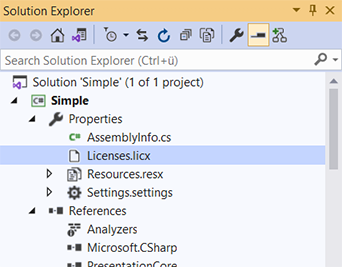
The entry for the spell checker is:
TXTextControl.WPF.Proofing.TXSpellChecker, TXSpell.WPF
Code that uses the TXSpell class without a user interface, for example together with a ServerTextControl, needs an entry for that class, with the version of the assembly:
TXTextControl.Proofing.TXSpell, TXSpell, Version=11.0.1000.500, Culture=neutral, PublicKeyToken=6b83fe9a75cfb638
If the project has no licenses.licx yet, add a text file with this name and set its build action to Embedded Resource, then rebuild. A project that uses TX Text Control as well has its entries in the same file. The blog article Using TX Spell .NET with ServerTextControl shows the TXSpell entry for an earlier version. Create a .NET Framework Application shows the steps in a project.
From the Trial to the Full Version
Warning
Trial Builds. An application built with the trial version, which the setup TX Spell .NET for WPF 11.0 Trial.exe installs, shows a dialog titled TX Spell .NET Trial Version every fifteen minutes; Licensing quotes its text. The trial may be used for evaluation and testing only, not in production or in an application you distribute.
To switch to the full version:
- Install the setup of the full version, TX Spell .NET for WPF 11.0 with SP1.exe.
- In a .NET project, install the TX Spell .NET package again from Text Control Offline Packages. In a .NET Framework project, reference the assemblies again from the Assembly folder of the installation.
- Rebuild the application, and redeploy it. The code doesn't change.
Next Steps
- Application Licensing: what your users need and what may ship with the application.
- Build Servers: licensing on build machines.
- Licensing: the trial dialog and license entries in Troubleshooting.