
Certificates
Every digital signature is made with an X.509 certificate and its private key. The certificate names the signer, and the certificate authority (CA) that issued it vouches for that name; recipients trust the signature as far as they trust that authority. TX Text Control doesn't load certificates itself: it takes a .NET X509Certificate2, so a WPF application gets the certificate from a .pfx file or from the Windows certificate store, which also lists certificates on smart cards and USB tokens. What follows loads certificates both ways, lets the user pick one in the Windows dialog box and checks a certificate before signing.
For a test certificate, follow Create a Self-Signed Certificate for Testing in Getting Started.
What a Signing Certificate Needs
- Its private key. Only the private key can create a signature. A .pfx file, also called PKCS#12, holds the certificate together with the key.
- An issuer the recipients trust. A self-signed certificate is its own issuer, so other people's PDF readers don't trust it. It's fine for development, tests and internal documents. Documents for customers, partners or authorities need a certificate from a CA.
- A validity period that covers the signing. PDF readers check whether the certificate was valid when the document was signed. A trusted timestamp keeps the signature verifiable after the certificate expires, as Timestamp Configuration explains.
Samples of Text Control, such as the blog article on self-signed certificates below, load signing certificates with X509KeyStorageFlags.Exportable, and Getting Started creates the test certificate with an exportable key. The samples below follow them.
How TX Text Control Takes the Certificate
DigitalSignature has two constructors and no other members:
| Constructor | Used for |
|---|---|
DigitalSignature(X509Certificate2 x509, string timeServerURL) | The whole document, with SaveSettings.DigitalSignature |
DigitalSignature(X509Certificate2 x509, string timeServerURL, string signatureFieldName) | One signature field, with SaveSettings.SignatureFields |
Neither takes a file name, a password or a store location. Your code loads the certificate, and TX Text Control uses it when the document is saved. An invalid certificate, or one without a private key, makes Save throw a FilterException with the Reason InvalidCertificate.
The samples need these using directives in MainWindow.xaml.cs:
using System;
using System.Security.Cryptography.X509Certificates;
using System.Windows;
using System.Windows.Interop;
using TXTextControl;
Load the Certificate From a PFX File
From .NET 9 on, X509CertificateLoader reads a .pfx file:
X509Certificate2 certificate = X509CertificateLoader.LoadPkcs12FromFile(
    "certificate.pfx", "123", X509KeyStorageFlags.Exportable);
A project for .NET 8 or the .NET Framework has no X509CertificateLoader and uses the constructor with the same arguments; .NET 9 and higher mark it as obsolete:
X509Certificate2 certificate = new X509Certificate2(
    "certificate.pfx", "123", X509KeyStorageFlags.Exportable);
Whoever has the .pfx file and its password can sign in the certificate owner's name. Don't add the file to the installer, and don't write the password into the code. Certificate and Private Key Handling describes how to keep both safe.
Let the User Choose a Certificate
When users sign with their own certificates, the certificates are in their personal Windows certificate store. X509Certificate2UI.SelectFromCollection opens the Windows dialog box for choosing one. The blog article Sign PDF Documents with an X.509 Certificate on a Hardware Device signs with a certificate chosen this way and notes that the dialog box also lists certificates on smart cards.
The dialog box expects the window handle of its owner. A WPF window has no Handle property; WindowInteropHelper returns it:
private X509Certificate2 SelectCertificate()
{
    using (X509Store store = new X509Store(StoreName.My, StoreLocation.CurrentUser))
    {
        store.Open(OpenFlags.ReadOnly | OpenFlags.OpenExistingOnly);

        // Offer only certificates that are valid today
        X509Certificate2Collection validCertificates = store.Certificates.Find(
            X509FindType.FindByTimeValid, DateTime.Now, false);

        // The Windows dialog box for choosing a certificate, owned by this window
        X509Certificate2Collection selected = X509Certificate2UI.SelectFromCollection(
            validCertificates,
            "Sign Document",
            "Select the certificate to sign the PDF document with.",
            X509SelectionFlag.SingleSelection,
            new WindowInteropHelper(this).Handle);

        foreach (X509Certificate2 certificate in selected)
        {
            if (certificate.HasPrivateKey)
            {
                return certificate;
            }
        }
    }

    return null;
}

private void signWithMyCertificateButton_Click(object sender, RoutedEventArgs e)
{
    X509Certificate2 certificate = SelectCertificate();

    if (certificate == null)
    {
        MessageBox.Show(this, "No certificate with a private key was selected.");
        return;
    }

    SaveSettings saveSettings = new SaveSettings()
    {
        DigitalSignature = new DigitalSignature(certificate, "")
    };

    // Let the user choose where to save the signed PDF
    textControl1.Save(StreamType.AdobePDF, saveSettings);
}
The code works as follows:
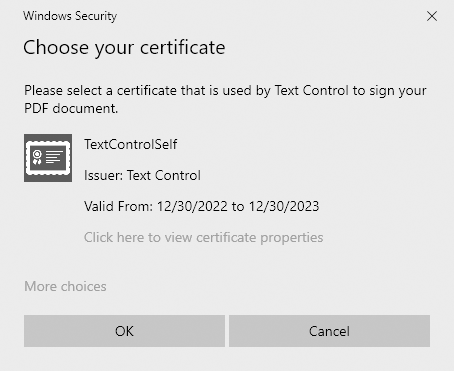
X509Storeopens the personal store of the current user, which the Certificate Manager, certmgr.msc, shows under Personal > Certificates.FindwithX509FindType.FindByTimeValidremoves certificates that have expired or aren't valid yet, so the user can't pick one of them.WindowInteropHelper(this).Handlemakes the WPF window the owner of the dialog box. The returned collection is empty when the user cancels.HasPrivateKeychecks that the certificate can sign. WPF.TextControl.Save then shows the Save As dialog box and signs the file.
The Windows dialog box shows each certificate with its issuer and validity period:
Find a Certificate by Its Thumbprint
When the application always signs with the same certificate, such as an organization's certificate installed on the signing computer, look it up by its thumbprint, taken for example from the settings of the application:
private X509Certificate2 FindCertificate(string thumbprint)
{
    using (X509Store store = new X509Store(StoreName.My, StoreLocation.CurrentUser))
    {
        store.Open(OpenFlags.ReadOnly | OpenFlags.OpenExistingOnly);

        // false: also find certificates without a trusted chain, such as test certificates
        X509Certificate2Collection found = store.Certificates.Find(
            X509FindType.FindByThumbprint, thumbprint, false);

        foreach (X509Certificate2 certificate in found)
        {
            if (certificate.HasPrivateKey)
            {
                return certificate;
            }
        }
    }

    return null;
}
Pass true as the last parameter of Find to get only valid certificates. A certificate installed for all users of the computer is found with StoreLocation.LocalMachine, and the account that runs the application needs access to its private key.
Check a Certificate Before Signing
The following method and handler show a certificate's details and refuse it if it can't sign today, before anything is saved:
private string CheckCertificate(X509Certificate2 certificate)
{
    if (!certificate.HasPrivateKey)
    {
        return "The certificate has no private key and can't sign.";
    }

    if (certificate.NotAfter < DateTime.Now)
    {
        return $"The certificate expired on {certificate.NotAfter:d}.";
    }

    if (certificate.NotBefore > DateTime.Now)
    {
        return $"The certificate is valid from {certificate.NotBefore:d}.";
    }

    return null;
}

private void checkCertificateButton_Click(object sender, RoutedEventArgs e)
{
    X509Certificate2 certificate = X509CertificateLoader.LoadPkcs12FromFile(
        "certificate.pfx", "123", X509KeyStorageFlags.Exportable);

    string problem = CheckCertificate(certificate);

    MessageBox.Show(this,
        $"Subject: {certificate.Subject}\nIssuer: {certificate.Issuer}\n" +
        $"Valid until: {certificate.NotAfter:d}\n\n{problem ?? "The certificate can sign."}");
}
Subject is the owner of the certificate, Issuer the authority that issued it. A self-signed certificate has the same value in both. In Adobe Acrobat Reader, the same details appear for each signature of the Signatures panel.
Certificates for Development
Two blog articles add to the PowerShell commands of Getting Started:
- How to Create Self-Signed Certificates on Windows to Sign PDFs in .NET C#: a test certificate with PowerShell, parameter by parameter.
- Sign Documents with a Self-Signed Digital ID From Adobe Acrobat Reader in .NET C#: a digital ID created in Acrobat Reader and saved as a .pfx file.
Moving to a CA certificate later changes only the file or the certificate the code loads.
Next Steps
- Signing PDF Documents: sign the document with the loaded certificate.
- Timestamp Configuration: keep signatures verifiable after the certificate expires.
- Certificate and Private Key Handling: protect certificates and their keys.