
Signing PDF Documents
In TX Text Control, signing is part of saving: the SaveSettings of a PDF save carry the certificate, and the file is signed as it's written. That makes a signed PDF one Save call away for every document of a WPF application, the one in the editor as well as one merged in code. The sections below save the editor's document through the Save As dialog box, sign a merged invoice in the background, sign into a byte array and handle the errors that signing raises.
Sign the Whole Document in Getting Started signs a first document with a self-signed test certificate. For visible signatures in signature fields, see Signature Fields and Signature Appearance.
How Signing Works in TX Text Control
- DigitalSignature wraps the certificate. Its constructor takes an
X509Certificate2with a private key and the URL of a time server; an empty string signs with the date and time of the computer. - SaveSettings.DigitalSignature takes the
DigitalSignatureand signs the whole document, without a visible mark on the pages. - A PDF format triggers the signature:
StreamType.AdobePDForStreamType.AdobePDFA, or the same values ofBinaryStreamType. Other formats ignore the property.
WPF.TextControl.Save has these overloads with SaveSettings. ServerTextControl has the same ones without the dialog box:
| Overload | Saves the document to |
|---|---|
Save(streamType, saveSettings) | A file the user chooses in the Save As dialog box |
Save(path, streamType, saveSettings) | A file |
Save(fileStream, streamType, saveSettings) | An open FileStream |
Save(out binaryData, binaryStreamType, saveSettings) | A byte array |
The samples load certificate.pfx with the password 123, the test certificate of Getting Started. X509CertificateLoader exists in .NET 9 and higher; a project for .NET 8 or the .NET Framework uses new X509Certificate2("certificate.pfx", "123", X509KeyStorageFlags.Exportable) instead. MainWindow.xaml.cs needs these using directives:
using System;
using System.IO;
using System.Security.Cryptography.X509Certificates;
using System.Windows;
using TXTextControl;
using TXTextControl.DocumentServer;
Let the User Save a Signed PDF
Add a button to the DockPanel of MainWindow.xaml, before the TextControl element:
<Button x:Name="saveSignedPdfButton" DockPanel.Dock="Top" Content="Save Signed PDF"
        Click="saveSignedPdfButton_Click" />
Its handler opens the Save As dialog box of the TextControl with the signature in the SaveSettings:
private void saveSignedPdfButton_Click(object sender, RoutedEventArgs e)
{
    // Load the certificate with its private key
    X509Certificate2 certificate = X509CertificateLoader.LoadPkcs12FromFile(
        "certificate.pfx", "123", X509KeyStorageFlags.Exportable);

    SaveSettings saveSettings = new SaveSettings()
    {
        DocumentTitle = "Signed Document",
        DigitalSignature = new DigitalSignature(certificate, "")
    };

    // The Save As dialog box offers PDF and PDF/A
    if (textControl1.Save(StreamType.AdobePDF | StreamType.AdobePDFA, saveSettings)
        == TXTextControl.WPF.DialogResult.OK)
    {
        MessageBox.Show(this, "Saved and signed: " + saveSettings.SavedFile);
    }
}
The code works as follows:
- The
StreamTypevalues combined with|are the file types the dialog box offers. - DocumentTitle and the signature travel in the same
SaveSettings. - The dialog overloads return a TXTextControl.WPF.DialogResult, not the
bool?of WPF dialog boxes.OKmeans the file was saved, and SavedFile holds its path.
The signed file shows no mark on its pages. PDF readers list the signature in their signature panel.
Sign a Merged Document in the Background
A generated document is signed the same way. A ServerTextControl merges and saves it without a window, so the document in the editor stays as it is. The following handler merges invoice.json into invoice.docx, the template of Merge Data into Fields, and saves a signed PDF/A document:
private void signInvoiceButton_Click(object sender, RoutedEventArgs e)
{
    X509Certificate2 certificate = X509CertificateLoader.LoadPkcs12FromFile(
        "certificate.pfx", "123", X509KeyStorageFlags.Exportable);

    using (ServerTextControl tx = new ServerTextControl())
    {
        // Initialize the new instance before using it
        tx.Create();

        // Import the MS Word merge fields and merge blocks of the template
        LoadSettings loadSettings = new LoadSettings
        {
            ApplicationFieldFormat = ApplicationFieldFormat.MSWord,
            LoadSubTextParts = true
        };

        tx.Load("invoice.docx", StreamType.WordprocessingML, loadSettings);

        using (MailMerge mailMerge = new MailMerge { TextComponent = tx })
        {
            mailMerge.MergeJsonData(File.ReadAllText("invoice.json"));
        }

        // Sign the merged invoice while it is saved as PDF/A
        SaveSettings saveSettings = new SaveSettings
        {
            DocumentTitle = "Invoice",
            CreatorApplication = "Invoice Application",
            DigitalSignature = new DigitalSignature(certificate, "")
        };

        tx.Save("invoice-signed.pdf", StreamType.AdobePDFA, saveSettings);
    }
}
The code works as follows:
ServerTextControlneedsCreatebefore any other call. MailMerge then fills the merge fields with the JSON values, as Merge Data into Fields explains.- CreatorApplication and
DocumentTitleend up in the document properties of the PDF. StreamType.AdobePDFAcreates an archivable PDF/A document, as PDF/A describes.AdobePDFis signed the same way.
To sign one document per record, save each merged document with the same SaveSettings. MailMerge can also save its result directly, with SaveDocument or SaveDocumentToMemory, which take SaveSettings with a signature too.
Sign Into Memory and Handle Errors
A byte array is the right target when the signed PDF is uploaded, stored in a database or attached to an e-mail. Two errors concern the signature itself. Both throw a FilterException during the save, and its Reason tells them apart:
| Reason | Meaning |
|---|---|
InvalidCertificate | The certificate is invalid or has no private key. |
InvalidTimeServer | The time server doesn't exist or returns invalid data. |
The following method signs the editor's document with a trusted timestamp and returns the PDF, or null after it has told the user what went wrong:
private byte[] SignDocument(X509Certificate2 certificate)
{
    SaveSettings saveSettings = new SaveSettings()
    {
        DigitalSignature = new DigitalSignature(certificate, "http://timestamp.digicert.com")
    };

    try
    {
        // Sign the document of the editor into a byte array
        textControl1.Save(out byte[] pdf, BinaryStreamType.AdobePDF, saveSettings);
        return pdf;
    }
    catch (FilterException exception) when (exception.Reason == FilterException.FilterError.InvalidCertificate)
    {
        MessageBox.Show(this, "The certificate is invalid or has no private key.");
    }
    catch (FilterException exception) when (exception.Reason == FilterException.FilterError.InvalidTimeServer)
    {
        MessageBox.Show(this, "The time server doesn't exist or returned invalid data.");
    }

    return null;
}
All values of Reason are listed in FilterException.FilterError. A check of the certificate before saving is shown in Check a Certificate Before Signing, and a fallback for time servers in Handle an Unavailable Time Server.
Verify the Signatures in Code
TX Text Control signs PDF documents but doesn't verify signatures. For PDF documents your application receives or archives, the TXTextControl.PDF.Validation package from nuget.org does the check: next to its PDF/UA report, it lists each signature of a PDF with the result of a cryptographic check. It targets .NET 10; Validate the Accessible PDF describes its installation and license.
The following handler lets the user pick a PDF and reports for each signature whether the signed bytes are unchanged. MainWindow.xaml.cs needs using System.Text;, using Microsoft.Win32;, using TXTextControl.PDF.Validation; and using TXTextControl.PDF.Validation.Model;:
private void VerifySignaturesButton_Click(object sender, RoutedEventArgs e)
{
    OpenFileDialog dialog = new OpenFileDialog() { Filter = "PDF documents (*.pdf)|*.pdf" };

    if (dialog.ShowDialog(this) != true)
    {
        return;
    }

    SignatureDiagnostics signatures = PdfUaValidator.Validate(dialog.FileName).Diagnostics.Signatures;

    if (!signatures.HasSignatures)
    {
        MessageBox.Show(this, "The document isn't signed.", "Signatures");
        return;
    }

    StringBuilder result = new StringBuilder();

    foreach (SignatureDiagnostic signature in signatures.Items)
    {
        if (!signature.SignatureBytesIntact)
        {
            result.AppendLine("Invalid signature: " + signature.FailureReason);
        }
        else if (!signature.CoversWholeDocument)
        {
            result.AppendLine($"{signature.SignerSubject}, {signature.SigningTime}: intact, but the file was extended after it");
        }
        else
        {
            result.AppendLine($"{signature.SignerSubject}, {signature.SigningTime}: intact, the file is unchanged since signing");
        }
    }

    MessageBox.Show(this, result.ToString(), "Signatures");
}
The code works as follows:
PdfUaValidator.Validatereads the file, andDiagnostics.Signaturescontains the signature results.HasSignaturesandCountsay whether and how many signatures the PDF has, andAllSignatureBytesIntactandAllCoverWholeDocumentsum them up.SignatureBytesIntactof aSignatureDiagnosticis the result of the cryptographic check over the bytes the signature covers. If it fails,FailureReasongives the reason, and the signer and signing time stay empty.CoversWholeDocumentisfalsewhen the file contains bytes the signature doesn't cover.SignerSubjectis the subject of the signer's certificate, for exampleCN=MyTXCert, andSigningTimethe signing time stated in the signature.
The package checks whether each signature is intact; it says nothing about whether the certificate was trusted, valid or revoked. A validator such as Adobe Acrobat Reader checks that. When a signed PDF was changed, Acrobat reports the signature as invalid and the document as altered since it was signed:
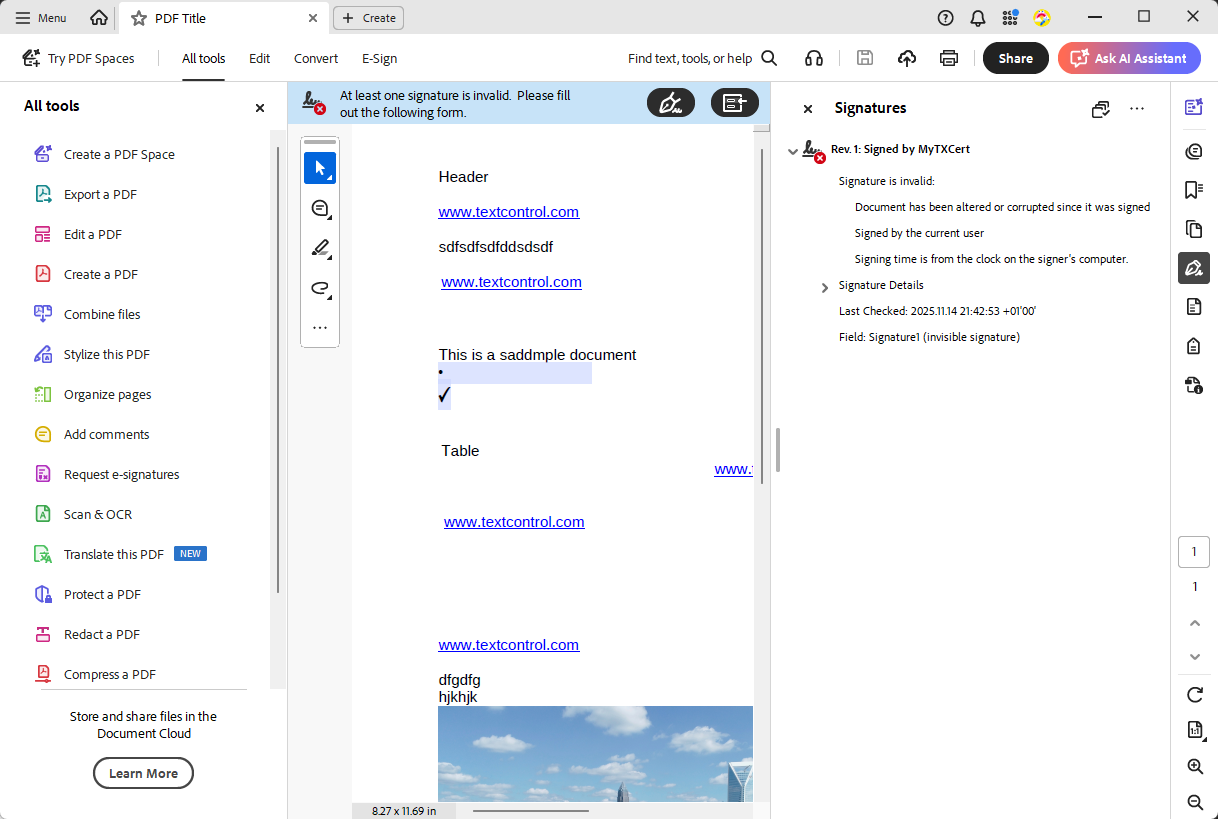
The blog article Validate Digital Signatures and the Integrity of PDF Documents in C# .NET changes a signed file on purpose and compares the results before and after.
After the Document Is Signed
- Leave the file unchanged. After any change to a signed file, PDF readers no longer confirm that the document is unchanged since it was signed.
- Complete the content first. Fill in form fields, and flatten them if they must not change, before the signed save, as Exporting Interactive and Flattened Forms describes.
- Sign documents you create, not PDF files from elsewhere. TX Text Control converts a PDF it loads into an editable document, and saving creates a new PDF from that conversion, as PDF Import and Its Limitations explains. Keep documents in DOCX or the TX Text Control format until they're final.
- Add a password for confidential content. Signatures don't encrypt. Passwords and permissions are further
SaveSettingsproperties, as Passwords and Access Permissions describes; because PDF/A doesn't allow encryption, a protected document is saved asAdobePDF.
Next Steps
- Certificates: let users choose a certificate from their Windows certificate store.
- Signature Fields and Signature Appearance: sign visible fields.
- Timestamp Configuration: add a trusted signing time.
- The blog article PDF Security Explained: Passwords, Permissions, Encryption and Digital Signatures in C# .NET: the protections compared.