
Conditional Instructions
How does a form reject an arrival date outside the season, accept only whole numbers of nights or offer only the rooms that suit the size of a group? In a WPF application, conditional instructions do it: rules stored in the document that test form field values and, depending on the result, enable or disable fields, set values, replace the items of a drop-down list or mark a value as invalid. The TextControl applies them while users fill out the protected form.
Read on for the parts of a rule, the comparisons each form field type offers, how conditions combine and when instructions run, followed by the seven rules of a complete booking form, in the Form Fields tab and in C#. Inserting form fields and protecting a form are covered in Form Fields and Conditional Instructions.
How Conditional Instructions Work
A conditional instruction has three parts:
- A name. It can't be empty and must be unique in the document.
- One or more conditions. Each condition compares the value of one form field with a comparison value, for example "the date of Arrival is on or after July 15".
- One or more instructions. Each instruction names a form field and what happens to it, for example "mark Arrival as valid". The field can be the one the conditions test or any other form field of the document.
When the conditions are fulfilled, every instruction is carried out. An instruction can also have an else value, which is applied when the conditions are not fulfilled. The TextControl evaluates a rule at two moments:
- When the document becomes a form. A form is a document in the
ReadAndSelectEditMode whose DocumentPermissions areReadOnly. When your code or the user switches a document to a form, or a form is loaded, all rules are applied once. These are the initial instructions. - When the value of a form field changes that one of its conditions refers to. A check box changes when it is clicked, a drop-down list or date field when the user picks an item or a date, and a text, date or combo box field when the user has typed a new value and leaves the field.
Both happen only while IsFormFieldValidationEnabled of the TextControl is true; it is false by default. Four classes of the TXTextControl namespace describe the parts: Condition, Instruction, ConditionalInstruction and ConditionalInstructionCollection. The sections below give each setting with its label in the dialog box and its name in the class library, so that you can create a rule either way.
Set Up the Window
The code of this page goes into MainWindow.xaml.cs of a window with a TextControl named textControl1 and a WPF.RibbonFormFieldsTab, connected as in Add the Form Fields and Permissions Tabs. The file starts with these directives:
using System;
using System.Linq;
using System.Windows;
using TXTextControl;
// System.Windows also has a Condition class
using Condition = TXTextControl.Condition;
Without the alias, Condition is ambiguous, because System.Windows.Condition has the same name. The examples find form fields by their name with this helper:
// Return the form field of the document with the given name
private FormField FindFormField(string name)
{
    return textControl1.FormFields.Cast<FormField>().First(field => field.Name == name);
}
Create Rules With the Ribbon
The Form Validation group of the Form Fields tab holds the buttons for conditional instructions. Each is a value of the RibbonFormFieldsTab.RibbonItem enumeration, which identifies the item in the ribbon:
| Button | RibbonItem | What it does |
|---|---|---|
| Enable Form Validation | TXITEM_EnableFormValidation | Turns validation on or off; the other buttons stay disabled while it is off |
| Highlight Invalid Values | TXITEM_HighlightInvalidValues | Highlights form field values that a rule has marked as invalid |
| Previous Invalid Value, Next Invalid Value | TXITEM_PreviousInvalidValueFormField, TXITEM_NextInvalidValueFormField | Move to the previous or next invalid value |
| Manage Conditional Instructions | TXITEM_ManageConditionalInstructions | Shows the Conditional Instructions panel in the sidebar or a dialog box |
The group itself is TXITEM_FormValidationGroup. Manage Conditional Instructions opens the panel in the sidebar named by ConditionalInstructionsSidebar, as Sidebar and Panels describes. The panel lists the rules by name and shows the conditions and actions of the selected rule as sentences:
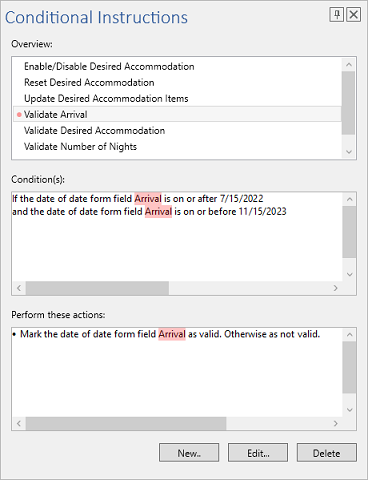
To create a rule:
- Open the form and click Enable Form Validation.
- Click Manage Conditional Instructions, then New... in the panel. To change a rule, select it and click Edit....
- Fill in the three sections of the Conditional Instruction dialog box:
- Name: the unique name of the rule.
- Condition(s): in each row, the form field whose value is tested, the comparison operator and the comparison value. A field without a name is listed under a generated unique name. The ➕ button adds a row, and each row after the first is joined to the one before it with And or Or.
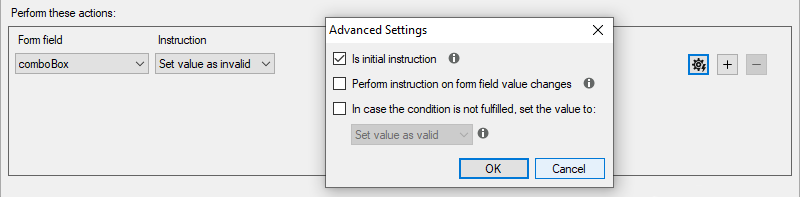
- Perform these actions: in each row, the form field to change, the instruction and its value. The ➕ button adds a row, and the button to the left of it opens the Advanced Settings dialog box of the instruction.
- Click OK. The rule appears in the panel.
The screenshots of the dialog boxes on this page were taken with TX Text Control .NET for Windows Forms:
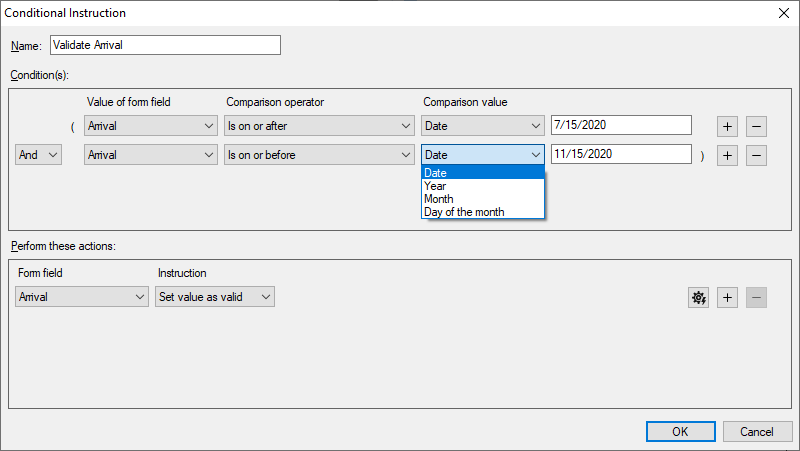
In code, ConditionalInstructionDialog opens the Conditional Instruction dialog box and ManageConditionalInstructionsDialog the dialog box that lists all rules. Both return a bool?, which is null when the dialog box couldn't be opened, for example while validation is off.
Create Rules in Code
A rule is a ConditionalInstruction made of arrays of Condition and Instruction objects, which FormFieldCollection.ConditionalInstructions adds to the document:
private void AddArrivalRule_Click(object sender, RoutedEventArgs e)
{
    // Rules are only added and applied while validation is enabled
    textControl1.IsFormFieldValidationEnabled = true;

    DateFormField arrival = (DateFormField)FindFormField("Arrival");

    Condition from = new Condition(arrival,
        Condition.ComparisonOperators.IsGreaterThanOrEqual, new DateTime(2020, 7, 15));
    Condition to = new Condition(arrival,
        Condition.ComparisonOperators.IsLessThanOrEqual, new DateTime(2020, 11, 15));

    // true (valid) when both conditions are fulfilled, false (invalid) otherwise
    Instruction markValid = new Instruction(arrival,
        Instruction.InstructionTypes.IsValueValid, true, false);

    ConditionalInstruction rule = new ConditionalInstruction("Validate Arrival",
        new Condition[] { from, to }, new Instruction[] { markValid });

    textControl1.FormFields.ConditionalInstructions.Add(rule);
}
The code works as follows:
- The Condition constructor takes the form field, the operator and the comparison value. It has an overload for each form field type.
- The Instruction constructor takes the field to change, the instruction type, the value and, in the overload used here, the else value.
- The ConditionalInstruction constructor throws an
ArgumentExceptionfor an empty name and for empty arrays. Its constructor without parameters creates an empty rule, which you complete with the Name, Conditions and Instructions properties. - Add throws an
ArgumentExceptionwhen another rule has the same name, and returnsfalsewhen the rule isn't added.
The collection manages the rules of the document with these members:
| Member | What it does |
|---|---|
| Add, Remove, Clear | Add a rule, remove the rule with a name, or remove all rules; each returns true on success |
| GetItem | Returns the rule with a name |
| GetItems | Returns the rules whose conditions or instructions refer to a form field |
| ConditionalInstructionNames | The names of all rules |
| Count | The number of rules |
While IsFormFieldValidationEnabled is false, Count returns -1, ConditionalInstructionNames, GetItem and GetItems return null, and Add, Remove and Clear return false. Add, Remove and Clear also return false while the document is a form, so add the rules before you protect it.
Conditions for Each Form Field Type
The operators and values a condition offers depend on the type of the form field it tests. In code, the operator is a value of Condition.ComparisonOperators:
| Form field | Tests | Operators in the dialog box | Comparison values |
|---|---|---|---|
Check box (CheckFormField) | Checked | Is, Is not | Checked, Unchecked |
Text box (TextFormField) | Text | Is, Is not, Contains, Starts with, Ends with, Does not contain, Does not start with, Does not end with, Is greater than, Is greater than or equal, Is less than, Is less than or equal, Matches regular expression, Does not match regular expression | A text, or Empty (no value set) |
Drop-down list or combo box (SelectionFormField) | Text | As for text boxes | A text, Empty (no value set), one of the items, or A list item |
Date (DateFormField) | Date | Is/Is in, Is not/Is not in, After, Is on or after, Before, Is on or before | A date, a year, a month, a day of the month, a weekday, or Empty (no value set) |
The text operators are the enumeration values Is, IsNot, Contains, StartsWith, EndsWith, DoesNotContain, DoesNotStartWith, DoesNotEndWith, IsGreaterThan, IsGreaterThanOrEqual, IsLessThan and IsLessThanOrEqual. Empty (no value set) tests whether a text box or selection form field has no text or a date field has no date. It works with Is and Is not only, and not for check boxes. In code, the comparison value is null or, for text, an empty string.
Check Boxes
A check box condition tests one of two states. The constructor takes the check box and a bool: new Condition(checkBox, true) stands for Is Checked, new Condition(checkBox, false) for Is not Checked.

Text Boxes and Selection Form Fields
Text and selection form fields are compared by their text in three ways:
- Text comparison. Is and Is not compare the whole text, Contains and Does not contain look for a part of it, and the Starts with and Ends with operators test the beginning and the end.
- Greater and less. The four operators compare numbers when both the text and the comparison value are numbers, decimal numbers included, and strings in alphabetical order, case-sensitively, otherwise. Numbers are read with the culture of the current thread (
Thread.CurrentThread.CurrentCulture): with English settings, "1.0" is the number 1, but with German settings, where the comma separates decimals, the period is ignored and "1.0" is 10. - Regular expressions. Matches regular expression and Does not match regular expression test the text against a pattern of the .NET regular expression engine. In code, this is the operator
IsorIsNotwith the flagRegexof Condition.TextComparisonFlags, passed as the fourth parameter; the flagCustomTextcompares plain text.
Items of Selection Form Fields
A selection form field can also be compared with its items, set with the flags of Condition.ItemComparisonFlags as the fourth parameter:
- One of the items (
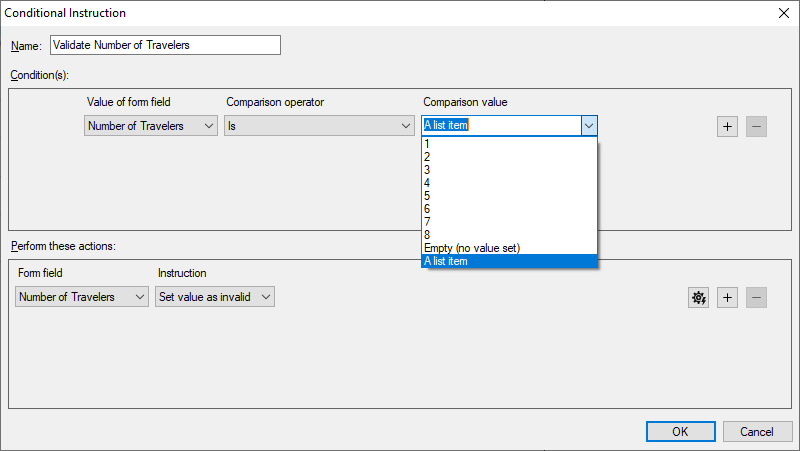
SpecificItem) compares the text with the text of that item, with any operator except the two regular expression operators. The condition is fulfilled only while the field still has an item with this text, and the constructor throws anArgumentExceptionwhen the value isn't one of the Items. - A list item (
AnyItem) tests whether the text equals any of the items. It works with Is and Is not only, and the comparison value, usuallynull, is ignored. With Is, the condition is fulfilled as soon as the user selects an item, and not fulfilled while the field is empty or shows typed text that isn't an item.
Date Form Fields
A date condition compares the date of the field with one of five kinds of values, which the constructor takes as different types:
| Value | Type in code | Operators |
|---|---|---|
| A date | DateTime | All six |
| A year from 1601 to 9999 | int | All six |
| A month | Condition.Month, such as Condition.Month.December | All six |
| A day of the month from 1 to 31 | int | All six |
| A weekday | System.DayOfWeek | Is, Is not |
Another int makes the constructor throw an ArgumentException. After and Is on or after are IsGreaterThan and IsGreaterThanOrEqual, and Before and Is on or before are IsLessThan and IsLessThanOrEqual. Condition.ComparisonValueType returns how a condition interprets its value, as a value of Condition.ComparisonValueTypes.

Combine Conditions With And and Or
Each condition after the first is joined to the one before it by Condition.LogicalConnective, a value of Condition.LogicalConnectives. The default is And, and the connective of the first condition is ignored. The conditions are tested in the order of the array.
And binds more strongly than Or. Conditions joined by And form a group that is fulfilled when all of its conditions are, and Or joins such groups:
C1 And C2 Or C3         means   (C1 And C2) Or C3
C1 Or C2 And C3         means   C1 Or (C2 And C3)

There are no parentheses. To test C1 And (C2 Or C3), repeat the shared condition in each group:
C1 And C2 Or C1 And C3 means (C1 And C2) Or (C1 And C3)
In code, the same Condition object may appear several times in the array. Give it the connective Or and put it first: the first occurrence ignores its connective, and every later one starts a new group. Rule 7 of the booking form below works this way.
Instruction Types
An instruction changes one form field. Its type is a value of Instruction.InstructionTypes, and the type of its value depends on the instruction type and the form field:
| In the dialog box | InstructionTypes | Value | Form fields |
|---|---|---|---|
| Allow editing, Deny editing | IsEnabled | bool, the new value of FormField.Enabled | All |
| Set value as valid, Set value as invalid | IsValueValid | bool, true for valid | All |
| Set new value | SetValue | bool for a check box (Checked or Unchecked), a string or an item for text and selection form fields, a DateTime for a date field; null or Empty (no value set) removes the value of all but check boxes | All |
| Set new items | SetItems | string[] that replaces the Items of the field; null or an empty array removes all items | Selection form fields |
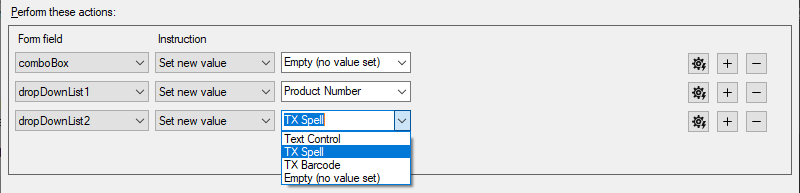
The same three instructions in code, for a combo box comboBox and the drop-down lists productList and productList2:
Instruction clearText = new Instruction(comboBox, Instruction.InstructionTypes.SetValue, null);
Instruction setText = new Instruction(productList, Instruction.InstructionTypes.SetValue, "Product Number");
Instruction setItem = new Instruction(productList2, Instruction.InstructionTypes.SetValue, productList2.Items[1]);
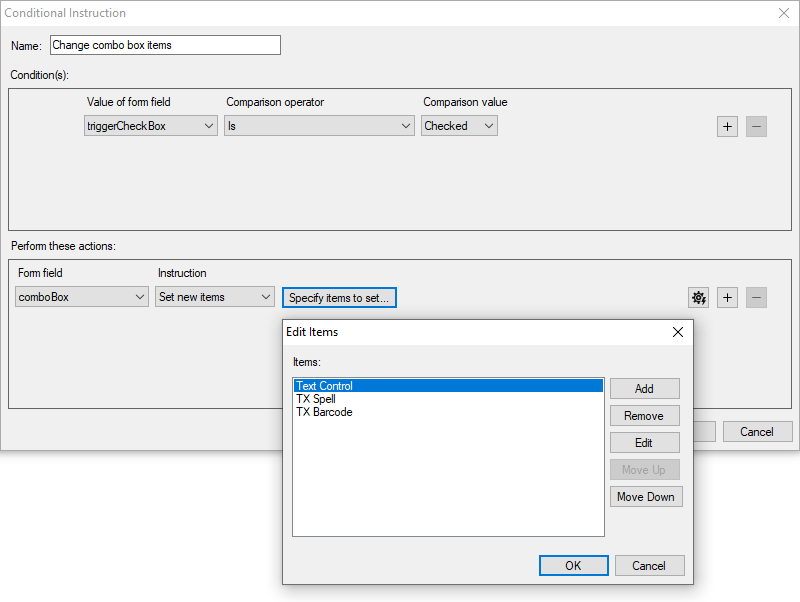
In the dialog box, Specify items to set... next to Set new items opens the Edit Items dialog box, in which you enter the new items. An item can't be an empty string, and removing all items from the list creates an instruction that empties the drop-down list.
A rule can change several fields, and one field several times, but not twice with the same instruction type: the ConditionalInstruction constructor and its Instructions property throw an ArgumentException for two instructions of the same type for the same form field.
Else Instructions
An else instruction sets a value when the conditions of the rule are not fulfilled. The dialog box and the class library differ here:
- The dialog box adds an else instruction with the opposite value to Allow editing, Deny editing, Set value as valid and Set value as invalid. A rule that marks a field as valid therefore marks it as invalid when its conditions are not met. Set new value and Set new items get no else instruction by themselves.
- The class library never adds one. The
Instructionconstructor with four parameters sets the else value and turns IsElseInstructionEnabled on; with three parameters, it's off. You can switch it on or off later with the property.
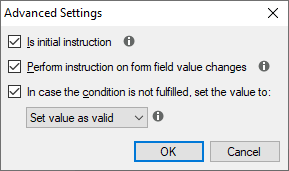
In the Advanced Settings dialog box of an instruction, the check box In case the condition is not fulfilled, set the value to turns the else instruction on or off, and the value next to it sets it. ElseInstructionValue returns the else value. When none was set, it returns a default: the negation of the value for IsEnabled, IsValueValid and check boxes, an empty string for text and selection form fields, null for date fields and an empty array for SetItems.
Initial and Change Instructions
By default, an instruction runs at both moments: when the document becomes a form, and when a tested field changes. Two properties of the Instruction, both true by default, switch one of the moments off:
| Property | Check box in Advanced Settings | Set to false when |
|---|---|---|
| IsInitialInstruction | Is initial instruction | The instruction must not run when the form opens, for example because the empty form fulfills its conditions. |
| IsFormFieldChangeInstruction | Perform instruction on form field value changes | The instruction must run only when the form opens and ignore what users enter. |
Set them with an object initializer, before the rule is added:
Instruction markInvalid = new Instruction(comboBox, Instruction.InstructionTypes.IsValueValid, false)
{
    IsFormFieldChangeInstruction = false
};
Find Invalid Values
An instruction of the type IsValueValid marks a value as valid or invalid; the value itself doesn't change. In the protected form, Highlight Invalid Values of the Form Fields tab highlights the invalid values, in TX Text Control Words in yellow, and Previous Invalid Value and Next Invalid Value move between them.
The reference also documents a method ConditionalInstructionCollection.IsValueValid that returns whether a rule has marked the value of a form field as invalid. The TXTextControl.dll of the package TXTextControl.TextControl.WPF.SDK 34.0.5 doesn't make this method available: a call of it ends in compiler error CS1061, so check the values of a filled form with the buttons of the Form Fields tab.
Example: A Booking Request Form
The sample form travel-form.tx is installed in C:\Program Files\Text Control GmbH\TX Text Control 34.0.NET for WPF\Samples\Demo, as Installing the Product lists. It has four form fields:
| Name | Type | Content |
|---|---|---|
| Arrival | Date form field | The date of arrival |
| Number of Nights | Text form field | The length of the stay |
| Number of Travelers | Selection form field, drop-down list | The items 1 to 8 |
| Desired Accommodation | Selection form field, drop-down list | The accommodation |
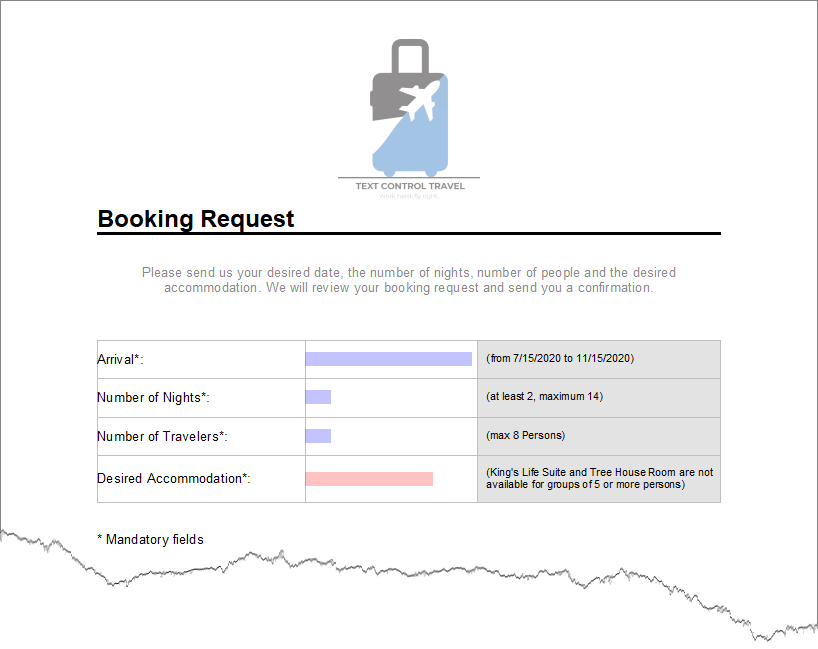
The form must behave as follows:
- Every field is required. A field without a value is invalid.
- Arrival is valid from July 15 to November 15, 2020.
- Number of Nights accepts whole numbers from 2 to 14.
- Desired Accommodation is disabled until a number of travelers is selected. It is invalid only while it is enabled and empty.
- Groups of 5 or more can choose Apartment Belle View and Ocean View Suite. Groups of up to 4 can also choose King's Life Suite and Tree House Room. If the group grows to 5 or more after one of these two was chosen, the choice is removed.
Seven rules implement this. The lists give the settings of the dialog box, with the values in code in parentheses; a handler at the end of this section adds all of them in code.
1. Validate Arrival
- Conditions: Arrival Is on or after 7/15/2020 (
IsGreaterThanOrEqual,new DateTime(2020, 7, 15)), And Arrival Is on or before 11/15/2020 (IsLessThanOrEqual). - Instruction: Arrival, Set value as valid (
IsValueValid,true), with the else instruction Set value as invalid (false) that the dialog box adds.
A missing date doesn't fulfill the conditions, so the else instruction marks it as invalid too.
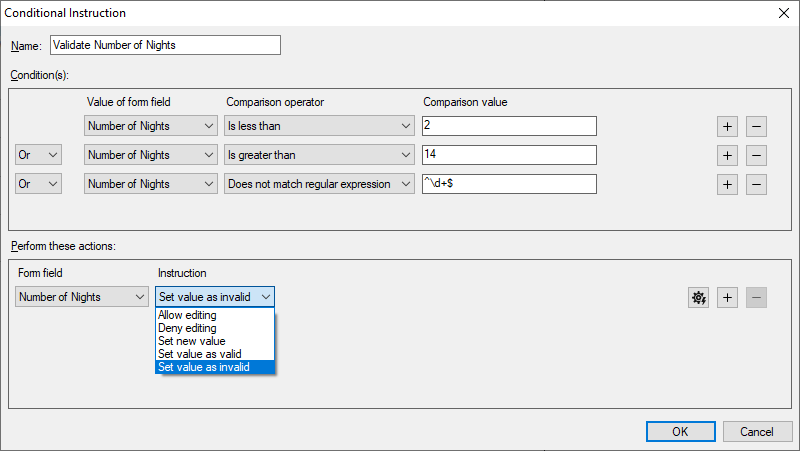
2. Validate Number of Nights
This rule tests for invalid values instead of valid ones:
- Conditions: Number of Nights Is less than 2 (
IsLessThan,"2"), Or Is greater than 14 (IsGreaterThan,"14"), Or Does not match regular expression^\d+$(IsNotwithTextComparisonFlags.Regex). - Instruction: Number of Nights, Set value as invalid (
IsValueValid,false), with the else instruction Set value as valid (true).
The regular expression accepts only digits, so an empty field, a decimal number or text is invalid. All three conditions are joined by Or, so one of them is enough.
3. Validate Number of Travelers
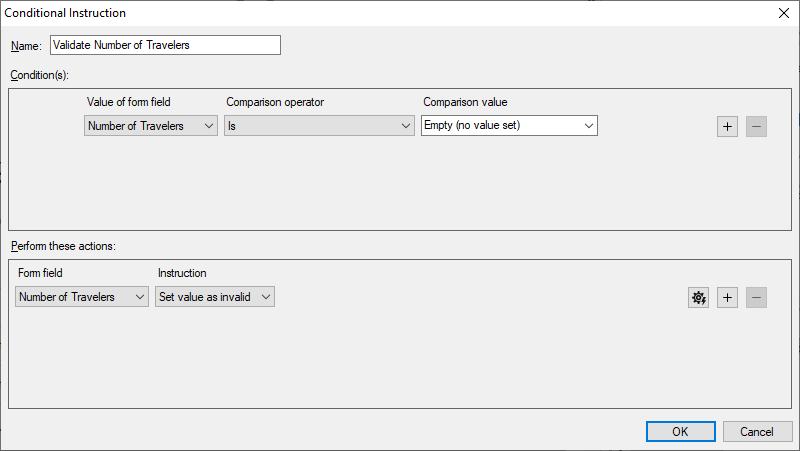
- Condition: Number of Travelers Is Empty (no value set) (
Is,null). - Instruction: Number of Travelers, Set value as invalid (
false), with the else instruction Set value as valid (true).
A drop-down list shows only its items, so the field is valid as soon as the user selects one. The condition Number of Travelers Is A list item (Is, null, ItemComparisonFlags.AnyItem) with Set value as valid does the same from the other side.
4. Validate Desired Accommodation
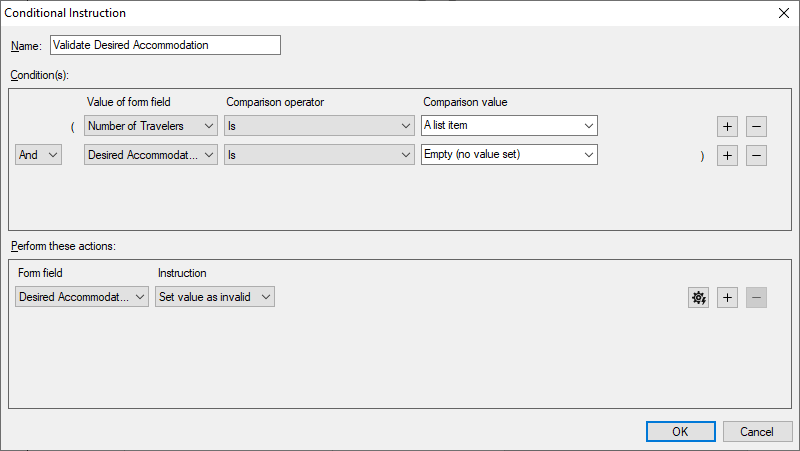
Two fields take part, so the rule is evaluated when either of them changes:
- Conditions: Number of Travelers Is A list item (
Is,AnyItem), And Desired Accommodation Is Empty (no value set) (Is,null). - Instruction: Desired Accommodation, Set value as invalid (
false), with the else instruction Set value as valid (true).
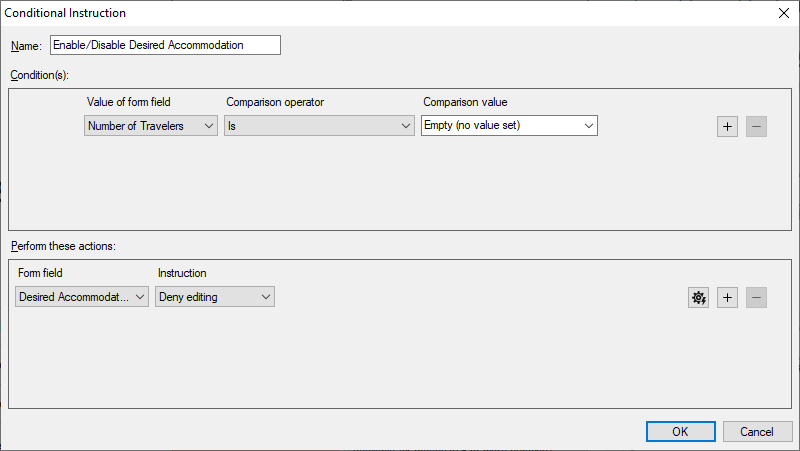
5. Enable/Disable Desired Accommodation
- Condition: Number of Travelers Is Empty (no value set).
- Instruction: Desired Accommodation, Deny editing (
IsEnabled,false), with the else instruction Allow editing (true).
6. Update Desired Accommodation Items
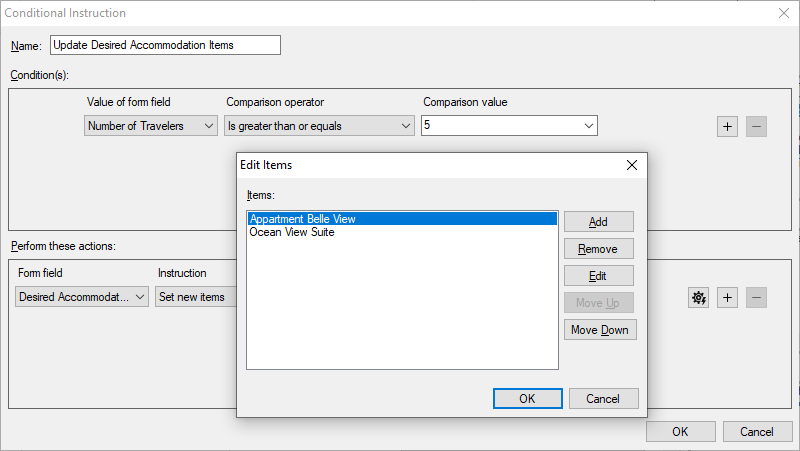
- Condition: Number of Travelers Is greater than or equal the item 5 (
IsGreaterThanOrEqual,"5",ItemComparisonFlags.SpecificItem). The items are numbers, so they are compared as numbers. - Instruction: Desired Accommodation, Set new items (
SetItems) with Apartment Belle View and Ocean View Suite. In Advanced Settings, turn on the else instruction and set all four accommodations with Specify items to set....
7. Reset Desired Accommodation
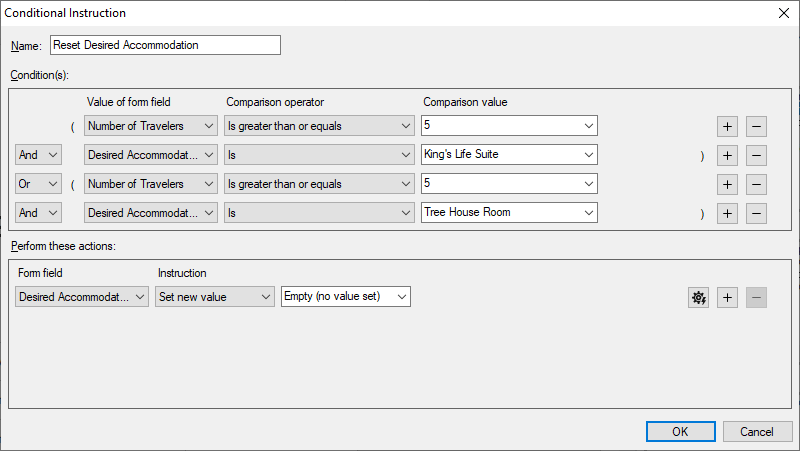
The choice is removed when the group has 5 or more travelers and the accommodation is King's Life Suite or Tree House Room. Because And binds more strongly than Or, the travelers condition is repeated in both groups:
- Conditions: Number of Travelers Is greater than or equal the item 5, And Desired Accommodation Is King's Life Suite, Or Number of Travelers Is greater than or equal the item 5, And Desired Accommodation Is Tree House Room.
- Instruction: Desired Accommodation, Set new value Empty (no value set) (
SetValue,null), without an else instruction.
Both accommodation conditions compare plain text, not an item: once rule 6 has replaced the items, King's Life Suite is no longer one of them, and a condition on that item would never be fulfilled.
Create All Rules in Code
The following handler loads the sample form, adds the seven rules and protects the form:
private void BookingForm_Click(object sender, RoutedEventArgs e)
{
    textControl1.Load(@"C:\Program Files\Text Control GmbH\TX Text Control 34.0.NET for WPF\Samples\Demo\travel-form.tx",
        StreamType.InternalUnicodeFormat);

    // Rules are only added and applied while validation is enabled
    textControl1.IsFormFieldValidationEnabled = true;
    ConditionalInstructionCollection rules = textControl1.FormFields.ConditionalInstructions;
    rules.Clear();

    DateFormField arrival = (DateFormField)FindFormField("Arrival");
    TextFormField nights = (TextFormField)FindFormField("Number of Nights");
    SelectionFormField travelers = (SelectionFormField)FindFormField("Number of Travelers");
    SelectionFormField accommodation = (SelectionFormField)FindFormField("Desired Accommodation");

    // 1. Arrival from July 15 to November 15, 2020
    rules.Add(new ConditionalInstruction("Validate Arrival",
        new Condition[] {
            new Condition(arrival, Condition.ComparisonOperators.IsGreaterThanOrEqual, new DateTime(2020, 7, 15)),
            new Condition(arrival, Condition.ComparisonOperators.IsLessThanOrEqual, new DateTime(2020, 11, 15)) },
        new Instruction[] {
            new Instruction(arrival, Instruction.InstructionTypes.IsValueValid, true, false) }));

    // 2. Fewer than 2 or more than 14 nights, or not a whole number
    rules.Add(new ConditionalInstruction("Validate Number of Nights",
        new Condition[] {
            new Condition(nights, Condition.ComparisonOperators.IsLessThan, "2"),
            new Condition(nights, Condition.ComparisonOperators.IsGreaterThan, "14")
                { LogicalConnective = Condition.LogicalConnectives.Or },
            new Condition(nights, Condition.ComparisonOperators.IsNot, @"^\d+$", Condition.TextComparisonFlags.Regex)
                { LogicalConnective = Condition.LogicalConnectives.Or } },
        new Instruction[] {
            new Instruction(nights, Instruction.InstructionTypes.IsValueValid, false, true) }));

    // 3. No number of travelers selected
    rules.Add(new ConditionalInstruction("Validate Number of Travelers",
        new Condition[] {
            new Condition(travelers, Condition.ComparisonOperators.Is, null) },
        new Instruction[] {
            new Instruction(travelers, Instruction.InstructionTypes.IsValueValid, false, true) }));

    // 4. Travelers selected, but no accommodation
    rules.Add(new ConditionalInstruction("Validate Desired Accommodation",
        new Condition[] {
            new Condition(travelers, Condition.ComparisonOperators.Is, null, Condition.ItemComparisonFlags.AnyItem),
            new Condition(accommodation, Condition.ComparisonOperators.Is, null) },
        new Instruction[] {
            new Instruction(accommodation, Instruction.InstructionTypes.IsValueValid, false, true) }));

    // 5. Disable the accommodation until travelers are selected
    rules.Add(new ConditionalInstruction("Enable/Disable Desired Accommodation",
        new Condition[] {
            new Condition(travelers, Condition.ComparisonOperators.Is, null) },
        new Instruction[] {
            new Instruction(accommodation, Instruction.InstructionTypes.IsEnabled, false, true) }));

    // 6. Only two accommodations for 5 or more travelers
    Condition fiveOrMore = new Condition(travelers, Condition.ComparisonOperators.IsGreaterThanOrEqual,
        "5", Condition.ItemComparisonFlags.SpecificItem)
    {
        LogicalConnective = Condition.LogicalConnectives.Or
    };

    rules.Add(new ConditionalInstruction("Update Desired Accommodation Items",
        new Condition[] { fiveOrMore },
        new Instruction[] {
            new Instruction(accommodation, Instruction.InstructionTypes.SetItems,
                new string[] { "Apartment Belle View", "Ocean View Suite" },
                new string[] { "King's Life Suite", "Tree House Room", "Apartment Belle View", "Ocean View Suite" }) }));

    // 7. Remove a choice that doesn't suit the group anymore
    rules.Add(new ConditionalInstruction("Reset Desired Accommodation",
        new Condition[] {
            fiveOrMore,
            new Condition(accommodation, Condition.ComparisonOperators.Is, "King's Life Suite"),
            fiveOrMore,
            new Condition(accommodation, Condition.ComparisonOperators.Is, "Tree House Room") },
        new Instruction[] {
            new Instruction(accommodation, Instruction.InstructionTypes.SetValue, null) }));

    // Switch to a form: the initial instructions run now
    textControl1.DocumentPermissions.AllowEditingFormFields = true;
    textControl1.DocumentPermissions.ReadOnly = true;
    textControl1.EditMode = EditMode.ReadAndSelect;
}
The code works as follows:
- Load opens the form in the StreamType
InternalUnicodeFormat, the TX Text Control format.Clearremoves rules that the file may already contain, so thatAdddoesn't throw for a duplicate name. fiveOrMorehas the connectiveOr. In rule 6 it is the only condition, and in rule 7 it is the first and the third condition: at the first position, the connective is ignored, and at the third, it starts the second group.- The
SetItemsinstruction of rule 6 has the four accommodations as its else value, so that smaller groups get all of them back. - The last three lines protect the form, as Protect the Form explains. Add the rules before this step; afterward,
Addreturnsfalse.
Save the form with its rules in the TX Text Control format, with Save and StreamType.InternalUnicodeFormat.
The Form in Use
When the form is protected, the initial instructions run. Arrival, Number of Nights and Number of Travelers are marked as invalid because they are empty. Desired Accommodation is disabled by rule 5, but not marked as invalid, because rule 4 requires a selected number of travelers.
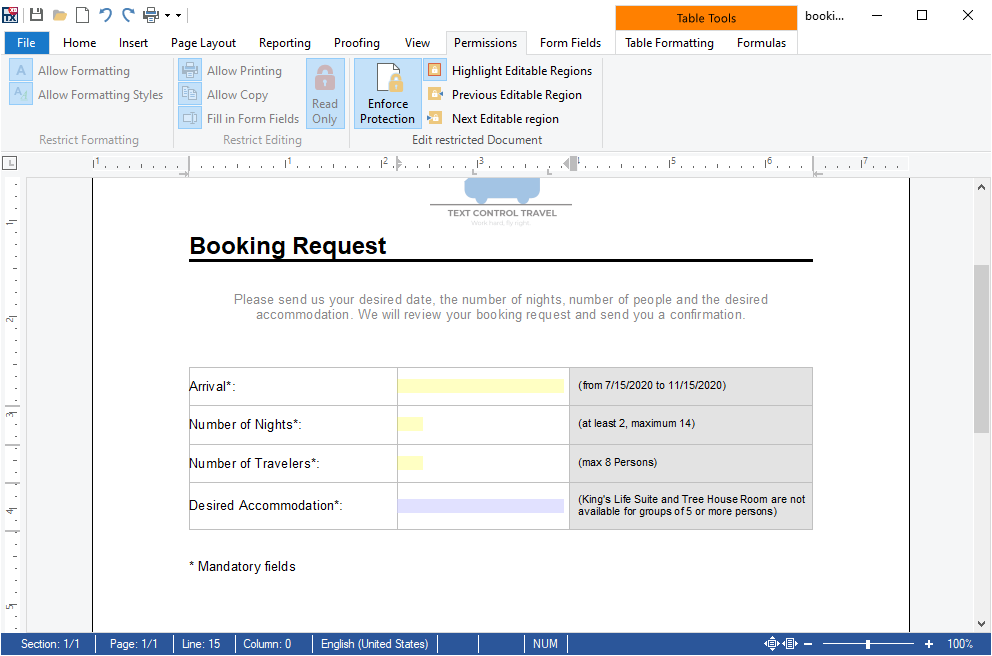
As the user fills out the form, the rules follow each change. A date before July 15 keeps Arrival invalid, and "2.5" nights stays invalid because of the regular expression. Selecting 3 travelers enables Desired Accommodation and marks it as invalid until an accommodation is chosen. If the user then changes the number of travelers from 3 to 6 after choosing King's Life Suite, rule 7 empties Desired Accommodation, rule 4 marks it as invalid and rule 6 leaves only the two accommodations for larger groups.
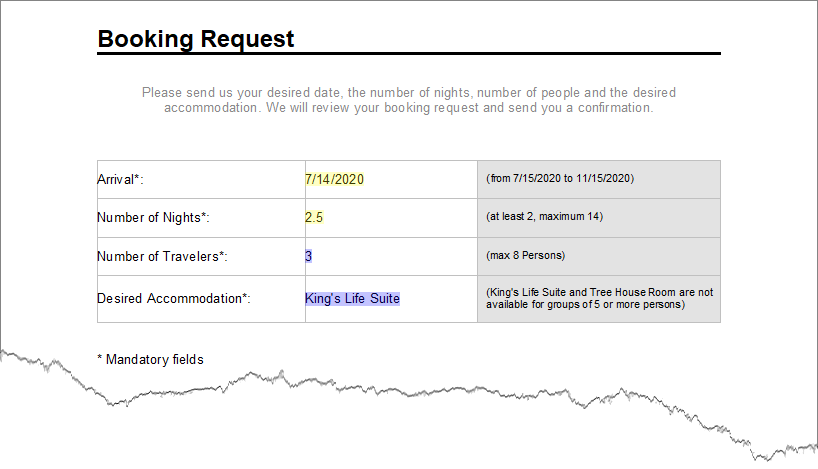
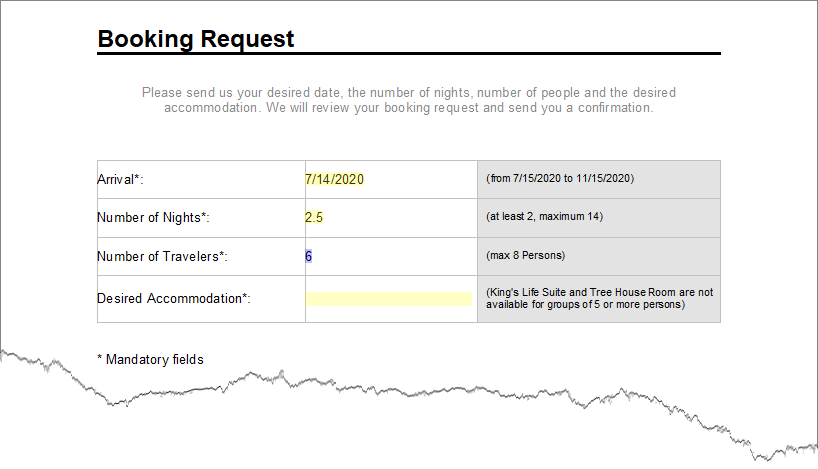
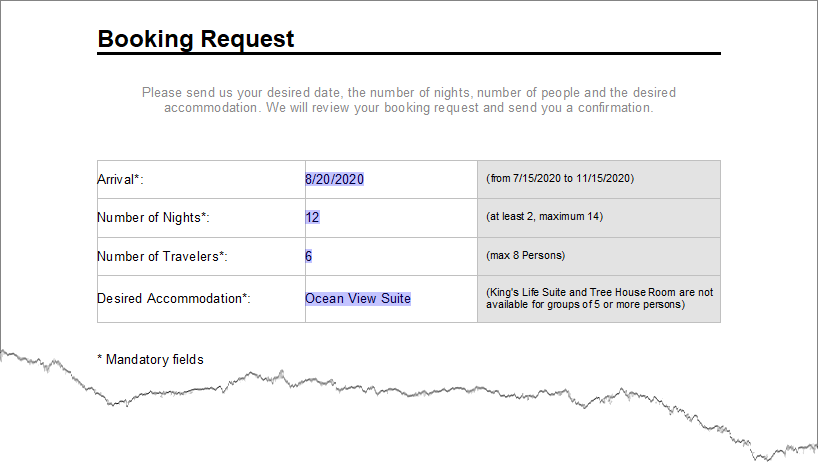
The TX Text Control Words sample Conditional Instructions opens a similar booking form with its rules already in place; TX Text Control Words lists the samples.
More Condition Examples
The table lists the conditions of common checks. cb1 to cb3 are check boxes; the other conditions test one text box, selection form field or date field.
| Goal | Conditions |
|---|---|
| Check box 1 is checked | cb1 Is Checked (new Condition(cb1, true)) |
| Both check boxes are unchecked | cb1 Is not Checked And cb2 Is not Checked |
| At least one check box is checked | cb1 Is Checked Or cb2 Is Checked |
| Check box 1, or both 2 and 3, are checked | cb1 Is Checked Or cb2 Is Checked And cb3 Is Checked |
| A text box isn't empty | Is not Empty (no value set) (IsNot, null) |
| The state Colorado | Is "Colorado" Or Is "CO" |
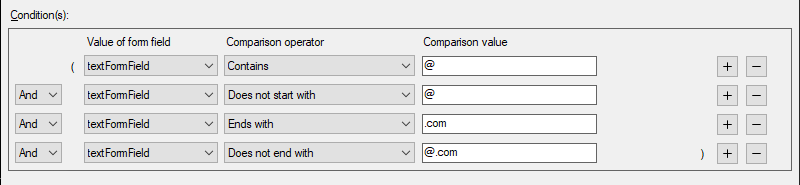
| A simple .com e-mail address | Contains "@" And Does not start with "@" And Ends with ".com" And Does not end with "@.com" |
| A positive number | Is greater than "0" |
| A number from 0 to 18 | Is greater than or equal "0" And Is less than or equal "18" |
| Text starting with a, b or c in either case | Is greater than or equal "a" And Is less than "d" Or Is greater than or equal "A" And Is less than "D" |
| 5 to 8 characters | Matches regular expression ^.{5,8}$ |
| No digits and no white space | Does not match regular expression [\s\d]+ |
| The item "Economy class basic" is selected | Is the item "Economy class basic" |
| A subcategory of the item "Economy class" | Is not the item "Economy class" And Contains the item "Economy class" |
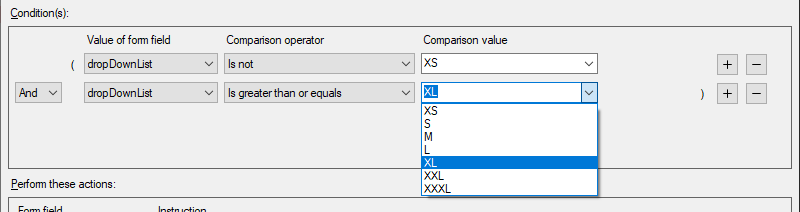
| A clothing size from XL to XXXL | Is not the item "XS" And Is greater than or equal the item "XL" |
| The text of a combo box is one of its items | Is A list item |
| No date | Is Empty (no value set) |
| Any date but March 11, 2027 | Is not 3/11/2027 |
| Before March 11, 2027 | Before 3/11/2027 |
| From December 24, 2027 to January 1, 2028 | Is on or after 12/24/2027 And Is on or before 1/1/2028 |
| December 25 of any year | Is December And Is day 25 |
| The fourth Thursday of November | Is November And Is Thursday And Is on or after day 22 And Is on or before day 28 |
| The last Monday of May | Is Monday And Is May And Is on or after day 25 |
| A weekend | Is Saturday Or Is Sunday |
| A working day | Is not Saturday And Is not Sunday |
| Every Monday of 2027 | Is year 2027 And Is Monday |
| Every weekend of 2027 | Is year 2027 And Is Saturday Or Is year 2027 And Is Sunday |
The last week of a month starts on the 25th in months with 31 days, on the 24th in months with 30 days and on the 22nd in February, or the 23rd in a leap year. Comparisons of text are case-sensitive, which is why the a-to-c example needs a group for each case. Two of the date rows in code, for a date field date:
// The fourth Thursday of November
Condition[] thanksgiving = {
    new Condition(date, Condition.ComparisonOperators.Is, Condition.Month.November),
    new Condition(date, Condition.ComparisonOperators.Is, DayOfWeek.Thursday),
    new Condition(date, Condition.ComparisonOperators.IsGreaterThanOrEqual, 22),
    new Condition(date, Condition.ComparisonOperators.IsLessThanOrEqual, 28) };

// Every weekend of 2027: the year condition starts both groups
Condition year2027 = new Condition(date, Condition.ComparisonOperators.Is, 2027)
{
    LogicalConnective = Condition.LogicalConnectives.Or
};
Condition[] weekends2027 = {
    year2027,
    new Condition(date, Condition.ComparisonOperators.Is, DayOfWeek.Saturday),
    year2027,
    new Condition(date, Condition.ComparisonOperators.Is, DayOfWeek.Sunday) };
Regular expressions for common values, for Matches regular expression:
Credit card number          ^((4\d{3})|(5[1-5]\d{2})|(6011))-?\d{4}-?\d{4}-?\d{4}|3[4,7]\d{13}$
E-mail address              ^[a-zA-Z0-9._%+-]+@[a-zA-Z0-9.-]+\.[a-zA-Z]{2,}$
US social security number   ^\d{3}-\d{2}-\d{4}$
US telephone number         ^[2-9]\d{2}-\d{3}-\d{4}$
US ZIP code                 ^(?!0{5})(\d{5})(?!-?0{4})(|-\d{4})?$
More Instruction Examples
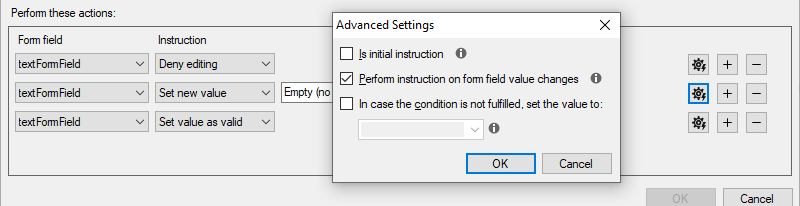
- Reset a field. To disable a field, remove its value and clear an invalid mark when a condition is met, use three instructions for the field: Deny editing with its else instruction Allow editing; Set new value Empty (no value set); and Set value as valid with its else instruction turned off in Advanced Settings, because another rule decides when the field is invalid. Clear Is initial instruction for all three, as the reset isn't needed when the form opens. A check box can't be empty, so its reset value is Checked or Unchecked.
- Mark an empty combo box as invalid when the form opens. Choose a condition that the new form fulfills, such as the combo box Is Empty (no value set), and the instruction Set value as invalid with the else instruction turned off. Clear Perform instruction on form field value changes, so that another rule, which validates what the user enters, isn't overridden, as the code in Initial and Change Instructions shows.
- Set a value from an item. Set new value can set a selection form field to one of its items, or to any text in a combo box.
The reset in code, for a text form field textField:
Instruction[] reset = {
    new Instruction(textField, Instruction.InstructionTypes.IsEnabled, false, true) { IsInitialInstruction = false },
    new Instruction(textField, Instruction.InstructionTypes.SetValue, null) { IsInitialInstruction = false },
    new Instruction(textField, Instruction.InstructionTypes.IsValueValid, true) { IsInitialInstruction = false } };
Radio Button Groups
A radio button group, in which users select exactly one option, is built from check boxes and rules. With two check boxes radioButton1 and radioButton2:
Give them the look of radio buttons. Select a check box and choose its checked and unchecked symbols in the Check Box Properties group of the Form Fields tab (
TXITEM_CheckBoxFieldPropertiesGroup,TXITEM_CheckedSymbolandTXITEM_UncheckedSymbol). In code, set CheckedCharacter and UncheckedCharacter; SupportedCheckedCharacters and SupportedUncheckedCharacters list the characters the font of the field offers.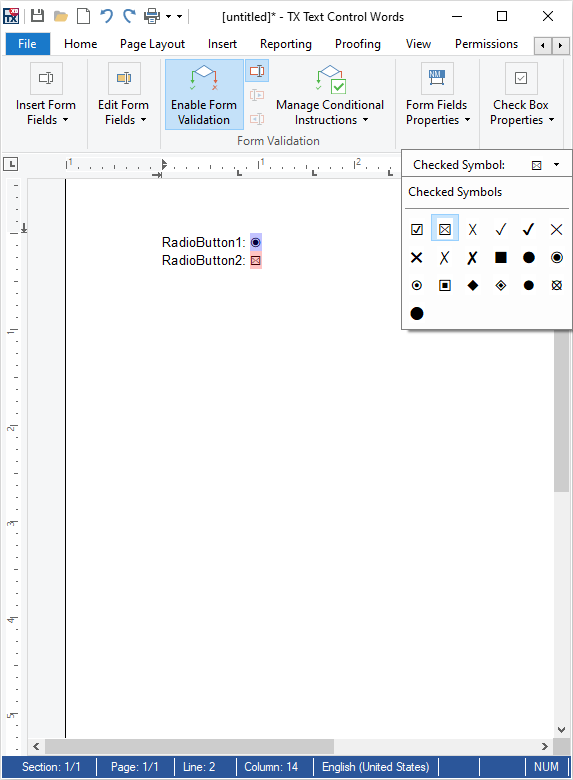
Uncheck all of them, with a click or the space key, or with Checked set to
false, so that no option is selected when the form opens.Add two rules for each button:
| Rule | Condition | Instruction |
|---|---|---|
| Radio Button 1 Checked | radioButton1 Is Checked | radioButton2 (and every other button), Set new value Unchecked |
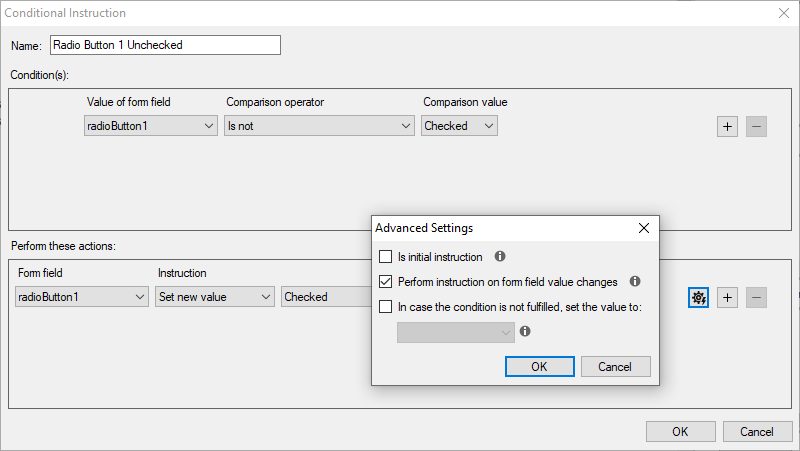
| Radio Button 1 Unchecked | radioButton1 Is not Checked | radioButton1, Set new value Checked, with Is initial instruction cleared |
The second rule keeps a selected option from being cleared by a second click. It must not be an initial instruction: when the form opens, all buttons are unchecked, and each of these rules would check its button, so the button handled last would appear selected.
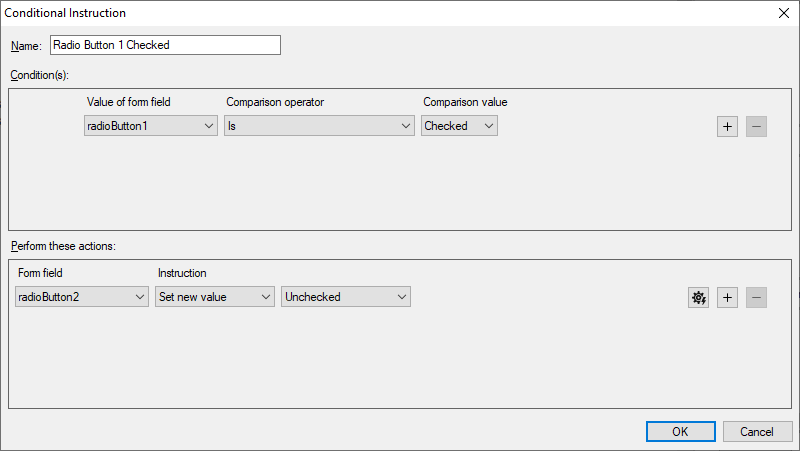
In code:
private void RadioGroup_Click(object sender, RoutedEventArgs e)
{
    textControl1.IsFormFieldValidationEnabled = true;

    CheckFormField radioButton1 = (CheckFormField)FindFormField("radioButton1");
    CheckFormField radioButton2 = (CheckFormField)FindFormField("radioButton2");

    foreach (CheckFormField radioButton in new[] { radioButton1, radioButton2 })
    {
        radioButton.CheckedCharacter = '\u25C9';     // fisheye
        radioButton.UncheckedCharacter = '\u2B55';   // large circle
        radioButton.Checked = false;
    }

    AddRadioRules(radioButton1, radioButton2, "Radio Button 1");
    AddRadioRules(radioButton2, radioButton1, "Radio Button 2");
}

private void AddRadioRules(CheckFormField button, CheckFormField other, string name)
{
    ConditionalInstructionCollection rules = textControl1.FormFields.ConditionalInstructions;

    // Checking this button unchecks the other one
    rules.Add(new ConditionalInstruction(name + " Checked",
        new Condition[] { new Condition(button, true) },
        new Instruction[] { new Instruction(other, Instruction.InstructionTypes.SetValue, false) }));

    // A click on the selected button doesn't clear it; not applied when the form opens
    rules.Add(new ConditionalInstruction(name + " Unchecked",
        new Condition[] { new Condition(button, false) },
        new Instruction[] {
            new Instruction(button, Instruction.InstructionTypes.SetValue, true) { IsInitialInstruction = false } }));
}
With more than two buttons, the "Checked" rule of each button has one SetValue instruction with false for every other button.
Next Steps
- Forms and Conditional Instructions: the form field classes, their values and events.
- Form Fields and Conditional Instructions: the Form Fields tab, the sidebar and a preview mode for forms.
- Sidebar and Panels: the sidebar that shows the Conditional Instructions panel.
- Document Protection and User Permissions: permissions and passwords for forms.