
Overview
Before a WPF application merges its first real template, a few decisions shape everything that follows: how the data is structured, whether the merge runs in the TextControl of the window or in the background, and whether all records end up in one document or in many. The sections below explain the reporting model of TX Text Control .NET for WPF and the MailMerge class behind it, with code for each of these decisions.
The Mail Merge tutorials in Getting Started design a first template and merge it, and the MailMerge page of the Overview introduces the class. The examples here use the files of those tutorials: the template invoice.docx and the data invoice.json with the fields Company, Name and InvoiceNumber and the list Items.
The Reporting Model
A template is an ordinary document without report bands. Users design it with the features of a word processor, such as tables, page columns, images and headers and footers, in a TextControl with the Reporting ribbon tab:
- The text flows. Merged content that makes a paragraph or a table longer breaks the lines and pages again, and a table continues on the next page.
- Templates hold names, not data. A template contains only the names of merge fields and merge blocks, so one template works with any data of the same structure.
- Merge fields keep their formatting. A merged value has the font, size and color the field has in the template.
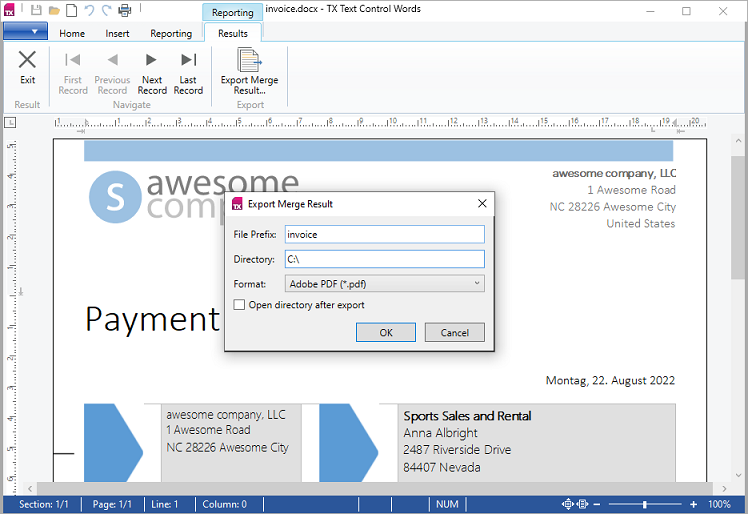
The TX Words Reporting sample for WPF shows such a template merged: the invoice has the layout of its template, and the Results tab pages through the merged records and exports them with Export Merge Result:
Pre-Shaped Data
MailMerge doesn't query a database during the merge. Your code prepares the data in the hierarchy the document needs and passes it to a merge method; Text Control calls this pre-shaped data. Where the data comes from doesn't matter, as long as it arrives in this shape.
Internally, the hierarchy is converted into tables:
| In the data | In the template |
|---|---|
| A property of the root object, a column of the master table | A merge field of the same name, such as Company |
| A nested object, a related table with one row | A merge field with dot notation, such as Customer.City |
| An array, a collection or a related table | A merge block of the same name, such as Items, repeated for each record |
The records you pass form the master table, and the template is merged once for each of them: an array of 100 invoices creates 100 invoices. Data Sources lists the kinds of data you can merge.
Where the Merge Runs
MailMerge holds no document of its own. Its TextComponent property connects it to a WPF.TextControl, a Windows Forms TextControl or a ServerTextControl, which holds the template and, after the merge, the result. In a WPF application, two of them matter:
| Connected to | The template is | The result |
|---|---|---|
The TextControl of the window | The document in the editor | Replaces the template in the editor, where the user sees it |
A ServerTextControl | Loaded by your code, not visible | Stays in the ServerTextControl until your code saves or shows it |
Unlike the controls of the window, MailMerge is not declared in XAML: your code creates it, sets TextComponent and calls a merge method, usually in a using block that disposes of it while the merged document stays in the connected control. Merge Directly in the Editor in Getting Started merges the template of the window this way, and Merge the Data merges in a ServerTextControl and loads the result into the editor. Either way, a DOCX template is loaded with LoadSettings that import its merge fields and merge blocks.
Whether it merges into a TextControl or a ServerTextControl, MailMerge uses the page size, margins and orientation of the connected control. Set UseTemplateFormat to true to keep those of the template; the default is false. To merge without touching the editor, use a ServerTextControl, as in Create One Document or One per Record.
What a Merge Processes
These elements of a template receive data:
| Element | What happens | Described in |
|---|---|---|
MERGEFIELD fields | Replaced with the value of the same name | Merge Fields |
DATE fields | Filled with the current date in the field's format | Merge Fields |
IF fields | Insert one of two texts, depending on a comparison with the data | Conditional Content |
NEXT and NEXTIF fields | Continue with the next record in the same document, always or on a condition, for example on a sheet of labels | The blog article Sneak Peek Reporting X10: Creating Labels with NEXT Fields |
INCLUDETEXT fields | Replaced with another document, a subtemplate | Subtemplates |
| Merge blocks | Repeated for each record of a list, also nested | Merge Blocks, Nested Blocks and Master-Detail Reports |
| Image and barcode placeholders | Filled with an image or encode a value | Images and Barcodes |
| Form fields | Left alone, preselected or replaced, depending on FormFieldMergeType | Merge Fields |
Headers and footers are merged as well.
Create One Document or One per Record
The merge methods MergeJsonData, MergeObjects and Merge take a second parameter, append. With true, the default, the records are merged into one document. With false, each record becomes a separate document, and the connected control holds only the last one at the end.
The DataRowMerged event occurs after each record, and its MergedRow property holds that record's document in the internal TX Text Control format. This Click handler of a button named splitButton saves one PDF per invoice:
using System.Collections.Generic;
using System.IO;
using System.Windows;
using TXTextControl;
using TXTextControl.DocumentServer;
private void splitButton_Click(object sender, RoutedEventArgs e)
{
    List<byte[]> documents = new List<byte[]>();

    using (ServerTextControl tx = new ServerTextControl())
    {
        tx.Create();

        LoadSettings loadSettings = new LoadSettings
        {
            ApplicationFieldFormat = ApplicationFieldFormat.MSWord,
            LoadSubTextParts = true
        };

        tx.Load("invoice.docx", StreamType.WordprocessingML, loadSettings);

        using (MailMerge mailMerge = new MailMerge { TextComponent = tx })
        {
            // Collect the document of each record
            mailMerge.DataRowMerged += (s, args) => documents.Add(args.MergedRow);

            // false: a separate document for each record
            mailMerge.MergeJsonData(File.ReadAllText("invoice.json"), false);
        }
    }

    for (int i = 0; i < documents.Count; i++)
    {
        using (ServerTextControl document = new ServerTextControl())
        {
            document.Create();
            document.Load(documents[i], BinaryStreamType.InternalUnicodeFormat);
            document.Save($"invoice-{i + 1}.pdf", StreamType.AdobePDF);
        }
    }

    MessageBox.Show(this, $"{documents.Count} invoices created");
}
The merge runs in a ServerTextControl, so the template in the window stays as it is. ServerTextControl needs Create before any other call. Each collected byte array is loaded into a new instance and saved as invoice-1.pdf, invoice-2.pdf and so on; with the single invoice of invoice.json, that is one file until you add a second object to its array.
Load, Save and Print With MailMerge
MailMerge can load the template and save and print the result by itself. The following handler merges invoice.docx, saves a PDF and prints the result on the printer selected in the WPF print dialog:
using System.IO;
using System.Windows;
using System.Windows.Controls;
using TXTextControl;
using TXTextControl.DocumentServer;
private void printButton_Click(object sender, RoutedEventArgs e)
{
    using (ServerTextControl tx = new ServerTextControl())
    {
        tx.Create();

        using (MailMerge mailMerge = new MailMerge { TextComponent = tx })
        {
            if (!mailMerge.LoadTemplate("invoice.docx", FileFormat.WordprocessingML))
            {
                MessageBox.Show(this, "The template could not be loaded.");
                return;
            }

            mailMerge.MergeJsonData(File.ReadAllText("invoice.json"));
            mailMerge.SaveDocument("invoice.pdf", StreamType.AdobePDF, new SaveSettings());

            // Let the user choose the printer
            PrintDialog printDialog = new PrintDialog();

            if (printDialog.ShowDialog() == true)
            {
                mailMerge.Print("Invoice", printDialog.PrintQueue.FullName, 1, true);
            }
        }
    }
}
- LoadTemplate returns
falseif the template can't be loaded. The format is a value of FileFormat:MSWord,RichTextFormat,WordprocessingMLorInternalUnicodeFormat. LoadTemplateFromMemory loads a template from memory, and the TemplateFile property takes a file name and deduces the format from its extension. - SaveDocument saves the merged document to a file, and SaveDocumentToMemory to a byte array or a string.
- Print with a document name, a printer name, the number of copies and whether to collate prints the merged document.
PrintDialogis the WPF dialog ofSystem.Windows.Controls, andPrintQueue.FullNameis the name of the selected printer. Another overload takes aSystem.Drawing.Printing.PrintDocument.
LoadTemplate has no LoadSettings parameter. To control how a DOCX template's fields and blocks are imported, load it with Load and LoadSettings, as in the previous examples.
Follow the Merge With Events
While it merges, MailMerge raises events such as FieldMerged for each field, BlockRowMerged for each row of a merge block and DataRowMerged for each record. They are ordinary .NET events, not routed events, and your handlers can check the data, change the merged content or collect the results. Merge Events covers each of them.
Next Steps
- Data Sources: JSON, business objects and DataSets.
- Merge Fields: formats, date fields, fields without data and form fields.
- Merge Blocks: repeat parts of a template for each record of a list.
- Reporting Ribbon and WPF Dialog Boxes: the WPF Reporting tab for designing templates.
- Template Preview: show users the merged result while they design.