
Connecting Ribbon Tabs in XAML
In WPF, the ribbon tabs of TX Text Control are elements of the XAML, and the TextControl finds each of them by name. Unlike the Windows Forms controls, which reference each other as objects, the WPF TextControl stores a string for every tab, ruler, status bar and button bar it works with. Writing the connections correctly, and in a layout where every bar gets its place, is what makes the ribbon work.
The step-by-step tutorial Create a WPF Ribbon Application builds a window with two tabs. Here, the XAML behind it is explained and extended to more tabs, contextual tabs and a sidebar.
Connection by Name
Each connection is a string property of the TextControl that holds the x:Name of the element. An empty string, the default, means that nothing is connected:
Property of TextControl | Name of a |
|---|---|
| RibbonFormattingTab | RibbonFormattingTab |
| RibbonInsertTab | RibbonInsertTab |
| RibbonPageLayoutTab | RibbonPageLayoutTab |
| RibbonViewTab | RibbonViewTab |
| RibbonReferencesTab | RibbonReferencesTab |
| RibbonProofingTab | RibbonProofingTab |
| RibbonPermissionsTab | RibbonPermissionsTab |
| RibbonFormFieldsTab | RibbonFormFieldsTab |
| RibbonReportingTab | RibbonReportingTab |
| RibbonTableLayoutTab | RibbonTableLayoutTab |
| RibbonFormulaTab | RibbonFormulaTab |
| RibbonFrameLayoutTab | RibbonFrameLayoutTab |
| RulerBar, VerticalRulerBar | RulerBar, horizontal and vertical |
| StatusBar | StatusBar |
| ButtonBar | ButtonBar, usually not used together with a ribbon |
The same principle applies to the sidebar properties of the tabs, such as FindSidebar of the RibbonFormattingTab: they hold the name of a Sidebar. The sidebar in turn names its editor in its own TextControl property.
In the designer, select the TextControl and type the names into these properties in the Properties window:
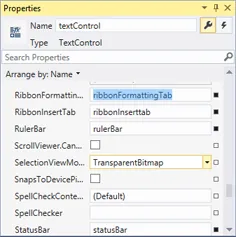
Prepare the Window
A ribbon application uses the WPF Ribbon and, for a Quick Access Toolbar and contextual tab headers in the title bar, a RibbonWindow instead of a Window, with a DockPanel instead of the Grid, so that each bar docks at one side of the editor. Make the Window a RibbonWindow in the tutorial Create a WPF Ribbon Application shows the two changes in MainWindow.xaml and MainWindow.xaml.cs.
In a .NET Framework project, the Ribbon also needs a reference to the assembly System.Windows.Controls.Ribbon. Dragging a Ribbon from the toolbox adds it; if the toolbox has no Ribbon, add it with Tools > Choose Toolbox Items in the WPF Components tab. In projects for .NET 8 or later, the assembly is part of WPF.
The Complete XAML
The following MainWindow.xaml is a ribbon word processor with the Home, Insert, Page Layout, View and Proofing tabs, contextual Table Tools tabs, two rulers, a status bar and a sidebar at the right:
<RibbonWindow x:Class="SampleApp.MainWindow"
        xmlns="http://schemas.microsoft.com/winfx/2006/xaml/presentation"
        xmlns:x="http://schemas.microsoft.com/winfx/2006/xaml"
        xmlns:WPF="clr-namespace:TXTextControl.WPF;assembly=TXTextControl.WPF"
        Title="MainWindow" Height="600" Width="900">
    <DockPanel>
        <Ribbon x:Name="ribbon" DockPanel.Dock="Top">
            <WPF:RibbonFormattingTab x:Name="ribbonFormattingTab" Header="Home"
                                     FindSidebar="sidebarRight" StylesSidebar="sidebarRight"/>
            <WPF:RibbonInsertTab x:Name="ribbonInsertTab" Header="Insert"/>
            <WPF:RibbonPageLayoutTab x:Name="ribbonPageLayoutTab" Header="Page Layout"/>
            <WPF:RibbonViewTab x:Name="ribbonViewTab" Header="View"/>
            <WPF:RibbonProofingTab x:Name="ribbonProofingTab" Header="Proofing"
                                   CommentsSidebar="sidebarRight"/>
            <WPF:RibbonTableLayoutTab x:Name="ribbonTableLayoutTab" Header="Table Layout"
                                      ContextualTabGroupHeader="Table Tools"/>
            <WPF:RibbonFormulaTab x:Name="ribbonFormulaTab" Header="Formulas"
                                  ContextualTabGroupHeader="Table Tools"/>
            <Ribbon.ContextualTabGroups>
                <RibbonContextualTabGroup x:Name="tableToolsGroup" Header="Table Tools"
                                          Background="#6600FF00" Visibility="Collapsed"/>
            </Ribbon.ContextualTabGroups>
        </Ribbon>
        <WPF:StatusBar x:Name="statusBar" DockPanel.Dock="Bottom"/>
        <WPF:Sidebar x:Name="sidebarRight" DockPanel.Dock="Right" HorizontalAlignment="Right"
                     TextControl="textControl" IsShown="False"/>
        <WPF:RulerBar x:Name="rulerBar" DockPanel.Dock="Top"/>
        <WPF:RulerBar x:Name="verticalRulerBar" DockPanel.Dock="Left"
                      HorizontalAlignment="Left" VerticalAlignment="Stretch"/>
        <WPF:TextControl x:Name="textControl" DockPanel.Dock="Top"
                         RibbonFormattingTab="ribbonFormattingTab"
                         RibbonInsertTab="ribbonInsertTab"
                         RibbonPageLayoutTab="ribbonPageLayoutTab"
                         RibbonViewTab="ribbonViewTab"
                         RibbonProofingTab="ribbonProofingTab"
                         RibbonTableLayoutTab="ribbonTableLayoutTab"
                         RibbonFormulaTab="ribbonFormulaTab"
                         RulerBar="rulerBar" VerticalRulerBar="verticalRulerBar"
                         StatusBar="statusBar"
                         Loaded="TextControl_Loaded"
                         InputPositionChanged="TextControl_InputPositionChanged"/>
    </DockPanel>
</RibbonWindow>
And the code-behind, MainWindow.xaml.cs:
using System;
using System.Windows;
using System.Windows.Controls.Ribbon;

namespace SampleApp;

public partial class MainWindow : RibbonWindow
{
    public MainWindow()
    {
        InitializeComponent();
    }

    private void TextControl_Loaded(object sender, RoutedEventArgs e)
    {
        // Give the editor the keyboard focus
        textControl.Focus();
    }

    private void TextControl_InputPositionChanged(object sender, EventArgs e)
    {
        // Show Table Tools only while the input position is in a table
        tableToolsGroup.Visibility = textControl.Tables.GetItem() != null
            ? Visibility.Visible : Visibility.Collapsed;
    }
}
What the XAML does:
- The order of the
DockPanelchildren matters. The ribbon, the status bar, the sidebar and the rulers are declared first, each docked at its side, and theTextControlis declared last, so that it takes the space that is left in the middle. - The vertical ruler is a second
RulerBardocked at the left, withHorizontalAlignment="Left"andVerticalAlignment="Stretch". - Header is the title of each tab. ContextualTabGroupHeader assigns the table tabs to the Table Tools group, which the handler of InputPositionChanged shows while the input position is in a table, as Show Tabs Only in Context explains.
- The sidebar is hidden with
IsShown="False"until the Find, Styles or Comments button opens it.HorizontalAlignment="Right"gives its panels the vertical layout; see Sidebar and Panels.
The Proofing tab's spelling commands also need TX Spell .NET; see Spell Checking and Hyphenation.
Connect in Code
The connection properties are ordinary string properties, so code can set them to another name or clear them with an empty string, for example to connect a status bar only for some users. Change the Connections at Run Time shows the code, and Connections Are Names explains why the compiler doesn't check the names.
Next Steps
- Built-in Ribbon Tabs: what each tab contains, and how to change its items.
- Custom Tabs and Commands: your own tabs, the application menu and the Quick Access Toolbar.
- Sidebar and Panels: more sidebars, connected to the ribbon by name.
- XAML and Data Binding Examples: more XAML with TX Text Control.