
Timestamp Configuration
Without a timestamp server, the time of a signature is whatever the clock of the signing computer said, and nothing proves it. A trusted timestamp from an RFC 3161 time server makes the signing time verifiable, which matters most years later, after the signer's certificate has expired. In TX Text Control .NET for WPF, the configuration is one constructor argument, the URL of the time server; the timestamp is requested while the signed PDF is saved.
A first timestamp is added in Add a Trusted Timestamp in Getting Started. What an application needs beyond that, fallback servers, an answer for an offline computer and timestamps for signature fields, is covered here.
Why a Signature Needs a Trusted Time
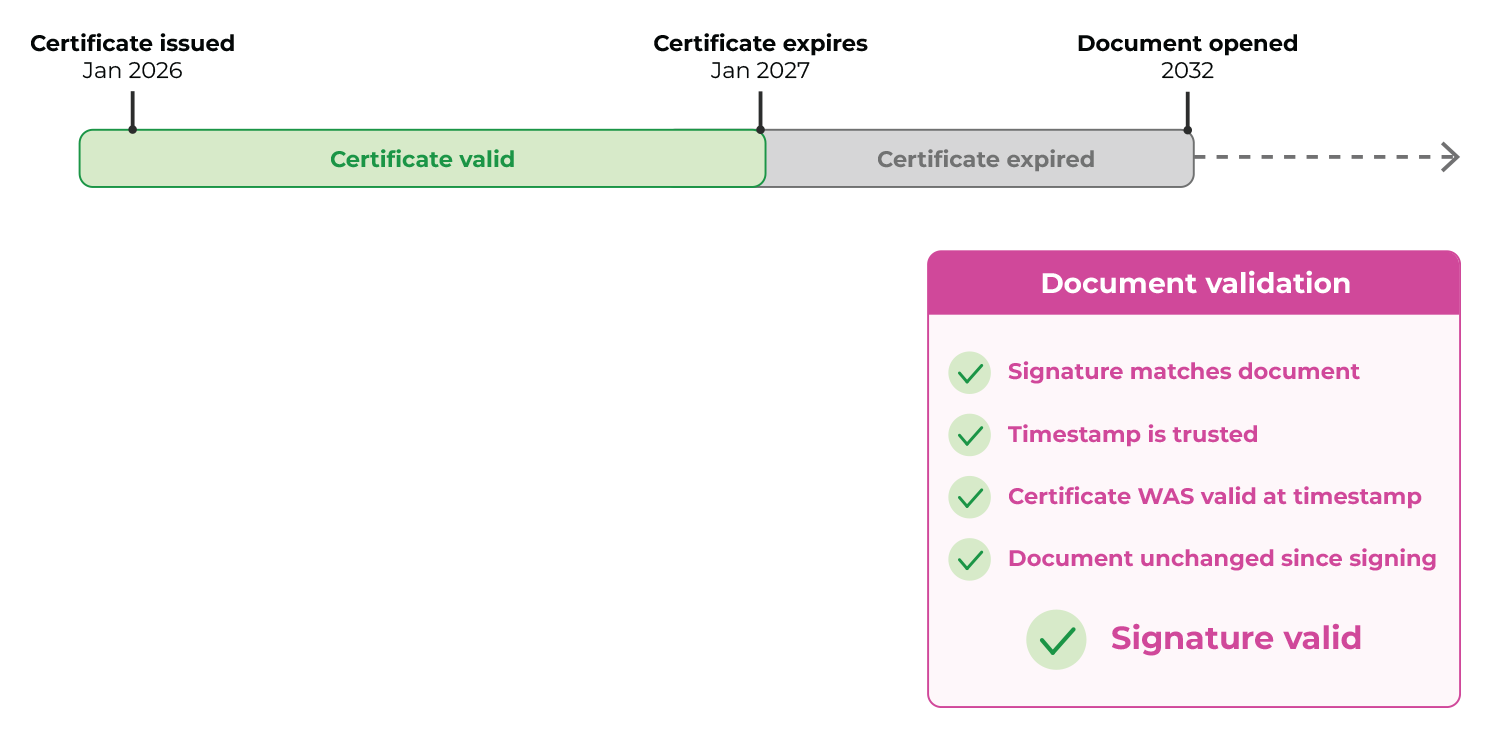
Take a contract signed in February 2026 with a certificate that expires in January 2027. When somebody checks the contract in 2032, the certificate has long expired, and without a trusted time the validator can't tell whether it was valid in February 2026. Adobe Acrobat and other validators then often warn or report that the long-term validity of the signature can't be verified, although nobody changed the document.
A trusted timestamp gives the validator what it needs: the signature matches the document, the timestamp is trusted, the certificate was valid at the time of the timestamp and the document is unchanged since:
What Happens During the Save
A time server, or Time-Stamping Authority (TSA), doesn't sign the document. It certifies the time of a signature that TX Text Control has already created:
- TX Text Control creates the signature of the document.
- It sends a cryptographic hash of the signature to the time server. The document stays on the computer.
- The time server combines the hash with the current, trusted UTC time and signs both with its own certificate.
- TX Text Control embeds the returned timestamp token in the PDF, as part of the signature.
The time server never sees the content of the document. The computer that signs, however, needs network access to the time server at the moment of saving, which a WPF application can't take for granted on a laptop or behind a company firewall.
Specify the Time Server
The second parameter of both DigitalSignature constructors, timeServerURL, decides where the signing time comes from:
Value of timeServerURL | Signing time |
|---|---|
| An empty string | The current date and time of the computer |
The URL of an RFC 3161 time server, such as http://timestamp.digicert.com | A trusted timestamp from the time server |
Certificate authorities offer time servers, and many organizations run their own for internal documents. Choose one that the readers of your documents trust: validators check the timestamp too.
There are no other time server settings: DigitalSignature takes no credentials, proxy or timeout. The server is contacted when WPF.TextControl.Save writes the PDF, not when the DigitalSignature object is created.
Add Timestamps to Signature Fields
Signed signature fields get one DigitalSignature each in SaveSettings.SignatureFields, and each has its own time server URL: pass the URL instead of the empty string in the loop of Sign the Fields of the Document, and every field gets its own timestamp. The fields of one document can use different time servers or none; Multiple Signatures mixes both.
How Readers Show the Signing Time
The Signatures panel of Adobe Acrobat Reader shows where the time of a signature comes from. Without a timestamp, it states that the signing time is from the clock on the signer's computer:
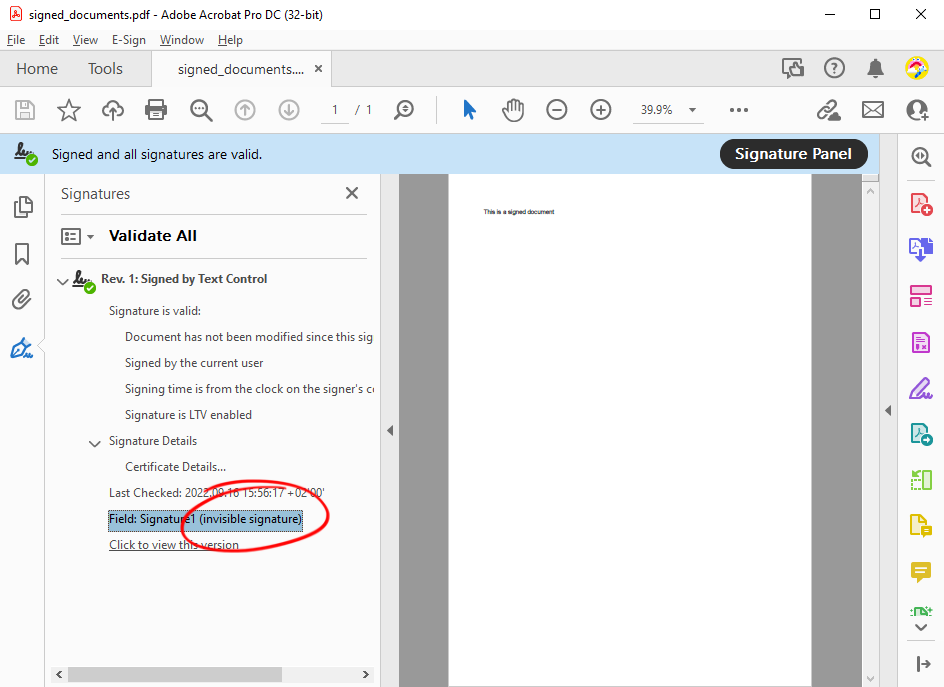
With a timestamp, the time is cryptographic evidence inside the signature and keeps the signature verifiable after the certificate expires. The blog article Building Long-Term Trust with Digital Signatures and Timestamps in C# .NET walks through the validation.
Timestamps and PAdES
Requirements for archives, contracts and electronic signatures often name a PAdES profile, one of the PDF Advanced Electronic Signature profiles. PAdES-B and PAdES-T differ only in the timestamp:
| PAdES-B | PAdES-T | |
|---|---|---|
| Contains | The digital signature, the signer's certificate and its certificate chain | All of PAdES-B plus a trusted RFC 3161 timestamp |
| After the certificate expires or is revoked | A validator may be unable to determine whether the certificate was valid when the document was signed | The timestamp proves that the signature existed while the certificate was valid |
Text Control states that TX Text Control creates PAdES-T signatures when you pass both a certificate and the URL of a time server. That URL is the only choice: DigitalSignature has no members besides its constructors, so a profile, a hash algorithm or revocation data can't be set. If a recipient or a regulation requires a particular level, sign sample documents and check them with the recipient's validator first. Verify the Signatures in Code describes what the TXTextControl.PDF.Validation package checks.
Next Steps
- Certificates: certificates that validators trust.
- Signature Fields and Signature Appearance: visible signatures in fields.
- Signing PDF Documents: certificate and time server errors while saving.