
Context Menus
Right-clicking in a WPF TextControl opens a built-in context menu that fits the clicked spot: a selection, a table, a header, a field, a comment or a selected image each get their own commands. Your code can hook into every menu before it opens, to add items, take items away, swap in a ContextMenu of your own or show nothing at all. The menus of misspelled words and of drawings have settings of their own, covered at the end.
The Opening Event
Immediately before a built-in menu appears, the TextControl raises TextContextMenuOpening. The handler receives TextContextMenuEventArgs of the TXTextControl.WPF namespace:
| Member | Purpose |
|---|---|
| ContextMenuLocation | The part of the document the menu belongs to, a combination of ContextMenuLocation values |
| TextContextMenu | The menu about to be shown, a System.Windows.Controls.ContextMenu that you can change or replace |
| HorizontalOffset, VerticalOffset | The distance of the menu from the top-left corner of the screen |
Cancel | true shows no menu |
The menu is an ordinary WPF ContextMenu: its Items take MenuItem and Separator objects, and each MenuItem has a Header and a Click event.
Add Items in the Event Handler
Connect the handler in XAML, next to the other attributes of the control in MainWindow.xaml:
<WPF:TextControl x:Name="textControl1"
                TextContextMenuOpening="TextControl1_TextContextMenuOpening" />
The WPF prefix is the namespace declaration xmlns:WPF="clr-namespace:TXTextControl.WPF;assembly=TXTextControl.WPF" of the window. In MainWindow.xaml.cs, the handler adds a Table Properties... item below a separator whenever the menu opens in a table:
using System.Windows;
using System.Windows.Controls;
using TXTextControl;
using TXTextControl.WPF;

public partial class MainWindow : Window
{
    public MainWindow()
    {
        InitializeComponent();
    }

    private void TextControl1_TextContextMenuOpening(object sender, TextContextMenuEventArgs e)
    {
        // Extend only the menus that open in a table
        if ((e.ContextMenuLocation & ContextMenuLocation.Table) != 0)
        {
            MenuItem propertiesItem = new MenuItem { Header = "Table Properties..." };
            propertiesItem.Click += (s, args) => textControl1.TableFormatDialog();

            e.TextContextMenu.Items.Add(new Separator());
            e.TextContextMenu.Items.Add(propertiesItem);
        }
    }
}
Keep the namespace of your project around the class.
The code works as follows:
using TXTextControlbrings inContextMenuLocation, andusing TXTextControl.WPFthe WPFTextControland its event arguments.- The
&test is true for every menu whose location includesTable. MenuItemandSeparatorcome fromSystem.Windows.Controlsand are appended toe.TextContextMenu.Items.- TableFormatDialog opens the built-in table dialog box. Built-in Dialog Boxes lists all of them.
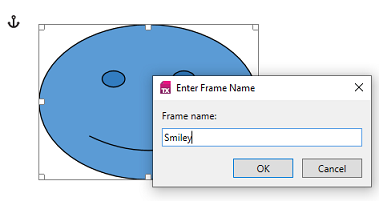
The TX Words sample Context Menu, installed in %USERPROFILE%\Documents\TX Text Control 34.0.NET for WPF\CSharp\TX Words\Context Menu, extends the menu of a selected frame in this way. Its Frame Name... item opens a small window of the sample in which the user names the frame:
Next Steps
- Built-in Dialog Boxes: open dialog boxes from menu items.
- Custom Tabs and Commands: put commands into the ribbon.
- Styles, Resources, and Themes: resources and colors of the control.
- Events: the other events of the
TextControl.