
Integrating TX Spell .NET for WPF
The WPF TextControl can underline misspelled words, suggest corrections, hyphenate lines and open a thesaurus, but the words themselves come from TX Spell .NET for WPF, a separate product of Text Control. In a WPF window, the spell checker is not a control but a resource of the window, and the editor refers to it by its key. The integration steps below -- packages, licenses, the resource, several editors and deployment -- lead to the TX Spell .NET documentation, which covers every feature in depth.
What Each Product Contributes
| TX Text Control .NET for WPF | TX Spell .NET for WPF | |
|---|---|---|
| Package | TXTextControl.TextControl.WPF.SDK 34.0.5 | TXTextControl.TXSpell.WPF.SDK 11.0.1 |
| In XAML | The controls in TXTextControl.WPF, assembly TXTextControl.WPF | The TXSpellChecker in TXTextControl.WPF.Proofing, assembly TXSpell.WPF, declared as a resource |
| At run time | The red underlines, the context menu of misspelled words, the spelling dialog, the Proofing ribbon tab and hyphenation at the end of a line | The words: US English dictionary, hyphenation list, synonym list and language recognition, and further languages you add |
The members of the TextControl that display the results, such as IsSpellCheckingEnabled and IsHyphenationEnabled, are listed in Spell Checking and Hyphenation.
Install and License Both Products
TX Spell .NET has its own setup, license and release cycle:
- Install the setup of TX Spell .NET for WPF, the full or the trial version. It adds its package to Text Control Offline Packages. See Installing the Product.
- In your project, choose Project > Manage NuGet Packages..., select Text Control Offline Packages as the package source and install
TXTextControl.TXSpell.WPF.SDK. - Build the project. The package embeds its license file, txspell.wpf.license, into your assembly, beside the one of TX Text Control.
TX Spell .NET 11.0 was released together with TX Text Control 33.0 and is the version to use with TX Text Control 34.0. Upgrade both products together; Upgrading from Previous Versions lists what changes.
Connect the Spell Checker in XAML
The following MainWindow.xaml declares a spell checker in the resources of the window and connects it to an editor with a Home and a Proofing tab:
<Window x:Class="MyWPFApp.MainWindow"
        xmlns="http://schemas.microsoft.com/winfx/2006/xaml/presentation"
        xmlns:x="http://schemas.microsoft.com/winfx/2006/xaml"
        xmlns:WPF="clr-namespace:TXTextControl.WPF;assembly=TXTextControl.WPF"
        xmlns:spell="clr-namespace:TXTextControl.WPF.Proofing;assembly=TXSpell.WPF"
        Title="MainWindow" Height="600" Width="1000">
    <Window.Resources>
        <spell:TXSpellChecker x:Key="txSpellChecker1" />
    </Window.Resources>
    <DockPanel>
        <Ribbon DockPanel.Dock="Top">
            <WPF:RibbonFormattingTab x:Name="ribbonFormattingTab1" />
            <WPF:RibbonProofingTab x:Name="ribbonProofingTab1" />
        </Ribbon>
        <WPF:TextControl x:Name="textControl1"
                         RibbonFormattingTab="ribbonFormattingTab1"
                         RibbonProofingTab="ribbonProofingTab1"
                         SpellChecker="txSpellChecker1"
                         IsSpellCheckingEnabled="True" />
    </DockPanel>
</Window>
The XAML works as follows:
xmlns:spellmaps the prefixspellto the namespace of TX Spell .NET. The prefixWPFis the one of TX Text Control.<spell:TXSpellChecker x:Key="txSpellChecker1" />creates the spell checker as a resource of the window.- SpellChecker holds the key of the resource as plain text, not a
{StaticResource}reference. TheTextControllooks the key up in its own resources and in those of its parents in the logical tree, such as the window. It initializes the connected spell checker itself. - RibbonProofingTab connects the Proofing tab by its name. Its buttons for spell checking, hyphenation, the thesaurus and the dictionaries work once a spell checker is connected.
Press F5 and type a misspelled word. It gets a red zigzag line, and a right-click shows suggestions:
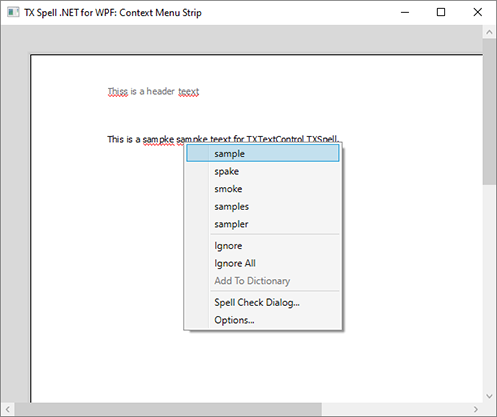
Create Your First WPF Application in the TX Spell .NET documentation builds such a window step by step.
Several Editors, One Spell Checker
Every TextControl of the window can use the same resource: give each one SpellChecker="txSpellChecker1". The dictionaries are loaded once, and a word the user adds to the dictionary in one editor is accepted in all others. An editor created in code, as in Creating and Configuring Controls in Code, gets the key the same way, and code that needs the spell checker itself takes it from the resources:
using TXTextControl.WPF.Proofing;

// The spell checker of the window, declared in Window.Resources
TXSpellChecker txSpellChecker1 = (TXSpellChecker)FindResource("txSpellChecker1");

// A second editor uses the same spell checker through its key
TXTextControl.WPF.TextControl textControl2 = new TXTextControl.WPF.TextControl()
{
    SpellChecker = "txSpellChecker1",
    IsSpellCheckingEnabled = true
};
FindResource of the window returns the resource with the key. Add the new editor to a panel of the window, so that it finds the resource among the resources of its parents. Checking Multiple Controls also shows one spelling dialog for several editors.
Two samples of TX Spell .NET, in the folder Samples\WPF\CSharp\TextControl of its samples, share one spell checker resource between several editors: Multiple controls, and SpellCheckDialog on multiple controls, which shows four editors and a button that opens one spelling dialog for all of them:
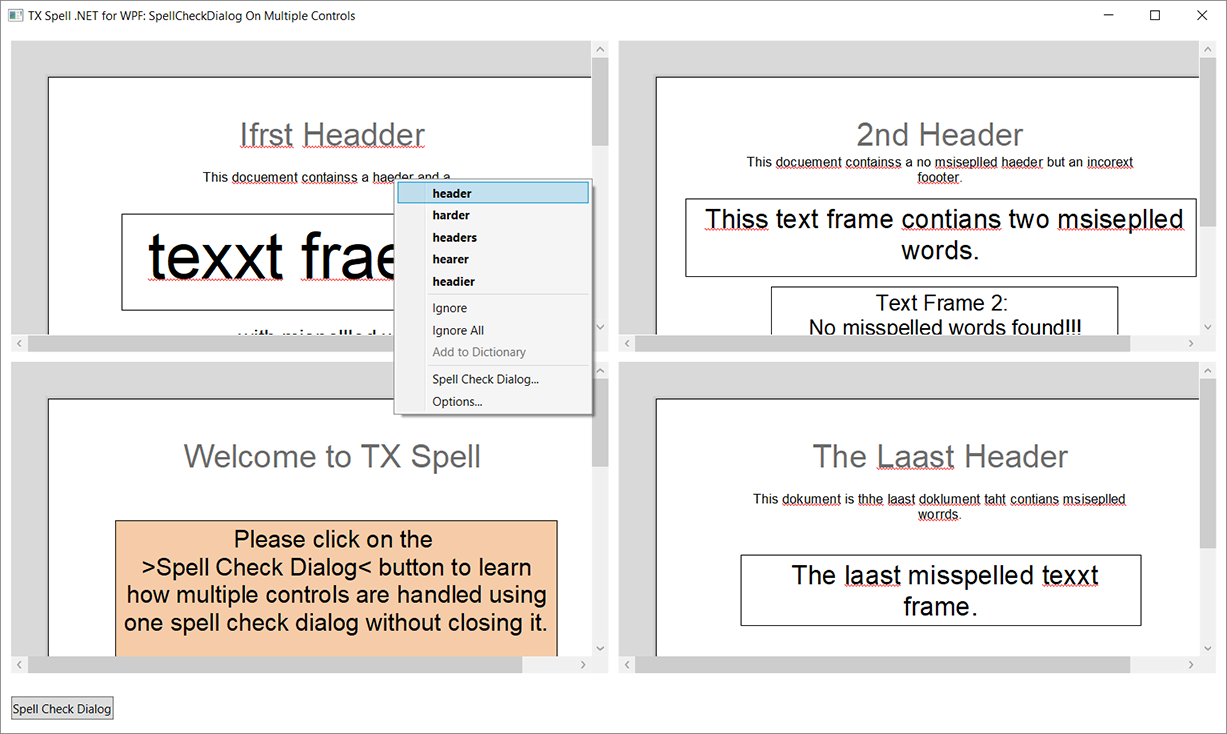
Because the lookup goes up the logical tree, a spell checker in the resources of the window also serves editors inside the user controls of that window.
Deploy the Application
With the package, the build copies TXSpell.dll and TXSpell.WPF.dll and the folders Dictionaries, HyphenationLists, SynonymLists and LanguageRecognition into the output folder, and Publish into the publish folder. Deploy them with the files of TX Text Control, which Managed Assemblies and Native Libraries lists. The package contains US English only; Installing Dictionaries and Language Data adds other languages, and the Deployment Guide of TX Spell .NET covers the rest.
Where to Continue
| Task | Read |
|---|---|
Every member of the TextControl that works with TX Spell .NET | TX Text Control .NET for WPF |
| Load dictionaries for other languages | Loading and Managing Dictionaries |
| Change the spelling dialog and the context menu | Spell Check Dialog, Context Menus |
| Hyphenate documents | Hyphenation with TX Text Control |
| Solve problems with dictionaries or licenses | Troubleshooting |
Next Steps
- Spell Checking and Hyphenation: the spell checking members of the
TextControl, and a spell checker of your own. - TX Spell .NET for WPF: the documentation of the spell checker.
- XAML Integration: resources, names and the other XAML entries of TX Text Control.