
Template Design
A template that looks perfect with three sample records can still fall apart with three hundred real ones. Good template design keeps merged documents clean whatever the data holds, and it starts with a few decisions that designers and developers of a WPF application make together: where templates are designed, with which data, in which format they are stored, which layout rules they follow and how they are tested.
Each element of a template is described on its own page: Merge Fields, Merge Blocks, Conditional Content, Subtemplates and Images and Barcodes. The examples work with the invoice template of Create a Template in the TextControl named textControl1 of MainWindow.xaml.
Where Templates Are Designed
| Tool | Who uses it | What to know |
|---|---|---|
| Your application | Your users | A TextControl connected to a Reporting ribbon tab is a template designer. The tab lists the fields and blocks of the data you load into it |
| TX Text Control Words | You, while you develop | The TX Words Reporting sample for WPF is a complete template designer with sample templates and a sample database |
| MS Word | Users who work with Word documents | Merge fields are MERGEFIELD fields. DOCX templates are loaded with LoadSettings that import fields and merge blocks |
| Code | Developers | MergeField inserts merge fields, and DataSourceManager.InsertMergeBlock inserts complete merge blocks |
Whatever the tool, a template contains the names of fields and blocks and no connection to data. Any data of the same structure fills it.
The TX Words Reporting sample shows what a WPF template designer can look like: the Reporting tab, the Field Navigation sidebar with the blocks and fields of the invoice template, and a Merge Settings dialog box of the sample for a trial merge:
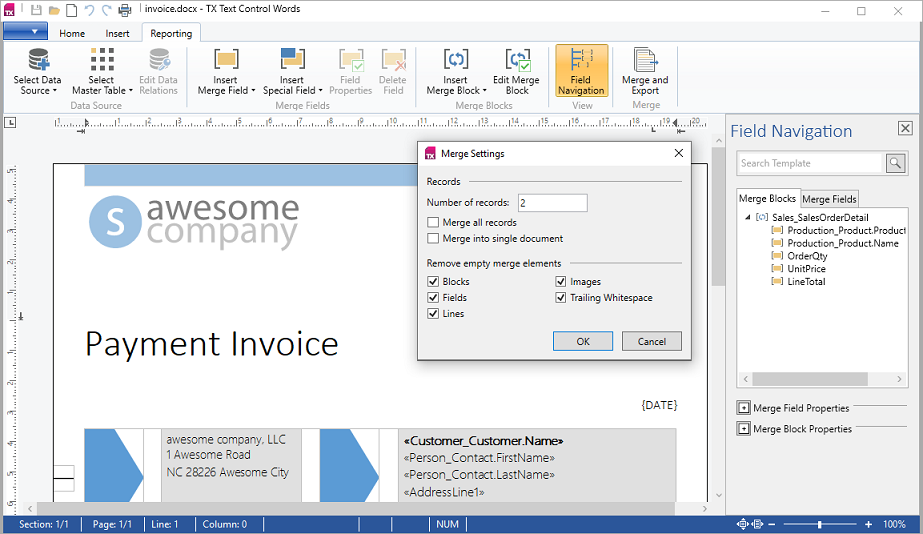
Its source code is in %USERPROFILE%\Documents\TX Text Control 34.0.NET for WPF\CSharp\TX Words\Reporting. Mail Merge Examples lists it with the other samples.
Design With Sample Data
Designers work with sample data, which has the structure and the names of the real data but made-up values. Loaded into the DataSourceManager of the Reporting tab, it fills the drop-down menus: the columns of the master table become merge fields, related tables become merge blocks, and fields of a related table carry the table name as a prefix. At merge time, the real data takes its place.
DataSourceManager has a load method for each kind of data, listed in Data Sources. An instance of the class that your application merges later, filled with sample values, is a good choice, because the names in the tab then match the merge exactly. Data source configuration files don't work in WPF; see Data Source Configuration Files.
A merge block can use fields of related tables. Production_Product.Name in the following table row block takes its value from the product that belongs to the order line:

Inspect the Loaded Data Source
The DataSourceManager also tells your code what the loaded data contains, so that an application can show its own list of fields next to the Reporting tab or check a template against the data. Its properties describe the tables, columns and relations, and an event reports each change, for example when the designer loads other data or chooses another master table in Select Master Table.
Add a ListBox named dataSourceList to MainWindow.xaml and Loaded="Window_Loaded" to the Window. The handlers in MainWindow.xaml.cs, which needs using System.IO;, using System.Windows; and using TXTextControl.DocumentServer.DataSources;, load invoice.json into the tab and list what the tab offers:
private void Window_Loaded(object sender, RoutedEventArgs e)
{
    DataSourceManager dataSourceManager = ribbonReportingTab1.DataSourceManager;

    // Update the list when other data or another master table is chosen
    dataSourceManager.PossibleMergeFieldColumnsChanged += (s, args) => ShowDataSource();
    dataSourceManager.PossibleMergeBlockTablesChanged += (s, args) => ShowDataSource();

    dataSourceManager.LoadJson(File.ReadAllText("invoice.json"));
}

private void ShowDataSource()
{
    DataSourceManager dataSourceManager = ribbonReportingTab1.DataSourceManager;
    DataTableInfo master = dataSourceManager.MasterDataTableInfo;

    dataSourceList.Items.Clear();

    if (master == null)
    {
        return;
    }

    dataSourceList.Items.Add($"Master table: {master.TableName}");

    // The columns that Insert Merge Field offers
    foreach (DataColumnInfo column in dataSourceManager.PossibleMergeFieldColumns)
    {
        dataSourceList.Items.Add($"Field {column.ColumnName} ({column.DataType.Name}) in {column.DataTableInfo.TableName}");
    }

    // The tables that Insert Merge Block offers
    foreach (DataTableInfo table in dataSourceManager.PossibleMergeBlockTables)
    {
        dataSourceList.Items.Add($"Block {table.TableName} with {table.Columns.Count} columns");
    }

    foreach (DataRelationInfo relation in dataSourceManager.DataRelations)
    {
        dataSourceList.Items.Add($"Relation {relation.ParentTableName}.{relation.ParentColumnName} to {relation.ChildTableName}.{relation.ChildColumnName}");
    }
}
The code works as follows:
- MasterDataTableInfo is the master table, a DataTableInfo. Setting it chooses another master table, as Select Master Table does, and changes the two lists that follow.
- PossibleMergeFieldColumns returns the columns that can be merge fields for the master table, each a DataColumnInfo with its ColumnName, its DataType and the DataTableInfo it belongs to. Caption is a friendly name for the column, the column name unless the data source sets one.
- PossibleMergeBlockTables returns the tables that can be merge blocks for the master table. A table's Columns, ChildTables and ChildRelations describe it further;
ChildRelationsis empty when the data comes from objects, andChildTablesthen follows the properties of the classes. - DataRelations lists the relations between the tables, each a DataRelationInfo with the parent and child table and column names and, if one was defined, a RelationName. DataTables lists all tables, master table or not.
- The collections are read-only: DataTableInfoCollection and the collections of columns and relations throw a
NotSupportedExceptiononAdd,ClearorRemove. A table is found by its name, as indataSourceManager.DataTables["Items"].
Each property has an event that occurs when its value changes:
| Event | Occurs when this changes |
|---|---|
| DataTablesChanged, DataRelationsChanged | The tables and the relations of the data source |
| MasterDataTableInfoChanged | The master table |
| PossibleMergeFieldColumnsChanged, PossibleMergeBlockTablesChanged | The columns and tables available for the current master table |
| IsMergingPossibleChanged | IsMergingPossible, which is true when Merge can be called, for example to enable a preview button |
| ConnectionStringChanged, DataProviderNameChanged | ConnectionString and DataProviderName of a database connection selected in the database connection dialog box; both are empty strings when no connection was selected |
Code that inserts merge blocks itself takes the table and column names from this information: Merge Blocks inserts a block with InsertMergeBlock, and MergeBlockSettings.TableID gives the table it creates an ID, 0 for none or a value from 10 to short.MaxValue.
Choose the Storage Format
A template is stored in the TX Text Control format or as a DOCX file:
| TX Text Control format | DOCX | |
|---|---|---|
| Save | StreamType.InternalUnicodeFormat | StreamType.WordprocessingML |
| Merge fields and blocks | Kept as fields and subtext parts | Saved as MS Word fields and bookmarks |
| Load for a merge | Without load settings | With LoadSettings: ApplicationFieldFormat set to MSWord and LoadSubTextParts set to true |
| Edit in MS Word | No | Yes |
Templates that users design in your application are best stored in the TX Text Control format; DOCX suits templates that must stay editable in MS Word. Two buttons in MainWindow.xaml, with Click="saveTemplateButton_Click" and Click="openTemplateButton_Click", save and open the template:
private void saveTemplateButton_Click(object sender, RoutedEventArgs e)
{
    // The TX Text Control format keeps fields, merge blocks and their rules
    textControl1.Save("invoice.tx", StreamType.InternalUnicodeFormat);
}

private void openTemplateButton_Click(object sender, RoutedEventArgs e)
{
    textControl1.Load("invoice.tx", StreamType.InternalUnicodeFormat);
}
LoadSubTextParts is used for DOCX, DOC and RTF only, where a merge block is stored as a bookmark and turned back into a subtext part on loading. Sorting and Filtering describes the rules a block can carry.
Follow Layout Rules That Merge Well
Merged content changes the length of paragraphs, tables and pages. These rules keep a template stable:
- Page break before, not page breaks. A forced page break can produce an empty page when the text before it grows. Set "page break before" on the paragraph or its style, as the blog article Document Templates Tip: Say No to Forced Page Breaks recommends.
- Tables that break well. Repeat header rows on each page and keep related rows together; the blog article Why Table Control in Templates is Important for Professional PDF Creation in C# explains the settings.
- Headers inside the block. A header row outside a merge block appears once. Make the whole table the block when each record needs its own header, as Merge Blocks describes.
- No empty lines.
RemoveEmptyLinesofMailMergeremoves a line that is empty after merging, but only if nothing else is on that line, so give optional fields a line of their own. - Optional content in IF fields and blocks. Text that depends on the data belongs in an
IFfield or a merge block; see Conditional Content. - Shared content in subtemplates. Text that many templates share, such as terms and conditions, goes into a subtemplate that an
INCLUDETEXTfield includes; see Subtemplates.
The blog article Designing the Perfect Contract Template for MailMerge in C# applies these rules to a contract.
Check What a Template Contains
Three functions show designers the structure of their template:
- Highlight Merge Fields and Highlight Merge Blocks, the last entries of the Insert Merge Field and Insert Merge Block drop-down menus, mark fields and blocks in the text.
- Field Navigation in the View group shows a sidebar with all merge blocks and merge fields. It needs a
Sidebarin the window, as Reporting Ribbon and WPF Dialog Boxes shows. - A preview merges the template with the sample data in the editor. Template Preview builds one.
Test a Template
Merge a template with sample data before it is used, and look for fields that stayed empty. The following handler of a Test Template button, Click="testTemplateButton_Click" in XAML, merges the template of the editor with invoice.json, reports the merge blocks and every merge field without data and saves a PDF to look at:
using System;
using System.Collections.Generic;
using System.IO;
using System.Windows;
using TXTextControl;
using TXTextControl.DocumentServer;
using TXTextControl.DocumentServer.Fields;
private void testTemplateButton_Click(object sender, RoutedEventArgs e)
{
    List<string> report = new List<string>();

    using (ServerTextControl tx = new ServerTextControl())
    {
        tx.Create();

        // Test the template as it is in the editor
        byte[] template;
        textControl1.Save(out template, BinaryStreamType.InternalUnicodeFormat);
        tx.Load(template, BinaryStreamType.InternalUnicodeFormat);

        using (MailMerge mailMerge = new MailMerge { TextComponent = tx })
        {
            report.Add("Merge blocks: " + string.Join(", ", mailMerge.GetBlockNames()));

            // Note every merge field that the sample data doesn't fill
            mailMerge.FieldMerged += (s, args) =>
            {
                if (!args.Merged && args.MailMergeFieldAdapter is MergeField mergeField)
                {
                    string block = args.MergeBlockName == "" ? "" : $" in block {args.MergeBlockName}";
                    report.Add($"No data for {mergeField.Name}{block}");
                }
            };

            mailMerge.MergeJsonData(File.ReadAllText("invoice.json"));
        }

        tx.Save("invoice-test.pdf", StreamType.AdobePDF);
    }

    MessageBox.Show(this, string.Join(Environment.NewLine, report), "Template Test");
}
The code works as follows:
- The template leaves the editor as a byte array in the TX Text Control format and is merged in a
ServerTextControl; the editor keeps the unmerged template. - GetBlockNames lists the merge blocks of the template.
- FieldMerged occurs for every field; Merged is
falsefor a field without data, and MergeBlockName names its block.
For the invoice and its data, the message names the merge block of the items and no field without data. A typo in a field name, such as Compny, would show up in the list.
Fonts and linked images can differ between computers as well. The blog article Check TX Text Control Template Dependencies Before Deployment checks them together with the field names before deployment.
Next Steps
- Reporting Ribbon and WPF Dialog Boxes: the buttons and dialog boxes of the Reporting tab.
- Template Preview: the merged result while designing.
- Formatting and Styling: formatting that depends on the data.
- Data Sources: the data that fills the template.