
Stylesheets
Consistent documents depend on styles. Instead of setting font, size, color and spacing on every heading, you define a style named "Heading" once, apply it to each heading, and change the style when the design changes. In TX Text Control these formatting styles, or stylesheets, are saved with the document. The WPF TextControl gives users a styles gallery, a Styles sidebar panel and a styles dialog box, and gives your code collections of styles to create, apply, update and copy. For formatting without styles, see Text and Paragraph Formatting.
What Styles Are
Both kinds of styles derive from FormattingStyle, which holds the character attributes:
- Paragraph styles. A ParagraphStyle formats blocks of text. It adds paragraph attributes in ParagraphFormat, list attributes in ListFormat, and in FollowingStyle the style that TX Text Control selects for the next paragraph when the user presses ENTER.
- Inline styles. An InlineStyle formats single words. The text takes every attribute of its paragraph that the inline style doesn't set itself.
Styles form chains: each style is based on another, which BaseStyle returns, and a style takes each attribute it doesn't set from its base. The root of every chain is [Normal], so a change to [Normal] reaches all styles based on it. [Normal] can be changed since version 32.0, as Version 32.0 describes.
The TextControl keeps the styles of the document in ParagraphStyles, a ParagraphStyleCollection, and InlineStyles, an InlineStyleCollection. The reference marks both as available at run time only, so fill them in the Loaded event of the control or later.
Give Users the Styles
The WPF ribbon's formatting tab has a Styles group with a gallery of the document's styles. For a list beside the document, add a Sidebar with the Styles panel. Like the toolbars, it names the editor it belongs to:
<Window x:Class="SampleApp.MainWindow"
        xmlns="http://schemas.microsoft.com/winfx/2006/xaml/presentation"
        xmlns:x="http://schemas.microsoft.com/winfx/2006/xaml"
        xmlns:WPF="clr-namespace:TXTextControl.WPF;assembly=TXTextControl.WPF"
        Title="MainWindow" Height="450" Width="800">
    <DockPanel>
        <WPF:Sidebar x:Name="sidebar1"
                    DockPanel.Dock="Right"
                    TextControl="textControl1"
                    ContentLayout="Styles" />
        <WPF:TextControl x:Name="textControl1" Loaded="textControl1_Loaded" />
    </DockPanel>
</Window>
In a ribbon application, set the StylesSidebar attribute of the formatting tab to the name of a sidebar, as the TX Words sample does with StylesSidebar="m_sbSidebarRight", so that the Change Styles item of the style list shows and hides that sidebar. Sidebar and Panels describes the sidebar.
FormattingStylesDialog opens the built-in dialog box for creating, deleting and modifying styles, for example from a menu item:
private void MenuItemStyles_Click(object sender, RoutedEventArgs e)
{
    textControl1.FormattingStylesDialog();
}
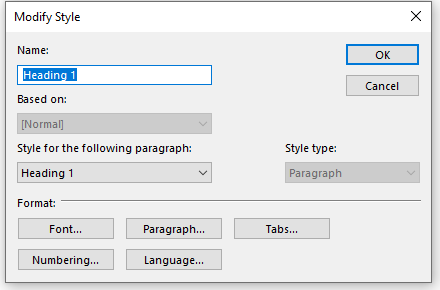
When a style is created or modified there, a dialog box asks for its name, its base style, the style of the following paragraph and its type. Its Font, Paragraph, Tabs, Numbering and Language buttons open the formatting dialog boxes for the style:
Create Styles in Code
The following Loaded handler in MainWindow.xaml.cs adds two paragraph styles and an inline style to the document. It needs using TXTextControl;. The colors of styles are System.Drawing.Color values, written in full so that they don't clash with the Color of WPF:
private void textControl1_Loaded(object sender, RoutedEventArgs e)
{
    // A paragraph style based on [Normal]
    ParagraphStyle heading = new ParagraphStyle("Report Heading");
    heading.FontName = "Arial";
    heading.FontSize = 320;
    heading.Bold = true;
    heading.ForeColor = System.Drawing.Color.DarkBlue;
    heading.ParagraphFormat.BottomDistance = 120;
    heading.ParagraphFormat.StructureLevel = 1;
    heading.FollowingStyle = "Report Body";

    ParagraphStyle body = new ParagraphStyle("Report Body");
    body.FontName = "Arial";
    body.FontSize = 220;
    body.ParagraphFormat.Alignment = TXTextControl.HorizontalAlignment.Justify;

    // A character style for single words
    InlineStyle highlight = new InlineStyle("Highlight");
    highlight.Bold = true;
    highlight.TextBackColor = System.Drawing.Color.Yellow;

    textControl1.ParagraphStyles.Add(body);
    textControl1.ParagraphStyles.Add(heading);
    textControl1.InlineStyles.Add(highlight);
}
- Base style. A style created with a name only is based on
[Normal].new ParagraphStyle("Report Subheading", "Report Heading")bases the new style on "Report Heading". - Units. Sizes are in twips, as for a selection: 320 twips are 16 points.
TXTextControl.HorizontalAlignmentis written in full because WPF has its ownHorizontalAlignment. - Tables of contents. StructureLevel 1 makes the headings entries of a table of contents; see Tables of Contents.
- Adding. Add returns
falseif the style could not be added.
Apply a Style
Assign the name of a style to Selection.FormattingStyle. A paragraph style formats the selected paragraphs, an inline style the selected characters:
textControl1.Selection.FormattingStyle = "Highlight";
To style a paragraph of the Paragraphs collection directly, set its FormattingStyle. RemoveInlineStyles takes the inline styles off the selection, so that only its paragraph style applies.
Update a Style Across the Document
Get the style with GetItem, which returns null for an unknown name, change it and call Apply:
private void redHeadingsButton_Click(object sender, RoutedEventArgs e)
{
    ParagraphStyle heading = textControl1.ParagraphStyles.GetItem("Report Heading");

    if (heading != null)
    {
        heading.ForeColor = System.Drawing.Color.DarkRed;

        // Update all text formatted with the style
        heading.Apply();
    }
}
Apply applies the attributes of the style to the document, so every "Report Heading" paragraph turns red. Remove deletes a style by its Name.
Copy Styles From a Template
To give documents the styles of a company template, load the template, for example a DOTX file, into a ServerTextControl and copy its styles. The constructors that take a style create a copy with all its attributes:
private void ApplyTemplateStyles(string templatePath)
{
    using (ServerTextControl tx = new ServerTextControl())
    {
        tx.Create();
        tx.Load(templatePath, StreamType.WordprocessingML);

        foreach (ParagraphStyle style in tx.ParagraphStyles)
        {
            if (textControl1.ParagraphStyles.GetItem(style.Name) == null)
            {
                textControl1.ParagraphStyles.Add(new ParagraphStyle(style));
            }
        }

        foreach (InlineStyle style in tx.InlineStyles)
        {
            if (textControl1.InlineStyles.GetItem(style.Name) == null)
            {
                textControl1.InlineStyles.Add(new InlineStyle(style));
            }
        }
    }
}
The method adds only styles that the document doesn't have yet. The blog article Applying and Updating Formatting Styles from Master Templates (DOTX) in DOCX Documents goes on to update existing styles from the template.
React to Style Changes
- FormattingStyleListChanged: styles were added, removed or renamed. Refill a style list of your own here.
- FormattingStyleChanged: the attributes of styles changed.
- InputFormattingStyleChanged: the input position moved into text with another style. InputFormat.StyleName returns that style.
Whether styles may be applied in a protected document is returned by CanStyleFormat, which depends on the edit mode and on DocumentPermissions.AllowFormattingStyles. Document Protection and Editable Regions explains the permissions.
Next Steps
- Bullets and Numbered Lists: numbered lists defined in paragraph styles.
- Tables of Contents: tables of contents from styles with structure levels.
- Sidebar and Panels: the Styles panel of the sidebar.
- Formatting and Styling: styles in mail merge templates.