
Sections and Page Layout
When a report needs one landscape page for a wide table, or a heading that spans the page above two columns of text, the document is divided into sections. In the WPF TextControl, each section has its own page size, margins, orientation, columns and headers; users set them on the Page Layout tab and in the Page Setup dialog box, and your code inserts section breaks, formats sections and follows the input position from section to section.
The code goes into MainWindow.xaml.cs of the window from Create Your First WPF Application, with a TextControl named textControl1 and SampleApp replaced by your namespace. Headers and Footers covers the headers and footers of a section, and Sections, Pages, Headers, and Footers sections in documents processed without a user interface.
What a Section Is
A Section of the TXTextControl namespace is a part of the document with its own page settings and headers and footers. Every document has at least one, and they are numbered from 1. The text, tables and images of all sections are in the usual collections of the TextControl.
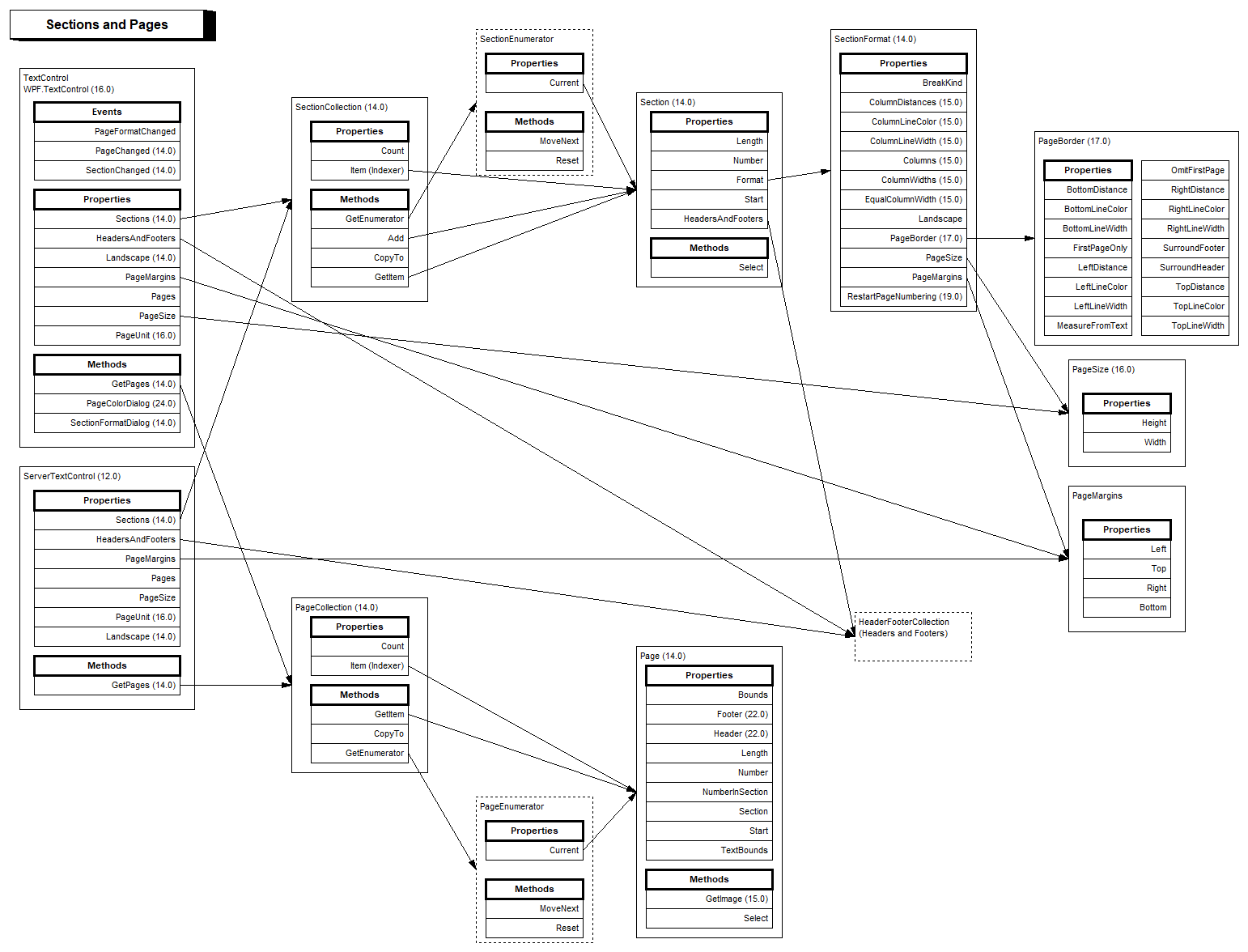
A section break either starts a new page or continues on the next line. A new section inherits every setting of the one before it. The page size and separate headers and footers need a section that begins on a new page, while a section that begins on a new line can change the number of columns in the middle of a page.
Set Up Pages in the Ribbon
The Page Layout tab, a RibbonPageLayoutTab connected through the RibbonPageLayoutTab property of the TextControl, changes the section with the input position:
- Page Setup: Margins opens the page setup dialog box, Orientation switches between Portrait and Landscape, and Size sets the paper size of the current section.
- Columns & Breaks: Columns offers One, Two, Three and More Columns.... Breaks inserts page breaks (Page, Column, Text Wrapping) and section breaks: Next Page starts the new section on a new page, Continuous on the next line.
- Page Background & Frames: Page Color, and Frame, Frame Color and Frame Width for a border around the pages of the section.
The Page Setup dialog box has the tabs Margins and Paper, Headers and Footers, Columns and Frames. On the first tab, Section start chooses how the section begins, and Apply to applies the settings to the Whole document or to the current Section:
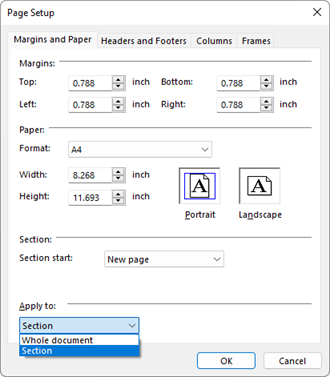
SectionFormatDialog opens the dialog box. Its tab index is 0 for margins, page size and orientation, 1 for headers and footers, 2 for page columns and 3 for page borders.
Insert a Section and Follow the Input Position
Declare the SectionChanged event and a TextBlock for the section number in MainWindow.xaml, where WPF is the prefix of TXTextControl.WPF:
<DockPanel>
    <TextBlock x:Name="sectionText" DockPanel.Dock="Bottom" />
    <WPF:TextControl x:Name="textControl1"
                     SectionChanged="TextControl1_SectionChanged" />
</DockPanel>
The handlers insert a landscape section at the input position, open the page setup, show the current section and set the page format of the document:
using System;
using System.Windows;
using TXTextControl;

namespace SampleApp;

public partial class MainWindow : Window
{
    private void InsertLandscapeSection_Click(object sender, RoutedEventArgs e)
    {
        // A section break at the input position; the new section begins on a new page
        if (textControl1.Sections.Add(SectionBreakKind.BeginAtNewPage))
        {
            // The input position is now in the new section
            Section section = textControl1.Sections.GetItem();
            section.Format.Landscape = true;
        }
    }

    private void PageSetup_Click(object sender, RoutedEventArgs e)
    {
        // 0 opens the tab with margins, page size and orientation
        textControl1.SectionFormatDialog(0);
    }

    private void TextControl1_SectionChanged(object sender, EventArgs e)
    {
        // Sections are numbered from 1
        sectionText.Text = $"Section {textControl1.InputPosition.Section} of {textControl1.Sections.Count}";
    }

    private void SetDocumentPageFormat()
    {
        // A4 in 1/96 inch, the default unit of PageUnit
        textControl1.PageSize = new PageSize(793.7, 1122.5);
        textControl1.PageMargins = new PageMargins(96, 96, 96, 96);
    }
}
The code works as follows:
- TextControl.Sections returns the SectionCollection. Add inserts a section break at the input position with
BeginAtNewPageorBeginAtNewLinefrom SectionBreakKind and returnstrueon success. - SectionCollection.GetItem without a parameter returns the section with the input position. Section.Format is its SectionFormat, and Landscape turns its pages; later sections inherit the orientation.
- SectionChanged occurs when the input position moves to another section. Its handler takes a plain
EventArgs, not aRoutedEventArgs. InputPosition.Section is the section number of the input position. - TextControl.PageSize takes a PageSize and PageMargins a PageMargins with left, top, right and bottom. In WPF, both are measured in device-independent units of 1/96 inch by default, the unit of TextControl.PageUnit; A4 is 793.7 × 1122.5 units, and 96 units are 1 inch.
PageFormatChanged occurs when the page settings change, and TextControl.Landscape sets the orientation of the document.
Format a Section
The properties of SectionFormat:
| Property | Sets |
|---|---|
| Landscape | Landscape or portrait orientation |
| PageSize, PageMargins | Paper size, always as the portrait values, and margins, in the unit of PageUnit |
| BreakKind | A new page, the default, or a new line at the start of the section |
| Columns, ColumnLineWidth | The number of page columns, 1 by default, and a line between them in twips |
| PageBorder | A PageBorder around the pages |
| RestartPageNumbering | Page numbers that start again in this section |
Selection.SectionFormat gets and sets the page settings of the selected text; Columns returns 0 when the selection covers sections with different settings. Columns, margins and page borders in code are shown in Sections, Pages, Headers, and Footers, and removing all section breaks in the blog article How to Delete All Section Breaks in a DOCX Document using C#.
Next Steps
- Headers and Footers: headers per section and restarted page numbers.
- Tables and Table Formulas: a wide table for the landscape section.
- Printing and Print Preview: print the pages.
- Sections, Pages, Headers, and Footers: sections with
ServerTextControl.