
Charts and Barcodes
Shipping labels, tickets and invoices carry barcodes: a Code 128 bar with an order number, a QR code that opens a web page. The WPF TextControl places barcodes in the text like images, users insert and color them from the ribbon, and your code creates them from the WPF barcode control. Charts are a different matter in WPF, as the first section explains.
The handlers below go into MainWindow.xaml.cs of the window from Create Your First WPF Application, with a TextControl named textControl1; replace SampleApp with your namespace. For barcodes in documents that are processed without a user interface, see Charts and Barcodes in Document Processing, and for barcodes that a mail merge fills, Images and Barcodes.
Charts in WPF
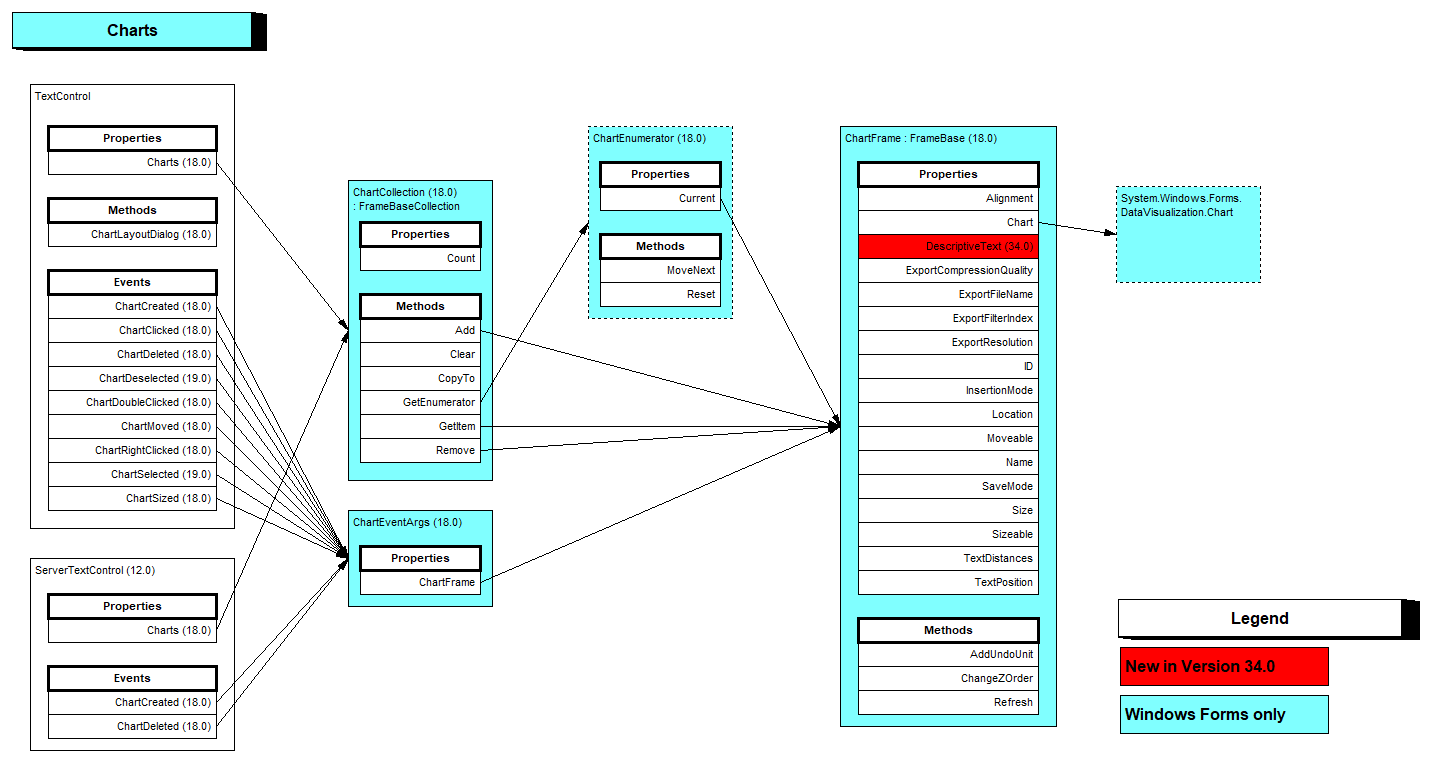
Charts in TX Text Control are chart controls of System.Windows.Forms.DataVisualization.Charting, and the editor support for them is part of the Windows Forms product. The WPF TextControl has no Charts collection, no chart dialog box and no chart events, and the WPF Insert tab has no Chart button. The class diagram of the chart classes marks them as Windows Forms only:
How Barcodes Work
A barcode in a document consists of two objects:
- A TXBarcodeControl of the
TXTextControl.WPF.Barcodenamespace holds the barcode type, the encoded text and the colors. It's a WPFFrameworkElement, and its colors areSystem.Windows.Media.Colorvalues. - A BarcodeFrame of
TXTextControl.DataVisualizationplaces it in the document, with a name, an ID, a size and a position like any other frame.
TextControl.Barcodes returns the BarcodeCollection of the main text. Barcodes are placed inline, anchored to a paragraph or at a fixed position, as Images describes. The TX Text Control format and RTF keep them as barcodes, while DOCX, PDF and the other formats contain an image of the barcode.
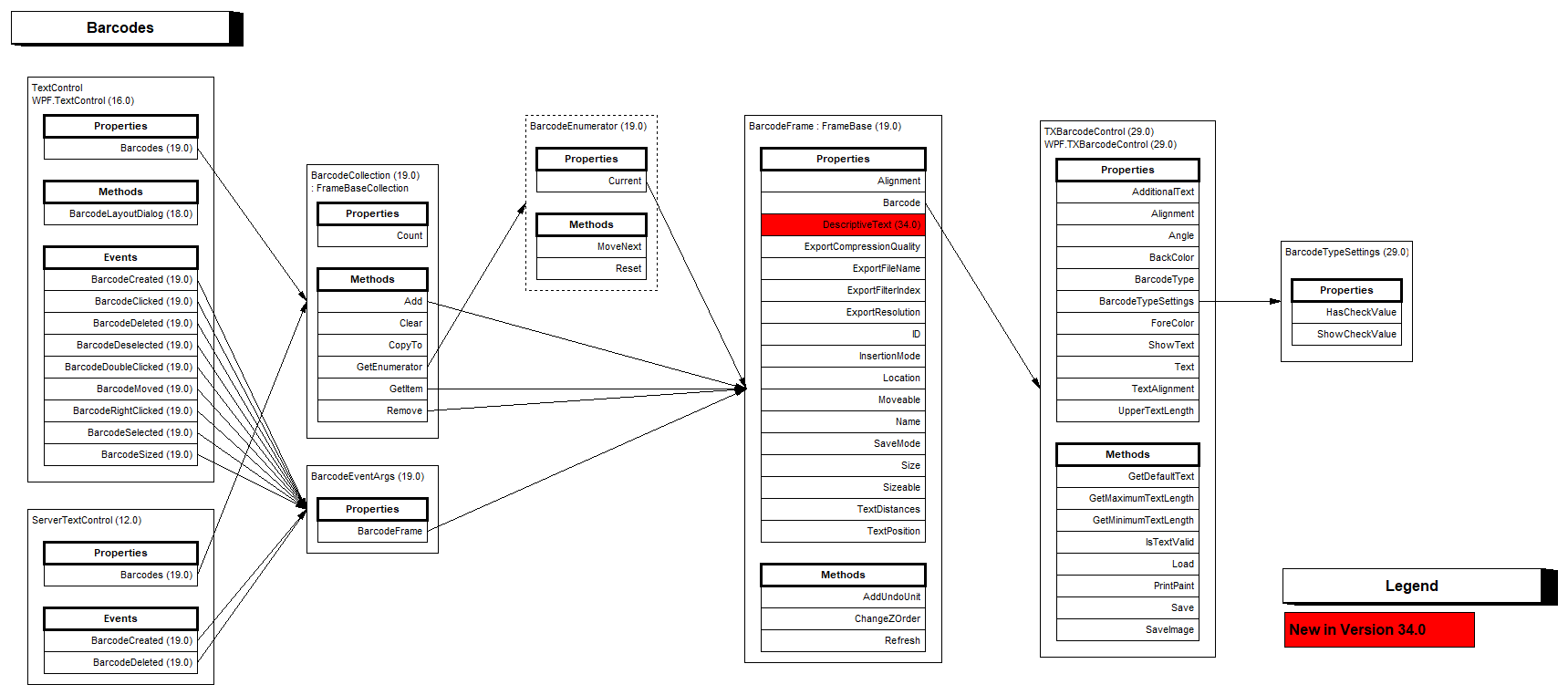
The package TXTextControl.TextControl.WPF.SDK contains the barcode assemblies TXBarcode.dll and TXBarcode.WPF.dll; Integrating WPF Barcodes and Drawings describes them.
Insert and Format Barcodes in the Ribbon
Barcode in the Illustrations group of the Insert tab, a RibbonInsertTab, lists the barcode types, such as QRCode, Code128, EAN13, Datamatrix and PDF417, and a click inserts one at the input position.
A selected barcode is changed on the Frame Formatting tab, a RibbonFrameLayoutTab. Besides Arrange, Size and Properties, it shows the Colors & Alignment group:
| Command | Changes |
|---|---|
| Foreground Color | The color of the bars or modules |
| Background Color, Transparency | The background and how transparent it is |
| Horizontal Alignment, Vertical Alignment | The position of the code inside its frame |
| Rotation | The angle of the barcode |
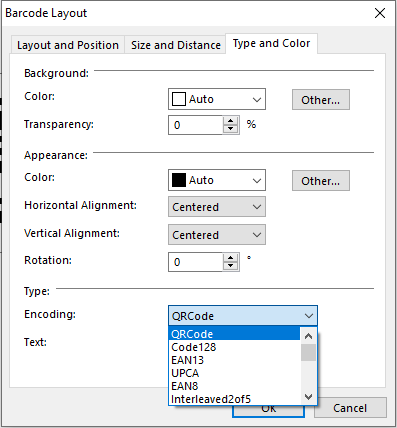
The barcode type and the encoded text are set in the barcode dialog box, which BarcodeLayoutDialog opens for a selected barcode. Its third tab holds the colors, type and text; the first two set text wrapping and layout, and size and distances.
Insert a Barcode From Code
The following handlers insert a dark blue QR code with a link and change the text of the selected barcode:
using System.Windows;
using System.Windows.Media;
using TXTextControl;
using TXTextControl.Barcode;
using TXTextControl.DataVisualization;
using TXTextControl.WPF.Barcode;

namespace SampleApp;

public partial class MainWindow : Window
{
    private void InsertQrCode_Click(object sender, RoutedEventArgs e)
    {
        const string portalLink = "https://www.textcontrol.com";

        // Set the type first: UpperTextLength and Text are checked against it
        TXBarcodeControl qrCode = new TXBarcodeControl();
        qrCode.BarcodeType = BarcodeType.QRCode;
        qrCode.UpperTextLength = portalLink.Length;
        qrCode.Text = portalLink;
        qrCode.ForeColor = Colors.DarkBlue;

        BarcodeFrame frame = new BarcodeFrame(qrCode)
        {
            Name = "portal-link",
            Size = new System.Drawing.Size(1440, 1440) // 1 x 1 inch in twips
        };

        // Inline, like a single character, at the input position
        textControl1.Barcodes.Add(frame, -1);
    }

    private void ChangeBarcode(string text)
    {
        // The barcode the user has selected, or null
        BarcodeFrame frame = textControl1.Barcodes.GetItem();

        if (frame != null)
        {
            TXBarcodeControl barcode = (TXBarcodeControl)frame.Barcode;
            barcode.Text = text;

            // Changes to the barcode are shown after Refresh
            frame.Refresh();
        }
    }
}
The code works as follows:
- BarcodeType is shared with Windows Forms and comes from
TXTextControl.Barcode; its 20 values include the two-dimensional codesQRCode,Datamatrix,PDF417,MicroPDF,AztecCodeandMaxicode, barcodes such asCode128,Code39,EAN13andUPCA, and the postal zip code barcodesIntelligentMailandPostnet. The reference page says what each type encodes. - UpperTextLength limits the number of characters and Text is the encoded text. Both throw an
ArgumentExceptionfor values the barcode type doesn't accept, which is why the type is set first. - ForeColor takes a WPF color, here
Colors.DarkBlueofSystem.Windows.Media. ShowText prints the text of a one-dimensional barcode with it. - The BarcodeFrame constructor takes the barcode control. The frame's
Sizeis aSystem.Drawing.Sizein twips, here 1 × 1 inch. - BarcodeCollection.Add with
-1inserts the barcode inline at the input position. The overload with only a FrameInsertionMode lets the user draw it with the mouse. - BarcodeCollection.GetItem without a parameter returns the selected barcode, or
null. BarcodeFrame.Barcode is its control, and changes appear after Refresh.
The static IsTextValid checks text from a user before you assign it and returns an error message when the text doesn't fit the barcode type. BarcodeDoubleClicked and the other barcode events are declared on the WPF:TextControl element in XAML; see Events. The blog article Enhancing Documents with QR Codes and Barcodes in .NET C#: A Comprehensive Guide shows barcode types and templates with barcodes.
Next Steps
- Images: position frames and choose the text flow.
- Text Frames and Shapes: text boxes and drawings.
- Images and Barcodes: merge data into barcodes of a template.
- Charts and Barcodes: barcodes with
ServerTextControl.