
Exporting Interactive and Flattened Forms
A form that leaves your WPF application is either still a form or already a record. As an interactive PDF, it carries fields that the recipient fills in. As a flattened PDF, each field has been replaced by the text it showed, so the values can no longer be changed in a PDF reader: the right state for confirmations, signed contracts and archived applications. You decide at the time of saving, for all fields or for some.
The examples work with the form of Create a PDF Form in textControl1, with the form fields name, country and newsletter.
Interactive or Flattened
| Interactive form | Flattened form | |
|---|---|---|
| In the PDF | AcroForm fields with names and values | Text, check box characters and dates where the fields were |
| Users can | Fill in and change the values in a PDF reader | Read and print the document |
| Your code can | Read the values with Forms.GetAcroFormFields | Only extract text, as Text Extraction describes |
| Typical use | Forms sent out to be filled in | Confirmations, contracts and archived forms |
Flattening removes a form field and leaves the text it displayed:
| Form field | Text that remains |
|---|---|
| TextFormField | The entered text |
| SelectionFormField | The text of the selected item |
| DateFormField | The date as the field displays it, formatted with its DateFormat |
| CheckFormField | The character for the state of the check box, set with CheckedCharacter and UncheckedCharacter |
Read the values first, as Reading Form Fields and Values describes, because a flattened PDF has no fields to read. Signature fields aren't form fields: a SignatureField stays where it is.
Save a Fillable Form
StreamType.AdobePDF always saves form fields as fillable fields. A master password with permissions restricts readers to filling in and printing:
private void SaveFillableFormButton_Click(object sender, RoutedEventArgs e)
{
    SaveSettings saveSettings = new SaveSettings()
    {
        MasterPassword = "owner1234",

        // Fill in the fields and print, nothing else
        DocumentAccessPermissions = DocumentAccessPermissions.AllowAuthoringFields |
                                    DocumentAccessPermissions.AllowHighLevelPrinting
    };

    textControl1.Save("form.pdf", StreamType.AdobePDF, saveSettings);
}
With DocumentAccessPermissions, AllowAuthoringFields allows filling in existing form fields and AllowHighLevelPrinting printing. The permissions take effect only with a MasterPassword, and without a user password, everyone can open the form. Passwords and Access Permissions lists all permissions.
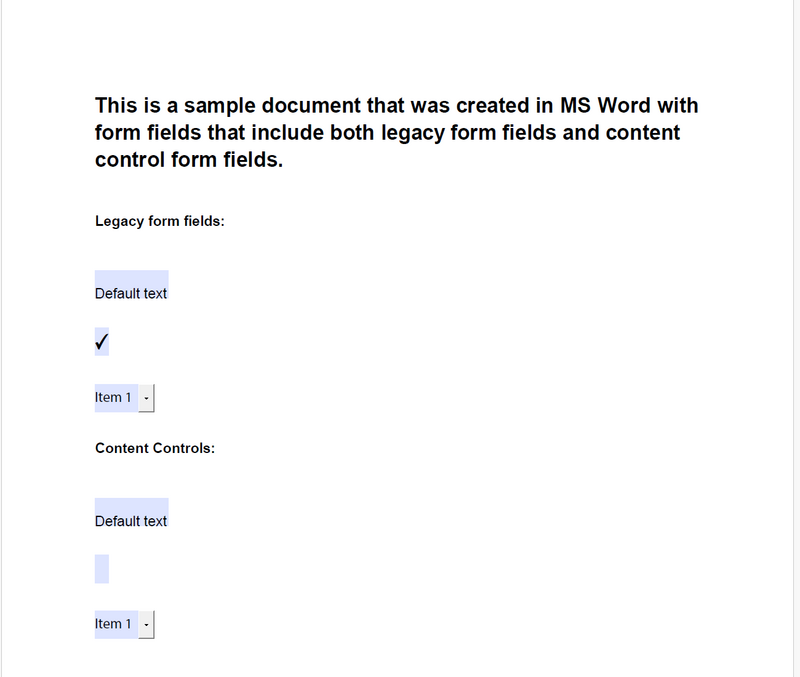
Adobe Acrobat Reader highlights the fields of an interactive form:
Save a Flattened Copy
The user can keep working with the form in the window while a flattened copy is saved from a ServerTextControl:
private void SaveFlattenedFormButton_Click(object sender, RoutedEventArgs e)
{
    // A copy of the form in the editor, which keeps its form fields
    byte[] document;
    textControl1.Save(out document, BinaryStreamType.InternalUnicodeFormat);

    using (ServerTextControl tx = new ServerTextControl())
    {
        // Initialize the new instance before using it
        tx.Create();
        tx.Load(document, BinaryStreamType.InternalUnicodeFormat);

        // The main text, headers, footers and text frames
        foreach (IFormattedText textPart in tx.TextParts)
        {
            // true: the fields are removed, their text stays
            textPart.GetTextFields(TextFieldType.FormFields).Clear(true);
        }

        tx.Save("form-flattened.pdf", StreamType.AdobePDF);
    }
}
The code works as follows:
- ServerTextControl.TextParts covers the main text, headers, footers and text frames.
- IFormattedText.GetTextFields returns the fields of the TextFieldType values you pass, as a TextFieldCollection.
FormFieldsstands for all form field types; values such asTextFieldType.CheckFormField | TextFieldType.DateFormFieldselect single types. - TextFieldCollection.Clear with
trueremoves the fields and keeps their text. FormFieldCollection.Clear has no such parameter.
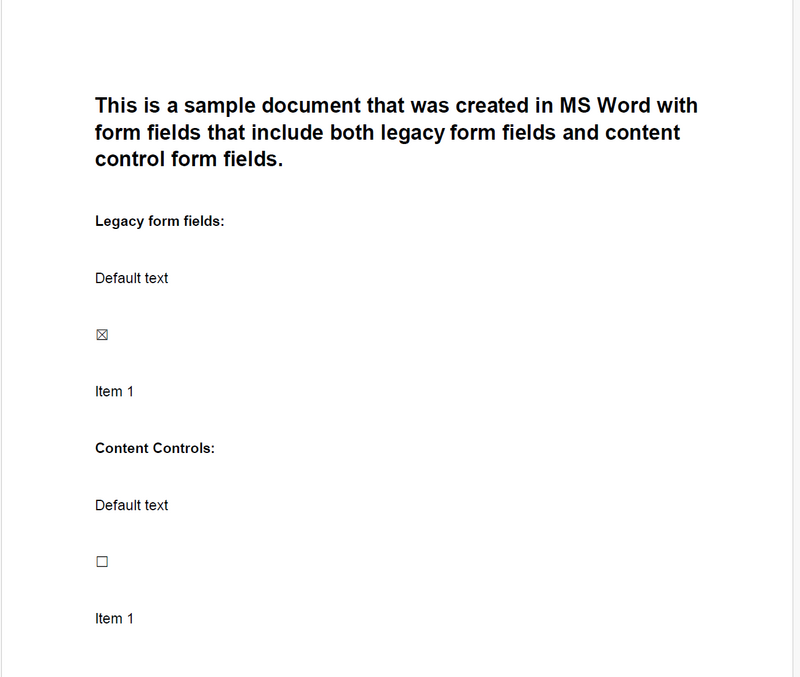
Flattened, the form shows its values as plain text:
Flatten Some Fields and Keep Others
Fields your application has filled can be fixed, while the fields the recipient must fill in stay interactive. The following handler flattens every form field in textControl1 except newsletter, so the user sees the result in the window:
private void FlattenSomeFieldsButton_Click(object sender, RoutedEventArgs e)
{
    foreach (IFormattedText textPart in textControl1.TextParts)
    {
        TextFieldCollection formFields = textPart.GetTextFields(TextFieldType.FormFields);

        // Collect first: removing a field changes the collection
        List<TextField> flatten = new List<TextField>();

        foreach (TextField field in formFields)
        {
            if (field.Name != "newsletter")
            {
                flatten.Add(field);
            }
        }

        foreach (TextField field in flatten)
        {
            formFields.Remove(field, true);
        }
    }

    textControl1.Save("form-partly-flattened.pdf", StreamType.AdobePDF);
}
The handler needs using System.Collections.Generic;. TextFieldCollection.Remove with true removes a field and keeps its text; with one parameter, the text is deleted, too. Reload the form to get its fields back.
Flatten While Merging Data
When a form is final as soon as data is merged into it, MailMerge.FormFieldMergeType Replace fills and flattens in one step:
private void MergeAndFlattenButton_Click(object sender, RoutedEventArgs e)
{
    textControl1.Load("form.tx", StreamType.InternalUnicodeFormat);

    using (MailMerge mailMerge = new MailMerge()
    {
        TextComponent = textControl1,

        // Fill the form fields and replace them with their values
        FormFieldMergeType = FormFieldMergeType.Replace
    })
    {
        mailMerge.MergeJsonData(File.ReadAllText("registration.json"));
    }

    textControl1.Save("registration-final.pdf", StreamType.AdobePDF);
}
The handler needs using System.IO; and using TXTextControl.DocumentServer;. Replace replaces the form fields with the values of the data, and empty form fields are removed according to RemoveEmptyFields. Preselect fills the fields and keeps them interactive, and None, the default, leaves them alone.
Flatten Before Signing and Archiving
- Signing. A digital signature covers the document as it is saved. Flatten first and then save with SaveSettings.DigitalSignature, so that the signature covers the final values, as Signing PDF Documents describes.
- Archiving. Saved with
StreamType.AdobePDFA, a flattened form is a PDF/A document with fixed values; see PDF/A.
The blog article Convert MS Word DOCX to PDF with Form Fields in C# .NET: Preserve or Flatten Form Fields converts a Word form both ways.
Next Steps
- Reading Form Fields and Values: read the values before you flatten.
- PDF/A: archive flattened forms.
- Digital Signatures: sign the final document.